Treating Your Dotfiles Like Production Code
Imagine your laptop dies today. Not a backup failure, the hardware is just gone.
Treating Your Dotfiles Like Production Code
Imagine your laptop dies today. Not a backup failure, the hardware is just gone.
How long does it take to get back to a productive development environment?
For most developers the honest answer is: days. Not because reinstalling macOS takes long, but because the accumulated configuration — the git aliases you’ve refined over years, the terminal theme that’s easy on your eyes at midnight, the shell that shows your current git branch on every prompt line, the trackpad setting that makes tap-to-click work — lives nowhere except that machine. It exists as muscle memory, not as something reproducible.
A dotfiles repo is the answer to this problem. But most dotfiles repos solve the immediate problem (a place to put the files) without solving the underlying one (a system that actually restores your environment reliably). After years of maintaining my own, I rewrote it with the same engineering discipline I apply to production systems. Here’s the architecture I ended up with — and more importantly, why.
The Problem With Most Dotfiles Repos
A typical dotfiles repo starts the same way: create a repository, dump your .zshrc and .gitconfig into it, write a quick copy loop, and call it done. This works — until you’re staring at a fresh machine at 11pm trying to run it.
The common failure modes:
- No separation of concerns: Everything lives at the repo root. Config files sit next to install scripts sit next to README notes. There’s no mental model for what the repo even contains.
- Scripts that aren’t repeatable: An install script written once for a fresh machine often can’t be run a second time — it fails trying to create something that already exists, or silently overwrites a file you’ve since customised. “Works on a new machine” is not the same as “safe to run anytime.”
- Undocumented assumptions: Why does this path get symlinked but that one gets copied? Why is Homebrew initialised here and the shell framework over there? The repo encodes decisions that were obvious when they were made but are invisible in the code.
- No blast radius isolation: A change to your macOS system defaults shouldn’t require you to reason about your SSH config. When everything is mixed together, changes carry hidden risks.
The goal is a repo you can clone on a new machine and run once — and maintain confidently for years.
Design Principles
Before touching directory structure, it’s worth naming the principles the architecture should serve.
- Configuration as code: Every preference, alias, and system setting should live in the repo and nowhere else. Not buried in System Preferences. Not in a manual step buried in the README. If it can’t be committed, it doesn’t belong to the system.
- Explicit over clever: No custom CLI, no templating engine, no dotfile framework. A plain shell script and a Makefile are readable in five years; a custom abstraction layer may not be. The simplest thing that works is usually correct here.
- Idempotent by default: Every script must be safe to run on a machine that’s already configured. Running the deploy a second time should be a no-op — not an error, not a destructive overwrite. This makes the system trustworthy enough to actually run when you need it.
- Clear separation of responsibilities: Configuration files, automation scripts, OS-level settings, and package declarations are different categoriesof thing. They should live in different places, change for different reasons, and fail independently of each other.
Repository Architecture
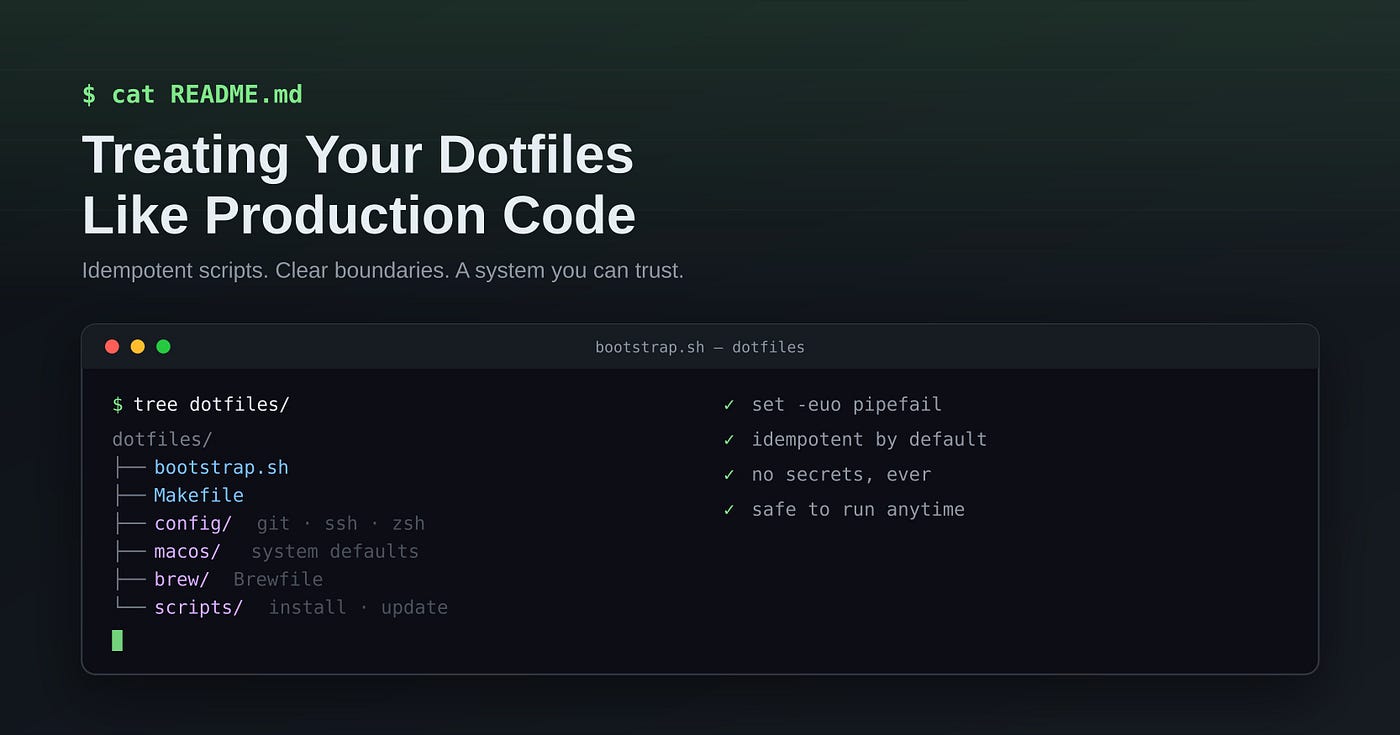
Here’s the directory structure:
dotfiles/
├── bootstrap.sh # deploy: symlinks config/ into ~
├── Makefile # entry points: install, deploy, update, macos
├── config/ # dotfile sources, one directory per tool
│ ├── git/
│ ├── ssh/
│ └── zsh/
├── brew/ # Brewfile — package declarations
├── macos/ # system defaults scripts
├── scripts/ # install.sh, update.sh, bootstrap-deps.sh
├── shell/ # shared shell helpers
└── docs/ # architecture notes
Each directory has a single, clear responsibility. Here’s the reasoning behind
each boundary.

## The .zshrc file and the custom/ directory

The shell config is where most day-to-day customisation accumulates, and where most dotfiles repos start to collapse under their own weight. The approach here applies the same separation principle at a smaller scale: a lean `.zshrc` that handles the shell framework and keybindings, and a `custom/` directory where each tool gets its own file.

Here’s the actual `.zshrc`:
config/zsh/.zshrc
export ZSH=”$HOME/.oh-my-zsh”
ZSH_THEME=”cloud”
plugins=(zsh-autosuggestions web-search sudo jsontools)
source $ZSH/oh-my-zsh.sh autoload -U +X bashcompinit && bashcompinit
complete -o nospace -C /opt/homebrew/bin/terraform terraform
bindkey -e bindkey ‘\e\e[C’ forward-word bindkey ‘\e\e[D’ backward-word
This file stays minimal on purpose. It declares the theme, the set of
oh-my-zsh plugins in use, enables bash completion compatibility (required for Terraform’s tab completion), and configures the two keybindings that make option-left/right move by word in the terminal. Nothing else.

Everything tool-specific lives in `custom/`. oh-my-zsh automatically sources any `.zsh` file it finds in `$ZSH_CUSTOM`, which defaults to
`~/.oh-my-zsh/custom`. The bootstrap script symlinks `config/zsh/custom/` to
that location, so these files are picked up without any explicit `source`
statement in `.zshrc`.

Each file handles exactly one tool:
config/zsh/custom/fnm.zsh
use fnm (Fast Node Manager) automatically in terminal session
eval “$(fnm env — use-on-cd)”
config/zsh/custom/gcloud.zsh
source “$(brew — prefix)/share/google-cloud-sdk/path.zsh.inc” source “$(brew — prefix)/share/google-cloud-sdk/completion.zsh.inc”
# config/zsh/custom/zsh-completions.zsh
if type brew &>/dev/null; then
 FPATH=$(brew — prefix)/share/zsh-completions:$FPATH

autoload -Uz compinit
 compinit
fi
The benefit of this layout becomes obvious when something changes. If you stop using Google Cloud tools, you delete gcloud.zsh — no editing .zshrc, no hunting for the right line to remove. If you add a new tool that needs shell integration, you add a new file. Each file can be read, understood, and changed without touching anything else. The blast radius is as small as it can possibly be.
config/ — Configuration sources
This is where the dotfiles actually live, organised by tool. config/git/
holds .gitconfig and the global .gitignore. config/zsh/ holds .zshrc
and a custom/ subdirectory for shell plugins. config/ssh/ holds the SSH
client config.
To make this concrete, here’s what a few of these files look like:
# config/git/.gitconfig (illustrative)
[alias]
 st = status
 co = checkout
 lg = log — oneline — graph — all — decorate
[core]
 editor = code — wait
 excludesFile = ~/.gitignore
[pull]
 rebase = true
[push]
 autoSetupRemote = true
config/ssh/config
Host * AddKeysToAgent yes UseKeychain yes IdentityFile ~/.ssh/id_ed25519
These four lines in the SSH config are the kind of thing you forget you ever
set — until SSH fails mysteriously on a new machine and you spend twenty minutes debugging why your key isn’t being picked up.

**The key deployment decision:** these files are **symlinked into `~`**, not copied. `~/.gitconfig` is a symlink pointing to `config/git/.gitconfig` in the repo. The repo file is the live file — there’s no sync step, no drift, no “did I
remember to copy this back?” Edits take effect immediately; the commit loop is direct.

Organising by tool rather than dumping everything at the root makes the
structure self-documenting. You don’t have to remember which files belong to git, they’re in `config/git/`.

## scripts/ — Automation

Scripts are kept separate from configuration because they have a different
nature: they execute things, not describe things. `install.sh` sets up a fresh
machine end to end. `update.sh` handles package updates. `bootstrap-deps.sh` installs Homebrew and the shell framework before anything else can run.

Separating scripts from config means you can read a config file without
wondering whether it does anything when opened, and you can read a script without it being interleaved with static content.

## `macos/` — System defaults

macOS exposes hundreds of preferences through a command-line interface called `defaults`. Most of them aren’t surfaced anywhere in System Settings — they’re just undocumented knobs that developers have discovered over the years. Others represent things the UI does expose, but that silently reset after a major OS update.

`macos/defaults.sh` captures all of them in one place:
macos/defaults.sh (illustrative)
Require password immediately after the screen locks
defaults write com.apple.screensaver askForPassword -int 1 defaults write com.apple.screensaver askForPasswordDelay -int 0
Save screenshots to a dedicated folder instead of cluttering the Desktop
defaults write com.apple.screencapture location -string “$HOME/Pictures/screenshots”
Show all file extensions in Finder (hidden by default, which hides .exe, .sh, etc.)
defaults write NSGlobalDomain AppleShowAllExtensions -bool true
Enable tap-to-click on the trackpad
defaults write com.apple.driver.AppleBluetoothMultitouch.trackpad Clicking -bool true
Enable full keyboard navigation (Tab through all UI controls, not just text fields)
defaults write NSGlobalDomain AppleKeyboardUIMode -int 3
These settings live in their own directory for a specific reason: they write to
system plists, some require sudo, most require a logout or restart to take
full effect, and some are non-trivial to reverse if you don’t know what you
changed.
Isolating them makes make macos a distinct, deliberate action — not something that happens silently inside make deploy. You can update a git alias without touching anything system-level. The blast radius is bounded.
brew/ — Package declarations
The Brewfile is a declarative list of everything installed: Homebrew formulae, GUI applications via Homebrew Cask, and Mac App Store apps via mas.
# brew/Brewfile (illustrative)
brew “git”
brew “jq”
brew “ripgrep”
cask “visual-studio-code”
cask “1password”
mas “Slack”, id: 803453959
Running brew bundle install from this file is reproducible and auditable. You can diff Brewfiles over time to see exactly what was added or removed. The package list is the source of truth, not the machine state.
shell/ and docs/
shell/ holds shared helpers that are sourced by the shell config but aren’t
user-facing commands — things like a function that adds a directory to $PATHonly if it exists, or a helper that checks whether a command is available before configuring it:
# shell/helpers.zsh (illustrative)
path_prepend() { [[ -d “$1” ]] && export PATH=”$1:$PATH”; }
has_cmd() { command -v “$1” &>/dev/null; }
Keeping these out of `config/zsh/` keeps the zsh config focused on zsh-specific settings rather than general utilities that could theoretically be reused.

`docs/` holds architecture notes and decisions. A repo this central to your
workflow deserves documentation that explains its own design.

> Future you opening this repo two years from now with no memory of why things are the way they are — will be grateful for it.

## Shell scripts in this repo are held to the same standards as application code.

Every script starts the same way:
!/usr/bin/env zsh
set -euo pipefail
- `set -e` exits immediately on error.
- `set -u` treats unset variables as errors.
- `set -o pipefail` fails a pipeline if any component fails. Without
these, a script can silently half-succeed — Homebrew installs but the symlinks fail, and you discover it only when something doesn’t work later.

Idempotency is enforced, not assumed. Consider deploying a config file.

✋ The naive approach:
Fragile: breaks on re-run, silently destroys customisations
cp config/git/.gitconfig ~/.gitconfig
👍 The safe approach:
deploy_symlink() { local src=”$1" target=”$2"
Already correct — nothing to do
if [[ -L “$target” && “$(readlink “$target”)” == “$src” ]]; then return fi
Real file exists — back it up before replacing
if [[ -e “$target” && ! -L “$target” ]]; then mv “$target” “${target}.backup” fi
ln -s "$src" "$target" echo "linked: $target" }
Re-running this produces the same result every time. If a real file exists at
the target it’s preserved as `.backup` before being replaced. If the symlink
is already correct, the function returns immediately. This is what “safe to
run anytime” actually means in practice.

**No secrets, ever:** API keys, tokens, and passwords are explicitly excluded.
If a script needs a credential, it reads from an environment variable or an
untracked local file — never from a committed file. Treat the git history as
readable regardless of whether the repository is public or private.

**Clear output over silent execution:** Every meaningful action is logged with
a consistent prefix. Not verbose — just enough to understand what happened without reading the source.

# Tradeoffs and Non-Goals

This architecture makes deliberate choices that leave things on the table.
- **No dotfile manager:** Tools like `chezmoi` or `stow` handle the symlink
mechanism for you, add templating for machine-specific variants, and provide features like secret management and cross-platform support. I chose plain shell scripts because I want to understand exactly what runs on my machine, and because a single-machine, single-platform setup doesn’t benefit enough from the additional abstraction to justify its cost. For a team setup or a multi-machine environment with meaningful variation between hosts, a proper manager is worth evaluating.
- **No cross-platform support:** This is a macOS repo. It uses macOS-specific paths, `defaults write` for system preferences, and Homebrew as the package manager. Supporting Linux would require platform detection throughout and conditional logic in every script. The payoff doesn’t exist for a single-platform use case, so it’s out of scope — explicitly.
- **No full declarative system:** Tools like Nix or home-manager can describe an entire system state in a single declarative specification, with stronger reproducibility guarantees. The tradeoff is a steeper learning curve, a heavier mental model, and a more involved debugging experience. This repo trades some formal guarantees for legibility and long-term maintainability by someone who already has other things to think about.

These are scope decisions, not gaps. The goal is a system one person can
understand, maintain, and trust — not a general-purpose solution to a
general-purpose problem.

# What “Maintainable for Years” Actually Means

The test of a dotfiles repo isn’t whether it works on a fresh machine the day
you write it. It’s whether it still works, and still makes sense, three years
later when you haven’t touched it and need it most.

That requires the same practices that make any codebase maintainable: clear structure, documented decisions, scripts that fail loudly and safely, and a firm scope boundary around what belongs here and what doesn’t.

The specific tools are incidental. The principles transfer to any setup. If you apply the same engineering rigour to your dotfiles that you apply to
production systems, you’ll have something you can actually rely on — and you’ll spend a lot less time rebuilding your environment when hardware eventually lets you down.
메타데이터
- post_id
- e33df4a0fbdb
- slug
- treating-your-dotfiles-like-production-code-e33df4a0fbdb
- url
- https://medium.com/@patrickvaler/treating-your-dotfiles-like-production-code-e33df4a0fbdb
- canonical_url
- https://medium.com/@patrickvaler/treating-your-dotfiles-like-production-code-e33df4a0fbdb
- author_url
- https://medium.com/@patrickvaler
- status
- ok
- fetched_at
- 2026-07-13 22:03:30