From Terminal to Desktop: Unlocking the Power of Ubuntu Server
Transform Your Server into a Workstation: A Step-by-Step Guide to Installing a GUI and Configuring a Multi-User Environment
From Terminal to Desktop: Unlocking the Power of Ubuntu Server
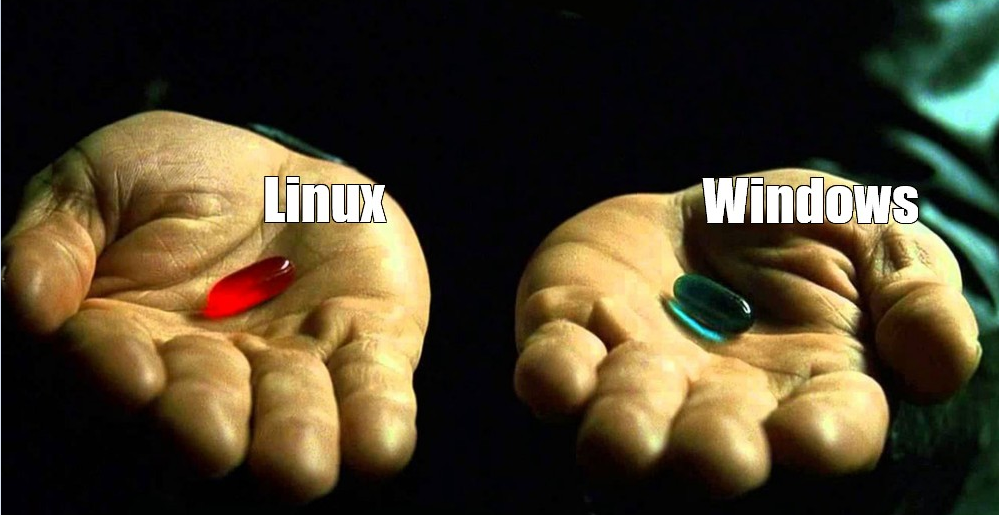
One who handles server (bare metal or virtual server), Linux is the top choice as operating system to be installed on it. Although you can choose the blue pill and go with Windows Server grade OS, you likely should use a free operating system for your Server.

A Popular meme
Advantage
Target Audience: Anyone who is a beginner or professional, who want to setup an ubuntu server.
Pre-requisite: I assume reader is familiar with computer OS, ISO files and has little experience of installing any operating system before.
Minimum Recommended System for ubuntu server:
- 100GB of ROM
- 4GB of RAM
- 2-core processor
Download the ubuntu server ISO from the Official website: https://ubuntu.com/server
Section 1: Installing Ubuntu Server
Section 3: Adding Users to your server
step 1: Switch to sudo user if you’re not in the sudoers list.
sudo su -step 2: Add new user
sudo adduser <your-user-name>step 3: Setup Password for the new User
sudo passwd <your-user-name>Section: Customization and Configuration
The default Gnome installation will have the minimal window tiling and basic features, to customize the look and function of your gnome desktop, you must install gnome tweaks.
use below command to install gnome-tweaks
sudo apt install gnome-tweaks메타데이터
- post_id
- e388bbd7f934
- slug
- from-terminal-to-desktop-unlocking-the-power-of-ubuntu-server-e388bbd7f934
- url
- https://medium.com/@deepaksy28/from-terminal-to-desktop-unlocking-the-power-of-ubuntu-server-e388bbd7f934
- canonical_url
- https://medium.com/@deepaksy28/from-terminal-to-desktop-unlocking-the-power-of-ubuntu-server-e388bbd7f934
- author_url
- https://medium.com/@deepaksy28
- status
- ok
- fetched_at
- 2026-06-09 15:37:30


