How I made Snowflake send me an email when it upgrades itself
There was a time when major database upgrades were planned over months : full backups with extended retention windows, and…
How I made Snowflake send me an email when it upgrades itself
There was a time when major database upgrades were planned over months : full backups with extended retention windows, and cross-functional teams on standby. The upgrade used to be done on weekends, with an 8–16 hour outage and detailed runbooks, all to ensure a clean Monday start.
During my Teradata years, I was part of several major upgrades, starting with V2R5 back in 2006. While I don’t miss troubleshooting Netbackup/Netvault backup failures, or sleepless weekends, I still value being informed when changes are pushed, especially in SaaS products like Snowflake where updates happen in the background.
If that wasn’t a good enough reason, if you’re a Snowflake platform owner, you might be responsible to comply with NYDFS’ enhanced governance requirements (https://www.dfs.ny.gov/industry_guidance/cybersecurity), one of which is to keep an updated asset record, including the database version.
So, if you don’t already have a version change alert in place, this article will walk you through building one for your Snowflake account.
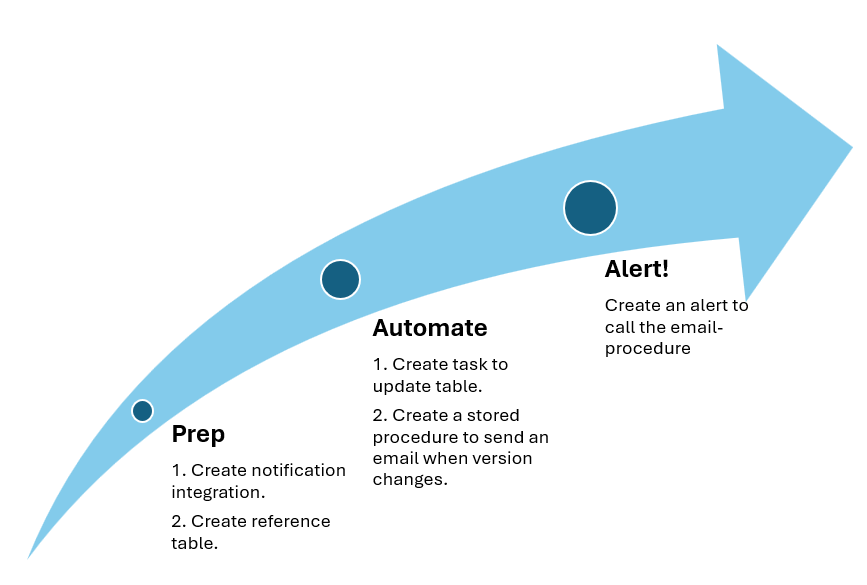
Step 1: Give yourself permission to listen (Grant “create alert” access to the admin role)
grant execute alert on account to role ADMIN_ROLE;Step 2: Set up the mailman (create notification integration)
CREATE OR REPLACE NOTIFICATION INTEGRATION ADMIN_EMAIL_NI
  TYPE=EMAIL
  ENABLED=TRUE;
Step 3: Build a memory (Create a table with current version details)
CREATE OR REPLACE TABLE VERSION_HISTORY (
  CHANGE_TIMESTAMP TIMESTAMP,
  VERSION VARCHAR(100),
  EMAIL_SENT_FLAG VARCHAR(1)
);
INSERT INTO VERSION_HISTORY
SELECT CURRENT_TIMESTAMP(), CURRENT_VERSION(), 'N';
Step 4: Automate the watching (Create a task to insert the value of current version as long as its not the latest version available in the table)
CREATE OR REPLACE TASK DAILY_VERSION_UPDATE
  SCHEDULE = 'USING CRON 0 * * * * EST'
AS
INSERT INTO VERSION_HISTORY
SELECT CURRENT_TIMESTAMP(), CURRENT_VERSION(), 'N'
WHERE CURRENT_VERSION() <> (SELECT VERSION FROM VERSION_HISTORY);

ALTER TASK DAILY_VERSION_UPDATE RESUME;Step 5: Teach It to Talk
Step 5: Teach it to talk (Create a procedure, which, when it finds a new version without an email sent, updates the flag and fires off a message to your inbox)
CREATE OR REPLACE PROCEDURE PROC_NEW_VERSION()
RETURNS VARCHAR NOT NULL
LANGUAGE SQL
AS
BEGIN
  update VERSION_HISTORY
  set email_sent_flag = 'Y'
  where email_sent_flag = 'N';

  CALL SYSTEM$SEND_EMAIL(
    'ADMIN_EMAIL_NI',
    '<your email>',
    'EMAIL ALERT: SNOWFLAKE VERSION HAS CHANGED.',
    'Snowflake version has changed. Check VERSION_HISTORY for details.'
  );
END;
Step 6: Hook up the alarm (Create an alert which sends an email to you through the proc you created in the last step)
CREATE OR REPLACE ALERT ALERT_NEW_VERSION
  WAREHOUSE = <YOUR WAREHOUSE>
  SCHEDULE = 'USING CRON 0 * * * * EST'
  IF (
    EXISTS (
      SELECT *
      FROM VERSION_HISTORY
      WHERE EMAIL_SENT_FLAG = 'N'
    )
  )
  THEN
    CALL PROC_NEW_VERSION();

ALTER ALERT ALERT_NEW_VERSION RESUME;
By implementing this automated alert system, you can:
- Maintain an audit trail of Snowflake version changes.
- Receive timely notifications when updates occur.
- Ensure compliance with regulations requiring up-to-date system information.
메타데이터
- post_id
- e4280bdf774d
- slug
- how-i-made-snowflake-send-me-an-email-when-it-upgrades-itself-e4280bdf774d
- url
- https://medium.com/@vivek24seven/how-i-made-snowflake-send-me-an-email-when-it-upgrades-itself-e4280bdf774d
- canonical_url
- https://medium.com/@vivek24seven/how-i-made-snowflake-send-me-an-email-when-it-upgrades-itself-e4280bdf774d
- author_url
- https://medium.com/@vivek24seven
- status
- ok
- fetched_at
- 2026-06-26 21:52:29



