Integrating AI with .NET Using the Official MCP C# SDK v1.0
From .NET Services to AI-Callable Tools — A Practical Guide
Integrating AI with .NET Using the Official MCP C# SDK v1.0
From .NET Services to AI-Callable Tools — A Practical Guide

AI is improving rapidly at answering questions, writing code and sparking new ideas. But in practical use, that’s just part of the picture. The true power lies in its ability to integrate seamlessly with the tools, services and workflows your application already depends on. The MCP C# SDK v1.0 provides that capability, built specifically for .NET, maintained by Microsoft, and designed to feel like a natural extension of the code you already write.
What MCP is and why it exists
MCP (Model Context Protocol) is a standard that helps AI applications connect to tools, services and data sources in a consistent way. It exists to reduce custom integration work and make it easier to connect AI with the systems your application already uses.

MCP flow in a .NET application
Notice the transport layer — this is where HTTP and stdio differ. Your choice here depends on whether you need a persistent networked server or a local development tool. Later in the blog we will explore this in detail.
How MCP Architecture Works
MCP follows a simple structure with three parts: host, client and server. The host is the app or interface the user interacts with. The client lives inside that app and manages the MCP connection. The server contains the tools, actions or data sources. The host sends the request, the client forwards it and the server performs the work and returns the result. This separation keeps the AI-facing part of the application clean while your core business logic stays in one place.
For .NET developers, MCP enables AI to move beyond generating responses and interact with real application behavior. Instead of exposing internal services, APIs and business logic through custom integrations, MCP allows AI to request capabilities while your application handles execution. This keeps your architecture intact and provides a consistent way to enable AI-driven workflows.
Just like USB-C reduced cable clutter, MCP reduces the need for custom integrations between AI models and applications.
If you’ve used OpenAI, Azure OpenAI or Semantic Kernel, MCP may look similar to Function Calling. The difference is scope: Function Calling is model-specific and requires separate integrations for each AI client, while MCP is a standard protocol. Expose your .NET capabilities once as MCP tools and any MCP-compatible host can discover and use them without additional integration work.

Comparison of MCP vs Function Calling
QUE: Why not just call my APIs directly? ANS: You can. But then you write a custom integration for every AI model you support — Claude needs one format, GPT needs another, future tools need another. MCP standardizes the connection once. Your .NET server stays the same regardless of which AI host connects to it.
QUE: What actually changes for the end user? ANS: Before MCP, users manually fill forms, select categories and track requests. With MCP, they simply describe the issue and the AI handles everything — creating the ticket, categorizing it and retrieving relevant information.
What You Get with the Official MCP C# SDK v1.0
The MCP C# SDK makes AI integration feel like a natural extension of your existing .NET application instead of a separate system.
Key Benefits
- Turn existing logic into AI tools
Expose your services and methods using simple attributes like
[McpServerTool] - No need for custom integrations Avoid building separate connectors for every AI use case
- Works with your current architecture Fits naturally with service layers, APIs and dependency injection
- Structured and consistent approach Define tools once and let AI clients discover and use them
- Supports multiple hosting styles Use stdio for local tools or HTTP for production scenarios
Setting Up the MCP C# SDK in a .NET Project
Step 1: Create the project and install the MCP package You can set up MCP in two ways depending on your starting point.
Option 1: Use the MCP Server Template (Recommended for new projects) If you’re starting fresh, the MCP Server App template is the quickest way to get started, as it sets up a minimal MCP server with the required configuration.

Built-in template provided by Microsoft for MCP Server App
Option 2: Add MCP to an Existing or Custom Project If you’re working with an existing .NET application or prefer full control, you can install the MCP SDK manually using NuGet packages.
The SDK is split into three packages:
- ModelContextProtocol — The main SDK and the right starting point for most projects. Includes the MCP server runtime, stdio transport support, and integration with
Microsoft.Extensions.Hostingand dependency injection. ReferencesModelContextProtocol.Core. - ModelContextProtocol.Core — The base layer. Use this only if you need low-level client or server APIs with minimal dependencies, such as building custom clients or servers.
- ModelContextProtocol.AspNetCore — Required when your MCP server runs as an ASP.NET Core web application and communicates over HTTP/SSE. Includes everything above plus HTTP transport — you do not need to install the other two separately.
Install the required packages using the .NET CLI:
dotnet add package ModelContextProtocol
dotnet add package Microsoft.Extensions.Hosting
# Optional — only if needed
dotnet add package ModelContextProtocol.AspNetCore
dotnet add package ModelContextProtocol.Core
The MCP C# SDK is officially maintained by Microsoft and distributed via NuGet. It targets .NET 8 and above, and both stdio and HTTP transports are included — no additional packages needed to switch between them.
Step 2: Configure MCP in Program.cs
using HelpDesk.McpServer.Data;
using HelpDesk.McpServer.Tools;

var builder = WebApplication.CreateBuilder(args);

builder.Services.AddSingleton<ITicketRepository, InMemoryTicketRepository>();
builder.Services.AddSingleton<KnowledgeBaseRepository>();

builder.Services.AddMcpServer()
    .WithHttpTransport(options => { options.Stateless = true; })
    .WithToolsFromAssembly(typeof(TicketTools).Assembly); //

var app = builder.Build();

app.MapMcp(); //MapMcp() maps the MCP endpoint to the root / path.

app.Run();
Your MCP server is now set up, but it still needs tools before an AI can actually use it. Next, we’ll connect it to real application logic.
QUE: How MCP Finds Your Tools?
ANS: Because you configured .WithToolsFromAssembly() in Program.cs, the SDK scans your assembly at startup and registers every method marked with [McpServerTool] inside a class marked with [McpServerToolType]. Both attributes are required — neither works without the other.
No manual registration. No tool list to maintain. Add a new method with the right attributes and it is automatically available to any AI host that connects.
QUE: Dependency Injection in Tools
ANS: Your tool methods receive services the same way controllers or minimal API handlers do — through DI. Register your services in Program.cs and the SDK injects them automatically
How AI Decides Which Tool to Call Tool discovery tells the AI what tools exist. Tool selection is how it decides which one to invoke for a given user request. The AI makes that decision based on mainly these things:
- Tool name — should be specific and action-oriented.
CreateTicketis clear;ProcessDatais not - Description — the
[Description("...")]attribute is what the AI reads to understand the tool's purpose. Treat it like documentation, not a label. - Parameters — parameter names and types signal what the tool expects.
TicketCategory categorytells the AI more thanstring input - Return schema — a structured return type gives the AI predictable output to reason about and present to the user
This is why two tools with identical logic but different names and descriptions will behave differently in practice. The AI isn’t reading your code ; it’s reading the metadata you attach to it. Investing a few extra seconds in a clear name and a precise description directly improves how reliably the AI selects and uses your tools.
Creating MCP Tools in .NET
In simple terms, MCP tool is just a method that your application exposes so an AI system can call it when needed.
Defining Your First MCP Tool
Let’s start with a simple example. We are taking an example of Helpdesk Ticket Manager using MCP. Suppose you want to expose a method that creates a ticket.
using System.ComponentModel;
using HelpDesk.McpServer.Data;
using HelpDesk.McpServer.Models;
using ModelContextProtocol.Server;

namespace HelpDesk.McpServer.Tools;

[McpServerToolType]
public static class TicketTools
{
    [McpServerTool(Name = "CreateTicket")]
    [Description("Creates a new IT helpdesk support ticket")]
    public static async Task<ToolResponse<CreateTicketResult>> CreateTicket(
      ITicketRepository repo,
      string title,
      string description,
      string createdBy,
      TicketCategory category,
      TicketPriority priority)
    {
        var ticket = new Ticket
      {
        Id = Guid.NewGuid().ToString(),
        Title = title,
        Description = description,
        CreatedBy = createdBy,
        Category = category,
        Priority = priority,
        Status = TicketStatus.Open,
        CreatedAt = DateTime.UtcNow
      };

      await repo.CreateAsync(ticket);

      return new ToolResponse<CreateTicketResult>
      {
        Success = true,
        Data = new CreateTicketResult
        {
          TicketId = ticket.Id,
          Title = ticket.Title,
          Category = ticket.Category.ToString(),
          Priority = ticket.Priority.ToString(),
          Status = ticket.Status.ToString(),
          CreatedAt = ticket.CreatedAt.ToString("u")
        }
      };
    }
}
namespace HelpDesk.McpServer.Models;
public class ToolResponse<T>
{
public bool Success { get; set; }
public T? Data { get; set; }
public string? Error { get; set; }
}
public class CreateTicketResult
{
public string TicketId { get; set; } = string.Empty;
public string Title { get; set; } = string.Empty;
public string Category { get; set; } = string.Empty;
public string Priority { get; set; } = string.Empty;
public string Status { get; set; } = string.Empty;
public string CreatedAt { get; set; } = string.Empty;
}What’s Happening Here
**[McpServerToolType]** — tells the SDK this class contains MCP tools. Without this,WithToolsFromAssembly()will not discover any tools inside it, even if they have[McpServerTool]**[McpServerTool(Name = "CreateTicket")]** —registers this method as a callable tool and sets the exact name the AI will use to invoke it**ITicketRepository repo** as first parameter — the MCP SDK integrates with .NET's dependency injection. Services registered inProgram.csare automatically injected into tool methods. You do not instantiate them manually.**async Task<ToolResponse<CreateTicketResult>>** — all tools should be async. Tool calls are I/O operations and blocking them defeats the purpose of a responsive server. Returning a typed DTO instead of a plain string gives the AI a consistent structure across all tools**ToolResponse<T>**— wraps every tool response with aSuccessflag, aDatapayload, and anErrormessage. The AI uses this structure to determine whether the operation succeeded and what to surface to the user.
Validation and Error Handling
Since AI constructs tool arguments from natural language, inputs won’t always arrive in the format your code expects. The CreateTicket tool validates each required field — title, description and createdBy — before any business logic runs and enforces basic rules such as minimum title length. If a required value is missing or invalid, the tool returns Success: false with a descriptive error message rather than throwing an exception. The AI receives this signal and responds accordingly — either asking the user for the missing information or surfacing the failure cleanly. Wrapping the core logic in exception handling ensures that any unexpected runtime errors are also caught and returned in the same structured format, keeping the AI's experience consistent regardless of what goes wrong.
Connect your MCP server to GitHub Copilot in Visual Studio
- Open GitHub Copilot Chat
- Click the Tools / Toolbox icon
- Click ‘+’ icon to Add MCP Server
- Select your running MCP server
- Ensure it appears in the active tools list
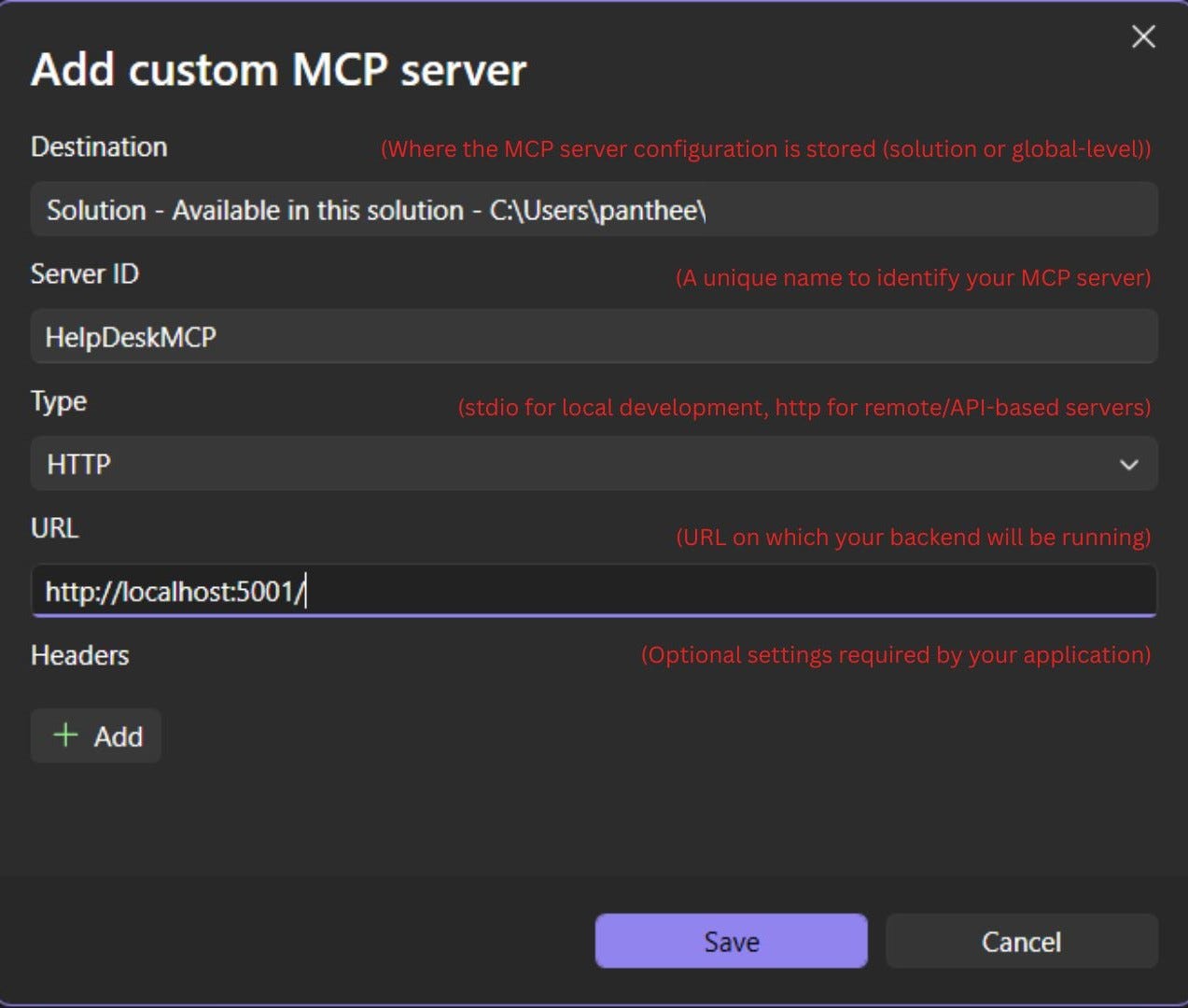
Initializing MCP in Visual Studio
Once connected, Copilot can discover and call your tools automatically and you can have full list of methods which you have defined using [McpServerTool]. You do not write any client code — the AI host handles tool discovery, decides which tools to call based on user intent and presents results naturally.

TIP: Using stdio instead of HTTP? Switch
WithHttpTransport()toWithStdioServerTransport()in Program.cs. Then configure Copilot with Type: stdio and Command:dotnet run --project "path\to\HelpDesk.McpServer". Copilot manages the server process automatically. Tools work identically — only the transport changes.
Both stdio and HTTP transports are fully supported, but the right choice depends on your deployment context. Use this as a quick reference:

Key MCP SDK Components at a Glance
The MCP C# SDK uses attributes and configuration to expose your application’s functionality to AI systems. Even a basic setup works, but knowing the key components helps you structure it better.
Attributes
[McpServerToolType]— marks a class so the SDK can discover it during assembly scanning[McpServerTool]— marks a method as an MCP tool that AI can invoke[Description("...")]— explains what the tool does; AI uses this to decide when to call it
**[McpServerTool] properties**
Name— overrides the default tool name exposed to the AITitle— a human-friendly display nameOpenWorld— indicates the tool works with dynamic or external dataDestructive— signals the tool modifies or deletes dataReadOnly— signals the tool only reads data, no side effectsIconSource— allows associating a visual icon with each tool for client display
Transport registration (in Program.cs)
.WithStdioServerTransport()— for local/CLI-based communication.WithHttpTransport()— for HTTP-based communication
Tool discovery (in Program.cs)
.WithToolsFromAssembly()— scans the assembly and registers all classes marked with[McpServerToolType]
Where MCP Fits in Real Projects
MCP shines when AI needs to work with your existing .NET services rather than just generating text. Here are practical scenarios where it delivers real value:
Perfect use cases:
- Internal tools — Helpdesk ticket lookup, IT support queries
- Service automation — Order status, inventory checks, shipment tracking
- Data lookups — Customer records, reports, database queries
- Workflow triggers — Deployments, notifications, approval flows
- DevOps tasks — Build status, CI/CD monitoring, repo info
QUE: Is MCP only useful for data access? ANS: No. Data retrieval is the simplest pattern. MCP also enables actions (creating, updating, triggering workflows), knowledge retrieval (searching unstructured content), system integrations (wrapping third-party APIs), and orchestration (chaining multiple tools based on user intent). The HelpDesk Practical covers four of these patterns in one scenario.
What v1.0 makes better:
- Incremental scope consent — The AI client starts with the minimum permissions needed and requests additional access only when a specific operation requires it. This follows the principle of least privilege — your server stays secure by default without manually managing permission scopes per tool.
- Richer tool metadata — Tools, resources and prompts can now carry icons, titles and descriptions. This helps the AI select the right tool in the right context, especially when multiple tools are available. Clear metadata reduces incorrect tool invocations and makes your server easier to use from any AI host.
- Authentication support for HTTP transport — V1.0 ships with built-in OAuth 2.0 support for HTTP-hosted servers. This includes authorization server discovery, JWT token validation and incremental scope handling — everything needed to secure a production MCP server without building your own auth layer.
- Long-running requests and progress tracking over HTTP — This is the most significant addition for production use. Previously, long operations risked HTTP timeouts with no recovery path. V1.0 solves this with an SSE-based polling model — the server sends an initial event with an ID and closes the connection. The client reconnects using that ID to check progress and retrieve the result when ready. No held connections, no lost results.
- Tasks — durable state tracking (experimental) Built on top of HTTP polling, tasks add persistent tracking for operations that run in the background. The client gets a task ID immediately and can check status, retrieve results, or cancel the operation at any point — even if the original connection dropped. This maps naturally to existing .NET patterns like background services, batch jobs or anything returning
Task<T>.
V1.0 also introduces advanced capabilities including tool calling in sampling and URL mode elicitation — features worth exploring once your first MCP server is running.
When to skip MCP:
- Simple chat responses
- One-off API calls (use REST directly)
- Pure text generation apps
- No existing business logic
The pattern: Your .NET app keeps the real logic. MCP just gives AI a clean, secure way to access it. Start small — expose one service, see what AI can do with it.
Using MCP Safely in Production
MCP makes it easy to expose your application’s logic to AI. That openness is also what makes it worth thinking about carefully before you deploy.
Define clear tool boundaries Each tool should do one thing and expose only what the AI actually needs. Avoid creating broad tools that return entire records or datasets when only a specific field is required. The more focused your tools are, the less surface area there is for unintended behaviour.
Never put secrets inside tool responses If your tool calls an internal service that returns sensitive data, filter that data before returning it. Connection strings, API keys, tokens, and internal identifiers should never pass through a tool response — even if the AI is unlikely to surface them directly.
Use OAuth for HTTP-hosted servers When your MCP server runs over HTTP, treat it like any other protected API. V1.0 ships with built-in OAuth 2.0 support including authorization server discovery and JWT token validation. Use it. An unprotected HTTP MCP endpoint is an open door to your business logic.
Apply the principle of least privilege Use ReadOnly = true on tools that only read data and Destructive = true on tools that modify or delete it. These signals help the AI host and your own middleware make better decisions about when and how tools are invoked.
Skipping the input validations Without validation, a missing or malformed value from the AI passes directly into your service layer. The result is either an unhandled exception or silent incorrect behavior — neither of which gives the AI anything useful to work with.
Log tool invocations Treat MCP tool calls like API requests. Log what was called, with what parameters, and what was returned. This is essential for debugging unexpected AI behaviour and for auditing in regulated environments.
Common MCP Pitfalls to Avoid
These mistakes are easy to make when you’re first building MCP tools and harder to undo once your server is in use.
Returning large datasets unnecessarily A tool that returns an entire list of tickets when the AI only needed one creates noise in the response and increases token usage. Return only what the AI needs to answer the user’s question — filter, paginate, or summarize at the tool level.
Exposing database entities directly Returning your EF Core entities or database models as tool responses leaks your internal schema to the AI. Map to a dedicated response DTO instead. It gives you control over what gets exposed and makes future schema changes easier to manage without breaking tool contracts.
Creating overly generic tools
A tool named ManageTicket that handles create, update and delete based on a string parameter forces the AI to guess intent. Separate tools with clear, specific names let the AI select the right one confidently. Specificity in tool design directly improves selection accuracy.
Skipping input validation AI constructs tool arguments from natural language, which means inputs won’t always arrive in the format your code expects. Treat every parameter the way you’d treat form input from a web page — validate before passing it to your services.
Embedding business logic inside tool classes
Tool classes should be thin. They receive input, call a service, and return a result. If your [McpServerTool] method contains conditional logic, database calls, or calculations, that logic is now invisible to the rest of your application and impossible to unit test cleanly. Keep your services as the source of truth and let tools be the bridge.
Practical Example: HelpDesk Ticket Manager
The HelpDesk POC is a working .NET 10 solution that exposes a ticket management system as an MCP server. It demonstrates seven MCP tools covering the full range of helpdesk operations — creating tickets, checking status, searching a knowledge base, categorizing, escalating, and updating. The client simulates how an AI host discovers and invokes these tools.
This repository contains the full .NET MCP server and client implementation used in this example, including all tools, data models and integration setup.
HelpDeskMcp/
├── HelpDesk.McpServer/      ← ASP.NET Core MCP Server
│   ├── Models/              ← Ticket, enums, KnowledgeBaseArticle
│   ├── Data/                ← ITicketRepository, InMemoryTicketRepository,
│   │                             KnowledgeBaseRepository
│   ├── Tools/               ← TicketTools.cs (MCP tools)
│   └── Program.cs           ← MCP registration + HTTP transport
│
└── HelpDesk.McpClient/      ← Console App MCP Client
    └── Program.cs           ← Interactive menu, SseClientTransport
Moving Beyond In-Memory Storage: This POC uses in-memory storage — data resets on restart. In production, replace InMemoryTicketRepository with an EF Core implementation. Because all tools depend on ITicketRepository, not the implementation, your tool code changes nothing. Register the new implementation in Program.cs and you're done.
How Tools Works Together: (Make sure server project is running before asking)
Prompt used in Copilot:
"Please use the connected MCP tools. First search the knowledge base, then create a ticket, then escalate if needed. Issue: My laptop keyboard stopped working after a Windows update."

User: "My laptop keyboard stopped working after a Windows update."

1. Copilot calls SearchKnowledgeBase("keyboard")
   → Returns 1 relevant KB article
   (Troubleshooting Unresponsive Keyboards and Mice)

2. Copilot calls CreateTicket(...)
   → Ticket created: ID a7b9f224

3. Copilot calls EscalateTicket(...)
   → Escalated to IT Infrastructure, priority set to Critical

Final Response:
"I've found a relevant KB article and raised ticket a7b9f224 as Hardware/Critical, assigned to OS Support Team. In the meantime, try checking Device Manager for driver issues."
Summary by HelpDeskMCP integrated in project
GitHub Repository (Complete Working POC): dotnet-simformsolutions/ai-dotnet-mcp-demo
Final thoughts: What .NET developers should try next
Most developers initially see MCP as a data-access layer as a way for AI to query data; but that is only part of the picture. MCP gives AI hands: it can not only read data but also trigger actions, call external systems, and chain multiple operations into complete workflows. This is what sets MCP apart from traditional APIs — while APIs require explicit instructions on what to call, MCP enables AI to decide what to invoke and in what sequence based on the user’s intent.
Start small, then scale Expose one existing service as an MCP tool, test it locally and then expand to more APIs and production transport as needed.
Why this matters: MCP keeps your architecture clean. Your .NET app handles the real work; AI just knows what to ask for.
Building a proof of concept MCP server is relatively straightforward. Scaling it across enterprise applications is where architecture, governance, security, and tool design become critical. As organizations look to connect AI systems with existing .NET services, they need consistent patterns for authentication, authorization, observability, and lifecycle management. Simform helps engineering teams design and implement production-ready AI integrations, modern application architectures, and platform capabilities that allow AI systems to interact safely with business-critical applications at scale.
MCP isn’t about replacing .NET — it’s about making your services smarter. Start with one tool, see what AI can do with it, then scale from there.
메타데이터
- post_id
- e4d911c281c5
- slug
- integrating-ai-with-net-using-the-official-mcp-c-sdk-v1-0-e4d911c281c5
- url
- https://medium.com/simform-engineering/integrating-ai-with-net-using-the-official-mcp-c-sdk-v1-0-e4d911c281c5
- canonical_url
- https://medium.com/simform-engineering/integrating-ai-with-net-using-the-official-mcp-c-sdk-v1-0-e4d911c281c5
- author_url
- https://medium.com/@panthee.patel
- status
- ok
- fetched_at
- 2026-06-20 20:29:01