📸 ImageOCR — Telegram Receipt Processing Workflow
An automated n8n workflow that processes receipt images sent via Telegram, extracts text using Google Vision API, and stores structured…
Wiki topics:
AI · AI · General
📸 ImageOCR — Telegram Receipt Processing Workflow
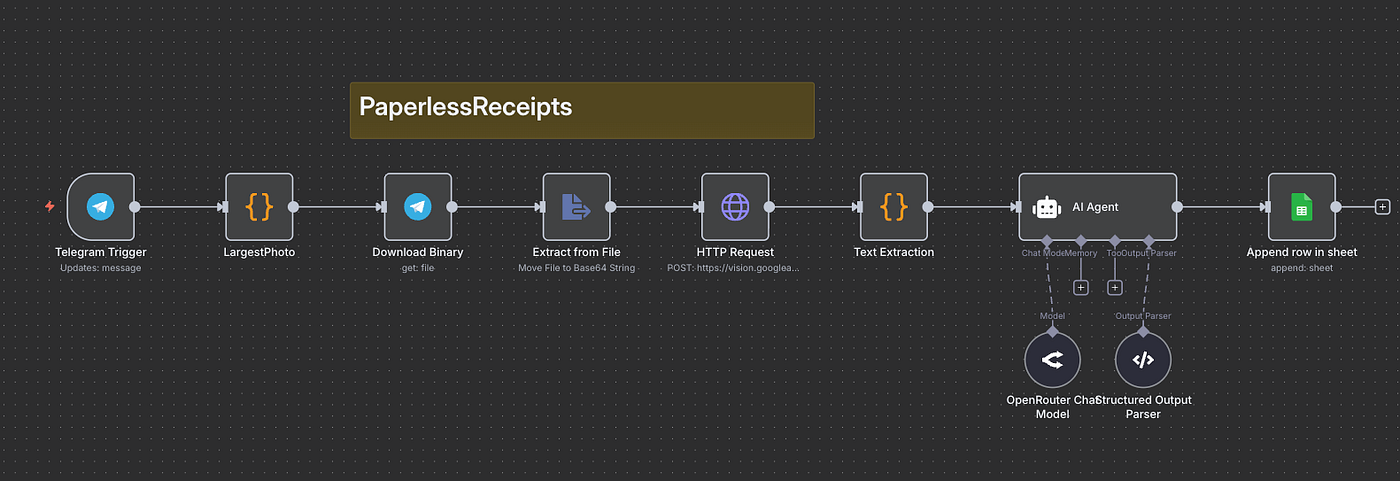
PaperLess Receipts Image OCR workflow
An automated n8n workflow that processes receipt images sent via Telegram, extracts text using Google Vision API, and stores structured data in Google Sheets.
🚀 What This Workflow Does
- Receives Images: Listens for photo messages on Telegram
- Downloads Images: Automatically downloads the highest quality image
- Extracts Text: Uses Google Vision API for OCR (Optical Character Recognition)
- AI Processing: Leverages AI to structure receipt data (restaurant name, items, prices, totals)
- Stores Data: Automatically saves structured information to Google Sheets
🔧 Prerequisites
- n8n instance (cloud or self-hosted)
- Telegram Bot Token
- Google Vision API Key
- OpenRouter API Key (for AI processing)
- Google Sheets with OAuth2 access
⚙️ Setup Instructions
1. Credentials Configuration
For n8n beginners: Credentials are stored securely in n8n and need to be created once — replace the placeholder credential IDs in the workflow with your actual credential names.
Required Credentials:
- Telegram API: Create a bot via @BotFather and add the token
- Google Vision API: Enable Vision API in Google Cloud Console and create an API key
- OpenRouter API: Sign up at OpenRouter and get your API key
- Google Sheets OAuth2: Set up OAuth2 credentials for Google Sheets access
2. Environment Variables
Set the following environment variable in your n8n instance:
GOOGLE_VISION_API_KEY=your_google_vision_api_key_here3. Google Sheets Setup
- Create a new Google Sheet
- Add headers:
restaurant_name,address,phone,date_time,items,subtotal,tax,total,metadata - Update the Google Sheets node with your sheet ID
4. Workflow Import
- Copy the workflow JSON
- Import into your n8n instance
- Update all credential references
- Activate the workflow
🎯 Usage
- Start a chat with your Telegram bot
- Send a photo of a receipt
- The workflow automatically:
- Downloads the image
- Extracts text using OCR
- Processes data with AI
- Saves structured information to Google Sheets
📊 Output Format
The workflow extracts and stores:
- Restaurant name and contact details
- Date and time of purchase
- Individual items with prices
- Subtotal, tax, and total amounts
- Additional metadata
🔍 Troubleshooting
- Telegram not responding: Check bot token and webhook configuration
- OCR not working: Verify Google Vision API key and quota
- AI processing fails: Check OpenRouter API key and model availability
- Google Sheets error: Ensure OAuth2 credentials are valid and sheet permissions are correct
🛠️ Customization
- Change AI Model: Update the OpenRouter Chat Model node with different models
- Modify Output Schema: Edit the Structured Output Parser for different data fields
- Add More Databases: Replace or add nodes for Notion, Airtable, or other databases
- Image Filters: Add conditions to process only specific image types
📝 Notes
- The workflow processes the highest quality image from Telegram
- AI processing uses GPT-4o via OpenRouter for best accuracy
- All sensitive data is handled securely through n8n credentials
- The workflow can be extended to handle multiple image types beyond receipts
🤝 Contributing
Feel free to fork this workflow and customize it for your needs. Share improvements and variations with the n8n community!
메타데이터
- post_id
- e53d820085fe
- slug
- imageocr-telegram-receipt-processing-workflow-e53d820085fe
- url
- https://medium.com/@smitsaraiya10/imageocr-telegram-receipt-processing-workflow-e53d820085fe
- canonical_url
- https://medium.com/@smitsaraiya10/imageocr-telegram-receipt-processing-workflow-e53d820085fe
- author_url
- https://medium.com/@smitsaraiya10
- status
- ok
- fetched_at
- 2026-06-09 15:37:30




