Ditch Your AWS Secrets: Setting Up OIDC Between GitHub Actions and AWS with Terraform
Introduction
Ditch Your AWS Secrets: Setting Up OIDC Between GitHub Actions and AWS with Terraform
Introduction
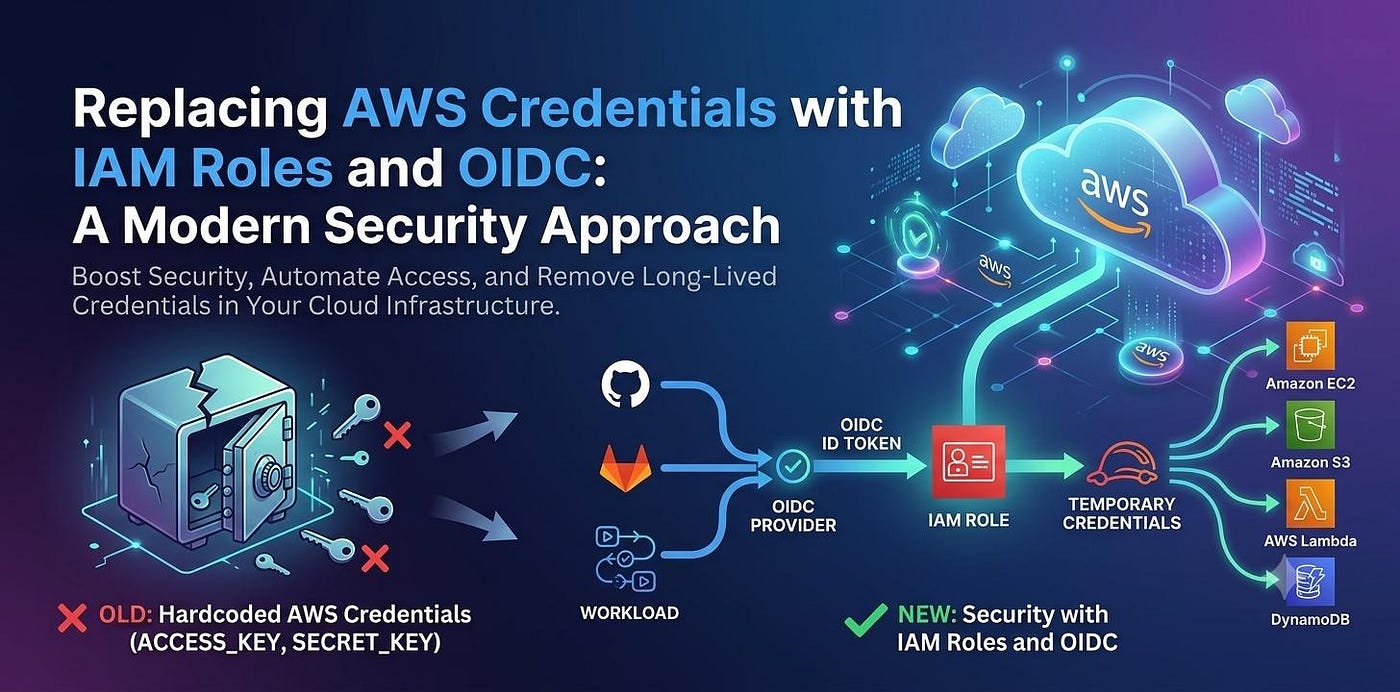
If you’re still storing AWS access keys as GitHub secrets to deploy from CI/CD, you’re doing it the old way — and the risky way. Long-lived credentials can leak, get rotated poorly, or end up in logs.
There’s a better approach: OpenID Connect (OIDC). It lets GitHub Actions assume an AWS IAM role directly using short-lived tokens — no static secrets stored anywhere.
In this post, I’ll walk you through how OIDC works, how to set it up with Terraform, and how to use it in your GitHub Actions workflow.
What’s Wrong With Static AWS Credentials?
Traditionally, you’d create an IAM user, generate access keys, and store them as GitHub secrets:
Problems:
- Keys are long-lived — they don’t expire unless you manually rotate them
- If compromised, an attacker has persistent access
- Managing rotation across multiple repos is painful
- Violates the principle of least privilege (keys work from anywhere, not just GitHub)
Enter OIDC: The Keyless Approach
With OIDC, there are zero static credentials. Instead:
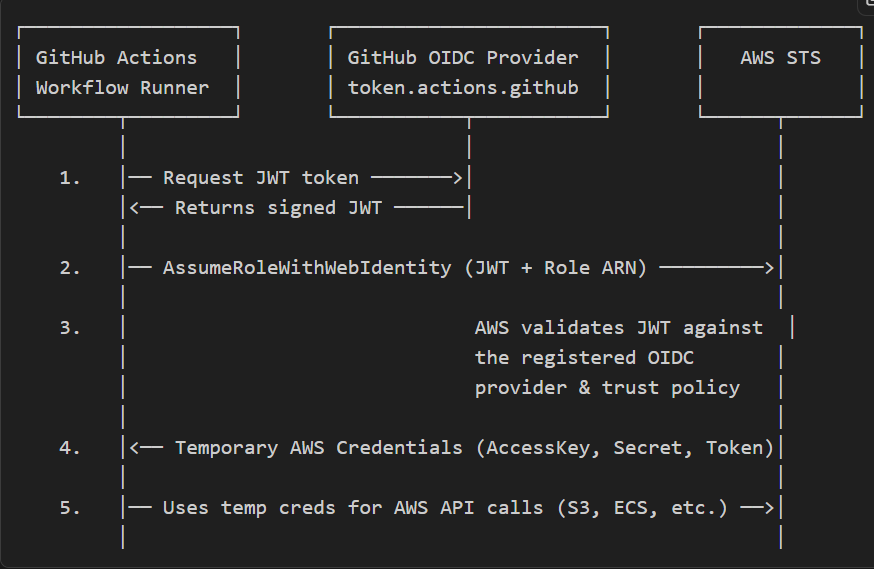
- GitHub generates a short-lived JWT token for each workflow run
- The workflow presents this token to AWS STS
- AWS verifies the token against GitHub’s OIDC provider
- If valid, AWS returns temporary credentials (15 min–1 hour)
Think of it like checking into a hotel with your passport (JWT) instead of carrying around a master key (static credentials). The passport proves who you are, and you get a room key (temp creds) that expires at checkout.
How the OIDC Flow Works
Ditch Your AWS Secrets: Setting Up OIDC Between GitHub Actions and AWS with Terraform
Introduction
If you’re still storing AWS access keys as GitHub secrets to deploy from CI/CD, you’re doing it the old way — and the risky way. Long-lived credentials can leak, get rotated poorly, or end up in logs.
There’s a better approach: OpenID Connect (OIDC). It lets GitHub Actions assume an AWS IAM role directly using short-lived tokens — no static secrets stored anywhere.
In this post, I’ll walk you through how OIDC works, how to set it up with Terraform, and how to use it in your GitHub Actions workflow.
What’s Wrong With Static AWS Credentials?
Traditionally, you’d create an IAM user, generate access keys, and store them as GitHub secrets:
Problems:
- Keys are long-lived — they don’t expire unless you manually rotate them
- If compromised, an attacker has persistent access
- Managing rotation across multiple repos is painful
- Violates the principle of least privilege (keys work from anywhere, not just GitHub)
Enter OIDC: The Keyless Approach
With OIDC, there are zero static credentials. Instead:
- GitHub generates a short-lived JWT token for each workflow run
- The workflow presents this token to AWS STS
- AWS verifies the token against GitHub’s OIDC provider
- If valid, AWS returns temporary credentials (15 min–1 hour)
Think of it like checking into a hotel with your passport (JWT) instead of carrying around a master key (static credentials). The passport proves who you are, and you get a room key (temp creds) that expires at checkout.
How the OIDC Flow Works
The beauty? The JWT token contains claims about the workflow — which repo, which branch, which event triggered it. AWS can use these claims to decide whether to grant access.
The Terraform Setup
Let’s build the infrastructure piece by piece.
Step 1: Register GitHub as a Trusted Identity Provider
resource "aws_iam_openid_connect_provider" "github_actions" {
  url             = "https://token.actions.githubusercontent.com"
  client_id_list  = ["sts.amazonaws.com"]
  thumbprint_list = ["6938fd4d98bab03faadb97b34396831e3780xyz", "1c58a3a8518e8759bf075b76b750d4f2df26xyz"]
}
What this does: Tells AWS, “I trust tokens issued by GitHub’s OIDC provider.”
Step 2: Create the IAM Role
resource "aws_iam_role" "github_actions" {
  name               = "github-actions"
  assume_role_policy = data.aws_iam_policy_document.github_actions.json
}
This is the role that GitHub Actions will “become.” The assume_role_policy is the trust policy — it controls who can assume this role.
Step 3: Define the Trust Policy
data "aws_iam_policy_document" "github_actions" {
  statement {
    effect  = "Allow"
    actions = ["sts:AssumeRoleWithWebIdentity"]

    principals {
      type        = "Federated"
      identifiers = [aws_iam_openid_connect_provider.github_actions.arn]
    }

    condition {
      test     = "StringEquals"
      variable = "token.actions.githubusercontent.com:aud"
      values   = ["sts.amazonaws.com"]
    }

    condition {
      test     = "StringLike"
      variable = "token.actions.githubusercontent.com:sub"
      values   = ["repo:my-org/my-repo:*"]
    }
  }
}
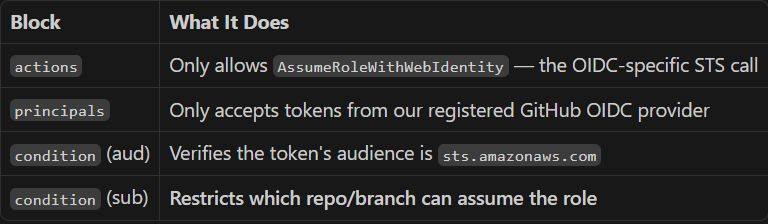
This is the most critical piece — it controls exactly who can assume the role:
Step 4: Attach Permissions (What the Role Can Do)
resource "aws_iam_role_policy_attachment" "github_actions" {
  role       = aws_iam_role.github_actions.name
  policy_arn = "arn:aws:iam::aws:policy/AmazonS3FullAccess"
}
This is separate from the trust policy. An important distinction:
- Trust policy = who can become this role (the badge reader at the door)
- Permissions policy = what the role can do (which rooms you can access inside)
You cannot combine them — AWS treats them as fundamentally different things.
Production tip: Avoid
FullAccesspolicies. Use a custom policy scoped to only the resources and actions your workflow actually needs.
Using the Role in Your GitHub Workflow
name: Deploy to S3

on:
  push:
    branches: [main]

permissions:
  id-token: write    # Required: allows requesting the OIDC JWT
  contents: read     # Required: allows checking out the repo

jobs:
  deploy:
    runs-on: ubuntu-latest

    steps:
      - name: Checkout code
        uses: actions/checkout@v4

      - name: Configure AWS credentials via OIDC
        uses: aws-actions/configure-aws-credentials@v4
        with:
          role-to-assume: arn:aws:iam::637423460129:role/github-actions
          aws-region: ap-southeast-2

      - name: Upload to S3
        run: aws s3 cp ./build/ s3://my-app-bucket/ --recursive
The Key Parts
permissions.id-token: write — This is mandatory. Without it, GitHub won't generate the OIDC token and your workflow will fail with a "credentials not found" error.
role-to-assume — The ARN of the role created by Terraform. Notice there's no aws-access-key-id or aws-secret-access-key — that's the whole point.
aws-region — The region for STS calls and subsequent AWS API calls.
Wrapping Up
OIDC between GitHub Actions and AWS eliminates the need for static credentials entirely. The setup is a one-time effort per AWS account, and every repository benefits from:
- Zero stored secrets — nothing to rotate, nothing to leak
- Short-lived credentials — temporary tokens that expire automatically
- Fine-grained control — restrict by repo, branch, environment, or workflow
- Audit trail — every assumption is logged in CloudTrail with the full GitHub context
If you’re still using AWS_ACCESS_KEY_ID in your GitHub secrets, today is a good day to stop.
메타데이터
- post_id
- e5cd57b4ccea
- slug
- ditch-your-aws-secrets-setting-up-oidc-between-github-actions-and-aws-with-terraform-e5cd57b4ccea
- url
- https://medium.com/@dhamalejay/ditch-your-aws-secrets-setting-up-oidc-between-github-actions-and-aws-with-terraform-e5cd57b4ccea
- canonical_url
- https://medium.com/@dhamalejay/ditch-your-aws-secrets-setting-up-oidc-between-github-actions-and-aws-with-terraform-e5cd57b4ccea
- author_url
- https://medium.com/@dhamalejay
- status
- ok
- fetched_at
- 2026-07-21 08:25:23