HTML5 Audio Tracking using Adobe Launch
Here’s how you can set up Adobe Analytics tracking for your HTML5 Audio using Launch by Adobe.
HTML5 Audio Tracking Using Adobe Launch
In this post, we will look at how you can setup Adobe Analytics tracking for your HTML5 Audio using Launch by Adobe.
In today’s marketing world, there is gaining traction on Audio Analytics. Audio/podcasts are said to be packed with information and they are a perfect sprinkle of entertainment and light-hearted banter. These are also an incredibly engaging and useful medium for businesses and listeners alike. So, it would be safe to say “they are the sleeping giant of content types.”
Recently one of my clients requested if the Podcasts on their site can be tracked without them having heartbeat SKU. Initially I was a bit confused on how to approach this, with my research there was not much information available on the internet about Audio tracking without a Heartbeat SDK.
Navigating through their site I figured out they are using HTML5 Audio player, so I was intrigued to find out if we can use Launch’s In-built Media tracking option which is extensively used for HTML5 Video tracking to help track the Podcasts as well. And the result, well it is possible. Hurray!!!
So below steps illustrate how to enable Audio tracking in Adobe Launch using in-built Media Tracking option
For us to capture Audio name, I updated the Audio tag in HTML to capture a user-friendly Audio name using a value attribute, that is the only piece of Audio related ‘code’ I added on the page. You can also take the Href value and using some JavaScript you can convert them into a friendly name as well.
The other thing to keep in mind is that my approach leverages link tracking events to track Audio events. Below are the steps I took to track metrics such as Audio start, Audio Milestones like 25%, 50%, 75%, Audio Complete and dimensions such as friendly Audio name.
Capturing Audio Name in Launch: Create a data element to capture the audio name from “value” attribute updated in the HTML tag where we embed a friendly audio name. Below is a screenshot of what the custom data attribute looks like in the HTML.
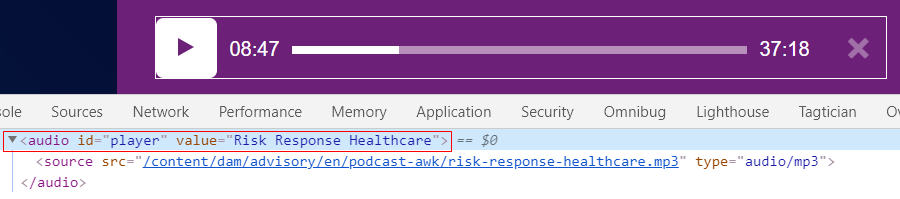
HTML updates to capture Friendly Audio Name
Audio Name Data Element in Launch: Create a data element to capture the Audio name from the value attribute of HTML DOM as shown below

Data Element Configuration to capture Friendly Audio Name
Adobe Launch Rules to be created
Audio Start Rule: Now that we have the Audio Name data element, let us start creating the Rules required to track Audio Start.
The first audio event we create is the audio start for this we’d choose the “Media Event Type” as “Media Time Played” triggered when 1% of the video has played. Even though we have an Event type called “Media Play”, we are not using it because it fires every time the Audio is played, example the event is triggered even when the user Pauses and Plays the audio thus inflating the count of Audio Play / Start.

Audio Start Rule Configuration
Next lets set Adobe Analytics variables and trigger the Adobe Analytics Beacon actions
“Adobe Analytics — Set Variables” Action:

Adobe Analytics — Set Variables Configuration
“Adobe Analytics — Send Beacon” Action:

Adobe Analytics — Send Beacon Configuration
Audio Milestone Tracking: Let us create another rule to track the milestones such as 25%, 50% and 75% completions. The below screenshots shows the configurations for 25% Audio Milestone Complete event and the same needs to be replicated for 50% and 75% by replacing the 25% trigger accordingly.

Example Configuration for Audio 25% Milestone Completion
“Adobe Analytics — Set Variables” Action
For each milestone we need an event dedicated, for example event1 — Audio Start, event2 — Audio 25% Complete, event3 — Audio 50% Complete etc.

Example Variable Configuration 25% Milestone Tracking
“Adobe Analytics — Send Beacon” Action:

Example Send Beacon Configuration for 25% Milestone Tracking
Similarly configure separate rules for 50% and 75% following the screenshots above.
Audio Complete Rule: Now for the last rule, lets setup another rule for Audio Complete.

Configuration of Media Type — Complete
“Adobe Analytics — Set Variables” Action:

Example Set Variable Configuration for Audio Complete
“Adobe Analytics — Send Beacon” Action:

Example Send Beacon for Audio Complete
Validate the Audio Events: Now that we have configured all the required rules for our Audio / Podcast tracking, let us validate them by listening to some of them on the site and use a packet sniffer to review the Analytics Image Request and make sure the required Variables with appropriate Values are being populated
Note: Above setup can also be used to track HTML5 Videos, you just need to add “video” tag to the CSS selector and you should be good to go. The below screenshot shows how both Audio and Video tracking can co-exist in the same configuration

How to set up HTML5 Audio and Video tracking in the same rule.
Finally, I am sure this might not be the only way to setup Audio Tracking, feel free to drop in your comments if you have any other innovative way to set this up!
메타데이터
- post_id
- e5cde81842bc
- slug
- html5-audio-tracking-using-adobe-launch-e5cde81842bc
- url
- https://medium.com/adobetech/html5-audio-tracking-using-adobe-launch-e5cde81842bc
- canonical_url
- https://medium.com/adobetech/html5-audio-tracking-using-adobe-launch-e5cde81842bc
- author_url
- https://medium.com/@grajan
- status
- ok
- fetched_at
- 2026-07-31 22:04:39