Integrating vcpkg with Visual Studio
Easy integration of vcpkg for Visual Studio C++ applications
Struggling with “vcpkg integrate project”?
Integrating vcpkg with Visual Studio
Easy integration of vcpkg for Visual Studio C++ applications
Every time I have to integrate a vcpkg C++ package with Visual Studio, it takes me several hours to find all of the articles that I used the LAST time I tried to solve the problem. So this time I’m sharing my solution.
Find the GitHub repo for this article at https://github.com/jimbeveridge/appwithvcpkg.
My Requirements
- Vcpkg version pinned with my project so that dependent libraries don’t change when the centralize repository is updated. This is required to create reproducible builds for any production application.
- No system-wide environment variables (contrast to Microsoft’s instructions).
- No dependency on a certain directory structure (more Microsoft instructions)
- Vcpkg runs in module mode to allow fully automated builds.
- Don’t make me learn CMake!
Create the C++ app
Create a C++ application in Visual Studio 2022. For the sake of this discussion, let’s assume it’s in C:\Proj\appwithvcpkg . In my example, I created a “Console App” based on MSBuild.
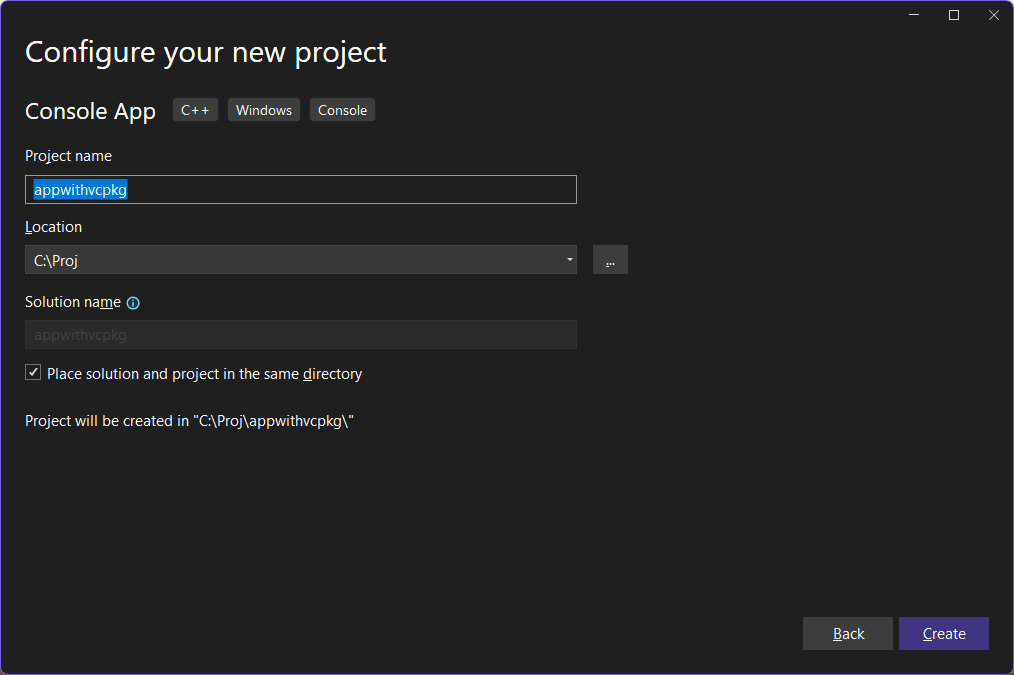
The generated project simply prints “Hello World!” using std::cout.
Once the project is created, build it and confirms that it prints “Hello World!” as expected.
We’re going to change this app to use Google’s abseil logging library.
Clone vcpkg
Get a local copy of vcpkg. Notice that it’s being placed in the directory of the project we just created:
cd C:\Proj\appwithvcpkg
git clone https://github.com/microsoft/vcpkg.git
vcpkg\bootstrap-vcpkg.bat
If you are using git, this is a nested project, a.k.a. a submodule, and you’ll need to use the proper option to git to clone the directory. For example:
git clone --recurse-submodules git://github.com/example/appwithvcpkg.gitCreate vcpkg.json
To meet the requirement for automated builds, Visual Studio needs to know what modules your project depends on. You make this declaration in vcpkg.json:
{
  "name": "appwithvcpkg",
  "version-string": "1.0.0",
  "description": "Demonstrate vcpkg integration in Visual Studio 2022",
  "dependencies": [
    "abseil"
  ]
}
Notice that there’s no declaration of the version of the dependencies. The version is implicity determined by the version of the vcpkg repo you’ve cloned. Automated version management is important because part of the vcpkg build process by Microsoft ensures that these packages are compatible and won’t conflict with each other.
Finally, add this file to your project in Visual Studio.
Integrate vcpkg
This step is key to making the whole process work. You need to tell Visual Studio to use the local version vcpkg and not the system version. This is particularly important because recent versions of Visual Studio include vcpkg. While this default can be handy, it doesn’t allow you to set your project to depend on a particular version of the vcpkg repo.
There’s a right and a wrong way to integrate vcpkg into your solution. The wrong way is to use vcpkg integrate project.
Use ‘vcpkg.targets’
You can integrate vcpkg by manually editing your .vcxproj file. Close Visual Studio, then add the following lines just before the closing </Project> line in appwithvcpkg.vcxproj. Make sure you keep the relative file path — don’t change it to a full qualified path.
  <ImportGroup>
    <Import Project="..\vcpkg\scripts\buildsystems\msbuild\vcpkg.targets" />
  </ImportGroup>
Now you can skip the next section completely, or you can read it to find out how much work you’re saving compared to Microsoft’s suggested solution.
DO NOT USE ‘vcpkg integrate project'
The rest of this section describes how to create a NuGet package to make NuGet work — but YOU’LL REGRET IT! I’m documenting this here so search engines will find the commands and push developers down the path above.
This section describes the solution recommended by Microsoft. There is SO MUCH wrong with this solution. It tightly ties your project to a particular directory location. If your coworkers use different locations, this fails.
Even worse, the purpose of NuGet and a .nupkg file is to automatically provide centralize vending of packages. The solution used by vcpkg integrate project defines a NuGet package that ties the project to the directory structure on a particular machine, which is the opposite of the goal of NuGet packages.
There are also integration gotchas. GitHub’s default Visual Studio .gitignore file excludes all .nupkg files and also excludes the packagessubdirectory. The comment for this says, “# The packages folder can be ignored because of Package Restore.” Since Package Restore doesn’t work for these vcpkg .nupkg files, the proper files won’t be shown, you won’t check them into git, and noone else will be able to build the project, even if they have the correct directory structure.
To avoid the single-machine dependency, Microsoft recommends using the export command to create a sharable NuGet package. This will speed up builds in the enterprise (at the cost of some maintenance time), but export doesn’t work well in an open source world where developers are using many different versions of the compiler.
Having presented the caveats, here’s how to use vcpkg integrate project.
cd C:\Proj\appwithvcpkg\vcpkg
vcpkg integrate project
The result of this command looks like this:

The important point to notice is that it created a file named C:\proj\appwithvcpkg\vcpkg\vcpkg.C.Proj.appwithvcpkg.vcpkg.1.0.0.nupkg
WARNING: If it created a file named something C:\proj\appwithvcpkg\vcpkg\vcpkg.C.ProgramFiles.MicrosoftVisualStudio.2022.Community.VC.vcpkg.1.0.0.nupkg , then you need to go back and rerun the INTEGRATE command from the vcpkg subdirectory.
Finally, follow the instructions in the screenshot above:
With a project open, go to Tools->NuGet Package Manager->Package Manager Console and paste the given command. On my machine it looks like this:
Install-Package "vcpkg.C.Proj.appwithvcpkg.vcpkg" -Source C:\Proj\appwithvcpkg\vcpkg
On my installation of Visual Studio 2022, the output looked like this:
Package Manager Console Host Version 6.14.1.1

Type 'get-help NuGet' to see all available NuGet commands.

PM> Install-Package "vcpkg.C.Proj.appwithvcpkg.vcpkg" -Source "C:\Proj\appwithvcpkg\vcpkg"

Attempting to gather dependency information for package 'vcpkg.C.Proj.appwithvcpkg.vcpkg.1.0.0' with respect to project 'appwithvcpkg', targeting 'native,Version=v0.0'
Gathering dependency information took 118 ms
Attempting to resolve dependencies for package 'vcpkg.C.Proj.appwithvcpkg.vcpkg.1.0.0' with DependencyBehavior 'Lowest'
Resolving dependency information took 0 ms
Resolving actions to install package 'vcpkg.C.Proj.appwithvcpkg.vcpkg.1.0.0'
Resolved actions to install package 'vcpkg.C.Proj.appwithvcpkg.vcpkg.1.0.0'
Retrieving package 'vcpkg.C.Proj.appwithvcpkg.vcpkg 1.0.0' from 'C:\Proj\appwithvcpkg\vcpkg'.
Adding package 'vcpkg.C.Proj.appwithvcpkg.vcpkg.1.0.0' to folder 'C:\Proj\appwithvcpkg\packages'
Added package 'vcpkg.C.Proj.appwithvcpkg.vcpkg.1.0.0' to folder 'C:\Proj\appwithvcpkg\packages'
Added package 'vcpkg.C.Proj.appwithvcpkg.vcpkg.1.0.0' to 'packages.config'
Successfully installed 'vcpkg.C.Proj.appwithvcpkg.vcpkg 1.0.0' to appwithvcpkg
Executing nuget actions took 865 ms
Time Elapsed: 00:00:01.1465095
PM>
NuGet also added packages.config to my solution AND copies the given package to the packages subdirectory in your project.
Test your build
At this point, if you try to build the project, you should see this error in the log:
1>Target VcpkgCheckManifestRoot: 1> The vcpkg manifest was disabled, but we found a manifest file in C:\Proj\appwithvcpkg. You may want to enable vcpkg manifests in your properties page or pass /p:VcpkgEnableManifest=true to the msbuild invocation.
This is good! That’s exactly what you want to see. Let’s fix this by enabling vcpkg manifests in your project.
Enable vcpkg module builds
If you open the Properties for your appwithvcpkg project, you’ll notice a new tab named vcpkg. Click on that, and set the page as
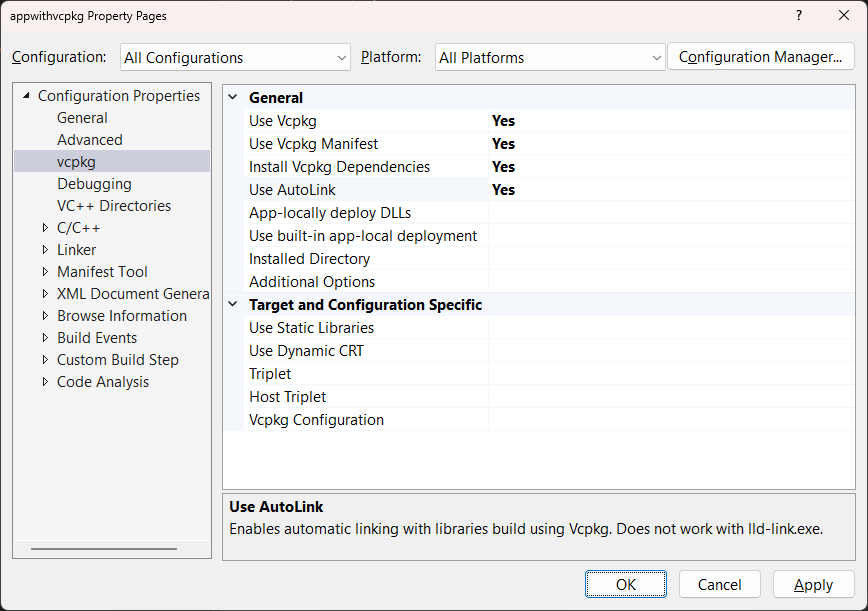
Once you’ve closed the dialog above, go to the File menu menu in Visual Studio and select Save All. Now you can commit everything to git.
Log using abseil
Update your source code using the code below and build it.
#include <absl/log/globals.h>
#include <absl/log/initialize.h>
#include <absl/log/log.h>

int main()
{
    absl::InitializeLog();
    absl::SetStderrThreshold(absl::LogSeverityAtLeast::kInfo);

    LOG(INFO) << "Hello World!";
}
Now when you run the code, it should print a result like this:
I0824 20:25:30.629274 2108 appwithvcpkg.cpp:21] Hello World!Congratulations, you’re done!
메타데이터
- post_id
- e62e8415bdfd
- slug
- integrating-vcpkg-with-visual-studio-e62e8415bdfd
- url
- https://medium.com/@jim_43953/integrating-vcpkg-with-visual-studio-e62e8415bdfd
- canonical_url
- https://medium.com/@jim_43953/integrating-vcpkg-with-visual-studio-e62e8415bdfd
- author_url
- https://medium.com/@jim_43953
- status
- ok
- fetched_at
- 2026-07-18 00:21:44