How to Edit a PDF for Free on Windows, Mac and Linux
PDFs are everywhere, but editing them shouldn’t feel like solving a puzzle or reaching for your credit card. If you’ve ever tried to fix a…
How to Edit a PDF for Free on Windows, Mac and Linux
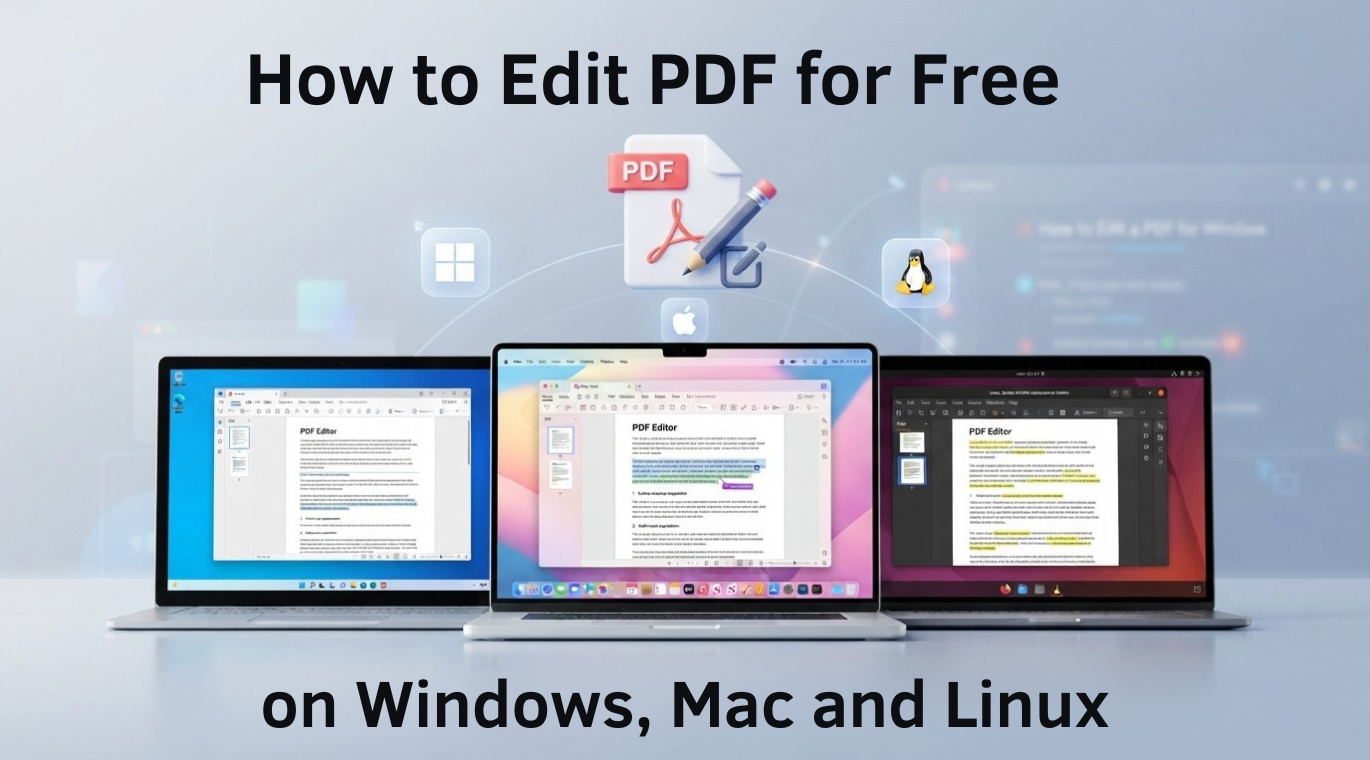
PDFs are everywhere, but editing them shouldn’t feel like solving a puzzle or reaching for your credit card. If you’ve ever tried to fix a typo in a contract, merge a few files, or shrink a bloated document, you already know the frustration. That’s exactly why finding a genuinely free PDF editor matters so much. In this review, I’m walking through **JOPDF**, a free PDF editor that runs on Windows, Mac, and Linux — no subscription, no watermarks, and no sign-up nonsense. By the end, you’ll know exactly how to edit a PDF for free and whether this tool deserves a spot on your desktop.
So grab a coffee, and let’s dig in.
Why Finding a Truly Free PDF Editor Is Harder Than It Should Be
Here’s the dirty little secret of the PDF world: most “free” tools aren’t really free. You upload your document, make one edit, and bam, a watermark slaps across your page, or you’re asked to subscribe before you can hit download. Adobe Acrobat, the industry heavyweight, locks its best features behind a monthly fee that adds up fast.
For students, freelancers, small business owners, and everyday people, that’s a raw deal. You just want to edit a PDF without jumping through hoops. A real free PDF editor should let you open a file, make your changes, and save it. That’s the promise JOPDF is built on, and it’s the reason I wanted to test it properly.
What Is JOPDF? A Quick Overview

JOPDF is an all-in-one desktop application that helps you take full control of your PDFs. According to the tool itself, it lets you tackle every PDF task with ease — you can edit, convert, compress, merge, split, annotate, organize, and protect your PDF files, all for free with no sign-up required.
What immediately stood out to me is the positioning. This isn’t a stripped-down web widget that teases you into paying. It’s a full desktop program designed to be the best free PDF editor for people who don’t want to compromise. And with over 3 million satisfied users worldwide and more than 10 million downloads, it’s clearly resonating with folks who are tired of paywalls.
Here’s the feature lineup at a glance:
- Edit — Change text, images, and links directly in your PDF
- Convert — Turn PDFs into Word, Excel, PowerPoint, or images (and back)
- Compress — Shrink file sizes with adjustable quality levels
- Merge — Combine multiple PDFs into one
- Split — Break a big PDF into smaller pieces
- Annotate — Highlight, underline, add notes and drawings
- Organize — Reorder, rotate, and delete pages
- Protect — Password-protect and encrypt sensitive files
- Read & Print — A clean reader plus print-to-PDF support
Not bad for a tool that costs exactly zero dollars.
How to Edit a PDF for Free with JOPDF: Step by Step
Alright, let’s get practical. Here’s how to use this free PDF editor to make your first edit. The whole process is refreshingly simple.

Step 1: Download and Install
Head to the **JOPDF website** and click the download button for your operating system. Whether you’re on Windows 11 or an old Windows 7 machine, a shiny new MacBook, or a Linux rig, there’s a version waiting. Installation is quick and — importantly — there’s no bundled junk software trying to sneak onto your computer.
Step 2: Open Your PDF
Launch the app and open the file you want to work on. The interface is clean and intuitive, so you won’t waste time hunting for the right button. Everything you need sits right at your fingertips.
Step 3: Make Your Edits
Click into the text and start typing to fix that embarrassing typo. Want to swap out an image? Select it, delete it, and drop a new one in. Need to add a hyperlink? Easy. This is where a good free PDF editor earns its keep — the editing feels a lot like working in a word processor rather than wrestling with locked-down PDF code.
Step 4: Use the Extra Tools (If You Need Them)
This is the fun part. Beyond basic editing, you can:
- Merge several documents into a single tidy file
- Compress a large PDF so it actually fits in an email
- Annotate with highlights, sticky notes, and freehand drawing
- Convert the PDF to an editable Word doc
- Protect the whole thing with a password
Step 5: Save and Done
Hit save, and your file is ready — clean, watermark-free, and exactly how you want it. No pop-ups begging you to upgrade. That’s the experience a free PDF editor should deliver every single time.
Cross-Platform Freedom: Windows, Mac, and Linux
One of my favorite things about JOPDF is that it doesn’t play favorites with operating systems. A lot of “universal” tools quietly ignore Linux users, but not this one.
- Windows: A powerful, easy-to-use editor that runs on Windows 7, 8, 10, and 11.
- Mac: Fully optimized for macOS 10.13 and later, including native support for Apple Silicon M1, M2, M3, and M4 chips. That’s a big deal for newer MacBooks.
- Linux: A genuinely rare treat — a functional, feature-complete free PDF editor for Linux distributions like Ubuntu, Fedora, Debian, and Linux Mint, with ARM64 support too.
If you work across multiple machines (say, a Windows desktop at home and a Linux laptop for coding), having the same tool with the same features everywhere is a quiet productivity superpower.
Is JOPDF Really Free? Let’s Talk About the Catch
I know what you’re thinking: “What’s the catch?” It’s a fair question, because we’ve all been burned before.
From what I can tell, JOPDF’s model is genuinely free — every feature is unlocked for all users, with no trial restrictions, no hidden charges, and no subscriptions. There’s no watermark, no ads, and no forced registration. You don’t hand over an email address just to open a file.
That said, I’ll give you the balanced view a good review should. If you’re an enterprise power user who needs advanced features like sophisticated OCR on scanned documents or heavy-duty form automation, a premium tool like Adobe Acrobat still has more depth. JOPDF shines brightest for the everyday stuff — the editing, converting, merging, and compressing that 95% of people actually do. For that audience, it’s hard to beat a free PDF editor that asks for nothing in return.
Privacy and Security: Editing Offline
Here’s a point that doesn’t get enough attention. Most online PDF tools require you to upload your document to their servers. For a birthday party flyer, who cares? But for a contract, a medical form, or a financial statement? That’s your private data sitting on someone else’s computer.
Because JOPDF is a desktop application, your files stay on your machine. You edit offline, which means your sensitive documents never leave your control. For anyone handling confidential paperwork, that offline, privacy-first approach is a genuine advantage over browser-based editors.
Who Should Use This Free PDF Editor?
Based on my testing, here’s who will get the most out of it:
- Students who need to annotate lecture notes, fill out forms, and combine research PDFs without spending their ramen budget.
- Freelancers juggling contracts, invoices, and proposals across different clients.
- Small business owners who want to look professional without paying for enterprise software.
- Remote workers who bounce between different computers and operating systems.
- Anyone who occasionally needs to fix, merge, or shrink a PDF and refuses to pay a subscription for the privilege.
Final Verdict: A Free PDF Editor That Actually Delivers
After putting it through its paces, my take is simple: JOPDF is one of the most genuinely useful free PDF editor options available right now, especially if you value cross-platform support and privacy. It does what it says on the tin — lets you edit, convert, compress, merge, and protect PDFs without charging you a dime or stamping your work with an ugly watermark. For the vast majority of users who just want to get their PDF work done, it hits the sweet spot between “powerful” and “painless.”
Is it going to replace Adobe Acrobat in a massive corporation? Probably not. But for students, freelancers, small businesses, and everyday users? It’s a fantastic, no-strings-attached choice.
메타데이터
- post_id
- e66a3f38c65a
- slug
- how-to-edit-a-pdf-for-free-on-windows-mac-and-linux-e66a3f38c65a
- url
- https://medium.com/@karim.marketer1609/how-to-edit-a-pdf-for-free-on-windows-mac-and-linux-e66a3f38c65a
- canonical_url
- https://medium.com/@karim.marketer1609/how-to-edit-a-pdf-for-free-on-windows-mac-and-linux-e66a3f38c65a
- author_url
- https://medium.com/@karim.marketer1609
- status
- ok
- fetched_at
- 2026-07-08 09:22:44