Ubuntu 22.04: How to Shutdown Your Computer with One Click (or run bash scripts)
Hey there,
Ubuntu 22.04: How to Shutdown Your Computer with One Click (or run bash scripts)
Photo by John Smit on Unsplash
Hey there,
While browsing the web, I couldn’t find a simple way to shut down my computer with just one click (no more dealing with 4 clicks). The process involves three easy steps, and you can customize it further with your own touch of imagination.
Summary:
- Create two files (shutdown.desktop, shutdown.sh), place them in the “~/.local/share/applications” directory. “Execute as program” permission to shutdown.sh.
- Fill the files with the below described lines (Go to Step 2 part).
- Allow sudo commands changing sudoers file (visudo) so it will not ask for a password.
- Add to favorites to make it appear in the dock.
- Check the Bonus Tips section.
Step 1: Create Files
Create files and give “execute as program” permission. Running these three commands is one way to do it:
touch ~/.local/share/applications/shutdown.desktop
touch ~/.local/share/applications/shutdown.sh
chmod +x ~/.local/share/applications/shutdown.sh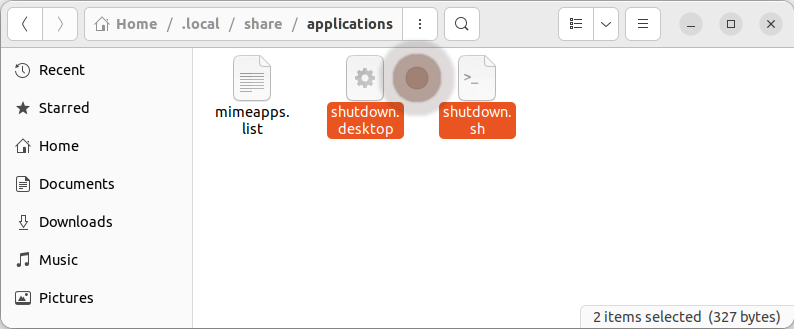
Name the files whatever you like but they must have the .sh and .desktop extensions. Also the .desktop file needs to be in this directory and if you change the directory of the .sh file be sure to update the path in the .desktop file.
Step 2: Add content in to files
You can use the text editor to change the content of the files.
The content of the file “shutdown.sh”:
#!/bin/bash
shutdown now
The content of the file “shutdown.desktop”:
[Desktop Entry]
Name=Shutdown
Exec=bash -c "source $HOME/.bashrc; sudo /home/username/.local/share/applications/shutdown.sh"
Comment=Shutdown
Terminal=true
Type=Application
Icon=system-shutdown
The “username” must be changed to your username.
If you want to change the icon, refer to this page.
Step 3: Allow sudo commands
Open a terminal and run:
sudo visudoIt will open a file. At the end, add the following line and save:
username ALL=(ALL) NOPASSWD: /home/username/.local/share/applications/shutdown.shThe “username” must be changed to your username in both cases of that line.
Step 4: Add to Favorites
Open applications from the dock, search for shutdown.desktop, right-click on it, and add it to favorites.

You got it!
Now turn off your computer using the pro fastest way!
Bonus tips:
Bonus tips:
You can also add other commands to the .sh file to make it look like this:
#!/bin/bash
sudo apt update;
sudo apt upgrade -y;
sudo apt autoremove -y;
speaker-test -t sine -f 440.00 -l 1 & sleep 1 && kill -9 $!
shutdown now
You might be wondering about that “speaker-test” thing. It’s just a beep with the note “A” to give a little push to your imagination 😁.
Look at this other example that asks you what do you want to do:
#!/bin/bash

echo "Press one of these keys:"
echo "c => cancel"
echo "r => restart"
echo "u/U => update, upgrade, autoremove"
echo "S => update, upgrade, autoremove, shutdown"
echo "R => update, upgrade, autoremove, restart"
echo "Wait or press another key to update"

# Wait for the user to press a key
read -s -n 1 -t 10 key

# Check which key was pressed
case $key in
    c)
        echo "You pressed 'c'. Cancel..."
        ;;
    r)
        echo "You pressed 'r'. Restart..."
        shutdown now -r
        ;;
    u)
        echo "You pressed 'u'. Update..."
        sudo apt update;
        sudo apt upgrade -y;
        sudo apt autoremove -y;
        ;;
    U)
        echo "You pressed 'U'. Update..."
        sudo apt update;
        sudo apt upgrade;
        sudo apt autoremove;
        ;;
    s)
        echo "You pressed 's'. Shutdown..."
        shutdown now;
        ;;
    S)
        echo "You pressed 'S'. Update then shutdown..."
        sudo apt update;
        sudo apt upgrade -y;
        sudo apt autoremove -y;
        shutdown now
        ;;
    R)
        echo "You pressed 'R'. Update then restart..."
        sudo apt update;
        sudo apt upgrade -y;
        sudo apt autoremove -y;
        shutdown now -r
        ;;
    *)
        echo "Update, Upgrade, Autoremove..."
        sudo apt update;
        sudo apt upgrade -y;
        sudo apt autoremove -y;
        ;;
esac
Another example to create a counter:
#!/bin/bash
# This script waits for a keypress
# Throws the countdown() function
# Shows a timer and a bar

count=5

# This section prints: "Time left: x seconds [=>  ] selection:"
countdown() {
    seconds=$1
    while [ $seconds -gt -1 ]; do
        printf "\r"
        printf "Time left: %2d seconds [" $seconds
        for ((i = 1; i < $seconds; i++)); do
            printf "="
        done

        if [ $seconds -lt 1 ]; then
            printf ""
        else
            printf ">"
        fi

        for ((i = 0; i < $count - $seconds; i++)); do
            printf " "
        done
        printf "] selection: "
        sleep 1
        ((seconds--))
    done
    printf "\n"
}

echo "Press any key within the next $count seconds:"

countdown $count && read -s -n 1 -t $count key

if [ -z "$key" ]; then
    echo "Timeout! No key pressed."
else
    echo "Key pressed: $key"
fi

countdown 3
I used some help from this web-page.
I’d love to hear about your experience. Feel free to share your thoughts in the comments below. Happy computing!
메타데이터
- post_id
- e710cbc8f3d0
- slug
- ubuntu-22-04-how-to-shutdown-your-computer-with-one-click-e710cbc8f3d0
- url
- https://medium.com/@marcooquendoc/ubuntu-22-04-how-to-shutdown-your-computer-with-one-click-e710cbc8f3d0
- canonical_url
- https://medium.com/@marcooquendoc/ubuntu-22-04-how-to-shutdown-your-computer-with-one-click-e710cbc8f3d0
- author_url
- https://medium.com/@marcooquendoc
- status
- ok
- fetched_at
- 2026-07-24 15:22:40


