บทที่ 26 ESP32 อ่านค่าเซ็นเซอร์วัดค่าระยะทางด้วยเลเซอร์ Laser Distance Measurement Sensor ToF…
📺 📟 🌏ในบทนี้จะนำเสนอการอ่านค่าเซ็นเซอร์วัดค่าระยะทาง VL53L0X แบบ I2C แสดงผลบนจอ OLED 0.96"
บทที่ 26 ESP32 อ่านค่าเซ็นเซอร์วัดค่าระยะทางด้วยเลเซอร์ Laser Distance Measurement Sensor ToF VL53L0X แบบ I2C แสดงผลบนจอ OLED 0.96"
📺 📟 🌏ในบทนี้จะนำเสนอการอ่านค่าเซ็นเซอร์วัดค่าระยะทาง VL53L0X แบบ I2C แสดงผลบนจอ OLED 0.96"
VL53L0X คือ โมดูลวัดระยะทาง time-of-flight(ToF) measurements และตรวจจับท่าทางด้วยแสงเลเซอร์ ความยาวคลื่น 940 นาโนเมตร ซึ่งมองไม่เห็นด้วยตาเปล่า มีความปลอดภัยต่อสายตา ใช้ชิฟ VL53L0X สื่อสารแบบ I2C วัดได้ระยะ 0.3 - 120 เซนติเมตร ความคลาดเคลื่อน 5% ขึ้นอยู่กับสภาพแวดล้อมและสีของวัตถุทีวัด

การเชื่อมต่อเซนเซอร์ VL53L0X กับบอร์ด ESP32 ด้วย I2C บัส ซึ่งจะมีสายสัญญาณ 4 เส้น ดังนี้ VCC,GND, SCL,SDA โดย SDA จะต่อที่ขา 21 และ SCL ต่อที่ขา 22 ดังรูปด้านล่าง

ก่อนจะเขียนโปรแกรมเราจะต้องทราบก่อนว่าอุปกรณ์ I2C ที่เชื่อมต่อ อยู่ที่ตำแหน่ง Address ใด โดยใช้คำสั่ง I2C Scanner ดังต่อไปนี้
// ESP32 I2C Scanner
// Based on code of Nick Gammon
// http://www.gammon.com.au/forum/?id=10896
#include <Wire.h>
void setup()
{
  Serial.begin (9600);
  Wire.begin (21, 22);   // sda= GPIO_21 /scl= GPIO_22
}
void Scanner ()
{
  Serial.println ();
  Serial.println ("I2C scanner. Scanning ...");
  byte count = 0;
  Wire.begin();
  for (byte i = 8; i < 120; i++)
  {
    Wire.beginTransmission (i); //Begin I2C transmission Address (i)
    if (Wire.endTransmission () == 0) // 0 = success(ACK response)
    {
      Serial.print ("Found address: ");
      Serial.print (i, DEC);
      Serial.print (" (0x");
      Serial.print (i, HEX);
      Serial.println (")");
      count++;
    }
  }
  Serial.print ("Found ");
  Serial.print (count, DEC);        // numbers of devices
  Serial.println (" device(s).");
}
void loop()
{
  Scanner ();
  delay (2000);
}
ผลลัพธ์ที่ได้ ปรากฎว่าเซนเซอร์ MAX30102 เชื่อมต่ออยู่ที่ตำแหน่ง 0x29
ขั้นตอนต่อไป จะเป็นการติดตั้งไลบรารี่ ของ เซนเซอร์ VL53L0X ในโปรแกรม Arduino IDE ซึ่งมีขั้นตอนดังนี้
- ไปที่เมนู Sketch เลือก Include Library จากนั้นกดที่เมนู Manage Libraries
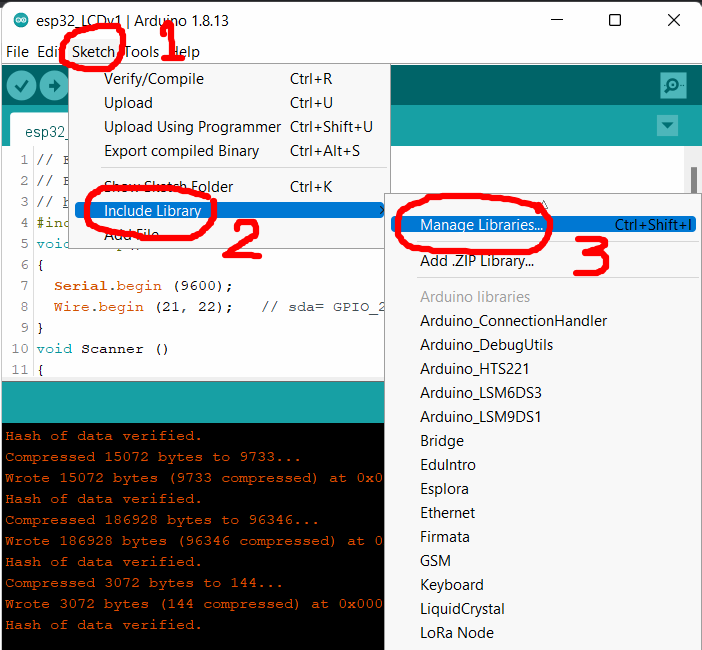
2.พิมพ์ VL53L0X ในช่อง และหาไลบรารี่ Adafruit_VL53L0X จากนั้นกดปุ่ม Install

- เมื่อติดตั้งเสร็จจะแสดงข้อความ Installed ให้กดปุ่ม close ได้เลย

- ขั้นตอนเปิดไฟล์ตัวอย่าง เข้าเมนู File เลือก Example > Adafruit_VL53L0X กดที่ vl53l0x

- จากนั้นให้ UPLOAD โค้ดได้เลยครับ

ต่อไปนำค่าที่อ่านได้แสดงผลบนจอ OLED โดยใช้โค้ดด้านล่าง
/*****************************************************************
* Mr.Narin Damnuy (KruRin)
* Technology Computer
* Phatthalung Technical College
* fb.com/damnuy : LineID:damnuy27
* Free License
*****************************************************************/
#include "Adafruit_VL53L0X.h"
#include <Wire.h>  // Only needed for Arduino 1.6.5 and earlier
#include "SSD1306Wire.h"    // legacy: #include "SSD1306.h"
SSD1306Wire display(0x3c, SDA, SCL);   // ADDRESS, SDA, SCL
Adafruit_VL53L0X lox = Adafruit_VL53L0X();
void setup() {
  Serial.begin(115200);
  display.init();
  display.flipScreenVertically();
  display.setTextAlignment(TEXT_ALIGN_LEFT);
  display.setFont(ArialMT_Plain_16);
  while (! Serial) {
    delay(1);
  }
  Serial.println("Adafruit VL53L0X test");
  if (!lox.begin()) {
    Serial.println(F("Failed to boot VL53L0X"));
    while(1);
  }
  Serial.println(F("VL53L0X API Simple Ranging example\n\n"));
}
void loop() {
  VL53L0X_RangingMeasurementData_t measure;
  Serial.print("Reading a measurement... ");
  lox.rangingTest(&measure, false); // pass in 'true' to get debug data printout!
  if (measure.RangeStatus != 4) {  // phase failures have incorrect data
    Serial.print("Distance (mm): "); Serial.println(measure.RangeMilliMeter);
  } else {
    Serial.println(" out of range ");
  }
  display.clear();
  display.drawString(0, 26, "Dis(mm): ");
  display.drawString(70, 26, String(measure.RangeMilliMeter));
  display.display();
  delay(500);
}
ทดสอบวัดค่าระยะทาง หน่วยวัดจะเป็น “มิลลิเมตร” และแสดงผลบนจอ OLED

ขอบคุณที่รับชมครับผม

สนันสนุน KruRin ในการเขียนบทความ เลี้ยงกาแฟซักแก้วครับ กดที่นี่

สนใจบอร์ด IoT Education Kit V1.1
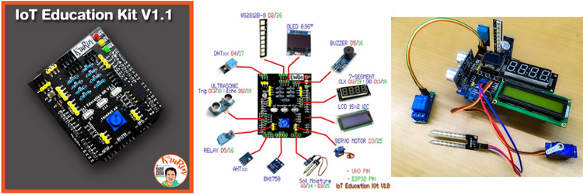
สั่งซื้อใน Shopee ที่ลิ้งค์ด้านล่างได้เลยครับผม
https://shopee.co.th/narindamnuy
หรือ กด ที่นี่
บทต่อไป กดลิ้งค์ด้านล่างเลยครับ
메타데이터
- post_id
- e767a227447d
- slug
- บทที่-26-esp32-อ่านค่าเซ็นเซอร์วัดค่าระยะทางด้วยเลเซอร์-laser-distance-measurement-sensor-tof-e767a227447d
- url
- https://medium.com/@KruRin/%E0%B8%9A%E0%B8%97%E0%B8%97%E0%B8%B5%E0%B9%88-26-esp32-%E0%B8%AD%E0%B9%88%E0%B8%B2%E0%B8%99%E0%B8%84%E0%B9%88%E0%B8%B2%E0%B9%80%E0%B8%8B%E0%B9%87%E0%B8%99%E0%B9%80%E0%B8%8B%E0%B8%AD%E0%B8%A3%E0%B9%8C%E0%B8%A7%E0%B8%B1%E0%B8%94%E0%B8%84%E0%B9%88%E0%B8%B2%E0%B8%A3%E0%B8%B0%E0%B8%A2%E0%B8%B0%E0%B8%97%E0%B8%B2%E0%B8%87%E0%B8%94%E0%B9%89%E0%B8%A7%E0%B8%A2%E0%B9%80%E0%B8%A5%E0%B9%80%E0%B8%8B%E0%B8%AD%E0%B8%A3%E0%B9%8C-laser-distance-measurement-sensor-tof-e767a227447d
- canonical_url
- https://medium.com/@KruRin/%E0%B8%9A%E0%B8%97%E0%B8%97%E0%B8%B5%E0%B9%88-26-esp32-%E0%B8%AD%E0%B9%88%E0%B8%B2%E0%B8%99%E0%B8%84%E0%B9%88%E0%B8%B2%E0%B9%80%E0%B8%8B%E0%B9%87%E0%B8%99%E0%B9%80%E0%B8%8B%E0%B8%AD%E0%B8%A3%E0%B9%8C%E0%B8%A7%E0%B8%B1%E0%B8%94%E0%B8%84%E0%B9%88%E0%B8%B2%E0%B8%A3%E0%B8%B0%E0%B8%A2%E0%B8%B0%E0%B8%97%E0%B8%B2%E0%B8%87%E0%B8%94%E0%B9%89%E0%B8%A7%E0%B8%A2%E0%B9%80%E0%B8%A5%E0%B9%80%E0%B8%8B%E0%B8%AD%E0%B8%A3%E0%B9%8C-laser-distance-measurement-sensor-tof-e767a227447d
- author_url
- https://medium.com/@KruRin
- status
- ok
- fetched_at
- 2026-06-14 11:28:49