What To Do When You Accidentally Delete a Bookmark Folder in Chrome
We’ve all been there. You’re cleaning up your bookmarks, right-click a folder to delete a stray item inside it, and instead delete the…
What To Do When You Accidentally Delete a Bookmark Folder in Chrome
We’ve all been there. You’re cleaning up your bookmarks, right-click a folder to delete a stray item inside it, and instead delete the entire parent folder — years of carefully curated links gone in half a second. Before you panic, here’s a practical, technical breakdown of your recovery options, from the “oh thank god” instant fix to the more surgical approach you’ll need if time has already passed.
1. Try the instant undo first
If you’re still inside Chrome’s Bookmark Manager (chrome://bookmarks) and the deletion just happened, hit Ctrl+Z (or Cmd+Z on Mac) immediately. Chrome keeps a short-lived undo stack for bookmark operations, and this works even for whole-folder deletions — but only for that active session and only for a few seconds to minutes before other actions push it out of the stack.
If this works, you’re done. If not, read on.
2. Understand Chrome’s built-in backup file — and why it’s a race against time
Chrome automatically maintains a local backup of your bookmarks on disk, separate from the live file:
- Windows:
C:\Users\<YourUsername>\AppData\Local\Google\Chrome\User Data\Default\ - Mac:
~/Library/Application Support/Google/Chrome/Default/ - Linux:
~/.config/google-chrome/Default/
In that folder you’ll find two files: Bookmarks (the current, live state) and Bookmarks.bak (a JSON snapshot).

Chrome’s bookmark files in a windows system
Here’s the catch, and it’s the important part: Bookmarks.bak is only a single-generation backup. Chrome overwrites it with whatever the Bookmarks file looked like the moment you last launched the browser. So:
- If you deleted the folder in your current session and haven’t restarted Chrome yet,
Bookmarks.bakstill holds the pre-deletion state — restore it and you're fine. - The moment you close and reopen Chrome, it copies the (now folder-less)
Bookmarksfile overBookmarks.bak, permanently erasing that safety net.
To restore from it: fully quit Chrome (check no background processes are running), rename the current Bookmarks file to something like Bookmarks.old, then rename Bookmarks.bak to Bookmarks, and relaunch. If Chrome Sync is enabled, disable it or disconnect from the network first — otherwise Sync may immediately overwrite your restored local file with the (deleted) synced state from Google's servers.
This is precisely why relying on Bookmarks.bak is not a real backup strategy — it's a one-shot, easily-lost safety net that only survives until your next browser restart.
3. Build a real backup habit: export regularly and store it off-machine
The dependable fix is to stop relying on Chrome’s internal file entirely and take manual, periodic snapshots:
- Open the Bookmark Manager (
chrome://bookmarksor the three-dot menu → Bookmarks → Bookmark Manager). - Click the kebab menu (⋮) next to the search bar → Export bookmarks.
- This produces a single, portable
.htmlfile (Netscape Bookmark format) containing your full bookmark tree. - Upload that file to Google Drive or OneDrive, which already has the date in the filename (e.g.
bookmarks_7_4_26.html), and keep a rolling history of a few versions rather than overwriting the same file each time.
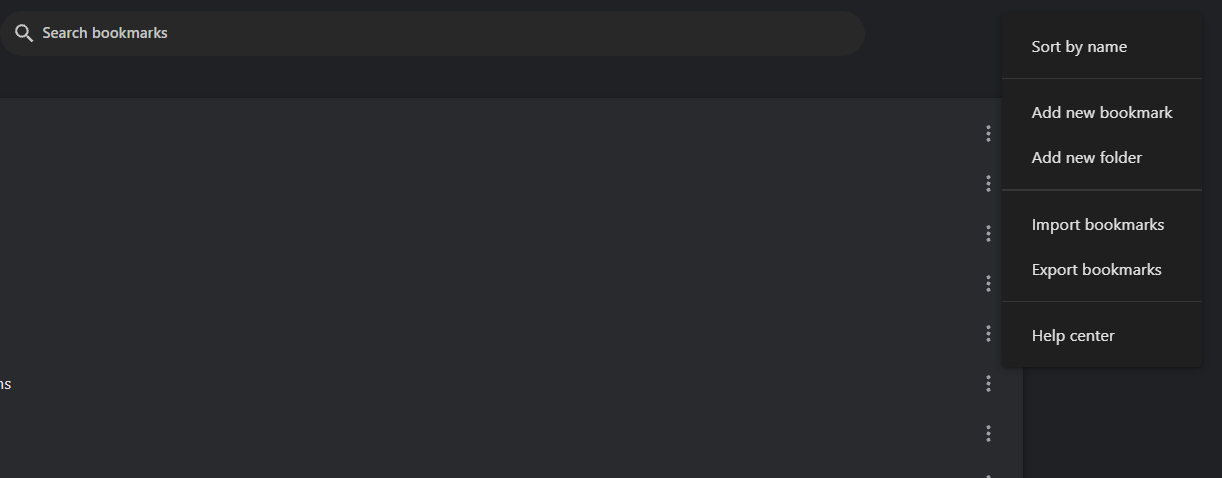
Export and import bookmarks in Chrome’s bookmark manager
Because this lives outside your machine’s local profile folder, it survives OS reinstalls, Chrome profile corruption, sync mishaps, and the Bookmarks.bak overwrite problem described above. A recurring calendar reminder (weekly or monthly, depending on how often your bookmarks change) is enough to make this genuinely reliable.
4. The tricky case: you have a backup, but it’s not current
This is the scenario that actually requires some thought. Say your last Drive/OneDrive export was from two weeks ago, and since then you’ve added a dozen new bookmarks elsewhere in your tree — not just in the folder you deleted. If you naively re-import the entire old HTML file, Chrome will duplicate everything that still exists, and you’ll have to manually clean up all your other folders. You don’t want a full restore — you want to surgically pull out just the one deleted folder from the old backup and drop it back in.
The exported bookmarks file is plain HTML using a simple nested <DL>/<DT>/<H3> structure, so this is very scriptable. Rather than hand-editing HTML, this is a good task to hand to an AI coding tool (Claude, ChatGPT, etc.) or a short script — extract the folder by name, keep its internal structure intact, and produce a small standalone HTML file that only contains that folder.
Here’s a working example in Python that does exactly that using BeautifulSoup:
from bs4 import BeautifulSoup

def extract_folder(input_path, output_path, folder_name):
    with open(input_path, "r", encoding="utf-8") as f:
        soup = BeautifulSoup(f, "html.parser")
    # Chrome exports each folder as an <H3> heading followed by a sibling <DL> list
    target_dl = None
    for h3 in soup.find_all("h3"):
        if h3.get_text(strip=True) == folder_name:
            target_dl = h3.find_next_sibling("dl")
            target_h3 = h3
            break
    if target_dl is None:
        raise ValueError(f"Folder '{folder_name}' not found in backup file")
    # Build a minimal, valid bookmarks HTML file containing just this folder
    new_soup = BeautifulSoup(
        '<!DOCTYPE NETSCAPE-Bookmark-file-1><META HTTP-EQUIV="Content-Type" '
        'CONTENT="text/html; charset=UTF-8"><TITLE>Bookmarks</TITLE>'
        "<H1>Bookmarks</H1><DL><p></DL><p>",
        "html.parser",
    )
    root_dl = new_soup.find("dl")
    root_dl.append(target_h3.extract())
    root_dl.append(target_dl.extract())
    with open(output_path, "w", encoding="utf-8") as f:
        f.write(str(new_soup))

# sample usage for Recipes folder
extract_folder("bookmarks-2026-06-20.html", "recovered_folder.html", "Recipes")
What this does:
- Parses the old backup export.
- Finds the
<H3>heading matching the deleted folder's name (and its accompanying<DL>list, which holds all bookmarks and sub-folders inside it). - Writes out a new, minimal, valid bookmarks HTML file containing only that folder, with its structure and nested sub-folders preserved.
Then in Chrome:
- Go to Bookmark Manager → ⋮ → Import bookmarks.
- Select
recovered_folder.html. - Chrome imports it as a new top-level folder (usually named “Imported”), containing just the folder you lost — with none of your current bookmarks duplicated.
- Drag it back to wherever it originally lived in your tree.
If a folder name appears more than once in your bookmark tree, add a check on the parent path rather than matching by name alone — but for most people’s bookmark structures, the name match above is enough.
Quick recap
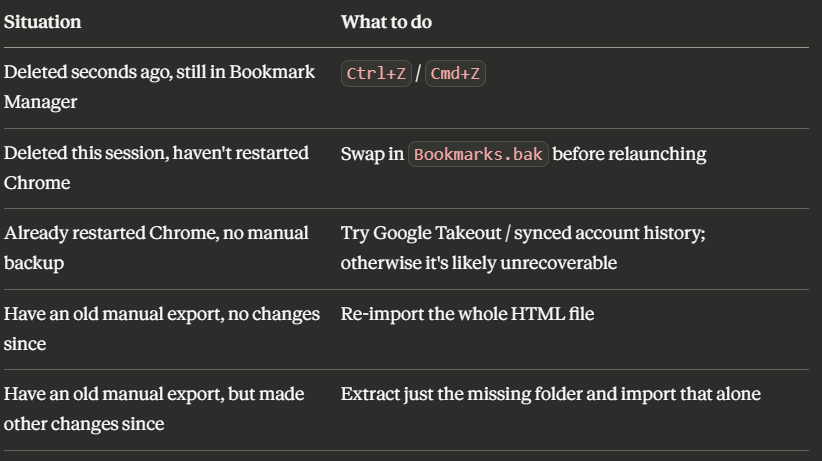
Quick recap of what to do
The real lesson here: Bookmarks.bak is a nice safety net for the "I just fat-fingered a delete" case, but it disappears the moment you restart your browser. A scheduled export to Drive or OneDrive is the only backup that actually survives long enough to matter — and when it's slightly stale, a small script to pull out just the missing folder saves you from a messy full restore.
메타데이터
- post_id
- e76c99c6596d
- slug
- what-to-do-when-you-accidentally-delete-a-bookmark-folder-in-chrome-e76c99c6596d
- url
- https://medium.com/@tech-depth-and-breadth/what-to-do-when-you-accidentally-delete-a-bookmark-folder-in-chrome-e76c99c6596d
- canonical_url
- https://medium.com/@tech-depth-and-breadth/what-to-do-when-you-accidentally-delete-a-bookmark-folder-in-chrome-e76c99c6596d
- author_url
- https://medium.com/@tech-depth-and-breadth
- status
- ok
- fetched_at
- 2026-07-08 09:05:23