How to Change Flutter Package Name for Android and iOS (Manual & Automated Methods)
Rename your Flutter package name on Android and iOS with manual or automated steps.
How to Change Flutter Package Name for Android and iOS (Manual & Automated Methods)
Rename your Flutter package name on Android and iOS with manual or automated steps.

Change package name.
NOTE: ✨ No Medium subscription? I’ve got you covered with a friend link 😊 👉 Tap here to read it for free
When you create a Flutter project, it comes with a default package name like com.example.app. However, as your app evolves, whether due to rebranding, organizational changes, or publishing requirements, you might need to update this identifier. Changing the package name ensures your app maintains a unique identity across platforms and avoids potential conflicts.
In this guide, we’ll explore both manual and automated methods to change your Flutter app’s package name for Android and iOS.
What Is a Package Name in Flutter?
In app development, the package name (or bundle identifier for iOS) serves as a unique identifier for an application, similar to how a domain name identifies a website. It’s used to differentiate apps on a device and is essential for various system functions, including app installation and updates, etc. It’s typically structured in reverse domain name notation, such as.com.companyname.appname
Why Would You Want to Change Your Package Name?
Your package name is like your app’s digital fingerprint. It uniquely identifies your app on both the Play Store and App Store. So why change it? Well, there are several good reasons:
- Branding and Rebranding
- Avoiding Conflicts
- Publishing Requirements
- Migration or Company Acquisition
- Environment Separation (Dev, QA, Prod)
Manual Method for Android
This method gives you the most control and is recommended if you want to understand how everything connects behind the scenes.
- Go to:
android/app/build.gradle.kts - Look for the
namespaceandapplicationIdsee the image below.
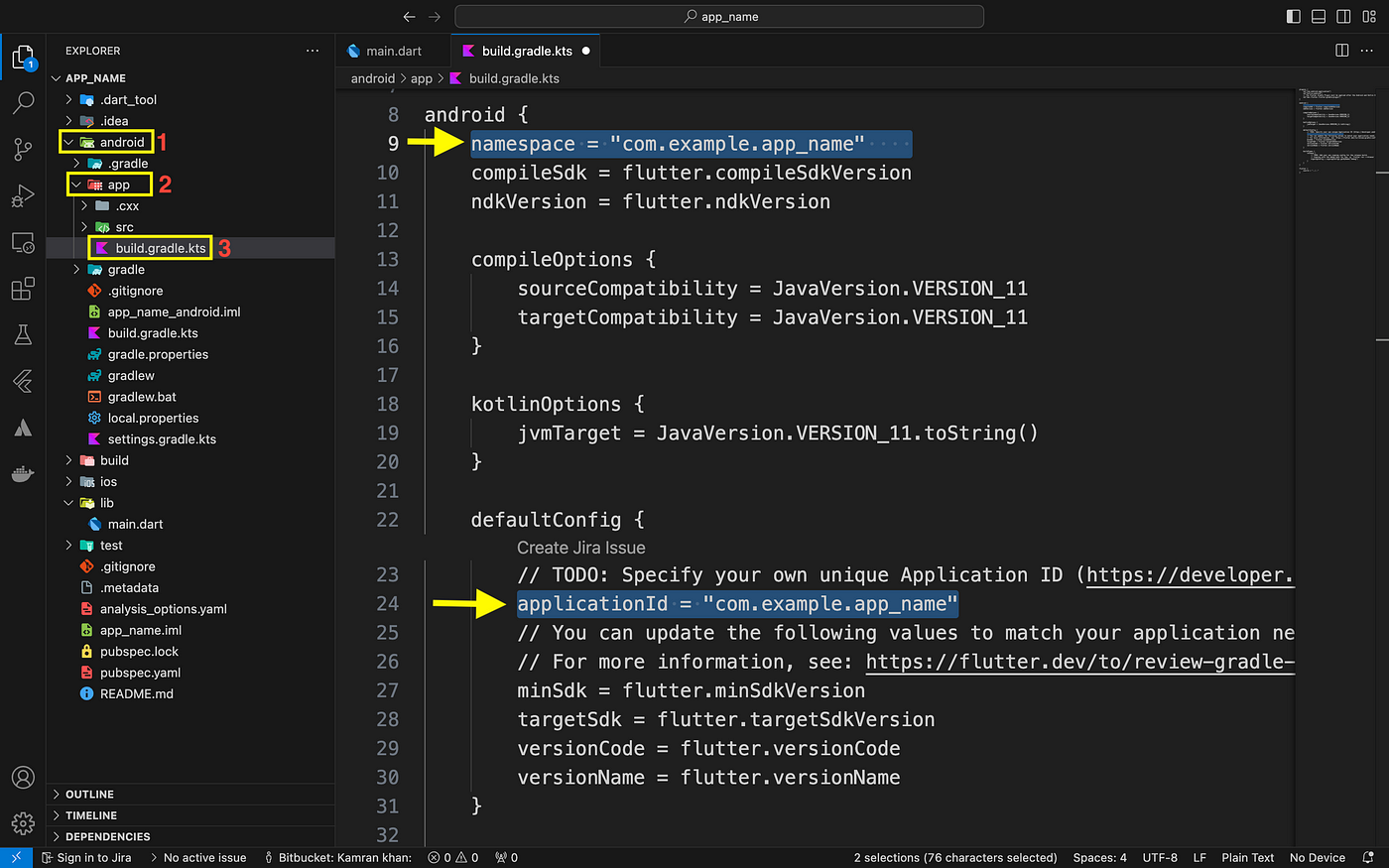
- Simply substitute
*"com.example"with your company name, like `"com.flutterdev"*, and"app_name"` with your app’s name, such as*"tasky"*.
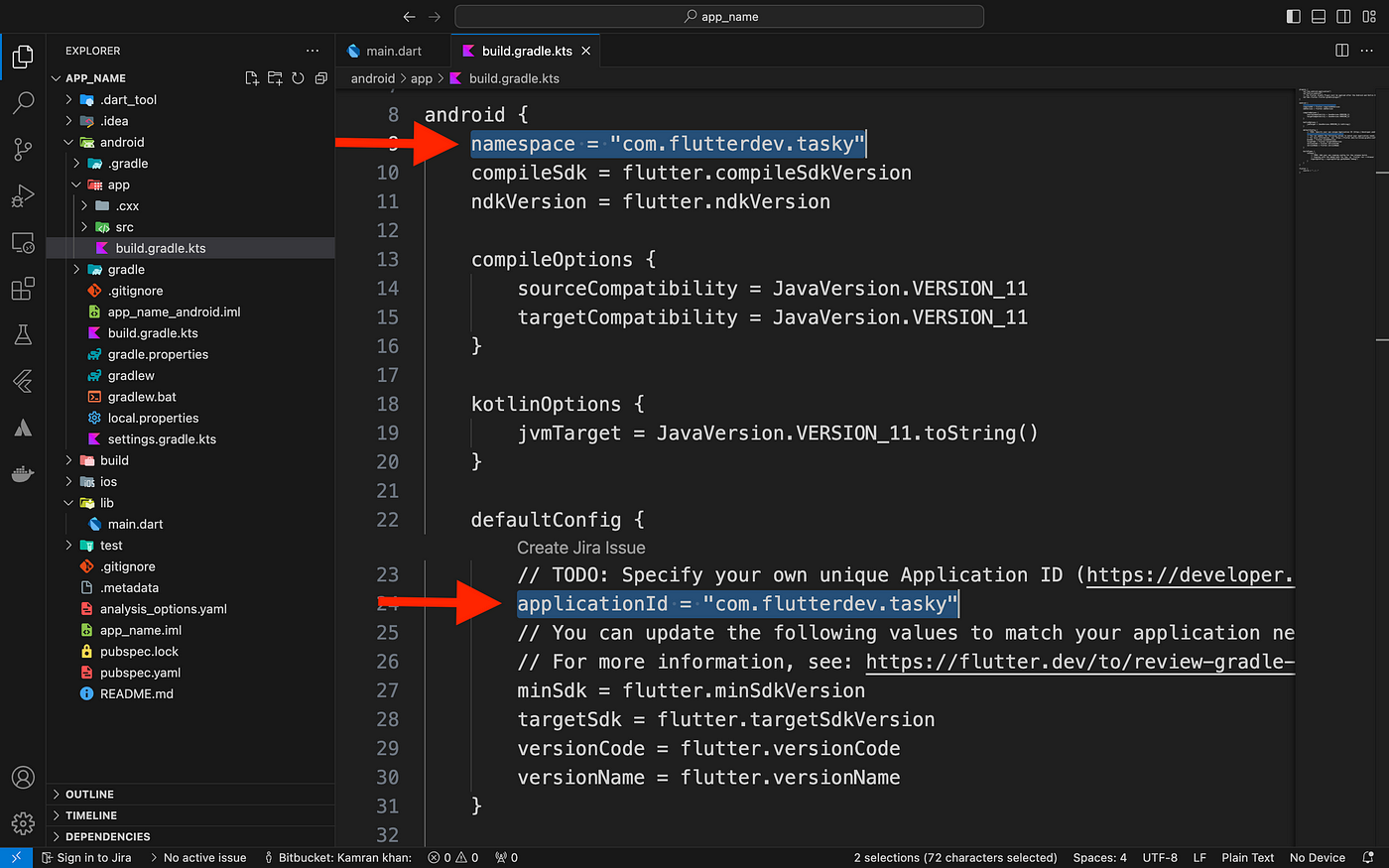
- Next, execute the commands below, and then launch your Flutter app. Make sure to run on a physical device. If you don’tve it, then restart your IDE.
flutter clean
flutter pub get
flutter runCongratulations! You’ve successfully change the package name on Android. 🎉
Manual Method for IOS
To change the bundle identifier on iOS, open your project in Xcode, right-click on the ios folder within your Flutter project, and then click on the “Open in Xcode” option.

- Simply substitute
*"com.example"with your company name, like `"com.flutterdev"*, and"app_name"` with your app’s name, such as *"tasky"*see the below image.


Last step: execute the commands below, and then launch your Flutter app. Make sure to run on a physical device. If you don’tve it, then restart your IDE.
flutter clean
flutter pub get
flutter runCongratulations! You’ve successfully change the package name on iOS. 🎉
Automated Method Using rename package.

rename package screenshot
Simplify your life with this package. Its user-friendly features make managing tasks effortless, helping you boost productivity and stay organized. Your go-to solution for ease and efficiency.
To change your Flutter app’s package name easily, follow the steps below to activate the Flutter rename package:
- Launch your terminal.
- Execute the following command.
dart pub global activate renameImportant Notes (for mac users)
If you encounter a warning about the executables not being in your path, you might need to add them
export PATH="$PATH":"$HOME/.pub-cache/bin"to your system's PATH variable.
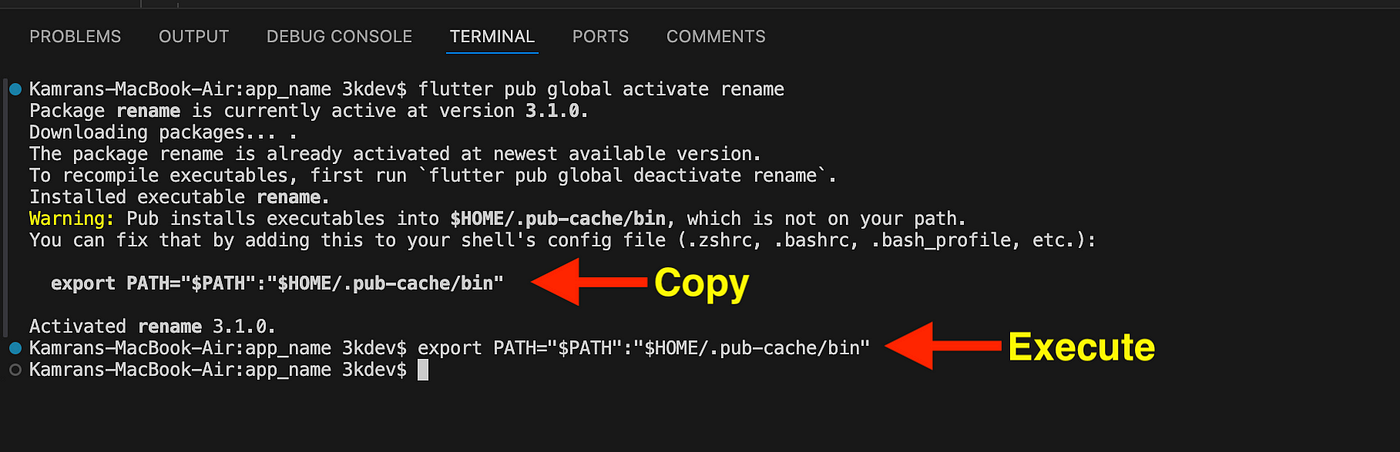
Now it’s time to get the package name and then change the package name effortlessly.
- To get the package name, just execute the below command.
rename getBundleId --targets android,ios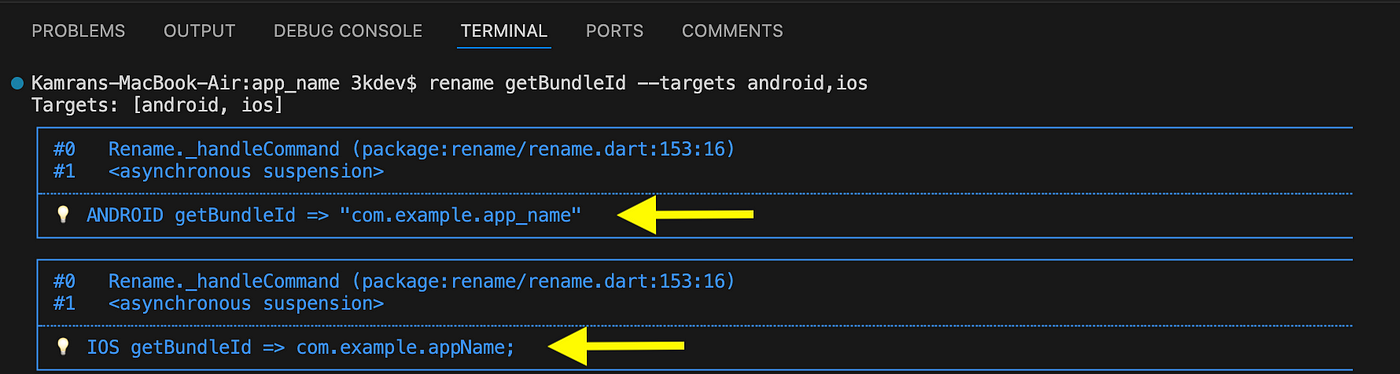
- To specify the package name, simply run the command below.
NOTE: Don’t forget to replace
"com.example"with your company name, like"com.flutterdev", and update"app_name"with your app’s name, such as"tasky".
rename setBundleId --targets android,ios --value "com.company_name.appname"
Conclusion
Changing the Flutter package name might seem like a small task, but it plays a critical role in how your app is identified and managed across platforms. Whether you’re prepping your app for release, avoiding conflicts, or just rebranding, getting the package name right is non-negotiable.
We explored both manual and automated methods, giving you flexibility depending on your preference and project complexity. The manual route offers control and insight into the inner workings of your Flutter project, while tools like simplify the job with just a few commands.
I’ve also included instructions on how to change the app name. To check it out, click the link below. 👇
Thank you for reading this article. If you found it helpful, please clap and share it with other developers who might benefit from it. Your support greatly motivates me to write more useful content like this.
If you appreciate my work and find it valuable, consider supporting me by buying me a coffee. Your support helps keep the coffee flowing and fuels more high-quality articles and tutorials!
Stay connected and updated with my latest articles by following me on social media:
I always welcome your feedback and suggestions; if any, contact me on the above platform. Happy coding!
메타데이터
- post_id
- e77a0be3adda
- slug
- how-to-change-flutter-package-name-for-android-and-ios-manual-automated-methods-e77a0be3adda
- url
- https://levelup.gitconnected.com/how-to-change-flutter-package-name-for-android-and-ios-manual-automated-methods-e77a0be3adda
- canonical_url
- https://levelup.gitconnected.com/how-to-change-flutter-package-name-for-android-and-ios-manual-automated-methods-e77a0be3adda
- author_url
- https://medium.com/@3kdeveloper
- status
- ok
- fetched_at
- 2026-07-20 18:44:07