Managing package.json When Local Node.js Version Differs from Vercel’s
Ensure seamless deployments by mastering Node.js version compatibility
Managing package.json When Local Node.js Version Differs from Vercel’s
Photo by Chris Ried on Unsplash
Ensure seamless deployments by mastering Node.js version compatibility
As a developer deploying Node.js applications to Vercel, you’ve likely encountered the frustrating scenario where your code works perfectly locally but breaks in production. Often, this mismatch stems from different Node.js versions between your development environment and Vercel’s runtime.
This version mismatch can lead to subtle bugs, broken dependencies, and deployment failures. In this comprehensive guide, I’ll walk you through practical strategies to ensure compatibility and smooth deployments.
Understanding the Problem
Vercel typically uses specific Node.js LTS (Long Term Support) versions for their serverless functions. As of writing, they support Node.js 18.x and 20.x, but this changes over time. Meanwhile, you might be developing on Node.js 16, 21, or any other version.
The consequences of this mismatch include:
- Different JavaScript feature support
- Varied native module compatibility
- Inconsistent dependency resolution
- Unexpected runtime behavior
Solution 1: The .nvmrc File — Your First Line of Defense
The simplest approach is using a .nvmrc file, which tells Node Version Manager (nvm) which version to use.
# Create .nvmrc in your project root
echo “20.18.0” > .nvmrc
Now, when you or your team members navigate to the project:
nvm use # Automatically switches to the version in .nvmrcPro tip: Add this to your shell configuration to auto-switch:
# In your .zshrc or .bashrc
autoload -U add-zsh-hook
load-nvmrc() {
 local nvmrc_path=”$(nvm_find_nvmrc)”
 if [ -n “$nvmrc_path” ]; then
 local nvmrc_node_version=$(nvm version “$(cat “${nvmrc_path}”)”)
 if [ “$nvmrc_node_version” = “N/A” ]; then
 nvm install
 elif [ “$nvmrc_node_version” != “$(nvm version)” ]; then
 nvm use
 fi
 fi
}
add-zsh-hook chpwd load-nvmrc
load-nvmrc
Solution 2: Configure package.json for Cross-Version Compatibility
Your package.json is the contract between your code and the runtime. Use these fields strategically:
The engines Field: Your Version Contract
{
 “name”: “my-vercel-app”,
 “version”: “1.0.0”,
 “engines”: {
 “node”: “20.x”, // Use Vercel’s current LTS
 “npm”: “>=9.0.0”
 }
}
This field:
- Specifies the exact Node.js version Vercel should use
- Warns developers during
npm installif using an incompatible version - Can be enforced by CI/CD pipelines and hosting platforms
Version-Aware Script Configuration
{
 “scripts”: {
 “dev”: “NODE_ENV=development nodemon server.js”,
 “build”: “npm run build:prod”,
 “build:prod”: “NODE_ENV=production next build”,
 “start”: “NODE_ENV=production node server.js”,
 “vercel-build”: “npm run lint && npm run build:prod”,
 “lint”: “eslint . — ext .js,.jsx,.ts,.tsx”,
 “test”: “NODE_ENV=test jest — passWithNoTests”,
 “preinstall”: “node scripts/check-node-version.js”
 }
}
Notice the vercel-build script — Vercel automatically runs this during deployment. This is where you can add pre-deployment checks.
Solution 3: The Pre-Install Version Check
Create a script that prevents installation on incompatible Node.js versions:
// scripts/check-node-version.js
const semver = require('semver');
const { engines } = require('../package.json');
const requiredVersion = engines.node;

console.log(`🔍 Checking Node.js version…`);
console.log(` Current: ${process.version}`);
console.log(` Required: ${requiredVersion}`);

if (!semver.satisfies(process.version, requiredVersion)) {
 console.error(`❌ Node.js ${process.version} does not satisfy required version ${requiredVersion}`);
 console.error(`💡 Please install Node.js ${requiredVersion} using:`);
 console.error(` nvm install ${requiredVersion}`);
 console.error(` nvm use ${requiredVersion}`);
 process.exit(1);
}

console.log('✅ Node.js version compatible!\n');
Add this script to your package.json:
{
 “scripts”: {
 “preinstall”: “node scripts/check-node-version.js”
 }
}
Now, npm install will fail with a helpful message if the Node.js version is wrong.
## Solution 4: Vercel-Specific Configuration
Using vercel.json
Create a vercel.json file to explicitly control the runtime:
{
 “version”: 2,
 “builds”: [
 {
 “src”: “package.json”,
 “use”: “@vercel/node”
 }
 ],
 “functions”: {
 “api/**/*.js”: {
 “runtime”: “nodejs20.x”,
 “maxDuration”: 10
 }
 },
 “env”: {
 “NODE_ENV”: “production”
 }
}
Environment-Specific Configuration
Different environments might need different configurations:
// vercel.json with environment-specific settings
{
 “build”: {
 “env”: {
 “NODE_ENV”: “production”
 }
 },
 “env”: {
 “NODE_VERSION”: “20.18.0”
 },
 “regions”: [“iad1”],
 “public”: true
}
Solution 5: Docker for Absolute Consistency
When you need complete control over the runtime environment, Docker is your best friend:
# Dockerfile
FROM node:20.18.0-alpine AS builder

# Install dependencies
WORKDIR /app
COPY package*.json ./
RUN npm ci - only=production

# Copy source
COPY . .

# Build application
RUN npm run build

# Production image
FROM node:20.18.0-alpine AS runner
WORKDIR /app

# Copy from builder
COPY - from=builder /app ./

# Non-root user for security
RUN addgroup - system - gid 1001 nodejs
RUN adduser - system - uid 1001 nodejs
USER nodejs

EXPOSE 3000
CMD ["npm", "start"]
Then configure Vercel to use Docker:
{
 “functions”: {
 “api/**/*.js”: {
 “runtime”: “vercel-docker@1.0.0”
 }
 }
}
Solution 6: Version Management Tools Comparison
Different tools offer different approaches:
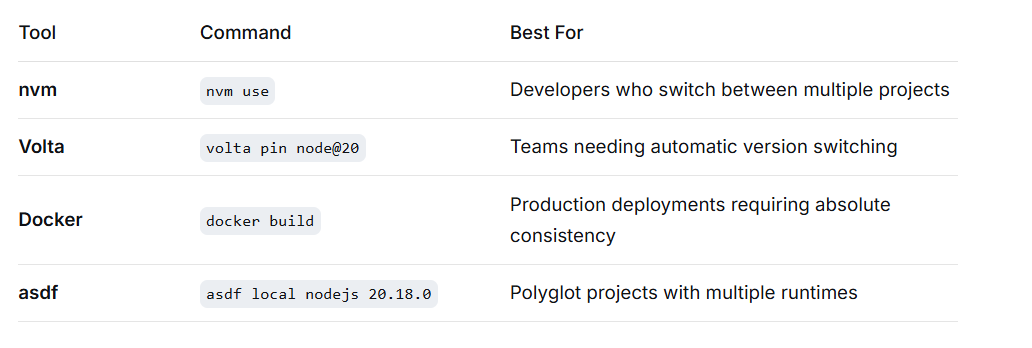
Volta Example (Recommended for Teams)
# Install Volta
curl https://get.volta.sh | bash

# Pin Node version in your project
volta pin node@20.18.0
volta pin npm@10.2.0

# This creates/updates package.json
{
 "volta": {
 "node": "20.18.0",
 "npm": "10.2.0"
 }
}
Volta automatically switches Node versions when you enter a project directory — no manual commands needed.
Solution 7: CI/CD Pipeline Integration
Ensure compatibility before deployment with GitHub Actions:
# .github/workflows/vercel-deploy.yml
name: Deploy to Vercel
on:
 push:
 branches: [main, master]
 pull_request:
 branches: [main, master]
jobs:
 test-compatibility:
 runs-on: ubuntu-latest

 strategy:
 matrix:
 node-version: [18.x, 20.x] # Test with Vercel's supported versions

 steps:
 - uses: actions/checkout@v3

 - name: Use Node.js ${{ matrix.node-version }}
 uses: actions/setup-node@v3
 with:
 node-version: ${{ matrix.node-version }}

 - name: Install dependencies
 run: npm ci

 - name: Run tests
 run: npm test

 - name: Build
 run: npm run build

 deploy:
 needs: test-compatibility
 runs-on: ubuntu-latest
 if: github.event_name == 'push' && github.ref == 'refs/heads/main'

 steps:
 - uses: actions/checkout@v3

 - name: Deploy to Vercel
 uses: amondnet/vercel-action@v20
 with:
 vercel-token: ${{ secrets.VERCEL_TOKEN }}
 vercel-org-id: ${{ secrets.ORG_ID}}
 vercel-project-id: ${{ secrets.PROJECT_ID}}
Troubleshooting Common Issues
Issue 1: Native Modules Fail to Build
Symptom: Error: Module did not self-register
Solution: Use Docker or match Node.js versions exactly:
# Rebuild native modules
npm rebuild
# Or
rm -rf node_modules && npm install
Issue 2: ES Modules vs CommonJS
Symptom: SyntaxError: Cannot use import statement outside a module
Solution: Update package.json:
{
 “type”: “module”, // or “commonjs”
 “exports”: {
 “.”: {
 “import”: “./dist/index.mjs”,
 “require”: “./dist/index.cjs”
 }
 }
}
Issue 3: Dependency Version Conflicts
Use npm ls to identify problematic dependencies:
# Check for incompatible dependencies
npm ls - depth=0

# Update to compatible versions
npx npm-check-updates - target=minor
Best Practices Summary
- Always specify Node.js version in
package.jsonenginesfield - Use
.nvmrcor Volta for local development consistency - Test with Vercel’s Node.js versions before deployment
- Consider Docker for complex applications with native dependencies
- Implement CI/CD checks to catch version issues early
- Document the Node.js version in your README
Final Thoughts
Managing Node.js version discrepancies between local development and Vercel deployments doesn’t have to be a headache. By implementing these strategies, you create a robust workflow that prevents “it works on my machine” scenarios.
Remember, the goal isn’t just to make deployments work — it’s to create a predictable, reproducible development environment that scales with your team and application complexity.
Key takeaway: Start with .nvmrc and package.json enginesfield. These simple additions provide 80% of the benefit with 20% of the effort. As your application grows, layer in additional strategies like Docker or comprehensive CI/CD pipelines.
메타데이터
- post_id
- e7dcfd1a37b8
- slug
- managing-package-json-when-local-node-js-version-differs-from-vercels-e7dcfd1a37b8
- url
- https://medium.com/@vcwong/managing-package-json-when-local-node-js-version-differs-from-vercels-e7dcfd1a37b8
- canonical_url
- https://medium.com/@vcwong/managing-package-json-when-local-node-js-version-differs-from-vercels-e7dcfd1a37b8
- author_url
- https://medium.com/@vcwong
- status
- ok
- fetched_at
- 2026-08-01 22:13:31



