AnyViewer: Fast & Stable Remote Desktop Software
What software do you use for remote access?
AnyViewer: Fast & Stable Remote Desktop Software
What software do you use for remote access?
Remote desktop software allows users to access and control computers from other places all over the world. And it provides smooth connections and effective collaboration options. Therefore, it has become vital software for individuals and enterprises who require remote work or remote support.
There are various remote desktop solutions in the market. Among these solutions, AnyViewer stands out as one of the best remote desktop software for Windows, iOS, and Android, offering customers a fast and stable method to control another computer remotely.
AnyViewer: a reliable remote desktop software for Windows
AnyViewer is recommended as the free best remote desktop software for Windows. It enables remote workers to collaborate effectively with their colleagues and helps IT professionals fix others’ computer issues remotely, totally regardless of geographical barriers. With AnyViewer, users can greatly enhance their work productivity and efficiency.
What you can get from using AnyViewer?
AnyViewer is one of the most popular alternatives to Windows Remote Desktop, offering multiple benefits for individuals and enterprises to get the best remote desktop control experience.
l Superior performance
AnyViewer stands out for its lightning-fast connection rates, incredibly smooth remote control, and convenient large file transfer.
l Enhanced security measures
AnyViewer ensures the security and safety of your remote sessions from potential threats by using asymmetric ECC 256-bit end-to-end encryption and additional security mechanisms such as two-factor authentication.
l Affordability for all users
AnyViewer is free for individuals and small businesses, which is quite suitable for users who have limited budgets or have fewer devices for remote control. Meanwhile, it also provides competitive paid plans and licensing options with cheap pricing for bigger enterprises.
l Ease of use
AnyViewer offers a simple interface both for desktop and mobile users. Unlike other complicated options, setting up and controlling remote sessions is easy in AnyViewer, it keeps things simple and powerful with minimal setup, so you can start collaborating online quickly.
User-recommended functionalities of AnyViewer
AnyViewer provides excellent functions that go beyond simple remote computer access. It offers a wider range of professional features and functions than other remote desktop software, improving user productivity and cooperation capabilities. Here are some examples:
l Unattended remote access: You can remotely access and control unattended computers with one click in the same AnyViewer account.
l File transfer: AnyViewer allows fast and large file transfer between computers.
l Screen mirroring: You can mirror your mobile screen onto your PC by using the same AnyViewer account or simply by scanning the QR code.
l Screen wall: This is perfect for businesses that are looking for remote employee monitoring and management. You can add many remote device screens into one window for real-time monitoring.
l In-session text chat: To improve work efficiency and make IT technical support more convenient, users are allowed to chat with each other during remote sessions.
l Remote power management: You can remotely lock, restart, or shut down your devices by using AnyViewer.
Common use cases of AnyViewer
The rich features make AnyViewer suitable for different scenarios. Here are some common use cases of AnyViewer:
l Remote IT support
If you’re an IT professional, you may sometimes need to help your friends, families, or clients with computer issues remotely. You won’t need to be present in person to help them fix difficult computer problems, which helps greatly save time.
l Remote work
If you need to work remotely, AnyViewer helps you to access and control your office computer and get files from anywhere as long as you have a device. You can work at a coffee shop, at home, or even on the subway, this can help improve work productivity.
l Remote monitoring and management
For business owners, AnyViewer lets you remotely monitor and manage a massive of staff work computers at the same time. You can see what they are doing on their work computers in real-time. But please remember to inform them before in case any privacy issues arise.
How to use AnyViewer to remote control devices with ease
AnyViewer is easy to install and use. Follow these steps to get started with AnyViewer:
Step 1. Download and install AnyViewer on your devices. Keep your computer on and AnyViewer running.
Step 2. Sign up for an AnyViewer account on the remote computer in advance.
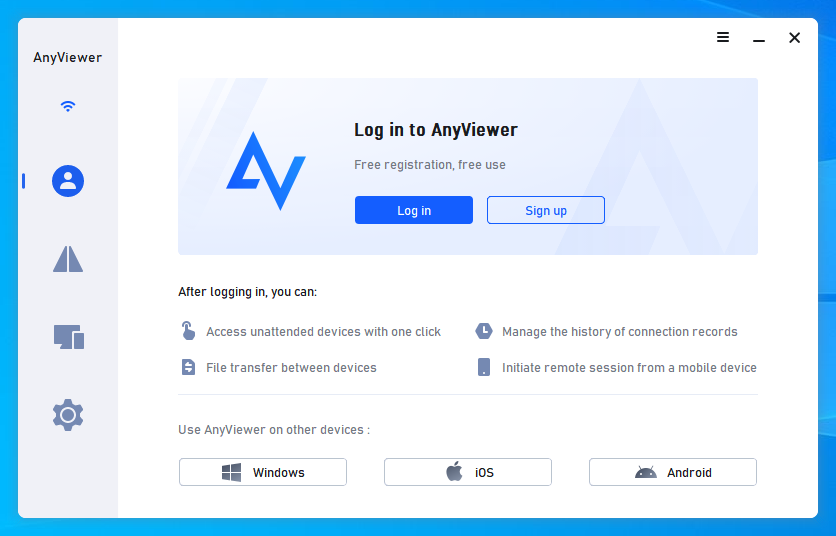
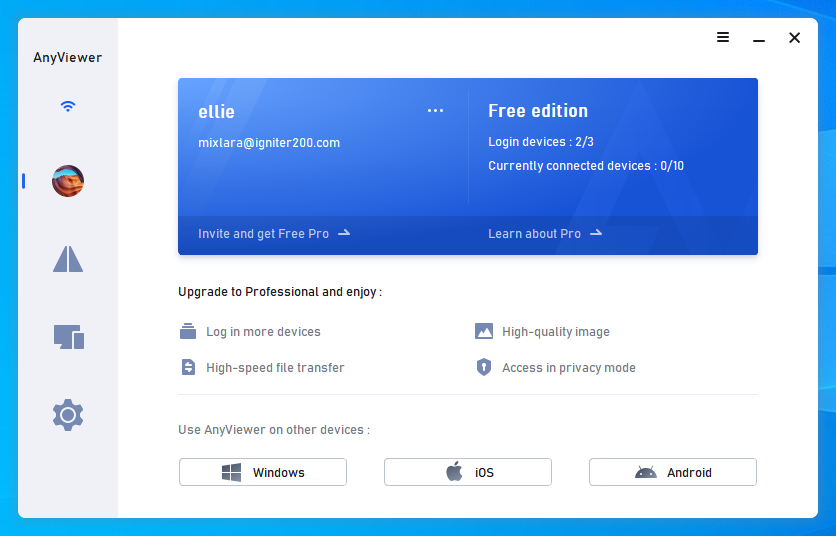
Step 3. On your local PC, log in to the same AnyViewer account.
Step 4. In the Device tab, pick the remote computer and turn on “One-click control” for quick and unattended remote access.
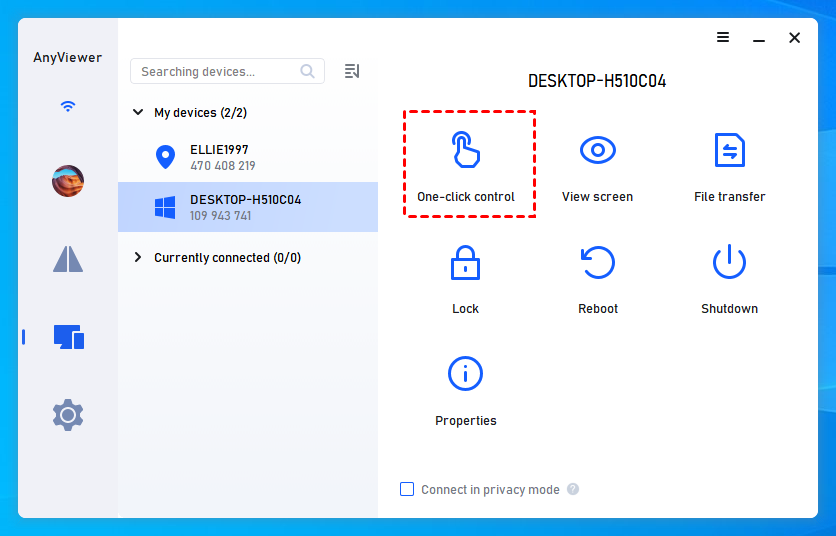
Tips: If you want to control your computer from your mobile devices, simply log in to your account on your mobile device. Then, select the target computer and tap “One-click control” on your mobile to gain remote access.
Conclusion
Remote desktop software has altered the current work and collaboration scene, especially in the IT industry. Tools like AnyViewer, with their comprehensive functions, provide unparalleled simplicity and versatility, allowing users from anywhere to stay productive. With a constantly rising global user base of over 60 million, AnyViewer has swiftly established itself as a popular alternative. Don’t wait — download and test it today.
메타데이터
- post_id
- ea075f5a35eb
- slug
- anyviewer-fast-stable-remote-desktop-software-ea075f5a35eb
- url
- https://medium.com/@vmarcello187/anyviewer-fast-stable-remote-desktop-software-ea075f5a35eb
- canonical_url
- https://medium.com/@vmarcello187/anyviewer-fast-stable-remote-desktop-software-ea075f5a35eb
- author_url
- https://medium.com/@vmarcello187
- status
- ok
- fetched_at
- 2026-08-05 23:21:42