Accessing Another User’s Directory on Windows via Command Line
Are you Admin on a Windows box but still not able to inspect a folder’s content? Getting an “access denied error”? In this post, I’ll show…
Accessing Another User’s Directory on Windows via Command Line
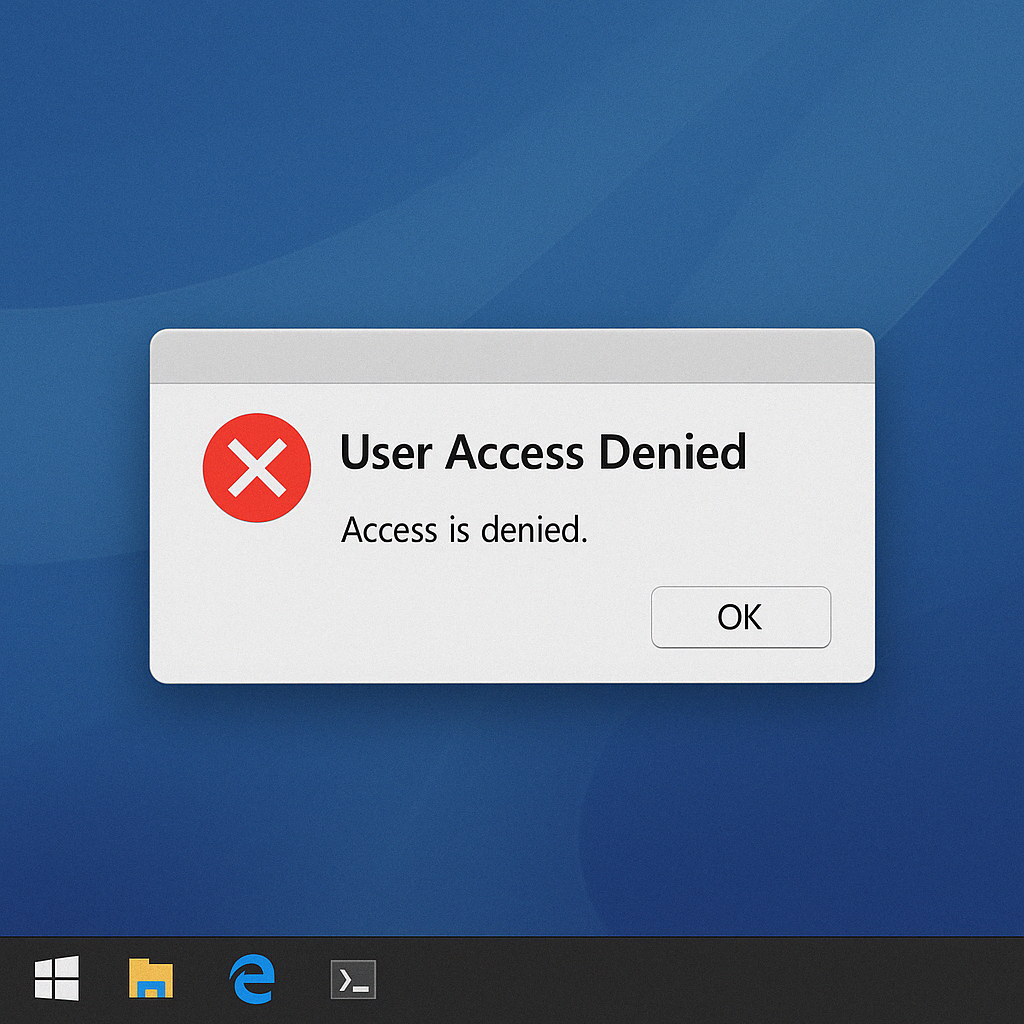
Are you Admin on a Windows box but still not able to inspect a folder’s content? Getting an “access denied error”? In this post, I’ll show you how to give yourself full access to another user’s directory via the command line using native Windows tools: takeown and icacls.
By default, users profile folders (like C:\Users\SomeUser) are protected by NTFS permissions. Even if you’re an Administrator, you don’t get automatic access. If you try to inspect a folder’s content you rely on the User Account Control (UAC) to request it.
This is good for security, but it can get in the way when you’re trying to automate things or need persistent access without additional clicks, like when working in a command line environment.
Fortunately for us, there’s a way to bypass that UI prompt even when working with command line tools.
Here’s how that can be accomplished either from GUI or a command line session.
From a RDP session
If you are connected via RDP, you will open a command prompt as Administrator. Then you will take file ownership and assign yourself proper permissions as follows:
Take file Ownership (Optional)
takeown /f "C:\Users\OtherUser" /r /d y/f: specifies the folder to take ownership of.
/r: makes it recursive (includes all subfolders and files).
/d: to automatically answers “yes” to any confirmation prompts.
Feel free to read Microsoft Official Documentation to learn more about takeown command.
Grant Permissions via icacls
icacls "C:\Users\OtherUser" /grant YourUsername:F /T:F stands for full control.
/T makes it apply to all files and subfolders.
If your username has a space in it, put it in quotes, like “John Doe”. Check Microsoft icacls documentation to obtain further information and a detailed explanation about possible flags.
PowerShell Version
In a real-world Windows Active Directory penetration test, it’s more common to obtain a command-line session rather than an RDP session. The procedure remains the same, and the commands will work as long as we’re connected with administrative privileges.
Here’s how to do the same via PowerShell:
Takeown /f "C:\Users\OtherUser" /r /d yThen …
icacls "C:\Users\OtherUser" /grant "$env:USERNAME:F" /TThis will use the current username dynamically.
Once these two commands have been executed, we will be able to inspect the folder’s content as usual.
By using takeown and icacls, you can permanently grant yourself access to any folder on the system without relying on the one-time UAC elevation dialog. This is especially useful if we are working on an AD Pentesting engagement (OSCP exam ) and we want to inspect a folder’s content but we still do not have access, even though we are connected as Administrators.
But be careful of NTFS permissions changes though! Altering default permissions on a folder can affect or break the normal functionality of a program. So, proceed with caution, especially if this is done on production servers.
메타데이터
- post_id
- ea0a8eebb8f8
- slug
- accessing-another-users-directory-on-windows-via-command-line-ea0a8eebb8f8
- url
- https://medium.com/@duckwrites/accessing-another-users-directory-on-windows-via-command-line-ea0a8eebb8f8
- canonical_url
- https://medium.com/@duckwrites/accessing-another-users-directory-on-windows-via-command-line-ea0a8eebb8f8
- author_url
- https://medium.com/@duckwrites
- status
- ok
- fetched_at
- 2026-07-10 01:40:30