Finally Seeing What Your Agent Is Doing: Inside Hermes WebUI
A Complete Guide to the Open Source Browser Interface for the Always On Hermes Agent
Finally Seeing What Your Agent Is Doing: Inside Hermes WebUI
A Complete Guide to the Open Source Browser Interface for the Always On Hermes Agent
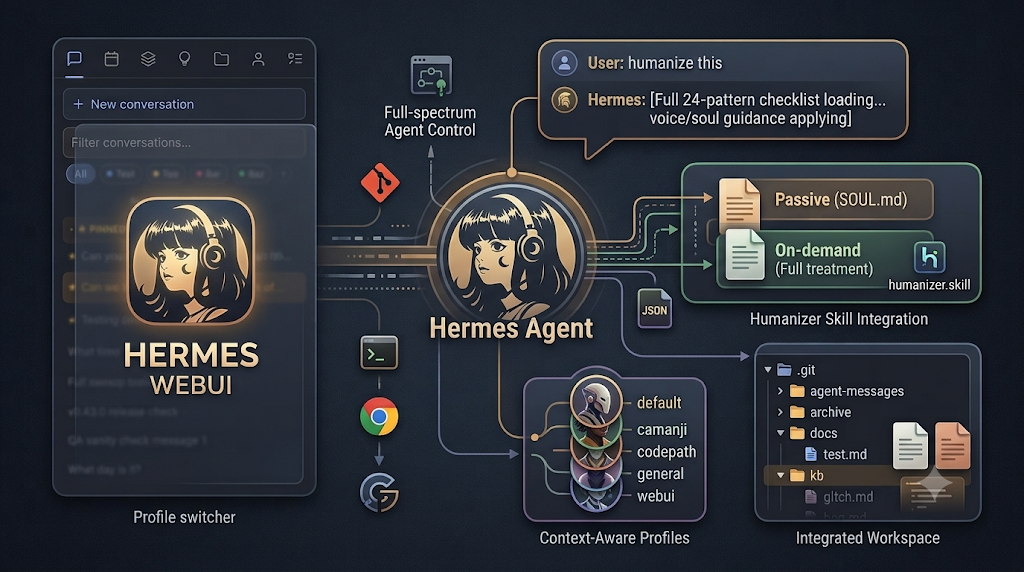
For a long time, running a persistent, always on AI agent meant accepting a strange trade off. The agent itself could be genuinely capable: it could remember what it learned across sessions, run scheduled jobs while a user slept, and grow more useful the longer it operated. What it could not offer was a comfortable way to actually watch it work. Interaction happened through a terminal window or through a messaging app, both of which are perfectly functional for sending a message and receiving a reply, but neither of which was ever designed to show the texture of what an agent is actually doing moment to moment: which tool it just called, what arguments it passed, whether a shell command needs a human to sign off on it, or what files it just touched inside a project workspace.
Hermes WebUI closes that gap. It is a lightweight, self hosted, dark themed browser interface built specifically for Hermes Agent, and it has quickly attracted broad community attention, passing ten thousand stars on its public repository under an MIT license. Rather than acting as a simplified companion app, it aims for near complete parity with the terminal experience: anything achievable from a command line session with Hermes Agent is also achievable from this interface, presented in a way that is considerably easier to follow visually.
Why an Interface Like This Was Needed
Most conversational AI tools, even fairly advanced ones, tend to reset context at the start of every session. They have no memory of who the user is, what a project’s conventions are, or what was discussed the previous day, which means the same explanations and preferences have to be repeated over and over. Hermes Agent was designed to avoid exactly that problem. It retains context between sessions, can execute scheduled jobs on its own even while the user is offline, and becomes progressively better acquainted with its operating environment the longer it continues running.
That same persistence and autonomy, however, made the terminal a somewhat awkward home for the experience. A long running agent that writes files, calls external tools, delegates tasks to other agents, and manages scheduled jobs benefits enormously from a visual surface where all of that activity is legible at a glance. Hermes WebUI was built to be that surface, without asking users to give up any of the underlying agent’s capabilities or move their setup to a different provider or hosting arrangement.
Core Design Philosophy
A detail that sets Hermes WebUI apart from many modern browser applications is how deliberately minimal its technical foundation is. There is no build step, no bundler, and no frontend framework layered on top of the browser. The backend is plain Python, and the frontend is vanilla JavaScript. For a project offering this much functionality, that is a notable design choice, and it likely contributes to how easy the project has proven to install, run, and modify.
The layout itself follows a three panel structure that keeps the most important information visible without extra navigation. A left sidebar holds session history and general navigation. The center panel is the live chat itself. The right panel is a workspace file browser, letting a user see the actual files an agent is reading, editing, or creating in real time. Model selection, active profile, and workspace controls sit in the composer footer at the bottom of the chat, staying visible while a message is being composed rather than being buried behind a menu.
A small circular ring near the composer shows token usage at a glance, offering a quick sense of how much context budget remains in the current conversation. All broader settings and session level tools live inside a dedicated Control Center, accessible from a launcher at the bottom of the sidebar.
Crucially, everything shown in the browser draws from the same underlying agent, model configuration, and provider setup already used by the terminal based Hermes Agent. There is no separate account system to configure and no parallel setup process. Enabling the web interface is a matter of running it against an existing installation, not standing up a second, independent system.
How Hermes Compares to Other Autonomous Agent Tools
Persistent, self hosted agents are becoming a more crowded category, and it is worth placing Hermes in that broader context rather than treating it in isolation. Compared with several other prominent agentic tools, a few points of differentiation tend to stand out consistently.
Automatic persistent memory, meaning a user profile, ongoing agent notes, and a growing library of reusable skills, is a first class feature of Hermes rather than something bolted on afterward. Several competing tools offer partial memory in the form of static project context files or a rolling auto memory mechanism, but do not provide the same degree of automatic cross session recall.
Self hosted scheduling is another differentiator. Hermes can run cron style jobs entirely on infrastructure the user controls, delivering results to messaging destinations such as Telegram, Discord, Slack, Signal, or email. Some competing tools offer scheduling only through a cloud managed service operated by the tool’s own vendor, which is a meaningfully different trust and control model for anyone who wants their automation running entirely on their own hardware.
Messaging reach is broad as well, with the same underlying agent reachable through more than ten different messaging platforms, so a conversation that started on a phone can continue from a terminal, and vice versa.
Perhaps the most distinctive capability is self improving skills. Rather than requiring users to browse a marketplace and install community made plugins, Hermes writes and saves its own skills automatically based on what it learns while operating. The closest competing project in this general space, often cited as the nearest comparison point, instead centers its skill ecosystem around a public marketplace, an approach that has, according to public reports, experienced both release stability issues and security incidents involving malicious submitted skills. Hermes avoids that particular category of risk by keeping skill generation internal to the agent’s own experience rather than sourced from a public repository of third party contributions.
Provider flexibility is preserved throughout. Hermes can work with OpenAI, Anthropic, Google, DeepSeek, OpenRouter, and other providers, and it can even orchestrate other coding focused agents such as Claude Code or Codex for heavier engineering tasks, folding their output back into its own persistent memory once finished. Everything remains self hosted, meaning conversations, memory, and the underlying compute all stay on infrastructure the operator controls rather than a third party’s servers.
Getting Started
Installation is intentionally short. The most direct path is cloning the repository and running its bootstrap script:
git clone https://github.com/nesquena/hermes-webui.git hermes-webui
cd hermes-webui
python3 bootstrap.py
A shell based launcher is available as an alternative for users who prefer it:
./start.shFor anyone running Hermes on a dedicated server or a home lab machine, a helper script called ctl.sh wraps the more typical daemon lifecycle operations, avoiding the need to manually track process IDs:
./ctl.sh start
./ctl.sh status
./ctl.sh logs --lines 100
./ctl.sh restart
./ctl.sh stop
It is worth understanding that each launch method has its own corresponding way of stopping the server, since only the ctl.sh start path writes a process ID file that its own stop command can later read. A server started through the plain bootstrap script and left in the foreground can simply be interrupted from the terminal, while a detached process typically needs to be located through a port lookup tool before being terminated manually.
During first setup, the bootstrap process automatically checks whether Hermes Agent itself is already installed, and if not, attempts to run the project’s official installer. It locates or creates a suitable Python environment, starts the web server, waits until a health check endpoint responds successfully, and then opens a browser window unless explicitly told not to. From there, a first run onboarding wizard walks through the remaining setup steps directly inside the interface itself.
Native Windows support for this particular bootstrap flow is not yet available, with Linux, macOS, and the Windows Subsystem for Linux listed as the supported paths. A community maintained native Windows guide does exist separately, and early reports from that setup describe meaningfully lower memory usage compared with running the same stack inside a Windows Subsystem for Linux and Docker combination, though some rough edges remain around file path handling and tools that assume a POSIX style shell.
How Chat Actually Runs
By default, the web interface runs the Hermes agent directly inside its own process rather than connecting out to a separately hosted API server. It reads configuration straight from the standard Hermes home directory. For anyone who does run an external, OpenAI compatible endpoint, two supported paths exist: adding that endpoint as a custom provider inside the interface’s settings, or routing browser chat through a Hermes Gateway API server using an explicit chat backend configuration setting. Full delegation of the entire agent loop through a gateway is described as still in progress rather than fully shipped.
A Tour of the Feature Set
The chat experience itself is built around streaming responses, so text appears progressively as it is generated rather than arriving all at once. A dropdown lets a user switch between any configured model provider, populated dynamically based on which API keys are actually present. Messages can be queued while a previous response is still processing, edited and regenerated from any earlier point in the conversation, or retried with a single click. A visible stop control sits right next to the send button for canceling a task that is already underway.
Tool activity is displayed through dedicated cards showing the tool name, the arguments passed to it, and a snippet of the result, with the ability to expand or collapse all of them at once during a busy turn involving multiple tool calls. When an agent delegates a task to a subagent, that activity appears with its own distinct icon and an indented visual border, keeping delegated work visually distinguishable from the primary agent’s own actions. Diagrams described using Mermaid syntax render inline as actual flowcharts, sequence diagrams, or Gantt charts rather than as raw text. Extended reasoning traces, such as those produced by Claude’s extended thinking mode or similarly structured reasoning output from other models, appear inside collapsible cards rather than cluttering the main conversation flow.
Safety is addressed directly in the interface rather than left implicit. Any potentially dangerous shell command triggers an approval card, giving a user the choice to allow it once, allow it for the remainder of the session, always allow that specific command going forward, or deny it outright. The streaming connection itself automatically reconnects after minor network interruptions, which matters considerably for anyone accessing the interface over an SSH tunnel rather than a direct local connection. File attachments persist across page reloads and are stored outside the active project workspace by default, keeping incidental uploads from mixing into the files an agent is actually working on.
Session management covers the fundamentals expected from any serious chat interface, including renaming, duplicating, deleting, and searching by title or message content, alongside pinning important sessions to the top of the list and archiving ones no longer needed without permanently deleting them. Sessions can be organized into named projects with distinct colors, or tagged directly in their titles for quick filtering. A particularly useful bridge feature allows sessions originally created from the Hermes command line interface to appear automatically in the web sidebar, marked with a distinct badge, so a conversation started at a terminal can be picked up seamlessly in the browser and continued normally.
The workspace file browser turns the right hand panel into a genuine, if lightweight, code and file editor. Directories can be expanded and collapsed, breadcrumb navigation makes deep paths easy to follow, and text, code, Markdown, and image files preview directly inline. Files referenced in chat using a workspace link syntax open automatically in that same preview pane. Basic file operations such as editing, creating, deleting, and renaming are supported directly, and the browser detects whether a workspace is a Git repository, displaying the current branch name along with a count of files with uncommitted changes.
Voice input is available through the browser’s built in speech recognition capability, letting a user tap a microphone button, speak, and see live interim transcription appear directly in the message box, automatically stopping after a short period of silence. This feature naturally depends on browser support for the underlying Web Speech API and is hidden entirely on browsers that lack it.
Profile management allows multiple distinct agent configurations to exist side by side, each with its own model settings, memory, skills, and scheduled jobs. Switching between profiles happens without restarting the server, and a visible status indicator shows whether a given profile’s underlying service is currently running along with a quick summary of its model and skill count.
Security Considerations
Security in Hermes WebUI is opt in but reasonably thorough once enabled. Password authentication is off by default to minimize friction for anyone running the interface purely on localhost, but can be turned on through either an environment variable or directly from the settings panel. Passkey based sign in through WebAuthn is also supported, and once at least one passkey has been registered, password authentication can optionally be removed entirely in favor of passkey only access. Native OpenID Connect login is available as well for anyone wanting to integrate the interface with an existing identity provider, though it requires a specific full set of configuration values before it activates, and will not partially enable itself if any value is missing.
Sessions are protected through a signed, HTTP only cookie with a twenty four hour lifetime, and every response includes standard security headers to reduce the risk of common browser based attacks. Content delivery network resources are pinned using subresource integrity hashes, and uploaded content is limited to a reasonable size ceiling to prevent abuse.
Visual Customization
Appearance is controlled along two independent axes, a general theme choice of system, dark, or light, and a separate skin choice offering a fairly wide palette of named visual styles. Changes can be made either through the settings panel with an instant live preview or through a quick slash command typed directly into the chat box, and the chosen appearance persists across reloads.
Configuration and Remote Access
The startup script attempts to auto discover almost everything it needs, including the location of the underlying Hermes agent installation, the correct Python executable, the state directory used to store sessions and settings, the default workspace folder, and the port to bind to. When automatic discovery is not sufficient, each of these can be overridden through environment variables, making it straightforward to run multiple isolated instances or point the interface at a nonstandard installation layout.
Because the server binds to the local loopback address by default, reaching it from another device generally requires either an SSH tunnel, or joining both the server and a personal device to the same private network such as Tailscale, combined with enabling password protection before exposing the bound address more broadly. This default is a sensible one from a security standpoint, since it avoids accidentally exposing a fully capable, file editing, shell command executing interface directly to the open internet.
Running It in Docker
For anyone who prefers containerized deployment, prebuilt images covering both common processor architectures are published on every release. A minimal single container quickstart looks like this:
git clone https://github.com/nesquena/hermes-webui
cd hermes-webui
cp .env.docker.example .env
docker compose up -d
Running the compose command as the same user account that owns the existing Hermes configuration directory matters quite a bit in practice, since running it through elevated privileges can cause path expansion to resolve to the wrong home directory entirely, leading to a confusing situation where the interface starts successfully but cannot find any existing configuration. Enabling password protection before exposing the container’s port beyond localhost is strongly recommended, and is enforced through the same password environment variable used in a non containerized setup.
For situations calling for stronger isolation between the agent and the interface itself, multi container compose files are also provided, splitting the agent and the web interface into separate containers, with an optional third container available for a monitoring dashboard.
Testing and Reliability
The project ships with an extensive automated test suite, reportedly totaling around seven thousand one hundred and fifty individual tests spread across roughly seven hundred test files, executed continuously across three actively supported Python versions. Tests run against an isolated server instance with its own separate state directory, so automated testing never touches real session data or live scheduled jobs. A dedicated test runner script handles environment setup automatically:
cd hermes-webui
./scripts/test.sh
Focused test runs targeting a specific file or pattern are supported by simply appending normal test arguments after the script name.
Architecture at a Glance
Consistent with its minimalist design philosophy, the backend lives entirely in plain Python modules handling routing, authentication, configuration discovery, session modeling, onboarding, profile management, streaming, and workspace file operations. The frontend mirrors that simplicity with a small set of vanilla JavaScript files handling rendering, workspace interactions, session management, live message streaming, panel behavior, and slash command autocomplete, all without a compiled build step standing between the source code and what actually runs in the browser. All persistent state, including sessions, workspace references, and settings, lives outside the code repository itself in a dedicated state directory, which keeps upgrades straightforward since the application code and the user’s actual data are never mixed together.
Compatibility Notes
Because the web interface currently imports several modules directly from the underlying Hermes Agent codebase rather than communicating with it through a fully stabilized, independent API boundary, version alignment between the two projects matters. The general guidance is to upgrade both together, keeping their release versions matched, particularly before relying on the combination for anything resembling production use. This kind of tight coupling is a known, openly acknowledged limitation while a more formal, stable interface boundary between the two projects continues to be developed.
Conclusion
Hermes WebUI does not attempt to reinvent what an always on, memory retaining agent can do. Its contribution is making that existing capability visible and comfortable to work with, replacing a terminal window or a messaging app thread with a genuine three panel workspace that shows sessions, live conversation, and actual project files side by side, all without asking anyone to change providers, migrate their existing setup, or hand their conversations to a third party server.
Combined with meaningful safety controls around shell command approval, flexible authentication options, and a refreshingly minimal technical footprint built on plain Python and vanilla JavaScript, it represents a practical, thoughtfully built answer to a problem that anyone running a persistent AI agent eventually runs into: not whether the agent is capable, but whether there is a comfortable way to actually watch it work.
The repository is available at: https://github.com/nesquena/hermes-webui
메타데이터
- post_id
- ea1272f0b0e0
- slug
- finally-seeing-what-your-agent-is-doing-inside-hermes-webui-ea1272f0b0e0
- url
- https://medium.com/open-intelligence/finally-seeing-what-your-agent-is-doing-inside-hermes-webui-ea1272f0b0e0
- canonical_url
- https://medium.com/open-intelligence/finally-seeing-what-your-agent-is-doing-inside-hermes-webui-ea1272f0b0e0
- author_url
- https://medium.com/@eng.fadishaar
- status
- ok
- fetched_at
- 2026-07-09 00:50:33