How to Play Tidal on Bluesound Node 2i
When you are about to hold a listening party at home or want to share music with others or just want to enjoy a seamless music listening…
How to Play Tidal on Bluesound Node 2i
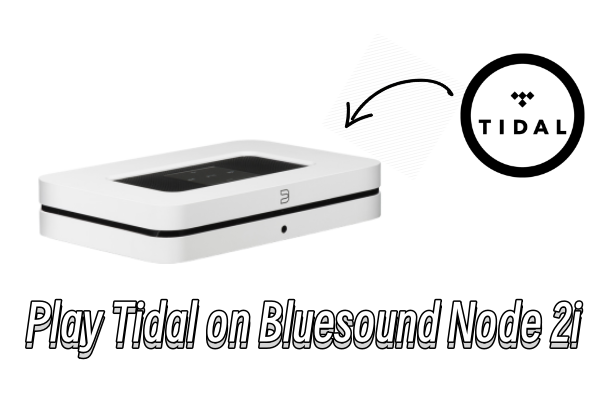
When you are about to hold a listening party at home or want to share music with others or just want to enjoy a seamless music listening experience, Bluesound can be a nice tool to cope with it. As a wireless sound system, Bluesound makes it possible to stream high-res audio tracks in multiple rooms with ease. Bluesound Node 2i can be one of the most popular choices people made. Now people are just wondering if BluOS can play Tidal music with MQA quality. Can we play Tidal on Bluesound Node 2i?
The answer is yes, of course! There is no Bluesound Tidal app, but we have several ways available to listen to Tidal Music through the Bluesound device. Move to the next headings and jump right into the part you’d prefer to check out!
Part 1 How to Link Tidal to Bluesound Node 2i via Tidal Connect
To listen to Tidal on Bluesound, the first and simplest way is to connect your device to Bluesound wirelessly by Bluetooth or Wi-Fi network and stream the music files. In this way, you can cast what you’re streaming on Tidal without installing an app or losing the original sound quality, but this requires a stable and fast network.
Note
Please make sure to installed the Tidal app on your device and connect your device and Bluesound to the same Wi-Fi network.

Step 1. Download and install the Tidal app on your iOS, Android, Mac, or PC devices. Open it once installed.
Step 2. Select the songs you’d like to hear through Bluesound to play and then tap the player window below.
Step 3. In the Now Playing view, tap the Tidal Connect icon at the bottom left. Or for Apple users, tap the AirPlay icon at the bottom of the screen.
Step 4. After pairing, you can enjoy hi-res audio files from Tidal Music without hassle.
Part 2 Bluesound Node 2i Tidal Connect via BluOS Controller
BluOS Controller is the remote-control app for all Bluesound wireless hi-res sound systems. With a Tidal Hi-Fi subscription, you can access and stream any song from several music streaming services, and most importantly, with no loss of sound quality. Let’s see how this works.
Note
To enable Bluesound Tidal connection, please download and upgrade all your Bluesound Node 2i to BluOS firmware version 1.12.x or higher.

Step 1. Launch the latest version of the BluOS Controller App on iOS or Android devices.
Step 2. Navigate to Configure Player from the left-hand menu and then go to Configure Music Services.
Step 3. Select Tidal from the supported music streaming services list and log into your Tidal account when a window pops up. Finally, tap on Update.
Step 4. Close the Configure Player menu and go back to the main Home Menu icon.
Step 5. Choose the Navigation Drawer and tap Tidal from the listed music services. Now you can start streaming Tidal songs via Bluesound seamlessly.
Part 3 How to Play Tidal Music on Bluesound Node 2i Offline
In the above discussion, we have shared two methods to enable Tidal Bluesound work. Two things are needed, one is a stable network connection, and the other is a Hi-Fi or Hi-Fi Plus subscription to Tidal. While this part is going to share a different solution to help you stream Tidal Music on Bluesound Node 2i offline without premium. You’ll need a special tool to cooperate: Tunelf Tidal Music Converter.
In this part, we’ll show you how to download Tidal Music offline for listening on Bluesound with the help of Tunelf software. Why do we need this tool? Because Tidal tracks are protected by DRM restriction format, which is not allowed to be played or transferred to other devices for use. In order to keep them offline playable, you need to use Tunelf to remove the download and DRM restriction limit and download them to DRM-free audio formats.
Tunelf Tidal Music Converter is an outstanding program to deal with the DRM on Tidal songs and stream them everywhere without limits. By using this software, you can download HiFi and MQA Tidal music with the original sound quality and can convert Tidal music at up to 5× faster speed. Moreover, a whole set of ID3 tag information can be kept as Tunelf uses a smart ID3 tag recognizance technology.

Key Features of Tunelf Tidal Music Converter
- Download any Tidal content, including songs, albums, playlists, and artists
- Support exporting Tidal music to MP3, AAC, FLAC, WAV, M4A, and M4B
- Preserve a whole set of ID3 tag information in the downloaded Tidal songs
- Handle the conversion of Tidal music up to 5× faster speed and in batch
Step 1. Import Tidal Music to Tunelf Program
Start by launching the Tunelf program and it will run the Tidal app on your device simultaneously. Open your Tidal app and go to My Collection or search for a specific song to import, copy the shared URL link of the song, and paste it to the search bar of the converter. Then click the add + icon to import. Another simple way to load is to simply drag and drop.

Step 2. Configure the Output Audio Formats
Once loaded the tracks, you’re supposed to set the output formats on demand. The default output audio format is MP3 and you can change it to AAC, M4A, M4B, FLAC, and WAV as well. Just click on the menu icon and go to Preferences > Convert window to set up. Here you can also set the output archive, sample rate, bit rate, channel, and so on for better performance.

Step 3. Convert Tidal Music to MP3 Locally
Now click the Convert button at the bottom-right corner of the converter to start your conversion. Just wait and while and have a cup of tea, things will be done. After then, you can click the Converted icon to see your conversion history and locate where they are on your computers. Now you can easily import Tidal to Bluesound for streaming or share them with others or on multiple platforms.

Step 4. Play Tidal on Bluesound Node 2i
After conversion, you can upload the converted tracks to Bluesound via a USB drive. Just connect a USB drive to your computer, locate the converted music folder, and move them to the USB drive. Later on, you can stream Tidal music to Bluesound with ease.
메타데이터
- post_id
- eaa5127c63e8
- slug
- how-to-play-tidal-on-bluesound-node-2i-eaa5127c63e8
- url
- https://medium.com/@lizzyisexcellent/how-to-play-tidal-on-bluesound-node-2i-eaa5127c63e8
- canonical_url
- https://medium.com/@lizzyisexcellent/how-to-play-tidal-on-bluesound-node-2i-eaa5127c63e8
- author_url
- https://medium.com/@lizzyisexcellent
- status
- ok
- fetched_at
- 2026-07-17 18:37:23