Build Your Own LLM with Ollama: Docker FastAPI Guide
Recently, I was working on deploying a chatbot application running using FastAPI. The goal was simple: create a FastAPI application…
Build Your Own LLM with Ollama: Docker FastAPI Guide
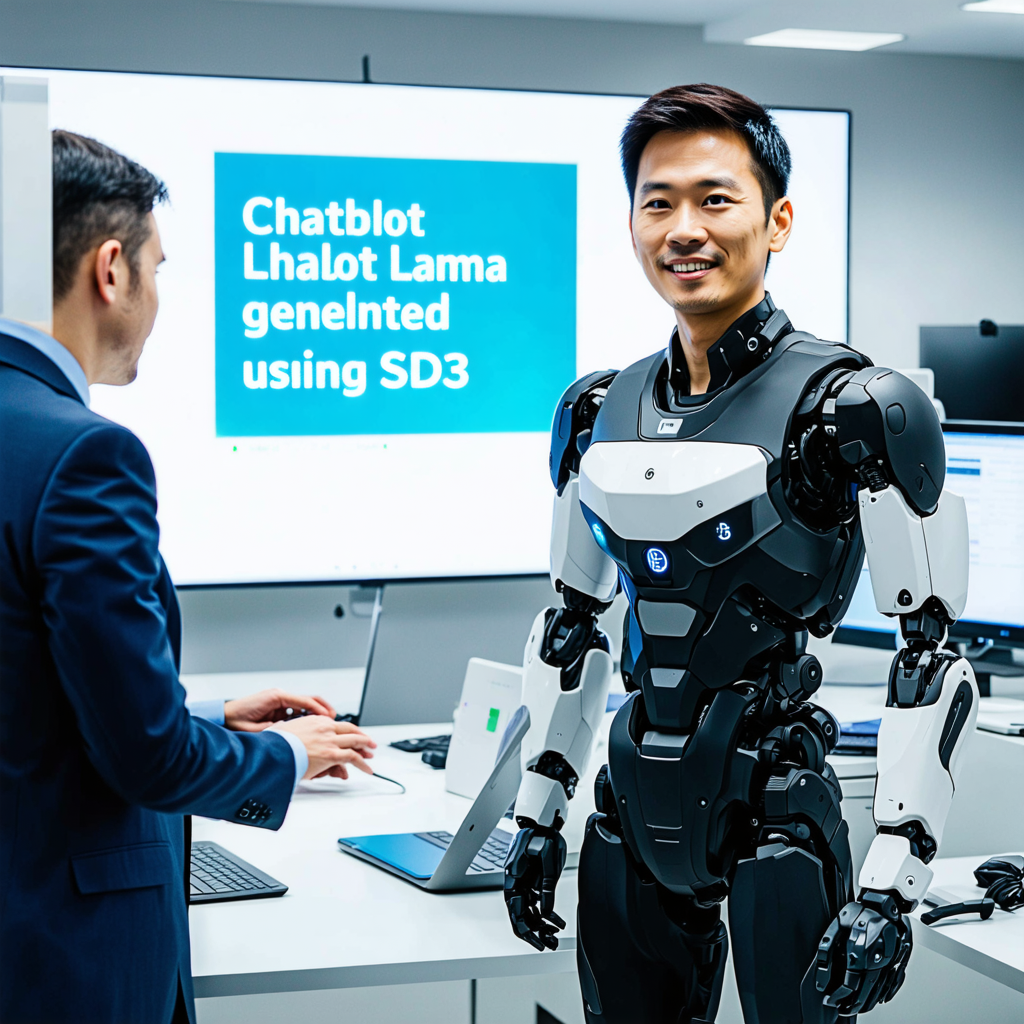
Recently, I was working on deploying a chatbot application running using FastAPI. The goal was simple: create a FastAPI application, package it into a Docker container, and deploy it to serve helpful responses.
The problem was clear: my FastAPI chatbot needed a constant companion — an Ollama instance running in its own Docker container. This container would communicate seamlessly with the FastAPI container to serve responses. The model I chose for chatbot was Meta Llama3.1 8 Billion Parameter.
This article is focused on deploying this chatbot to AWS ECS on EC2 instances.
I’ll make a simple FastAPI with one endpoint /ask to demonstrate deployment in this article.
Initialize the FastAPI application, install the required packages:
mkdir chatbot
cd chatbot
python -m venv venv
./venv/Scripts/activate
pip install fastapi uvicorn requests
Make an app.py file
import requests

from fastapi import FastAPI, Response

app = FastAPI()

@app.get('/')
def home():
    return {"Chat" : "Bot"}

@app.get('/ask')
def ask(prompt :str):
    res = requests.post('http://ollama:11434/api/generate', json={
        "prompt": prompt,
        "stream" : False,
        "model" : "llama3"
    })

    return Response(content=res.text, media_type="application/json")
Run application using:
uvicorn app:app --host <your-pvt-ip>--port 5005 --reload You can now locally run this chatbot application. For that you need Ollama, Head over to https://ollama.com/download to download Ollama and pull the llama3.1 model. For running locally change the POST request API url in /ask endpoint to http://localhost:11434. Later in this article we will do it inside Docker.
ollama pull llama3.1
ollama list
Dockerizing FastAPI
Make Dockerfile for FastAPI and a requirements.txt file for the packages we installed above.
FROM python:3.11-slim AS base

RUN apt-get update -y && apt-get install -y \
    && apt-get clean \
    && rm -rf /var/lib/apt/lists/*

ENV APP_HOME /app
WORKDIR $APP_HOME

COPY . ./

RUN pip install -r requirements.txt

CMD exec uvicorn app:app --host '0.0.0.0' --port 5005
Make another directory for Ollama and make another Ollama/Dockerfile. We’ll be using official image from Ollama as base.
FROM ollama/ollama

ENV APP_HOME=/home

WORKDIR $APP_HOME

COPY . .

RUN chmod +x pull-llama3.sh

ENTRYPOINT ["/usr/bin/bash", "pull-llama3.sh"]
Make a script to pull llama3.1 inside Docker container when it comes up:
#!/bin/bash

# Start Ollama server in the background
ollama serve &

# Wait for Ollama server to start
sleep 5

# Pull llama3 model
ollama pull llama3.1

# Wait for the Ollama server to finish
wait $!
Now for running this Docker setup locally for testing purposes you will need to use Docker Compose. Later in this tutorial we wont be needing the docker compose file since there is an alternative way to deploy it on AWS ECS.
services:
  web:
    build:
      context: ./chatbot
      dockerfile: Dockerfile
    ports:
      - 5005:5005
    volumes:
      - ./chatbot:/home
    networks:
      - chatbot-net

  ollama:
    build:
      context: ./ollama
      dockerfile: Dockerfile
    ports:
      - 11434:11434
    volumes:
      - chatbot-vol:/ollama
    networks:
      - chatbot-net
    entrypoint: [ "/usr/bin/bash", "pull-llama3.sh" ]

networks:
  chatbot-net:
    driver: bridge

volumes:
  chatbot-vol:
    driver: local
docker compose up
docker compose up --buildAfter running docker compose, your FastAPI should be running on localhost:5005 and Ollama on localhost:11434. In case its not running check docker container logs:
docker ps -a
docker logs <container-id>
ECS Deployment
For ECS deployment you need:
- ECS cluster
Go to ECS service > Create cluster

create new cluster
For infrastructure choose Amazon EC2 instances and for AMI choose Amazon Linux (GPU). You can select any instance type which has GPU. If you wish to use CPU only you dont need to do it. This article is focused on GPU based instances.
For reference visit Docker Hub, Ollama official Image
https://hub.docker.com/r/ollama/ollama
2. Task Definition
Go to Task definitions > Create new task definition

create task definiton
Choose Launch type as Amazon EC2 instances and Network mode bridge because the containers need to communicate with each other.
For Task CPU and Memory you can give as many cpus and memory as the instance you chose has.

define chatbot container
Define port mapping as it is your Dockerfile. For image URI you need to build & push your Chatbot Docker image to AWS ECR and paste its image URI here.
Make another container for Ollama and similarly push Ollama Docker image to ECR.

define ollama container
Increase the GPU count to 1 in Resource Allocation limits
Now link the Ollama container to Chatbot container from Container network settings in Chatbot container definition

linking
Container alias Ollama is important. Note in your /ask endpoint in FastAPI is making a POST request to http://ollama:11434/api/generate. This is how requests will hit the Ollama container.
Customize the Task definition according to your needs and hit Create.
3. Service
Now you need to create a service in the cluster your created above. Go your cluster and click create service.
Choose your task definition and give your service a name.

Attach a Load Balancer to your service to the Chatbot container

attach loadbalancer
Requests will hit the target Chatbot container from Load Balancer, and forwarded to Ollama container.
After doing all the customization according to your needs, hit create service. Service creation will take some time. After its done you can see your chatbot application at the Load Balancer DNS.

Check if the two containers are running in EC2 instance. Go to EC2 copy its public IP and SSH into it using the key you attached to your instances in cluster creation.

You can use this Loadbalancer DNS as an API url in your other applications as well to connect to llama3 chatbot, or simply open the /docs and give your query using FastAPI.
Conclusion
Now you have your own Chatbot application which utilizes Meta’s Open Source Model llama3.1. You can either use it for your own benefit or deploy it to a production environment.
Have a Great Day!
메타데이터
- post_id
- eb49453548e2
- slug
- build-your-own-llm-with-ollama-docker-fastapi-guide-eb49453548e2
- url
- https://medium.com/@siftikharm/build-your-own-llm-with-ollama-docker-fastapi-guide-eb49453548e2
- canonical_url
- https://medium.com/@siftikharm/build-your-own-llm-with-ollama-docker-fastapi-guide-eb49453548e2
- author_url
- https://medium.com/@siftikharm
- status
- ok
- fetched_at
- 2026-08-19 23:51:23


