Understanding Amazon EBS with a Hands-On EC2 Project
When learning AWS, it’s easy to understand what an EC2 instance is because you can immediately launch a server and connect to it. However…
Understanding Amazon EBS with a Hands-On EC2 Project
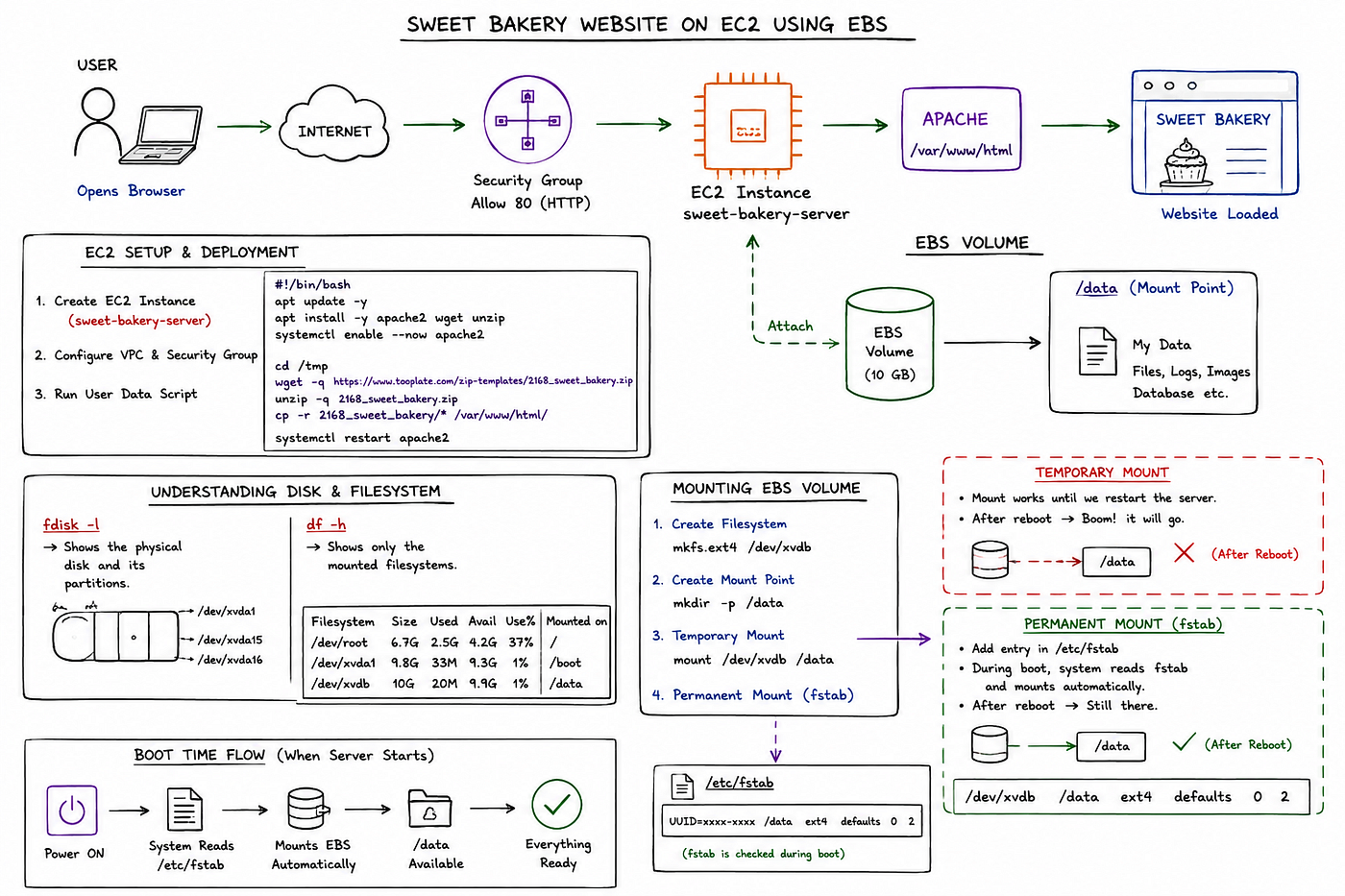
Sweet Bakery Website on EC2 Using EBS
When learning AWS, it’s easy to understand what an EC2 instance is because you can immediately launch a server and connect to it. However, understanding Amazon Elastic Block Store (EBS) becomes much easier when you use it in a real project instead of only reading about it.
In this lab, I built a simple website and then attached an EBS volume to understand how Linux storage works, how volumes are mounted, and why the /etc/fstab file is important.
Step 1: Launch an EC2 Instance
I started by creating an EC2 instance named sweet-bakery-server. Along with the instance, I configured:
- A VPC
- A Security Group allowing HTTP (Port 80) and SSH (Port 22)
Step 2: Deploy a Website Using User Data
Instead of logging into the server and installing everything manually, I used a User Data script.
#!/bin/bash
apt update -y
apt install -y apache2 wget unzip
systemctl enable --now apache2
cd /tmp
wget -q https://www.tooplate.com/zip-templates/2168_sweet_bakery.zip
unzip -q 2168_sweet_bakery.zip
cp -r 2168_sweet_bakery/* /var/www/html/
systemctl restart apache2
This script automatically:
- Updates the packages
- Installs Apache, wget, and unzip
- Downloads the Sweet Bakery website template
- Extracts the files
- Copies them into
/var/www/html - Starts the Apache web server
Within a few minutes, the website was available using the EC2 instance’s public IP address.
Step 3: Create and Attach an Amazon EBS Volume
Once the website was running, I created a new Amazon EBS volume from the AWS Console.
After the volume was available, I attached it to my EC2 instance.
At this point, Linux detects the disk, but it is not yet usable. It still needs to be partitioned (if required), formatted, and mounted.
Step 4: Understanding the Disk
To inspect the storage devices, I used:
fdisk -lThis command displays:
- Physical disks
- Partitions
- Disk size
- Partition layout
Think of it as looking at the hardware.
Next, I checked the mounted filesystems using:
df -hThis command displays:
- Mounted filesystems
- Used space
- Available space
- Mount points
Think of it as looking at what Linux is currently using.
This helped me understand that fdisk -l and df -h serve different purposes.
Step 5: Mounting the EBS Volume
After creating a filesystem and a mount point, I mounted the EBS volume.
Initially, this was a temporary mount.
Everything worked perfectly, but after restarting the EC2 instance, the mount disappeared.
That’s because Linux only keeps temporary mounts until the next reboot.
Step 6: Making the Mount Permanent
To solve this, I added an entry to the /etc/fstab file.
The fstab file is read every time Linux boots.
If the EBS volume is listed there correctly, Linux automatically mounts it during startup.
This means:
- No manual mounting after every reboot
- Data remains accessible
- Applications continue to work without interruption
This is why almost every production Linux server uses /etc/fstab for persistent storage.
What I Learned
This simple lab taught me several important concepts:
- How to automate software installation using EC2 User Data
- How Apache serves static websites
- How Amazon EBS provides block storage for EC2
- The difference between
fdisk -landdf -h - Why temporary mounts disappear after reboot
- Why
/etc/fstabis essential for persistent storage
Final Thoughts
Reading documentation is important, but building small projects helps connect all the concepts together.
A simple website deployment became an opportunity to understand EC2, Apache, User Data, Linux storage, Amazon EBS, mounting, and persistent storage.
Every hands-on lab brings me one step closer to becoming a better DevOps Engineer.
If you’re learning AWS, I highly recommend trying this exercise yourself. You’ll gain a much deeper understanding of how Linux and Amazon EBS work together.
Happy Learning!
메타데이터
- post_id
- eb5cb2e2d549
- slug
- understanding-amazon-ebs-with-a-hands-on-ec2-project-eb5cb2e2d549
- url
- https://medium.com/@2691rahul.naik/understanding-amazon-ebs-with-a-hands-on-ec2-project-eb5cb2e2d549
- canonical_url
- https://medium.com/@2691rahul.naik/understanding-amazon-ebs-with-a-hands-on-ec2-project-eb5cb2e2d549
- author_url
- https://medium.com/@2691rahul.naik
- status
- ok
- fetched_at
- 2026-08-17 18:38:08