How to Optimize Your Router Settings for Comcast Cable Internet
Boost your Comcast cable internet performance with the right router settings for faster speeds, stronger Wi-Fi coverage, lower latency, and…
How to Optimize Your Router Settings for Comcast Cable Internet
Boost your Comcast cable internet performance with the right router settings for faster speeds, stronger Wi-Fi coverage, lower latency, and a more reliable connection throughout your home.

If you’re using Comcast Xfinity cable internet and your Wi-Fi still feels slow, unstable, or randomly drops… I’ve got good news for you.
In my experience, most Comcast “speed problems” aren’t Comcast’s fault. They’re usually caused by router settings that were never optimized. And the frustrating part? You can fix a lot of this in under an hour, without buying new equipment.
I learned this the hard way. I used to blame Comcast every time Netflix buffered or Zoom froze. But when I finally dug into my router settings and tweaked a few things, my connection felt smoother almost instantly.
Let me walk you through exactly how I optimize router settings for Comcast cable internet, using simple language, real-life tips, and no confusing networking jargon.
Why Router Optimization Matters on Comcast
Comcast delivers internet through cable lines, which behave differently from fiber. Cable connections are:
- Shared with nearby homes
- Prone to congestion during peak hours
- Sensitive to latency and interference
That means your router has to work harder, especially if you’re streaming, gaming, or working from home.
When I optimized my router:
- Speeds became more consistent
- Wi-Fi dropouts stopped
- Evening slowdowns felt less painful
- Gaming ping stabilized
And no, I didn’t change my plan.
Step 1: Update Your Router Firmware (Seriously, Don’t Skip This)
I know, it sounds boring. But in my experience, this one step fixes more problems than anything else.
Why It Matters
Router manufacturers constantly release firmware updates that:
- Improve compatibility with Comcast
- Fix bugs and random disconnects
- Improve Wi-Fi performance and security
What I Do
- Log into my router’s admin page (usually 192.168.1.1)
- Check for firmware updates
- Install and reboot
Every time I’ve done this, stability improved almost immediately.
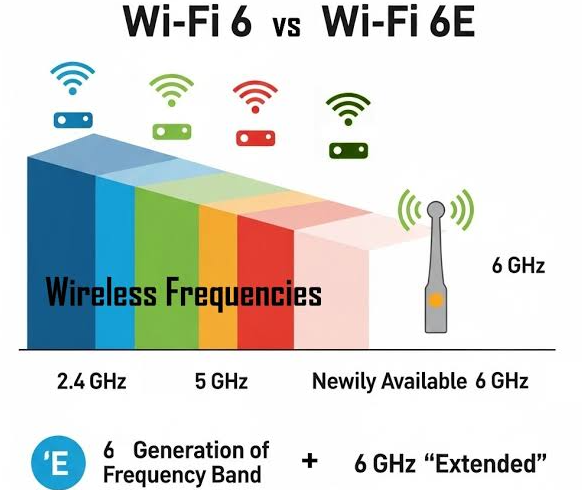
Step 2: Use the Right Wi-Fi Band (2.4GHz vs 5GHz)
If your router supports dual-band Wi-Fi (most do), this matters more than you think.
My Real-World Rule
- 5GHz → Faster speeds, shorter range (best for streaming & gaming)
- 2.4GHz → Slower speeds, longer range (best for smart devices)
When I separated the bands and named them differently (like “Home-5G” and “Home-2.4G”), performance became way more predictable.
Why Comcast Users Benefit
Cable internet speeds shine on 5GHz, especially on plans above 300 Mbps.
Step 3: Enable QoS (Quality of Service)
QoS is one of those settings people ignore… until they try it.
What QoS Does
It tells your router:
“Hey, gaming and video calls matter more than random background downloads.”
When I enabled QoS:
- Zoom calls stopped freezing
- Gaming lag decreased
- Streaming stayed smooth, even with multiple users online
Best QoS Setup for Comcast
- Prioritize gaming consoles
- Prioritize work devices
- Set streaming services as a high priority
This is especially useful during Comcast’s peak hours (7–11 PM).
Step 4: Change Your Wi-Fi Channel (Avoid Congestion)
If you live in an apartment or crowded neighborhood, this is huge.
The Problem
Most routers default to “Auto” channel selection. In my experience, Auto often picks crowded channels.
What I Do Instead
- For 2.4GHz → Choose channels 1, 6, or 11
- For 5GHz → Try channels 36–48 or 149–161
When I manually changed channels, interference dropped, and speeds became more stable, especially at night.
Step 5: Disable Unnecessary Features
More features don’t always mean better performance.
Features I Often Turn Off
- Legacy compatibility modes (802.11b)
- WPS (security + stability issues)
- Unused guest networks
Less background processing = more power for your actual devices.
Step 6: Optimize MTU Settings (Optional, But Helpful)
This one’s optional, but I’ve found it helpful.
What Is MTU?
MTU controls how much data your router sends in one packet. Comcast works best with:
- MTU: 1500
Some routers default lower setting, which can cause:
- Slower speeds
- Fragmentation
- Random stalls
If you’re comfortable changing advanced settings, this is worth checking.
Step 7: Place Your Router Properly (Yes, It Matters)
I used to hide my router behind a TV stand. Big mistake.
Best Placement Tips
- Central location
- Elevated position
- Away from walls and metal objects
- Not inside cabinets
When I moved my router to a higher shelf, Wi-Fi coverage improved immediately, no settings required.
Step 8: Reboot Your Modem and Router Monthly
This sounds old-school, but it works.
Why I Do This
- Clears memory leaks
- Forces a fresh Comcast connection
- Resolves minor glitches
I reboot once a month, and it keeps things running smoothly.
Common Comcast Router Mistakes I See All the Time
Here’s what I’d avoid based on experience:
- Using outdated routers with new Comcast plans
- Ignoring firmware updates
- Overloading one Wi-Fi band
- Renting Comcast’s gateway and never tweaking settings
Quick Checklist: Best Router Settings for Comcast
Firmware up to date Separate 2.4GHz & 5GHz bands QoS enabled Manual Wi-Fi channel selection Router placed centrally Monthly reboot schedule
Final Thoughts: Small Tweaks, Big Difference
If your Comcast internet feels slow or unstable, don’t upgrade your plan just yet.
In my experience, optimizing router settings:
- Costs nothing
- Takes under an hour
- Makes Comcast feel faster and more reliable
I was skeptical at first, too, but after trying these steps, my connection finally felt like what I was paying for.
메타데이터
- post_id
- eb60612bc27e
- slug
- how-to-optimize-your-router-settings-for-comcast-cable-internet-eb60612bc27e
- url
- https://medium.com/@mukhaledumer/how-to-optimize-your-router-settings-for-comcast-cable-internet-eb60612bc27e
- canonical_url
- https://medium.com/@mukhaledumer/how-to-optimize-your-router-settings-for-comcast-cable-internet-eb60612bc27e
- author_url
- https://medium.com/@mukhaledumer
- status
- ok
- fetched_at
- 2026-07-21 06:32:45