Celcom Roaming Not Working
Troubleshoot no internet access in a foreign land with an active (Celcom) roaming plan which somehow refuses to work
Celcom Roaming Not Working Overseas?
Troubleshoot no internet access in a foreign land with an active (Celcom) roaming plan which somehow refuses to work
Photo by Vanja Matijevic on Unsplash
The first day of my recent visit to China became my worst nightmare abroad — after touchdown at Shanghai Pudong Airport (PVG), I could not get internet access for hours.
This was how it went — it was just past midnight when I landed at PVG. After having gone through immigration clearance, I found myself at the baggage claim area.
After scanning the area for a spot to buy a local Chinese SIM card, I found one, but it was unfortunately closed. Looking more closely at their opening hours, they are only open from 8 AM to 10 PM daily.
This was disappointing.
I continued to mess with my phone settings with hope to make my roaming plan work, which would then give me my much needed access for the internet.
No luck.
While waiting for my luggage to arrive, I asked multiple airport officials on other alternatives to obtain internet access at the airport. And no, the Airport Wi-Fi would not work unless you have a Chinese phone number.
Still no luck. The answer I kept getting was that I would need to wait until the next morning to secure a local SIM card.
Frustrated and desperate, I remembered I had received a text from Celcom (my mobile carrier provider) earlier.
They had made me aware of the option of engaging their support service if I ever ran into issues with the newly purchased roaming plan. And so I called them.
And this was what I learned, with the last method below being the method which solved my roaming issues in China once and for all.
Here we go.
Phone and Mobile Plan
Photo by Mika Baumeister on Unsplash
Here are the details of my phone and roaming plan:
- Phone: Google Pixel 7 (Android)
- Mobile Plan: Celcome MEGA Postpaid 98
- Add-On: 30-Day Unlimited Internet Pass in China (Roaming)
If you are interested in getting a MEGA Postpaid plan, click here to learn more.
Before moving on, make sure you have an active roaming plan.
Troubleshooting Steps for Roaming
Photo by NASA on Unsplash
I had to jump on three separate phone calls with Celcom Support to resolve my roaming issues completely. I will be listing down the steps I took in chronological order.
But note that the preceding steps did not do anything for me — it was really the last step which resolved the roaming issue.
1. Turn on roaming and mobile data
Go to Settings -> Network & internet -> Internet -> Gear icon. Alternatively, you can go to “Settings” and search for “Roaming”.
Make sure to:
- Turn on roaming
- Turn on mobile data
Example of how this looks like on my phone:
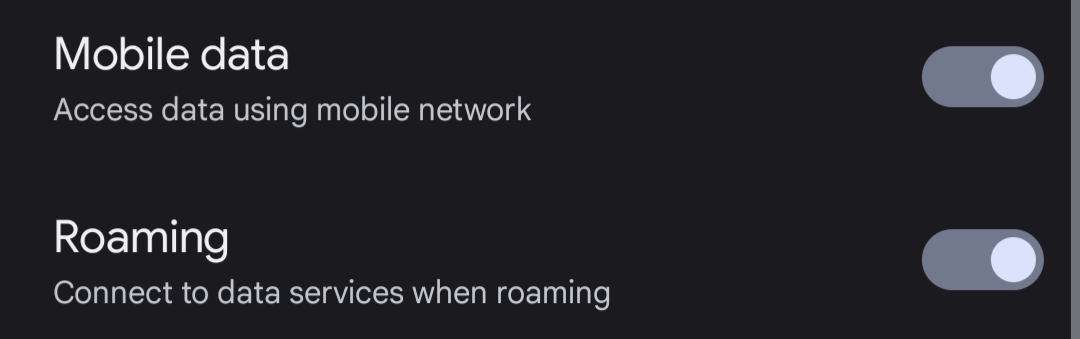
Both mobile data and roaming are turned on
If you still don’t have internet access after a few minutes, move on.
2. Restart your phone
Yes, as simple as this may seem, try this.
- Turn off mobile data and roaming
- Restart your phone
- Turn on mobile data and roaming
If you still don’t have internet access after a few minutes, move on.
3. Re-insert your SIM card and restart your phone
If you are unable to take out your SIM card, you can skip this step.
Otherwise, re-inserting your SIM card and restarting it is worth a try.
If you still don’t have internet access after a few minutes, move on.
4. Manually choose a network
On the same Settings page containing mobile data and roaming options, scroll down a bit and you should see the “Automatically select network” option:

Toggle this off to manually select a network
Toggle this option off, and manually select a network. For China, I was able to see these options:
- CCMC
- China Unicom
- China Telecom
Try each available network option for you and verify if you have internet access.
If you still don’t have internet access after a few minutes, revert it to automatic and move on.
5. Use New Access Point Name (APN)
This step was what resolved my roaming issues.
On the same Settings page containing mobile data and roaming options, scroll down a bit and you should see the “Access Point Names” option:

Let’s now add a new APN. Click “Access Point Names” -> Click “+” icon, and you will see something like this:

- Under “Name”, give it any name you want. I gave mine the name “Celcom Internet 2”
- Under “APN”, type celcom3g

The APN which solved the issue: celcom3g
Leave everything else as is.
Now, select the newly created APN and verify if you finally have internet access. You may need to turn off and on mobile data and roaming again.
6. Contact Celcom Helpline (Support)
If all of the above failed to resolve your issue, promptly contact Celcom Support at the number below:
- *123#
Some tips when communicating your issue with them:
- Do not reveal any sensitive information like passwords. They may ask for your name, ID number, and phone number for verification purpose though.
- Make it clear to them what you have tried and what has not worked for you.
Hopefully the recommendations above were helpful to you. Good luck!
Next Steps
Photo by Anthony Tori on Unsplash
If you have learned something from this article, or simply enjoyed my writing style, please give this article a clap and follow me for more. It would really motivate me to keep producing quality articles.
Keen to hear your questions/feedback through the comments section (yes, I reply to comments!)
Curious to know what I do? Check out the links below:
Till next time!
메타데이터
- post_id
- ebded68775a8
- slug
- celcom-roaming-not-working-ebded68775a8
- url
- https://medium.com/@arwinlashawn/celcom-roaming-not-working-ebded68775a8
- canonical_url
- https://medium.com/@arwinlashawn/celcom-roaming-not-working-ebded68775a8
- author_url
- https://medium.com/@arwinlashawn
- status
- ok
- fetched_at
- 2026-07-25 03:40:03