Building C/C++ on Windows with vcpkg + WinLibs: a Practical Toolchain Tutorial
While Windows can serve as an excellent platform for C/C++ development, developers often encounter challenges related to dependencies and…
Building C/C++ on Windows with vcpkg + WinLibs: a Practical Toolchain Tutorial
While Windows can serve as an excellent platform for C/C++ development, developers often encounter challenges related to dependencies and toolchain compatibility. This is particularly true for those seeking a Linux-like GCC workflow while still benefiting from modern dependency management solutions.
This tutorial will walk you through setting up a C/C++ development environment on Windows that closely resembles a Linux-style workflow, utilizing tools like vcpkg and WinLibs.
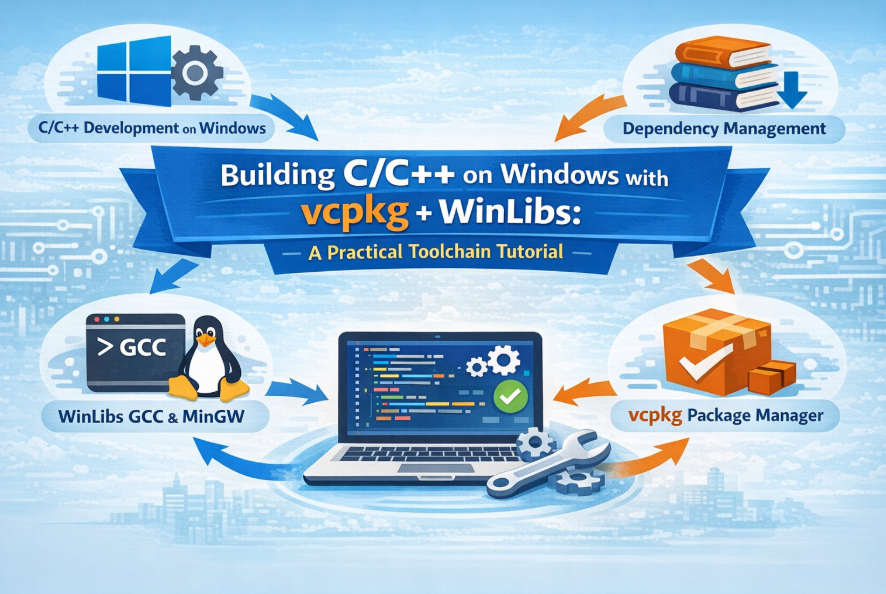
Generated by ChatGPT
Building C/C++ Code
Before diving into the specifics of the Windows C/C++ setup, it’s essential to grasp the key components involved in the build process.
- Choosing a Compiler: Developers typically begin by selecting an appropriate compiler, such as GCC or Clang. Configuring the environment to recognize these tools is the first step in the setup process.
- Managing Dependencies: To streamline the handling of external libraries, package managers like vcpkg come into play. These tools ensure that all dependencies are correctly linked, simplifying the management of library versions and compatibility.
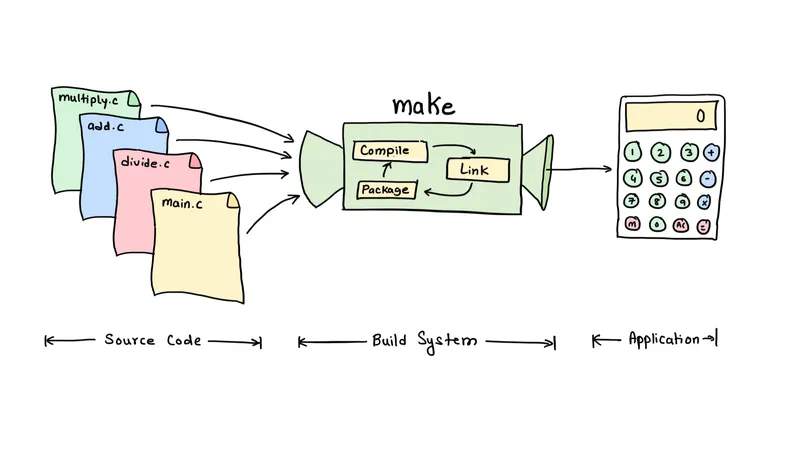
- Compiling the Code: Once the code is written, a build system such as CMake or Make is employed to compile the source files. This process involves linking the code with the necessary libraries to generate the final executable, which can then be run on the target platform.

Ref : https://inpyjama.com/post/makefile-3/0.webp
What is vcpkg and WinLibs?
vcpkg (dependency manager)
vcpkg is an open-source C/C++ library manager developed by Microsoft. It helps developers easily acquire and manage C++ libraries across different platforms and compilers. Essentially, it simplifies the process of installing, building, and integrating third-party libraries into your projects.
Key features including
- Large library catalog: Provides thousands of popular C++ libraries.
- Integration with build systems: Supports CMake, MSBuild, and others.
- Custom triplets: Allows configuration for different architectures (x86, x64, ARM) and build types (static/dynamic).
- Cross-platform support: Works on Windows, Linux, and macOS.
- Binary caching: Speeds up builds by caching compiled libraries.
Triplet is a configuration that specifies how a library should be built for different compiler/toolchain (MSVC, MinGW, etc.), architecture (x86, x64, arm64, etc.) and linkage (static vs dynamic).
WinLibs (compiler toolchain)
WinLibs is a Windows-native toolchain that bundles the GCC (GNU Compiler Collection) with MinGW-w64 and a suite of essential development tools, allowing developers to compile and debug C/C++ on Windows without relying on MSYS2, Cygwin, or Visual Studio.
Mingw-w64 is a collection of header files, import libraries, libraries and tools that, when combined with a compiler toolchain, such as GCC or LLVM, provides a complete development environment for building native Windows applications and libraries.
Key features including
- GCC support for C/C++ and other languages.
- Native Windows runtime libraries (32‑bit and 64‑bit).
- Build system tools like GNU Make for managing builds.
- Fully standalone environment — no need for MSYS2, Cygwin, or IDE dependencies.
- Supports both POSIX (Threading library) and MSVCRT/UCRT runtimes, enabling flexible threading and binary compatibility.
MSVCRT (Microsoft Visual C Runtime) is the older C runtime library historically bundled with Windows and used by older Visual Studio versions.
UCRT (Universal C Runtime) is the modern, standardized runtime introduced with Windows 10 that offers improved compatibility, security, and support for newer C standards.
Step-by-Step Guide to Building C++ Code
Below is a complete, end-to-end example using CMake and the Ninja build system, including integration of a spdlog dependency, to demonstrate a real-world workflow.
spdlog is a popular, fast, header-only C++ logging library. It supports features like colored console output, file logging (rotating files, daily files, etc.) and asynchronous logging.
1️⃣Install WinLibs (MinGW-w64 GCC)
- Download a WinLibs MinGW-w64 build (Use UCRT runtime if you use Windows 10 or later)
- Extract it and add its
binfolder to your user/systemPATH - Verify if the WinLibs is installed
gcc --version
g++ --version
2️⃣Install CMake (and Ninja recommended)
- Download CMake
- Download Ninja (recommended because it’s fast and works well with CMake)
- Extract the zip files and add the folders to your user/system
PATH - Verify
cmake --version
ninja --version
3️⃣ Install vcpkg
- Clone the vcpkg repository from GitHub
git clone https://github.com/Microsoft/vcpkg.git- Run
bootstrap-vcpkg.batto buildvcpkg.exe - Add vcpkg repository folder to your user/system
PATH - Verify
vcpkg --version4️⃣ Install dependencies with vcpkg
# vcpkg install: tells vcpkg to download, build and install the specified library
# --triplet x64-mingw-dynamic: specifies the target triplet
vcpkg install spdlog --triplet x64-mingw-dynamic
If you encounter network restrictions that prevent vcpkg from downloading dependencies after running
vcpkg install, you can manually download the required archive files and place the.zip(or other archive format) into theVCPKG_REPO_DIR/downloadsdirectory. vcpkg will then use the locally provided file instead of attempting to download it.
5️⃣Create a small CMake project
- main.cpp
#include <spdlog/spdlog.h>

int main() {
    spdlog::info("Hello from WinLibs + vcpkg");
}- CMakeLists.txt: This CMake script configures a C++ executable named
hellothat uses the spdlog logging library, locating it via CMake'sfind_packageand linking it using the importedspdlog::spdlogtarget—enabled through vcpkg integration.
cmake_minimum_required(VERSION 3.20)
project(hello LANGUAGES CXX)

find_package(spdlog CONFIG REQUIRED)

add_executable(hello main.cpp)
target_link_libraries(hello PRIVATE spdlog::spdlog)
6️⃣ Configure with CMake using vcpkg’s toolchain file
- vcpkg is designed to integrate with build systems like CMake by providing a toolchain file and automatic discovery behavior.
# -S . : specifies the source directory (current folder).
# -B build : sets the build output directory to build/.
# -G Ninja : tells CMake to generate build files for the Ninja build system.
# -DCMAKE_BUILD_TYPE=Release : selects the Release build configuration.
# -DCMAKE_TOOLCHAIN_FILE=VCPKG_REPO_DIR\scripts\buildsystems\vcpkg.cmake : integrates vcpkg, enabling CMake to find libraries installed by vcpkg.
# -DVCPKG_TARGET_TRIPLET=x64-mingw-dynamic : specifies the target platform: 64-bit Windows, built with MinGW-w64 (GCC), using dynamic linking (i.e., .dll files).

cmake -S . -B build ^
      -G Ninja ^
      -DCMAKE_BUILD_TYPE=Release ^
      -DCMAKE_TOOLCHAIN_FILE=VCPKG_REPO_DIR\scripts\buildsystems\vcpkg.cmake ^
      -DVCPKG_TARGET_TRIPLET=x64-mingw-dynamic
For certain dependencies, e.g., OpenCV, you may run into errors like the one shown in the link below. To fix the issue, add the missing directory referenced in the CMake log.
-DMISSING_DIR=VCPKG_REPO_DIR\installed\x64-mingw-dynamic\share\MISSING_DEP7️⃣ Build and run
cmake --build build
build\hello.exe
Comparison
Beyond vcpkg + WinLibs, several other options exist for building C/C++ code on Windows.
- MSYS2 offers a Unix-like environment with strong POSIX compatibility and package management via pacman, making it especially useful for porting Linux projects or working with GNU build systems.
- Visual Studio delivers a comprehensive IDE with industry-leading debugging, profiling, and seamless integration with Windows APIs, though it’s more resource-intensive and primarily centered around Microsoft’s MSVC compiler.
While all three can produce native Windows binaries, they differ in tooling philosophy, workflow, and target use cases.

Conclusion
Combining vcpkg with WinLibs offers a robust and streamlined approach to building C/C++ projects on Windows, effectively bridging the gap between Linux-style development workflows and the Windows ecosystem.
- vcpkg delivers curated, cross-platform C/C++ libraries with triplet support and seamless build-system integration.
- WinLibs provides a lightweight, Linux-like GCC environment for compiling and linking on Windows.
메타데이터
- post_id
- ecb72cb893e4
- slug
- building-c-c-on-windows-with-vcpkg-winlibs-a-practical-toolchain-tutorial-ecb72cb893e4
- url
- https://medium.com/@jasonyang.algo/building-c-c-on-windows-with-vcpkg-winlibs-a-practical-toolchain-tutorial-ecb72cb893e4
- canonical_url
- https://medium.com/@jasonyang.algo/building-c-c-on-windows-with-vcpkg-winlibs-a-practical-toolchain-tutorial-ecb72cb893e4
- author_url
- https://medium.com/@jasonyang.algo
- status
- ok
- fetched_at
- 2026-07-13 18:14:32