How to upgrade from Aurora Serverless v1 to Serverless v2 and validate the data migration via…
Difference between Aurora Serverless V1 and V2 -
How to upgrade from Aurora Serverless v1 to Serverless v2 and validate the data migration via terraform
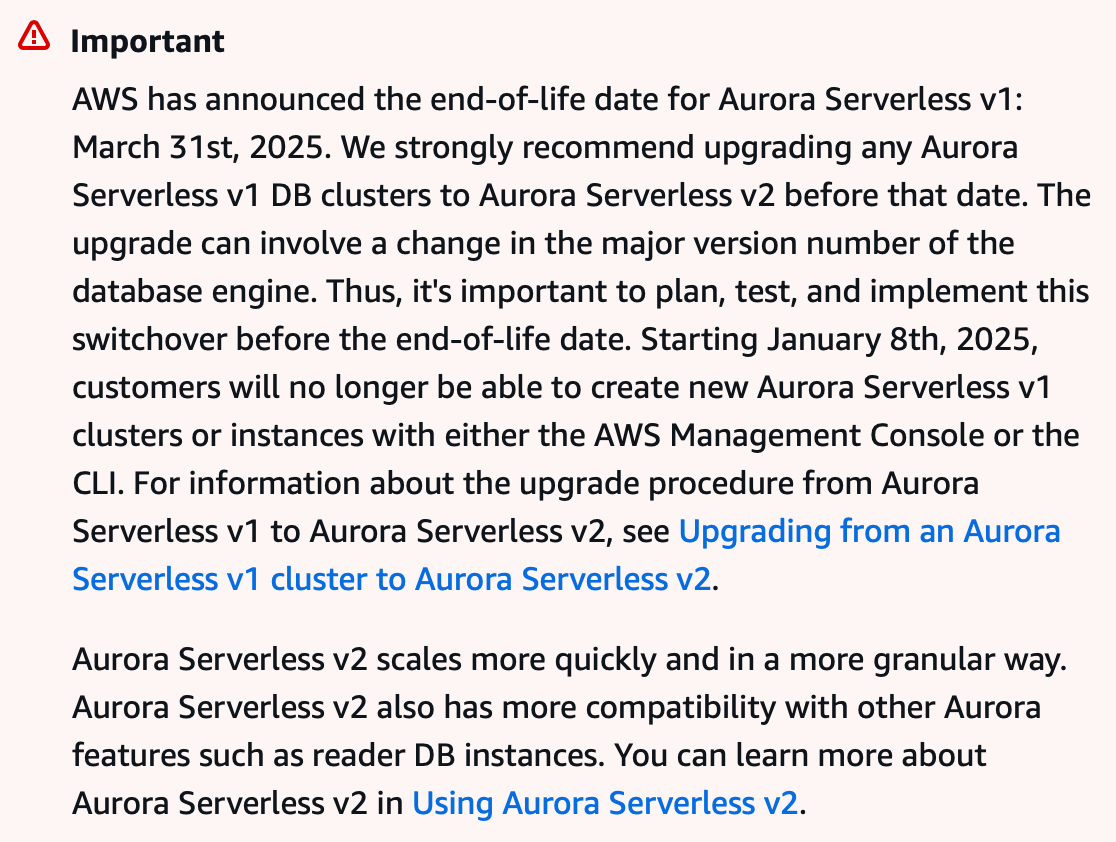
Difference between Aurora Serverless V1 and V2 -
Upgrade Aurora Serverless v1 to Serverless v2
Step by Step process to upgrade Aurora Serverless V1 to Aurora Serverless V2.
For easier understanding, let’s assume the name of the Aurora Serverless DB cluster is cluster-database-v1, and we will upgrade this new cluster, named cluster-database-v2, and, for instance, in the cluster-database-v2 will be named as database-v2-instance.
Step 1: Take a snapshot of the DB cluster database-v1 and let’s name it as database-v1-snapshot.
Step 2: Now, let’s use this terraform code to create a new Aurora serverless V2 cluster which will have an instance running which will be restored from database-v1-snapshot and have the configuration of Aurora serverless V2.
resource "aws_rds_cluster" "cluster_v2" {
 cluster_identifier = "cluster-database-v2"
 engine = "aurora-postgresql"
 engine_mode = "provisioned"
 engine_version = "13.6"
 database_name = "your-database"
 master_username = "your-username"
 master_password = "your-password"
 storage_encrypted = true
 port="5432"
 snapshot_identifier = "database-v1-snapshot"
 backup_retention_period = 15 // days
 deletion_protection = false

// fetch the following configuration from old cluster
 vpc_security_group_ids = [security_group_ids_of_V1_cluster(cluster-database-v1)]
 db_subnet_group_name = subnet_group_of_V1_cluster(cluster-database-v1)
 db_cluster_parameter_group_name = parameter_group_name_of_V1_cluster(cluster-database-v1)
 serverlessv2_scaling_configuration {
  max_capacity = 8.0
  min_capacity = 0.5
  }
 }

resource "aws_rds_cluster_instance" "instance_v2" {
 cluster_identifier = aws_rds_cluster.cluster_v2.id
 identifier = "database-v2-instance"
 instance_class = "db.serverless"
 engine = aws_rds_cluster.cluster_v2.engine
 engine_version = aws_rds_cluster.cluster_v2.engine_version
 apply_immediately = true
}
Validate data migration
Step 3: After cluster and instance are created. We need to validate that all the table constraints from the database are available, and we need to verify that there is no data mismatch between database-v1 and database-v2 .
Run the following query on both the current database database-v1and the new database database-v2 to confirm that the internal schema mappings have been correctly applied in the new database database-v2.
SELECT
 CONSTRAINT_NAME,
 CONSTRAINT_TYPE,
 TABLE_NAME,
 TABLE_SCHEMA
FROM
 INFORMATION_SCHEMA.TABLE_CONSTRAINTS
WHERE
 TABLE_SCHEMA NOT IN ('information_schema', 'mysql', 'performance_schema', 'sys'); - - To exclude system schema
Step 4: To perform a value-by-value comparison between database-v1 and database-v2 databases, you can leverage AWS Database Migration Service (DMS). DMS offers a data validation feature that allows you to compare data between the source and target databases without actually performing a full migration.
Here is terraform code create resources for data validation.
resource "aws_dms_endpoint" "source_database_V1" {
endpoint_id = "database_V1_endpoint"
endpoint_type = "source"
engine_name = "postgres"
username = "your-username"
password = "your-password"
port = 5432
server_name = <cluster-v1-endpoint>
database_name = "your-database"
}

resource "aws_dms_endpoint" "target_database_V2" {
endpoint_id = "database_V2_endpoint"
endpoint_type = "source"
engine_name = "postgres"
username = "your-username"
password = "your-password"
port = 5432
server_name = <instance-v2-enpoint>
database_name = "your-database"
}

resource "aws_dms_replication_subnet_group" "replication_subnet_group" {
replication_subnet_group_id = replication_subnet_group_id
subnet_ids = [your_subnet_ids_for_your_database]
}

resource "aws_dms_replication_instance" "validation_instance" {
allocated_storage = 20 // In GBs
apply_immediately = true
publicly_accessible = false
replication_instance_class = "dms.t2.micro" // As per your DB size
replication_instance_id = "dms-replication-instance"
replication_subnet_group_id = aws_dms_replication_subnet_group.replication_subnet_group.replication_subnet_group_id
vpc_security_group_ids = [rds_security_group_id]
}

resource "aws_dms_replication_task" "test" {
replication_task_id = "test-dms-replication-task-tf"
source_endpoint_arn = aws_dms_endpoint.source_database_V1.endpoint_arn
target_endpoint_arn = aws_dms_endpoint.target_database_V2.endpoint_arn
migration_type = "full-load"
replication_instance_arn = aws_dms_replication_instance.validation_instance.replication_instance_arn
replication_task_settings = "…"
table_mappings = <<EOT
 {
"rules": [
{
"rule-type": "selection",
"rule-id": "1",
"rule-name": "include-all-tables",
"object-locator": {
"schema-name": "%",
"table-name": "%"
},
"rule-action": "include"
}
]
}
EOT
replication_task_settings =<<EOT
{
"TargetMetadata": {
"TargetSchema": "",
"SupportLobs": true,
"FullLobMode": true,
"LobChunkSize": 64,
"LimitedSizeLobMode": true,
"LobMaxSize": 64,
"InlineLobMaxSize": 0,
"LoadMaxFileSize": 0,
"ParallelLoadThreads": 0
},
"ValidationSettings": {
"EnableValidation": true,
"ValidationMode": "ROW_LEVEL",
"PartialLobValidation": false,
"ValidationOnly": true
},
"TTSettings": null,
"FullLoadSettings": {
"CommitRate": 10000,
"StopTaskCachedChangesApplied": false,
"StopTaskCachedChangesNotApplied": false,
"MaxFullLoadSubTasks": 8,
"TransactionConsistencyTimeout": 600,
"CreatedPkAfterFullLoad": false,
"TargetTablePrepMode": "DO_NOTHING"
}
}
EOT
}
By using this terraform code, dms validation task can be created.
Go to DMS on the AWS console and find the task on the left side of the console.
Start the DMS task and check for the results in table statistics. Any mismatches will be highlighted as mismatch records for further investigation and resolution.
메타데이터
- post_id
- edb2bc393286
- slug
- how-to-upgrade-from-aurora-serverless-v1-to-serverless-v2-edb2bc393286
- url
- https://medium.com/@manitandon4599/how-to-upgrade-from-aurora-serverless-v1-to-serverless-v2-edb2bc393286
- canonical_url
- https://medium.com/@manitandon4599/how-to-upgrade-from-aurora-serverless-v1-to-serverless-v2-edb2bc393286
- author_url
- https://medium.com/@manitandon4599
- status
- ok
- fetched_at
- 2026-07-31 17:49:45