Scroll on! Using a programmable keyboard for actual (scrolling) profit.
How I used virtual mouse wheel keys to comfortably scroll with my keyboard only.
Scroll on! Using a programmable keyboard for actual (scrolling) profit.
What I describe here works with programmable keyboards using QMK or ZMK (not tested) and maybe even with some pure software tools for key mapping. If you have one of those or are considering them, read on.
Old computers had this “scroll lock” key which would change the behavior of the arrow keys: without scroll lock they move the cursor, with scroll lock they move the visible portion of the document. But then mice and scroll bars were invented and apps stopped supporting the arrow key based scrolling. And later, computer mice started growing a scroll wheel and two-finger scrolling on touch pads became popular.
This is all nice and well, but sometimes it’s still best to have some keyboard-based scrolling:
- Some apps scroll too little in reaction to the mouse wheel, but too much when using Page up/down keys.
- Page up/down sometimes scrolls so much that you can’t be sure it didn’t skip some lines.
- Sometimes you just want to scroll a little while typing some text or navigating entirely with the keyboard.
Now, the ability of simulating mouse-buttons with a programmable keyboard isn’t new; a lot of keymaps have that feature somewhere. But do you actually use it and how? As for myself, it took me a while to realize that those keys need to be cleverly integrated into the overall keymap to actually make them useful. Recently I changed my navigation layer to do just that and instantly noticed the difference. Here’s how my navigation looks now:
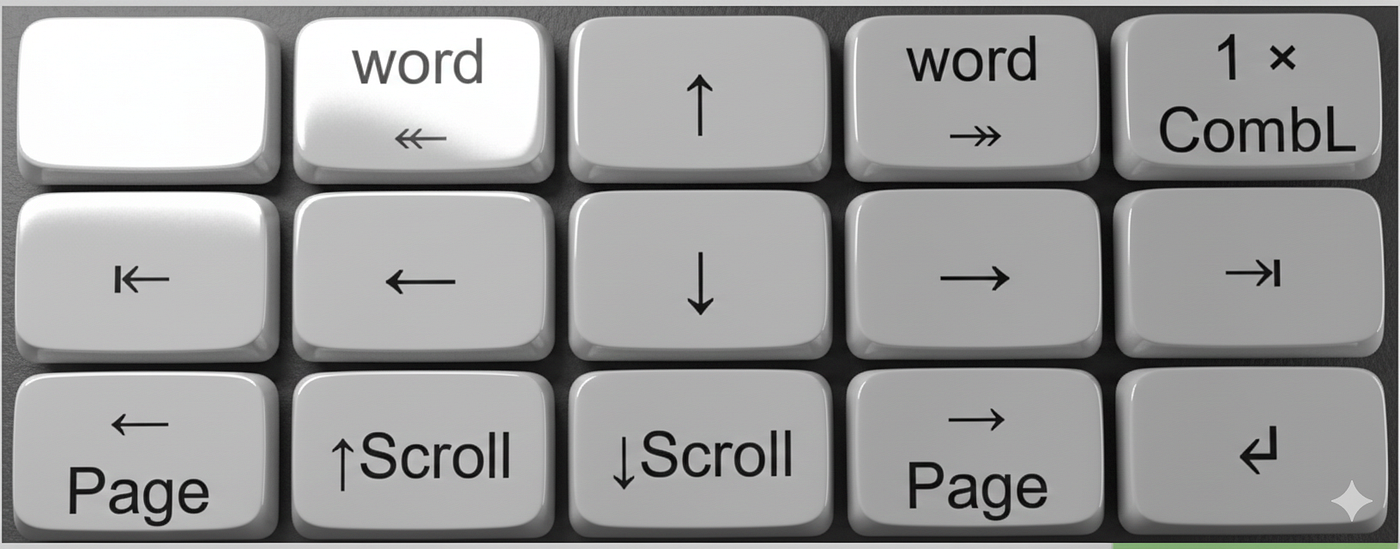
Nano Banana’s impression of my navigation layer on my slightly column-staggered almost orthogonal keyboard. Unlike the classic WASD arrow scheme, my middle finger (the longest!) is right in the middle.
In QMK terminology, the key arrangement is as follows:
KC_NO, C(KC_LEFT), KC_UP, C(KC_RGHT), L_COMB,
KC_HOME, KC_LEFT , KC_DOWN, KC_RGHT , KC_END,
KC_PGUP, MS_WHLD , MS_WHLU, KC_PGDN , KC_ENT,
Now I am writing an entire blog article about this, because I feel that with this scheme I have discovered a really sweet spot of many advantages:
- Normal cursor movement uses the four strongest fingers in their home position, with the longest (middle) finger operating both the ↑ and ↓ keys.
- Home ⇤ and End ⇥ keys are natural extension, positioned at the extreme left and right, which is just what those keys are doing.
- Similarly, the word-by-word navigation with Ctrl+← and Ctrl+→ is placed intuitively and allows me to move letter-by-letter and word-by-word using the same finger without pressing or lifting an additional modifier key.
- Now finally, scrolling! This is not completely symmetric with the rest of the setup, but still very intuitive: the middle two fingers do the slow scrolling up and down, while the outer two fingers scroll page by page.
- All the scrolling and navigation keys are on the same layer, which means that we can assign a really easy to hold layer toggle for that layer. This is important because when using the default “momentary” layers (i.e. layer is active as long as you hold the layer toggle key, similar to how modifier keys work by default), there are only so many easy to reach and not otherwise occupied keys available. Especially if you want to have that key mapped on both hands.
Now that I had the scrolling keys available in an intuitive way, I immediately noticed some advantages compared to mouse wheel or touchpad scrolling:
- The obvious one: I can now scroll the document with the keyboard independently of cursor movement. That’s super-useful in editing all of texts, spreadsheets, or code to peak ahead or above for context of where I am in a big document. And even in view-only mode (browser, pdf-reader, and so on) the gestures for scrolling are exactly the same.
- I can simply keep scrolling by holding the key! No wild spinning the wheel like a hamster would!
- (At least on Windows 11) there also seems to be some automatic slow acceleration making the scrolling faster the longer I hold the key. If it gets too fast, I can simply let go and hold it again. This gives nice control of scrolling speed and is so intuitive that it doesn’t need any practice.
- And as a side benefit: It’s now much easier to remember where the page up and down keys are mapped.
And this is it! Simple and smooth scrolling! Thanks for reading and let me know your own experiences in the comments. Also remember that if you have a programmable keyboard and never actually programmed it, https://usevia.app might be an easy drag-and-drop solution for you.
Some notes for people who have looked very closely at my code above:
- I use MS_WHLD (where ‘d’ is for ‘down’) to scroll up (and vice-versa), because my touchpad and mouse is set to natural scrolling and the virtual scroll wheel button follows that rule. You can swap them around if your configuration is different.
- The “1 × L_COMB” in the picture above is one-shot layer toggle to access some rarely used character keys. It’s not relevant to the scrolling or navigation story, but it shows how hard it is position one’s layer toggles. At least if you want to avoid using a tap/hold dual function on any key that is part of fast typing and those prone to key-rolling effects that can misfire the hold function.
- I wrote up my detailed keymapping philosophy in “A systematic approach for choosing a split ergo keymap for maximum transfer of muscle memory”
메타데이터
- post_id
- eea2079220cd
- slug
- scroll-on-using-a-programmable-keyboard-for-actual-scrolling-profit-eea2079220cd
- url
- https://medium.com/@willitheowl/scroll-on-using-a-programmable-keyboard-for-actual-scrolling-profit-eea2079220cd
- canonical_url
- https://medium.com/@willitheowl/scroll-on-using-a-programmable-keyboard-for-actual-scrolling-profit-eea2079220cd
- author_url
- https://medium.com/@willitheowl
- status
- ok
- fetched_at
- 2026-06-26 21:52:29