Solution Recipe 30: Send an email to a gift recipient
Solution Recipes are tutorials to achieve specific objectives in Klaviyo. They can also help you master Klaviyo, learn new third-party…
Solution Recipe 30: Send an email to a gift recipient
Solution Recipes are tutorials to achieve specific objectives in Klaviyo. They can also help you master Klaviyo, learn new third-party technologies, and come up with creative ideas. They are written mainly for developers & technically-advanced users.
- WHAT YOU’LL LEARN: How to send recipients of a gift a personalized email that their gift is on the way.
- WHY IT MATTERS: If your commerce platform allows customers to send a gift to someone else, you will want the option to have the customer personalize an email to send to the recipient.
- LEVEL OF SOPHISTICATION: Moderate: you will create a custom form, and will write code to call the Klaviyo API.
Introduction & Challenge
Making a gift purchase for someone else is a common shopping experience, and the gift sender may want to send an email to the recipient that a gift is on its way. Klaviyo’s native e-commerce integrations all have events that are linked to the profile who placed the order, and you can create flows that send messages to this profile. There is not a built-in method for sending messages to a gift recipient for an order. This article will explain the set-up to enable such gift recipient messages, by creating a Klaviyo profile for the recipient and triggering a flow that sends the recipient a message.
Ingredients
- A Klaviyo account with a native or custom e-commerce integration
- A form on the order page where the customer can enter details about their recipient
Instructions
Step 1: Create a form on the order page to collect recipient message details
When a customer checks out, you will want a form that allows them to send a message to the recipient. Here’s a mockup of such a form.

You will want to collect the following form inputs:
- recipient’s name
- recipient’s email address
- an optional message for the recipient
- an optional delay, in hours, to wait between placing the order and sending the message
- a checkbox whether to bcc yourself (the purchaser) on the email to the recipient
Step 2: Send a Klaviyo event if the customer fills out the form
If the customer fills out the form when placing their order, you will want to write back-end code to use the Klaviyo API to create an event on the customer’s Klaviyo profile. You will use the Create Event API call. This code can be written in the language of your choosing; you will need a Klaviyo private key that at a minimum has write access to events.
Here is the JSON body for the Create Event call, with dynamic values indicated.
{
  "data": {
    "type": "event",
    "attributes": {
      "properties": {
        "send_date": "[current date]",
        "customer_email": "[email address of customer placing order]",
        "customer_name": "[full name of customer placing order]",
        "recipient_email": "[recipient email from form]",
        "recipient_name": "[recipient name from form]",
        "personal_message": "[message from form]",
        "send_customer_copy": "[checkbox value from form]",
        "send_delay": [delay number from form (default to 0)]
      },
      "metric": {
        "data": {
          "type": "metric",
          "attributes": {
            "name": "Requested Recipient Notification"
          }
        }
      },
      "profile": {
        "data": {
          "type": "profile",
          "attributes": {
            "email": "[email address of customer placing order]"
          }
        }
      }
    }
  }
}
This call will create an event “Requested Recipient Notification” on the profile of the customer who placed the order.
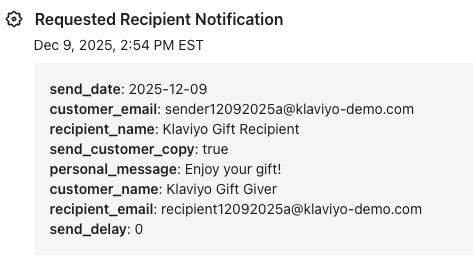
You will need to submit this form for a test order to add the metric Requested Recipient Notification to the Klaviyo account, to be able to create the flow in the next step.
Step 2: Create a flow triggered on this event, to send an event to a profile for the recipient
This solution works by creating a secondary event on a Klaviyo profile for the recipient of the order. We will create a flow triggered on the Requested Recipient Notification event that we just sent to the profile placing the order, that will use a webhook action to create this event on the recipient profile.
Create a flow called “Requested Recipient Notification” that is triggered on the Requested Recipient Notification metric, and add a webhook action.
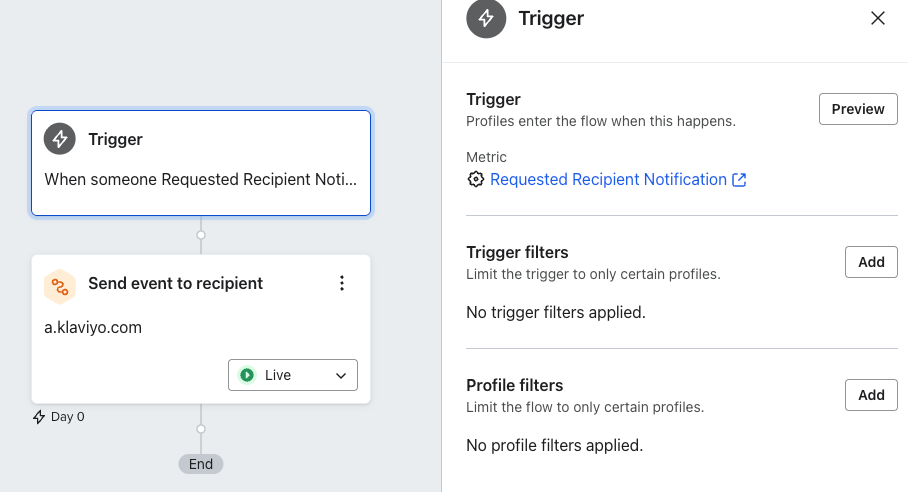
Set up the webhook action:
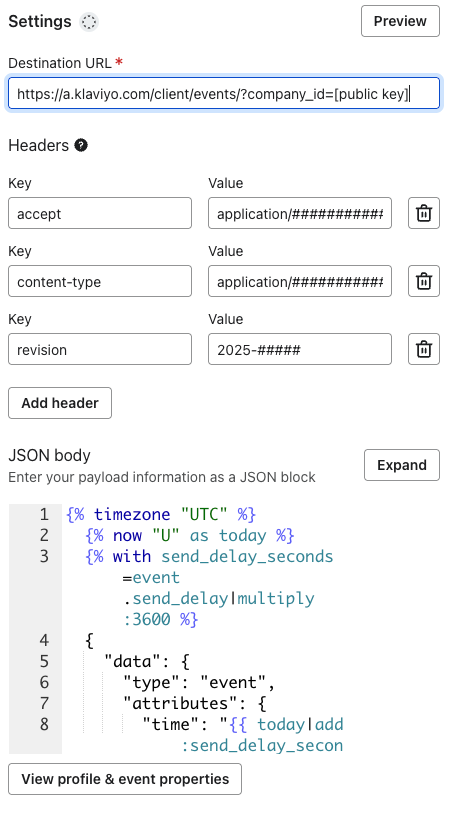
The destination URL is [https://a.klaviyo.com/client/events/?company_id=[public](https://a.klaviyo.com/client/events/?company_id=[public) key] (replace “[public key]” with the Klaviyo account’s six-character public key).
There are three headers for the Create Client Event call:
- accept: application/vnd.api+json
- content-type: application/vnd.api+json
- revision: 2025–10–15
Enter the following JSON block for the webhook body, to create an event “Recipient Email Triggered”.
{% timezone "UTC" %}
  {% now "U" as today %}
  {% with send_delay_seconds=event.send_delay|multiply:3600 %}
  {
    "data": {
      "type": "event",
      "attributes": {
        "time": "{{ today|add:send_delay_seconds|datetime_from_string|date:"Y-m-d" }}T{{ today|add:send_delay_seconds|datetime_from_string|date:"H:i:s" }}Z",
        "properties": {
          "customer_email": "{{ event.customer_email }}",
          "customer_name": "{{ event.customer_name }}",
          "recipient_name": "{{ event.recipient_name }}",
          "personal_message": "{{ event.personal_message|escape|linebreaksbr|striptags }}",
          "send_date": "{{ event.send_date }}",
          "send_customer_copy": "{{ event.send_customer_copy }}",
          "send_delay": "{{ event.send_delay }}"
      },
        "metric": {
          "data": {
            "type": "metric",
            "attributes": {
              "name": "Recipient Email Triggered"
            }
          }
        },
        "profile": {
          "data": {
            "type": "profile",
            "attributes": {
              "email": "{{ event.recipient_email }}"
            }
          }
        }
      }
    }
  }
  {% endwith %}
{% endtimezone %}
The profile for this event will be the recipient email from the form submission ({{ event.recipient_email }}). The API call will create the profile for the recipient email address if the profile does not yet exist in the Klaviyo account.
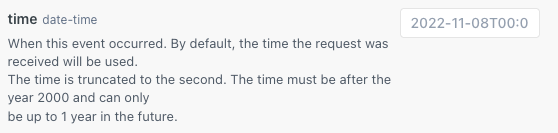
The original form allows the customer to specify a send delay in hours. The webhook accounts for this delay by setting a dynamic “time” property for the event; we can set a timestamp for the event in the future (up to a year), which will delay any flow triggered on that event.
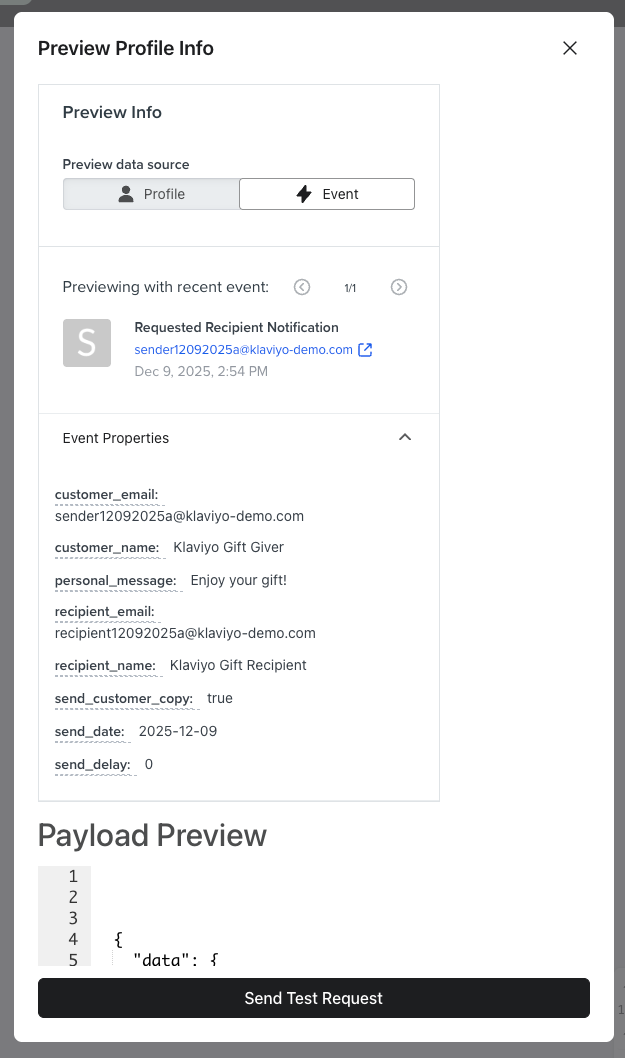
Preview a send of the webhook to ensure the webhook successfully sends, and to add a “Recipient Email Triggered” metric to the Klaviyo account, to use in the next step.

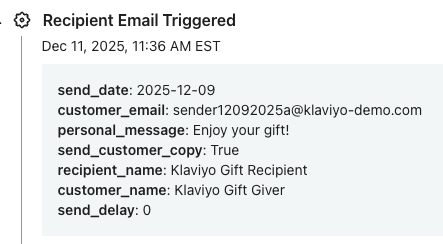
Confirm that a profile was created for the recipient email address and that a new event was added.
Step 3: Create a flow triggered on this recipient event, to send the gift message
The last step is to create a flow triggered on the “Recipient Email Triggered” metric, to send an email to the recipient profile.
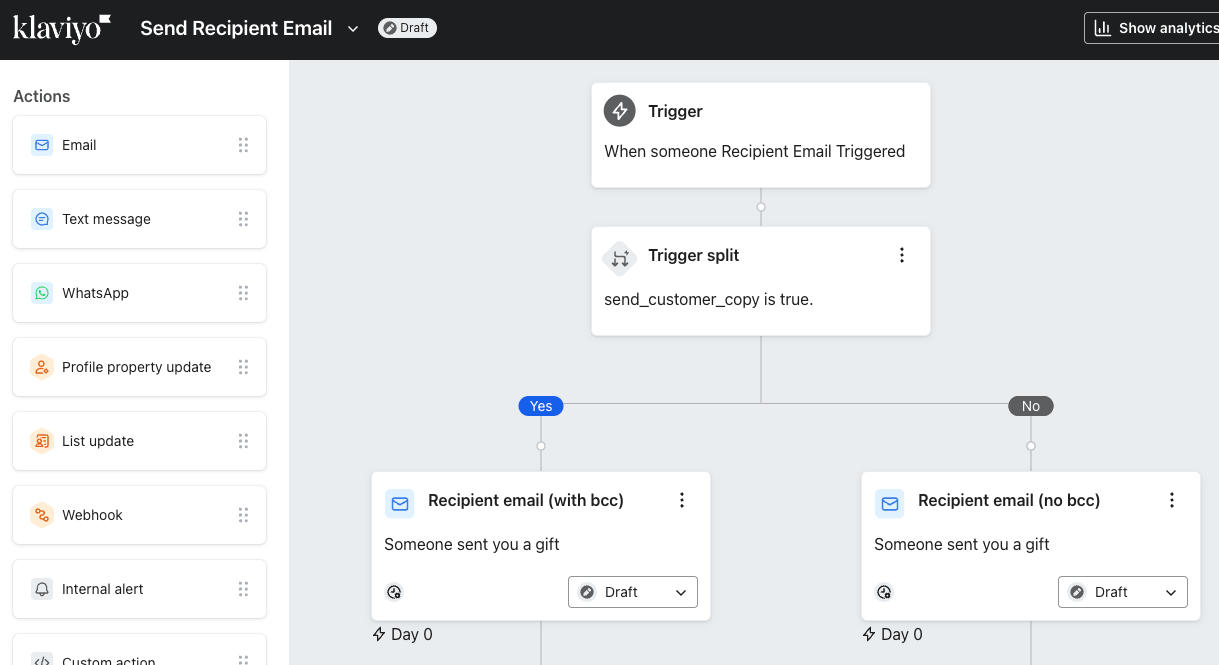
We add a trigger split based on whether the send_customer_copy property of the event is true; if so, we will bcc the customer who placed the order.
Here are the settings for the email when the customer is to be bcc-ed.
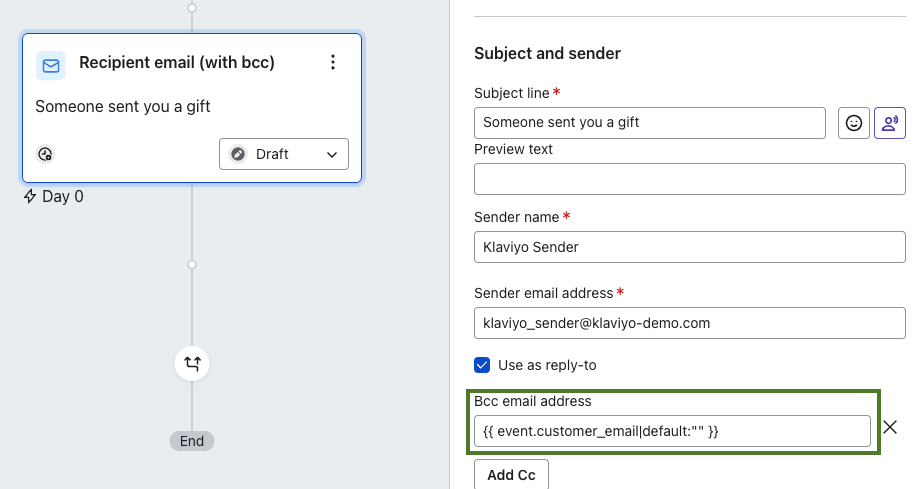
The “no bcc” would be the same, without a bcc address.
You will want to apply for *transactional status* for both emails. The recipient of these emails are individuals receiving gifts, who may not necessarily have profiles in Klaviyo, and who may not have explicitly consented to receive messages from your brand. These gift recipient messages are not to contain any promotional or marketing content.
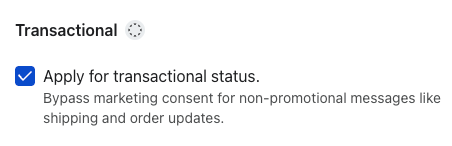
Follow the linked instructions to apply both messages for transactional status.
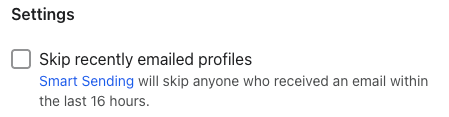
You’ll also want to uncheck “skip recently emailed profiles,” in case an individual receives multiple gifts in quick succession.
The body of the email can contain all of the dynamic properties included in the Recipient Email Triggered event that triggered the flow.
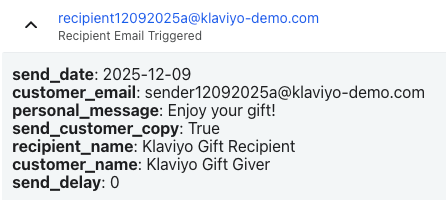
Here is a basic personalization example.
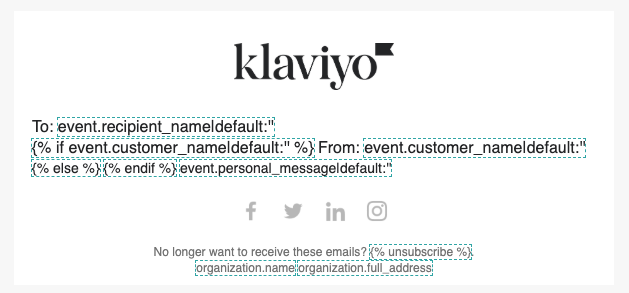
<div><span style="font-size: 16px;">To: {{ event.recipient_name|default:'' }}</span></div>
<div><span style="font-size: 16px;">
  {% if event.customer_name|default:'' %}
  From: {{ event.customer_name|default:'' }}</span></div>
  {% else %}
  {% endif %}

{{ event.personal_message|default:'' }}
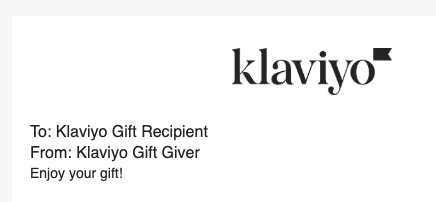
Here is a preview of the message.
Happy gifting!
메타데이터
- post_id
- eec79a057da4
- slug
- solution-recipe-30-send-an-email-to-a-gift-recipient-eec79a057da4
- url
- https://medium.com/klaviyo-developers/solution-recipe-30-send-an-email-to-a-gift-recipient-eec79a057da4
- canonical_url
- https://medium.com/klaviyo-developers/solution-recipe-30-send-an-email-to-a-gift-recipient-eec79a057da4
- author_url
- https://medium.com/@saul.blumenthal
- status
- ok
- fetched_at
- 2026-06-14 11:28:49