UPNG GPA Calculator — MS Excel
Macro-enabled spreadsheet to calculate UPNG student GPAs
UPNG GPA Calculator — MS Excel
Macro-enabled spreadsheet to calculate UPNG student GPAs
In a previous article I explained how to calculate a University of Papua New Guinea student’s grade point average (GPA) with pen and paper. I also promised to publish this Excel calculator to automate it on a spreadsheet.
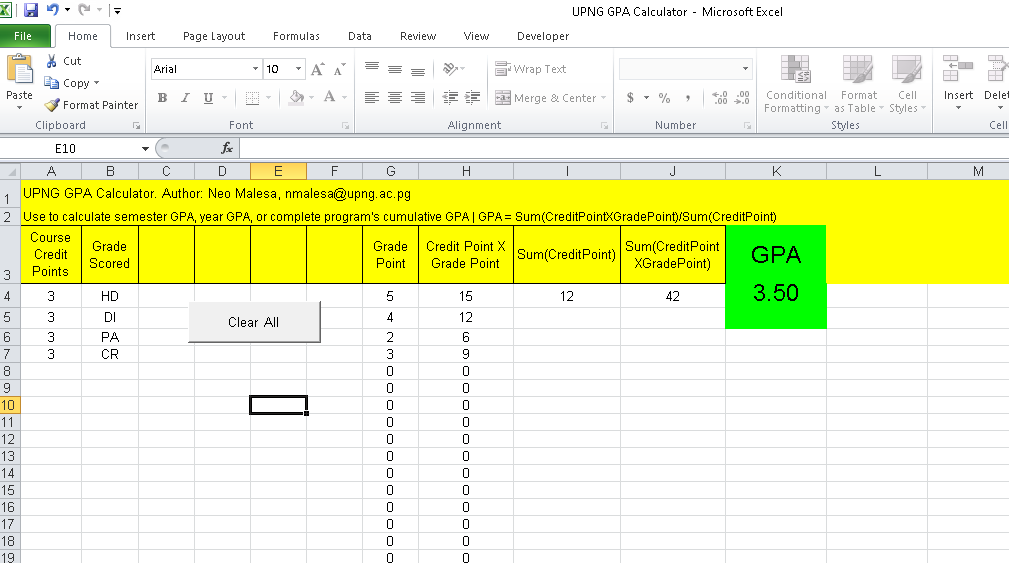
This is what it looks like.
How to Use
Let me show how to use it.
- First download the spreadsheet from this link and save the file to a PC.
https://drive.google.com/file/d/1-i735j3cx3o3Mk0cwl7MPmahIizo8iOS/view?usp=sharing
-
Open the file in Microsoft Excel.
-
Click button to Enable Editing.

- Click button to Enable Macros.

Now you can start selecting your course details to calculate your GPA.
- Select a course’s credit points.

Most courses at Waigani campus are 3-credits while some are 6-credit courses. Consult your lecturer or refer to your transcript, registration form, or course outline to verify this. Taurama campus has different credit weightings for courses; some are up to 14-credits. I have listed different credit weightings in the drop-down box.
- Next, select the grade you scored for the course.

Standard grades at UPNG are HD, DI, CR, PA, CP, and F. I have not included NGs since they are not included in GPA calculation. I’m yet to include other grades like X (exempted from a course but awarded credit points).
Once you select a grade you should see its grade point automatically appear in the Grade Point column.
HD = 5 points, DI = 4 points, CR = 3 points, PA = 2 points, CP = 1 point, F = 0 points
Other columns will automatically calculate and display.
- Fill in your list of courses. I didn’t incorporate course names in the spreadsheet, so you only select course credits and grades scored. You can list details of 4 courses for a semester GPA, or 8 for a year. You can also list details of all courses you’ve taken for a program to calculate a cumulative GPA for 4 or 5 years.
The screenshot below is a listing for 4 courses. GPA is automatically calculated and displayed.

Other Tips
- Use the Clear All button to start over.
- If you are filling many rows, you can also copy-paste values. Say you want to calculate GPA for 21 courses. Instead of selecting the drop-down value for each course credit point, you can just paste the value “3” in the first column on the next 21 rows. The same can be done for grades.
A more permanent solution would be to have a web-based GPA calculator app.
But let me know if you have suggestions to improve this.
Link to download:
[embed]UPNG GPA Calculator.xlsm Edit descriptiondrive.google.com
Related articles:
[embed]Check your UPNG GPA — Just in case How to manually calculate your GPAmedium.com
메타데이터
- post_id
- efd65d806f06
- slug
- upng-gpa-calculator-ms-excel-efd65d806f06
- url
- https://medium.com/@neomalesa/upng-gpa-calculator-ms-excel-efd65d806f06
- canonical_url
- https://medium.com/@neomalesa/upng-gpa-calculator-ms-excel-efd65d806f06
- author_url
- https://medium.com/@neomalesa
- status
- ok
- fetched_at
- 2026-07-28 19:46:03