Build Faster with .NET: Install .NET 8 SDK on Ubuntu (Step-by-Step)
.NET is a cross-platform framework from Microsoft, and coding with it can be a big advantage because it runs on Linux, Windows, and macOS…
Build Faster with .NET: Install .NET 8 SDK on Ubuntu (Step-by-Step)
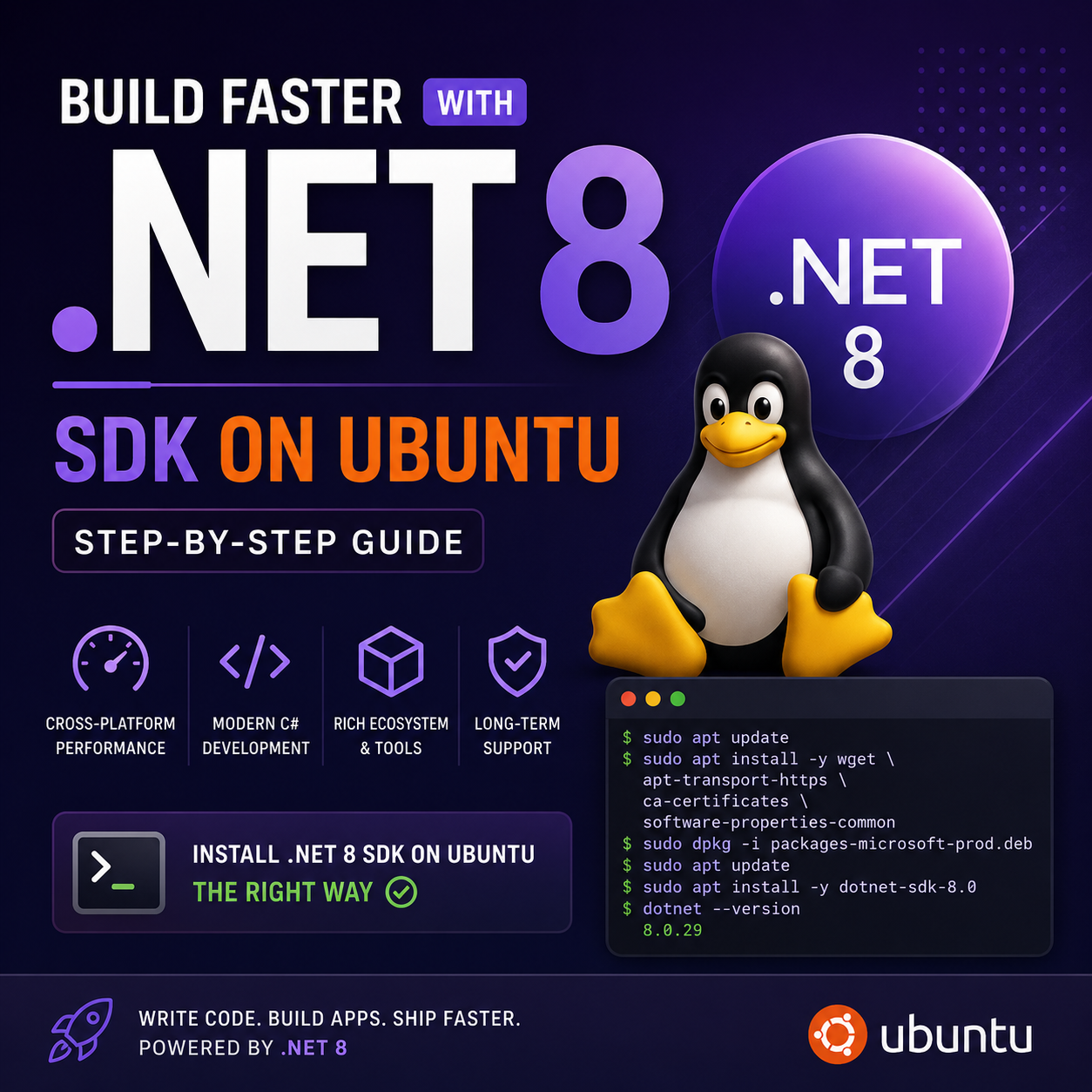
.NET is a cross-platform framework from Microsoft, and coding with it can be a big advantage because it runs on Linux, Windows, and macOS; it has strong performance and a modern developer experience with C#; and it offers a large ecosystem of tools, libraries, and long-term support options. This tutorial guides you through installing the .NET 8 SDK on Ubuntu. Before that, it demonstrates how to add Microsoft’s official package repository so apt can find and install the correct packages.
Step-by-step: Install .NET SDK 8.0 on Ubuntu
1) Update your package lists
This refreshes Ubuntu’s local list of available packages (so it knows about the latest versions, including any new repo you’ll add next).
sudo apt update2) Install required tools
These packages provide the basics needed to download and install the Microsoft repository package:
wgetto download files from the internetca-certificatesto verify HTTPS connectionsapt-transport-httpssoaptcan work with HTTPS repositoriessoftware-properties-commoncommonly used for repository management tools
sudo apt install -y wget apt-transport-https ca-certificates software-properties-common3) Confirm your Ubuntu version
The correct Microsoft repository URL depends on your Ubuntu release (example: 20.04, 22.04, 24.04). This step tells you which one you’re running.
lsb_release -aExample:
xubuntu@xubuntu:~$ lsb_release -a
No LSB modules are available.
Distributor ID: Ubuntu
Description: Ubuntu 20.04.6 LTS
Release: 20.04
Codename: focal
Alternatively, you can use the cat command:
cat /etc/os-releaseExample:
xubuntu@xubuntu:~$ cat /etc/os-release
NAME="Ubuntu"
VERSION="20.04.6 LTS (Focal Fossa)"
ID=ubuntu
ID_LIKE=debian
PRETTY_NAME="Ubuntu 20.04.6 LTS"
VERSION_ID="20.04"
HOME_URL="https://www.ubuntu.com/"
SUPPORT_URL="https://help.ubuntu.com/"
BUG_REPORT_URL="https://bugs.launchpad.net/ubuntu/"
PRIVACY_POLICY_URL="https://www.ubuntu.com/legal/terms-and-policies/privacy-policy"
VERSION_CODENAME=focal
UBUNTU_CODENAME=focal
4) Download Microsoft’s repository package (.deb)
This downloads a .deb file that adds Microsoft’s package source to your system’s APT configuration.
Important: Replace 22.04 with your Ubuntu version from Step 3.
wget -O packages-microsoft-prod.deb https://packages.microsoft.com/config/ubuntu/22.04/packages-microsoft-prod.deb5) Install the repository package
This installs the downloaded .deb, which effectively tells Ubuntu: “start trusting and using Microsoft’s package feed.”
sudo dpkg -i packages-microsoft-prod.deb6) Refresh APT cache
After adding the new repo, you need to update APT again so it can see the .NET packages provided by Microsoft.
sudo apt update7) Install the .NET 8 SDK
Now that the repo is available, Ubuntu can install the SDK you need to develop and build .NET applications.
sudo apt install -y dotnet-sdk-8.0Example:
xubuntu@xubuntu:~$ sudo apt install -y dotnet-sdk-8.0
Reading package lists... Done
Building dependency tree
Reading state information... Done
The following additional packages will be installed:
  aspnetcore-runtime-8.0 aspnetcore-targeting-pack-8.0 dotnet-apphost-pack-8.0
  dotnet-host dotnet-hostfxr-8.0 dotnet-runtime-8.0 dotnet-runtime-deps-8.0
  dotnet-targeting-pack-8.0 netstandard-targeting-pack-2.1
The following NEW packages will be installed:
  aspnetcore-runtime-8.0 aspnetcore-targeting-pack-8.0 dotnet-apphost-pack-8.0
  dotnet-host dotnet-hostfxr-8.0 dotnet-runtime-8.0 dotnet-runtime-deps-8.0
  dotnet-sdk-8.0 dotnet-targeting-pack-8.0 netstandard-targeting-pack-2.1
0 upgraded, 10 newly installed, 0 to remove and 1 not upgraded.
Need to get 144 MB of archives.
After this operation, 590 MB of additional disk space will be used.
Get:1 https://packages.microsoft.com/ubuntu/22.04/prod jammy/main amd64 dotnet-host amd64 9.0.4-1 [36.7 kB]
Get:2 https://packages.microsoft.com/ubuntu/22.04/prod jammy/main amd64 dotnet-hostfxr-8.0 amd64 8.0.29-1 [108 kB]
Get:3 https://packages.microsoft.com/ubuntu/22.04/prod jammy/main amd64 dotnet-runtime-deps-8.0 amd64 8.0.29-1 [2,898 B]
Get:4 https://packages.microsoft.com/ubuntu/22.04/prod jammy/main amd64 dotnet-runtime-8.0 amd64 8.0.29-1 [23.1 MB]
Get:5 https://packages.microsoft.com/ubuntu/22.04/prod jammy/main amd64 aspnetcore-runtime-8.0 amd64 8.0.29-1 [8,609 kB]
Get:6 https://packages.microsoft.com/ubuntu/22.04/prod jammy/main amd64 dotnet-targeting-pack-8.0 amd64 8.0.29-1 [2,800 kB]
Get:7 https://packages.microsoft.com/ubuntu/22.04/prod jammy/main amd64 aspnetcore-targeting-pack-8.0 amd64 8.0.29-1 [2,110 kB]
Get:8 https://packages.microsoft.com/ubuntu/22.04/prod jammy/main amd64 dotnet-apphost-pack-8.0 amd64 8.0.29-1 [3,518 kB]
Get:9 https://packages.microsoft.com/ubuntu/22.04/prod jammy/main amd64 netstandard-targeting-pack-2.1 amd64 2.1.0-1 [1,476 kB]
Get:10 https://packages.microsoft.com/ubuntu/22.04/prod jammy/main amd64 dotnet-sdk-8.0 amd64 8.0.423-1 [102 MB]
Fetched 144 MB in 7s (19.2 MB/s)
Selecting previously unselected package dotnet-host.
(Reading database ... 62414 files and directories currently installed.)
Preparing to unpack .../0-dotnet-host_9.0.4-1_amd64.deb ...
Unpacking dotnet-host (9.0.4-1) ...
Selecting previously unselected package dotnet-hostfxr-8.0.
Preparing to unpack .../1-dotnet-hostfxr-8.0_8.0.29-1_amd64.deb ...
Unpacking dotnet-hostfxr-8.0 (8.0.29-1) ...
Selecting previously unselected package dotnet-runtime-deps-8.0.
Preparing to unpack .../2-dotnet-runtime-deps-8.0_8.0.29-1_amd64.deb ...
Unpacking dotnet-runtime-deps-8.0 (8.0.29-1) ...
Selecting previously unselected package dotnet-runtime-8.0.
Preparing to unpack .../3-dotnet-runtime-8.0_8.0.29-1_amd64.deb ...
Unpacking dotnet-runtime-8.0 (8.0.29-1) ...
Selecting previously unselected package aspnetcore-runtime-8.0.
Preparing to unpack .../4-aspnetcore-runtime-8.0_8.0.29-1_amd64.deb ...
Unpacking aspnetcore-runtime-8.0 (8.0.29-1) ...
Selecting previously unselected package dotnet-targeting-pack-8.0.
Preparing to unpack .../5-dotnet-targeting-pack-8.0_8.0.29-1_amd64.deb ...
Unpacking dotnet-targeting-pack-8.0 (8.0.29-1) ...
Selecting previously unselected package aspnetcore-targeting-pack-8.0.
Preparing to unpack .../6-aspnetcore-targeting-pack-8.0_8.0.29-1_amd64.deb ...
Unpacking aspnetcore-targeting-pack-8.0 (8.0.29-1) ...
Selecting previously unselected package dotnet-apphost-pack-8.0.
Preparing to unpack .../7-dotnet-apphost-pack-8.0_8.0.29-1_amd64.deb ...
Unpacking dotnet-apphost-pack-8.0 (8.0.29-1) ...
Selecting previously unselected package netstandard-targeting-pack-2.1.
Preparing to unpack .../8-netstandard-targeting-pack-2.1_2.1.0-1_amd64.deb ...
Unpacking netstandard-targeting-pack-2.1 (2.1.0-1) ...
Selecting previously unselected package dotnet-sdk-8.0.
Preparing to unpack .../9-dotnet-sdk-8.0_8.0.423-1_amd64.deb ...
Unpacking dotnet-sdk-8.0 (8.0.423-1) ...
Setting up dotnet-host (9.0.4-1) ...
Setting up dotnet-targeting-pack-8.0 (8.0.29-1) ...
Setting up netstandard-targeting-pack-2.1 (2.1.0-1) ...
Setting up aspnetcore-targeting-pack-8.0 (8.0.29-1) ...
Setting up dotnet-apphost-pack-8.0 (8.0.29-1) ...
Setting up dotnet-runtime-deps-8.0 (8.0.29-1) ...
Setting up dotnet-hostfxr-8.0 (8.0.29-1) ...
Setting up dotnet-runtime-8.0 (8.0.29-1) ...
Setting up aspnetcore-runtime-8.0 (8.0.29-1) ...
Setting up dotnet-sdk-8.0 (8.0.423-1) ...
8) Verify installation
This command confirms that dotnet is installed correctly and shows details like the installed SDK version.
dotnet --infoIf everything worked, this will display details about your installed SDK/runtime.
Example:
xubuntu@xubuntu:~$ dotnet --info
.NET SDK:
 Version:           8.0.423
 Commit:            62e3aa2c1f
 Workload version:  8.0.400-manifests.a04bdf47
 MSBuild version:   17.11.48+02bf66295

Runtime Environment:
 OS Name:     ubuntu
 OS Version:  20.04
 OS Platform: Linux
 RID:         linux-x64
 Base Path:   /usr/share/dotnet/sdk/8.0.423/

.NET workloads installed:
Configured to use loose manifests when installing new manifests.
There are no installed workloads to display.

Host:
  Version:      8.0.29
  Architecture: x64
  Commit:       18fd75c847

.NET SDKs installed:
  8.0.423 [/usr/share/dotnet/sdk]

.NET runtimes installed:
  Microsoft.AspNetCore.App 8.0.29 [/usr/share/dotnet/shared/Microsoft.AspNetCore.App]
  Microsoft.NETCore.App 8.0.29 [/usr/share/dotnet/shared/Microsoft.NETCore.App]

Other architectures found:
  None

Environment variables:
  Not set

global.json file:
  Not found

Learn more:
  https://aka.ms/dotnet/info

Download .NET:
  https://aka.ms/dotnet/download
Check the release:
cat /etc/os-releaseExample:
xubuntu@xubuntu:~$ cat /etc/os-release
NAME="Ubuntu"
VERSION="20.04.6 LTS (Focal Fossa)"
ID=ubuntu
ID_LIKE=debian
PRETTY_NAME="Ubuntu 20.04.6 LTS"
VERSION_ID="20.04"
HOME_URL="https://www.ubuntu.com/"
SUPPORT_URL="https://help.ubuntu.com/"
BUG_REPORT_URL="https://bugs.launchpad.net/ubuntu/"
PRIVACY_POLICY_URL="https://www.ubuntu.com/legal/terms-and-policies/privacy-policy"
VERSION_CODENAME=focal
UBUNTU_CODENAME=focal
9) Create and run a basic terminal project
This step proves the installation is truly working by creating a sample app and running it.
[1] Create a new console project:
mkdir -p ~/dotnet-hello
cd ~/dotnet-hello
dotnet new console -n HelloApp
[2] Build and run it:
cd HelloApp
dotnet run
You should see output from the default template (typically something like Hello, World!).
Example:
xubuntu@xubuntu:~$ mkdir -p ~/dotnet-hello
xubuntu@xubuntu:~$ cd ~/dotnet-hello
xubuntu@xubuntu:~/dotnet-hello$ dotnet new console -n HelloApp

Welcome to .NET 8.0!
---------------------
SDK Version: 8.0.423

Telemetry
---------
The .NET tools collect usage data in order to help us improve your experience. It is collected by Microsoft and shared with the community. You can opt-out of telemetry by setting the DOTNET_CLI_TELEMETRY_OPTOUT environment variable to '1' or 'true' using your favorite shell.

Read more about .NET CLI Tools telemetry: https://aka.ms/dotnet-cli-telemetry

----------------
Installed an ASP.NET Core HTTPS development certificate.
To trust the certificate, view the instructions: https://aka.ms/dotnet-https-linux

----------------
Write your first app: https://aka.ms/dotnet-hello-world
Find out what's new: https://aka.ms/dotnet-whats-new
Explore documentation: https://aka.ms/dotnet-docs
Report issues and find source on GitHub: https://github.com/dotnet/core
Use 'dotnet --help' to see available commands or visit: https://aka.ms/dotnet-cli
--------------------------------------------------------------------------------------
An issue was encountered verifying workloads. For more information, run "dotnet workload update".
The template "Console App" was created successfully.

Processing post-creation actions...
Restoring /home/xubuntu/dotnet-hello/HelloApp/HelloApp.csproj:
  Determining projects to restore...
  Restored /home/xubuntu/dotnet-hello/HelloApp/HelloApp.csproj (in 42 ms).
Restore succeeded.

xubuntu@xubuntu:~/dotnet-hello$ cd HelloApp
xubuntu@xubuntu:~/dotnet-hello/HelloApp$ dotnet run
Hello, World!
10) Create and run a basic web project
To further verify the installation and test your web development capabilities, you can scaffold a basic web API and run it locally.
Create a new web API project:
mkdir -p ~/dotnet-web
cd ~/dotnet-web
dotnet new webapi -n MyWebApi
Build and run it:
cd MyWebApi
dotnet run
You will see console output indicating that the app is now running and listening on specific localhost URLs (e.g., http://localhost:5000 or http://localhost:5234).
Open your web browser and navigate to the HTTP URL followed by /weatherforecast (e.g., http://localhost:5234/weatherforecast). You should see a JSON response with mock weather data, confirming that your .NET web development tools are fully functional!
Alternatively, use curl command in the terminal:
curl http://localhost:5051/weatherforecastExample:
xubuntu@xubuntu:~$ mkdir -p ~/dotnet-web
xubuntu@xubuntu:~$ cd ~/dotnet-web
xubuntu@xubuntu:~/dotnet-web$ dotnet new webapi -n MyWebApi
The template "ASP.NET Core Web API" was created successfully.

Processing post-creation actions...
Restoring /home/xubuntu/dotnet-web/MyWebApi/MyWebApi.csproj:
  Determining projects to restore...
  Restored /home/xubuntu/dotnet-web/MyWebApi/MyWebApi.csproj (in 3.2 sec).
Restore succeeded.

xubuntu@xubuntu:~/dotnet-web$ cd MyWebApi
xubuntu@xubuntu:~/dotnet-web/MyWebApi$ dotnet run
Building...
info: Microsoft.Hosting.Lifetime[14]
      Now listening on: http://localhost:5051
info: Microsoft.Hosting.Lifetime[0]
      Application started. Press Ctrl+C to shut down.
info: Microsoft.Hosting.Lifetime[0]
      Hosting environment: Development
info: Microsoft.Hosting.Lifetime[0]
      Content root path: /home/xubuntu/dotnet-web/MyWebApi
Example (curl):
xubuntu@xubuntu:~$ curl localhost:5051
xubuntu@xubuntu:~$ curl http://localhost:5051/weatherforecast
[{"date":"2026-08-12","temperatureC":-20,"summary":"Mild","temperatureF":-3},{"date":"2026-08-13","temperatureC":42,"summary":"Chilly","temperatureF":107},{"date":"2026-08-14","temperatureC":-4,"summary":"Bracing","temperatureF":25},{"date":"2026-08-15","temperatureC":-18,"summary":"Bracing","temperatureF":0},{"date":"2026-08-16","temperatureC":-14,"summary":"Bracing","temperatureF":7}]xubuntu@xubuntu:~$
Conclusion
By completing these steps, you’ve added Microsoft’s official package repository, installed the .NET 8 SDK on Ubuntu, and verified the installation end-to-end — first by running a simple console app, and then by scaffolding, building, and serving a web API that responds with live JSON at the /weatherforecast endpoint.
APPENDIX
The /weatherforecast endpoint is essentially the "Hello World" of ASP.NET Core Web APIs.
It isn’t a built-in feature of .NET itself; rather, it is a dummy endpoint that Microsoft includes in the default webapi project template to give you a working example the moment you create a new project.
If you open your project and look inside the Program.cs file, you will see exactly where /weatherforecast comes from. It looks something like this:
var summaries = new[]
{
    "Freezing", "Bracing", "Chilly", "Cool", "Mild", "Warm", "Balmy", "Hot", "Sweltering", "Scorching"
};

// This is the line that maps the URL route to the code!
app.MapGet("/weatherforecast", () =>
{
    var forecast = Enumerable.Range(1, 5).Select(index =>
        new WeatherForecast
        (
            DateOnly.FromDateTime(DateTime.Now.AddDays(index)),
            Random.Shared.Next(-20, 55),
            summaries[Random.Shared.Next(summaries.Length)]
        ))
        .ToArray();
    return forecast;
})
.WithName("GetWeatherForecast")
.WithOpenApi();
메타데이터
- post_id
- f08002ed1f7e
- slug
- build-faster-with-net-install-net-8-sdk-on-ubuntu-step-by-step-f08002ed1f7e
- url
- https://towardsdev.com/build-faster-with-net-install-net-8-sdk-on-ubuntu-step-by-step-f08002ed1f7e
- canonical_url
- https://towardsdev.com/build-faster-with-net-install-net-8-sdk-on-ubuntu-step-by-step-f08002ed1f7e
- author_url
- https://medium.com/@mohamad.razzi.my
- status
- ok
- fetched_at
- 2026-08-19 03:24:48