How Can You Edit a PDF on a Mac: Quick & Easy Tips
How Can You Edit a PDF on a Mac: Quick & Easy Tips
How Can You Edit a PDF on a Mac
Editing a PDF on a Mac can be really easy and fun, especially if you know the right tools to use. One of the best tools out there is PDF Expert. In this article, we’ll show you step-by-step how to edit a PDF on a Mac using PDF Expert. We’ll also discuss some of the cool features that make PDF Expert the go-to PDF editor for iPhone, iPad, and Mac.

Why Choose PDF Expert?
PDF Expert is a powerful and easy-to-use tool for editing PDFs. It offers a wide range of features that make it simple to edit, annotate, sign, and organize PDFs. Here are some reasons why PDF Expert is a great choice:
- Edit PDFs: Modify text, images, links, signatures, pages, and files effortlessly.
- Annotate PDFs: Highlight, underline, or add notes to your PDF documents.
- Sign Documents: Quickly add your signature to any PDF.
- Convert PDFs: Change your PDF files into Word, Excel, PowerPoint, or JPG formats.
Steps to Edit a PDF on a Mac Using PDF Expert
Here’s a simple guide on how you can edit a PDF on a Mac using PDF Expert:
- Download and Install PDF Expert: First, you need to download PDF Expert from the official website and install it on your Mac.
- Open Your PDF Document: Launch PDF Expert and open the PDF document you want to edit. You can do this by clicking on the “Open File” button and selecting your PDF.
- Edit Text: To edit text in your PDF, click on the “Text” button in the toolbar. Then, click on the text you want to change and start typing. You can also change the font, size, and color of the text.
- Edit Images: If you want to edit images, click on the “Image” button in the toolbar. Click on the image you want to change, and you’ll see options to replace or adjust the image.
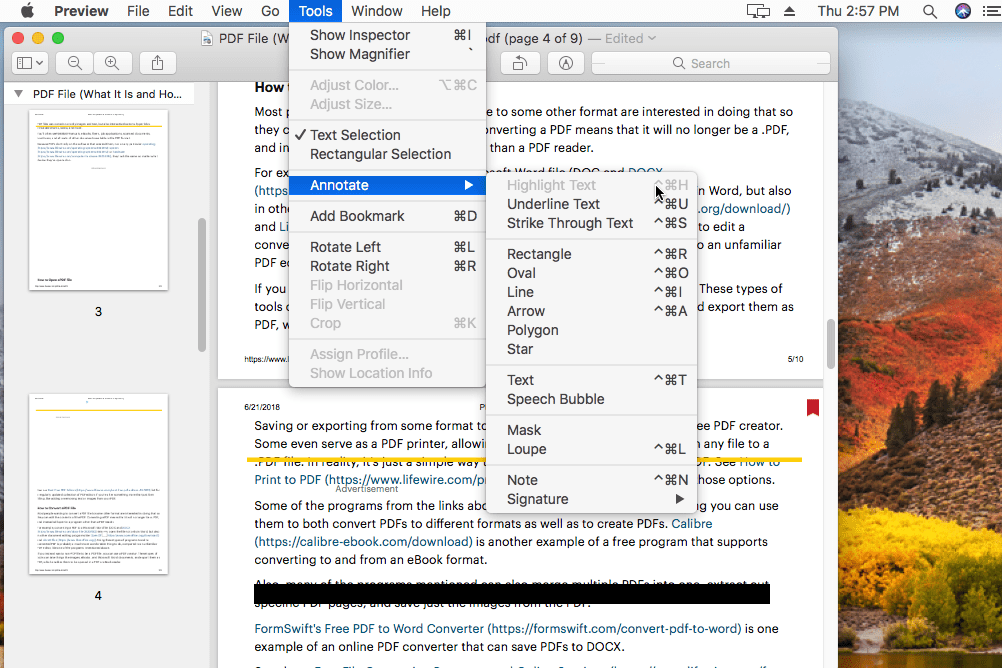
- Add Annotations: To add annotations, click on the “Annotate” button. You can highlight text, add notes, or draw shapes on your PDF.
- Sign Your PDF: If you need to add a signature, click on the “Sign” button. You can draw your signature using your trackpad or import an image of your signature.
- Save Your Changes: After making all the necessary changes, don’t forget to save your edited PDF. Click on “File” and then “Save” to keep your changes.
Other Cool Features of PDF Expert
Besides basic editing, PDF Expert offers many other cool features:
- Merge and Reorganize Pages: Easily rearrange, extract, delete, or rotate pages in your PDF.
- OCR Text Recognition: Use OCR (Optical Character Recognition) to recognize text in scanned documents, making it searchable and editable.
- Enhance Scans: Improve the quality of your scanned PDFs by fixing distortions, removing shadows, and enhancing contrast.
- Fill Out PDF Forms: Easily fill out checklists, insurance forms, or tax forms with PDF Expert.
- Unique Reading Mode: Enjoy a delightful reading experience with PDF Expert’s smart technology that adjusts PDF text to fit your screen perfectly.
Why PDF Expert is Perfect for Kids and Beginners
PDF Expert is super easy to use, making it perfect for kids and beginners. Here are some reasons why:
- Simple Interface: The interface is intuitive and user-friendly.
- Fast and Reliable: PDF Expert is quick and dependable, ensuring you can edit PDFs without any hassle.
- Great Support: If you ever get stuck, there are plenty of tutorials and support options available.
Frequently Asked Questions
How Do You Edit Pdf On A Mac?
Use PDF Expert to edit text, images, and links.
Can I Annotate Pdfs On Mac?
Yes, you can annotate PDFs using tools like PDF Expert.
How To Sign Pdfs On A Mac?
Use PDF Expert to add electronic signatures to documents.
Is It Possible To Convert Pdfs On A Mac?
Yes, convert PDFs to Word, Excel, and more with PDF Expert.
Conclusion
Editing a PDF on a Mac doesn’t have to be complicated. With PDF Expert, you can easily edit, annotate, sign, and organize your PDFs. Whether you’re a kid, a beginner, or an experienced user, PDF Expert makes editing PDFs a breeze. Try it out today and see how it can make your PDF tasks easier and more enjoyable.
Ready to get started? Download PDF Expert from here and experience the best PDF editing tool for Mac!
메타데이터
- post_id
- f2b49b2c0824
- slug
- how-can-you-edit-a-pdf-on-a-mac-quick-easy-tips-f2b49b2c0824
- url
- https://medium.com/@dwithmahi/how-can-you-edit-a-pdf-on-a-mac-quick-easy-tips-f2b49b2c0824
- canonical_url
- https://medium.com/@dwithmahi/how-can-you-edit-a-pdf-on-a-mac-quick-easy-tips-f2b49b2c0824
- author_url
- https://medium.com/@dwithmahi
- status
- ok
- fetched_at
- 2026-08-23 04:58:50