Stop “Where Is My Order?” Emails: Automate FedEx Tracking in WooCommerce
Every WooCommerce store owner knows this pattern: Sales go up… and suddenly your inbox is flooded with “Where is my order?” emails. These…
Stop “Where Is My Order?” Emails: Automate FedEx Tracking in WooCommerce
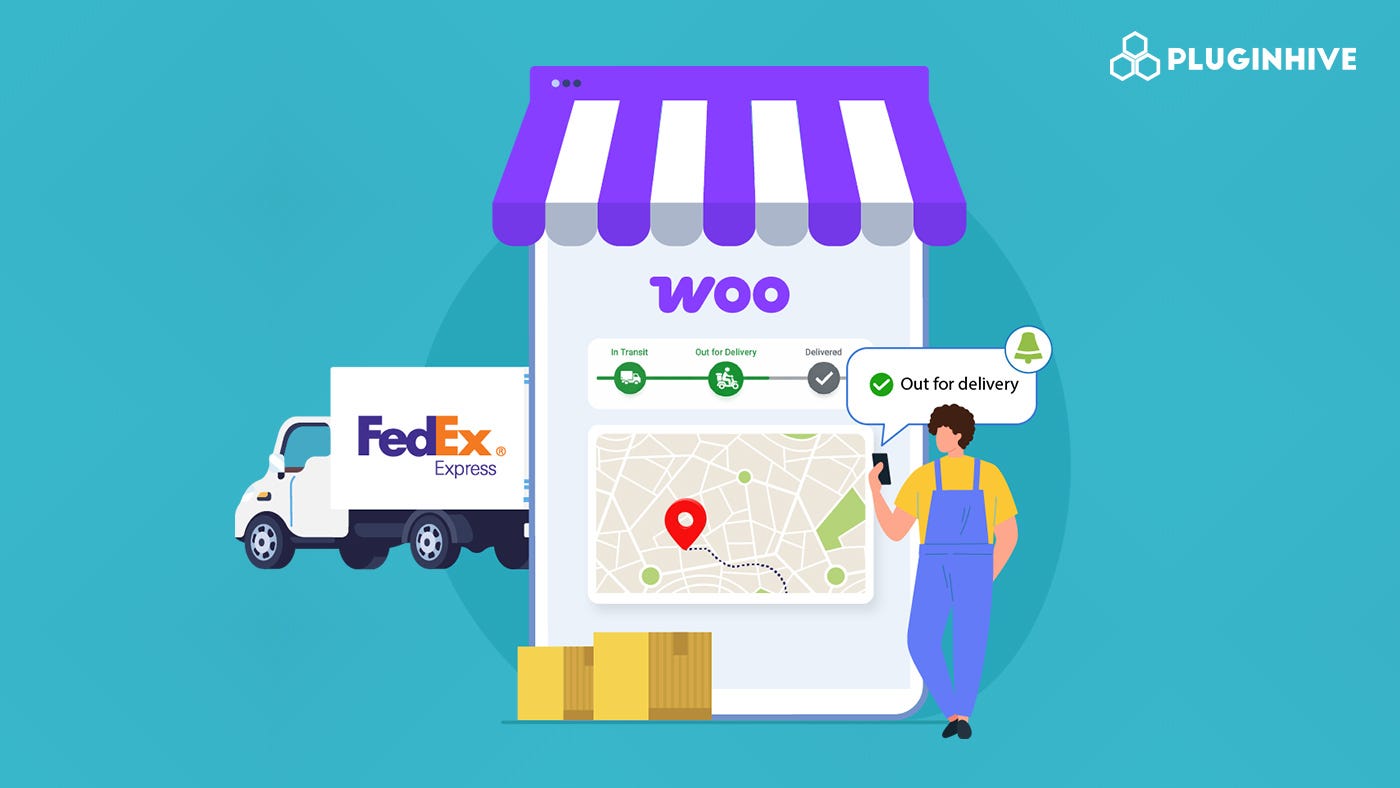
Every WooCommerce store owner knows this pattern: Sales go up… and suddenly your inbox is flooded with “Where is my order?” emails. These WISMO tickets aren’t just annoying — they slow down your team, delay real support work, and hurt the overall customer experience.
Here’s the catch: Most of these queries aren’t caused by shipping delays. They’re caused by a lack of visibility after checkout.
And that’s exactly where FedEx, tracking — when properly integrated into WooCommerce — makes a measurable difference.
Tracking Isn’t Optional Anymore in WooCommerce
Today’s customers don’t just expect delivery — They expect **real-time updates at every stage**.
The moment that visibility is missing, they reach out.
- No tracking email → customer sends a query
- Delayed update → customer assumes a problem
- No clarity → customer loses trust
This is how support tickets pile up — even when shipments are moving perfectly.
To learn about how manual tracking eats your profit, read here — **What Manual Tracking Actually Costs You**
Turn FedEx Tracking into an Automated Workflow
Getting this running requires two things: a FedEx account and the right WooCommerce plugin.
Step 1: Connect Your FedEx Account
You need an active FedEx account with API credentials. Once set up at fedex.com, these credentials link your WooCommerce store to FedEx’s live network for rates, labels, and tracking data.
Step 2: Install the FedEx Shipping Plugin for WooCommerce
The FedEx Shipping Plugin for WooCommerce with Print Label removes every manual step in the tracking workflow.
Note: For a detailed setup walkthrough, refer to the PluginHive FedEx Shipping Guide for WooCommerce.
Once configured, it:
- Generates a FedEx tracking ID automatically when a shipping label is printed from within WooCommerce — no copying, no pasting.
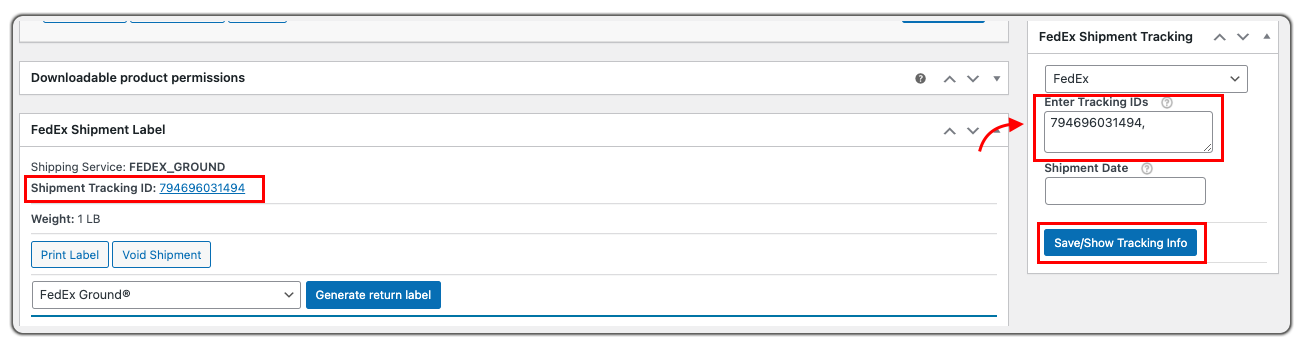
- Displays the tracking ID directly on the WooCommerce order page as a clickable link that opens the FedEx tracking page instantly. Admins get a live shipment status view right from the WooCommerce dashboard, without opening a separate tab.

Step 3: Turn On Automated Customer Tracking Emails
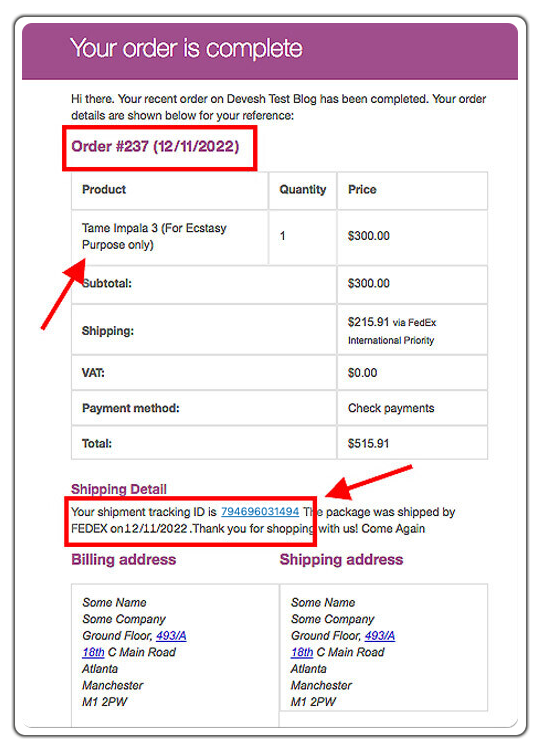
Enable the Shipment Tracking feature inside the plugin settings. The moment an order is marked Complete, an automated email goes to the customer containing the FedEx tracking number and a direct tracking link. You can customize the message — brand it, set delivery window expectations, or add a support contact for exceptions.

Once an order is marked Complete in WooCommerce, the tracking email fires automatically. Customers get answers before they think to ask the question.
To learn more about the plugin, watch the video below.
[embed]
Conclusion
FedEx has built some of the most robust delivery visibility tools in the industry. Still, none of it helps your WooCommerce customers unless those tools are actually connected to your store’s order flow. The FedEx Shipping Plugin for WooCommerce with Print Label makes that connection automatic — no manual steps, no delays, no unnecessary support tickets.
Read the full guide here — **How FedEx Tracking Notifications Reduce WooCommerce Customer Support Tickets**
메타데이터
- post_id
- f38c3caa3ea7
- slug
- stop-where-is-my-order-emails-automate-fedex-tracking-in-woocommerce-f38c3caa3ea7
- url
- https://medium.com/pluginhive/stop-where-is-my-order-emails-automate-fedex-tracking-in-woocommerce-f38c3caa3ea7
- canonical_url
- https://medium.com/pluginhive/stop-where-is-my-order-emails-automate-fedex-tracking-in-woocommerce-f38c3caa3ea7
- author_url
- https://medium.com/@bhanupriya_75279
- status
- ok
- fetched_at
- 2026-06-10 22:59:55