How to create a Navbar from scratch
Step 1:
How to create a Navbar from scratch
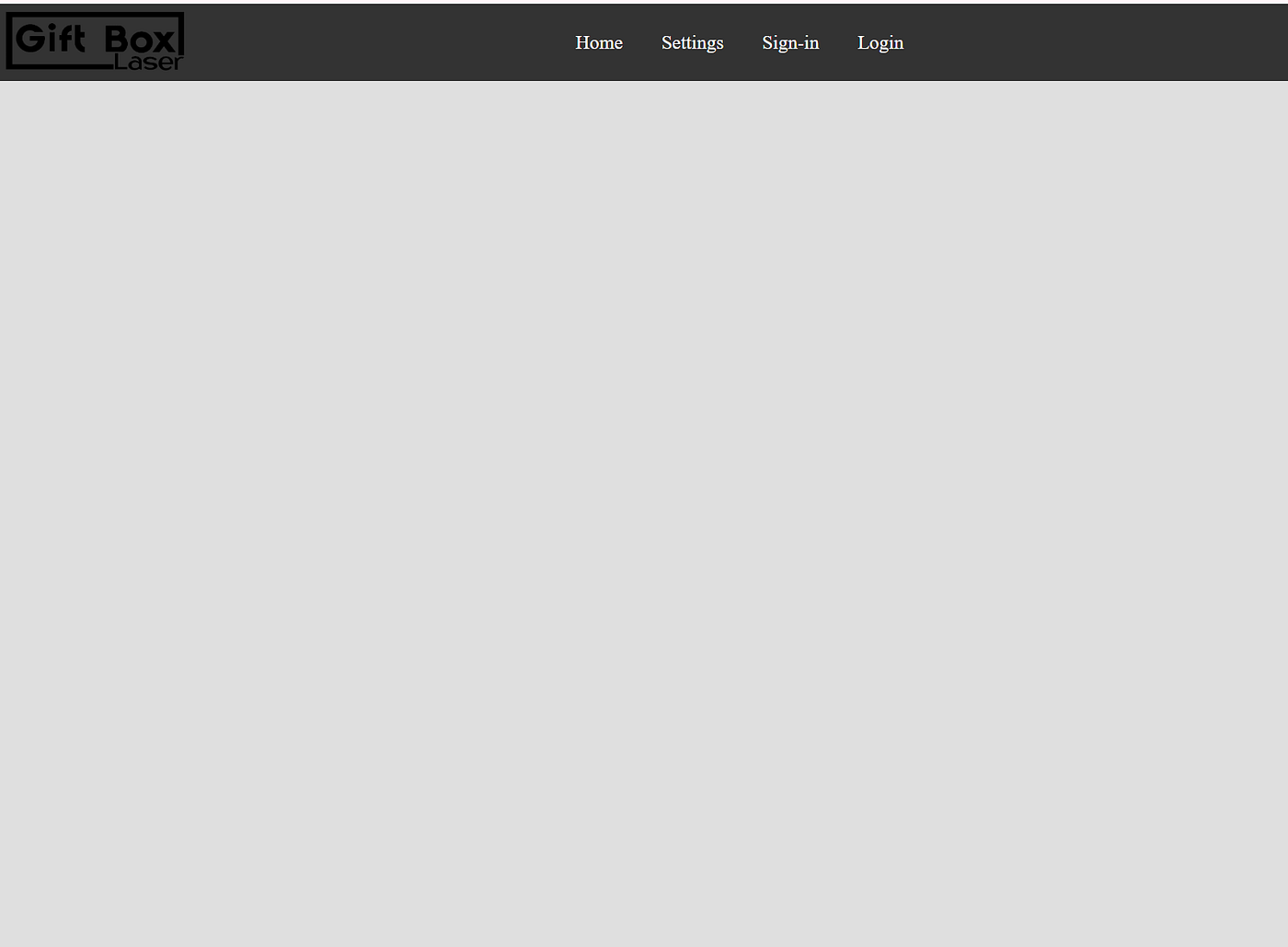
Navigation Bar
Step 1:
- Create a
<nav>element and assign it a class namednavbar. - Inside the navigation bar, add all required buttons or links.
- Example navigation items include: Home, About, Contacts, News, and other relevant pages.

Navbar with links
- The image above shows how the navigation bar will appear after a background color is applied to the body.
- It illustrates the visual layout and contrast of the navbar against the page background.
 <body>
    <nav class="navbar">
      <a>Home</a>
      <a>Settings</a>
      <a>Sign-in</a>
      <a>Login</a>
    </nav>
  </body>

<style>
    body {
      margin: 0;
      padding: 0;
      background-color: blue;
    }
</style>
Step 2
- First, add a background color to the navigation bar.
- To remove any gaps on the page, set both
marginandpaddingto0for thebodyand the navbar. - To center the items inside the navbar, apply
display: flex. - Use
justify-content: centerto align the navbar items horizontally.

Navbar with text
  <style>
body {
      margin: 0;
      padding: 0;
      background-color: blue;
    }
    nav {
      display: flex;
      justify-content: center;
      background-color: aquamarine;
      margin: 0;
      padding: 0;
    }
</style>
Step 3
- To create spacing between the buttons, add
padding: 16pxto the<a>tags inside the<nav>element.

Navbar with text alligned and perfect size
Step 4
- To make the navigation bar more interactive, add a hover effect to the
<a>tags inside the<nav>element. - On hover, change the background color to a similar shade that complements the navbar’s background color.

Navbar with a hover effect
- Change the text color so it contrasts well with the navbar’s background color.
<style>
    body {
      margin: 0;
      padding: 0;
      background-color: blue;
    }
    nav {
      display: flex;
      justify-content: center;
      background-color: #333333;
      margin: 0;
      padding: 0;
    }
    nav a {
      color: white;
      padding: 16px;

    }
    nav a:hover {
      background-color: #111111;
    }
  </style>
Step 5
- To add a logo to the navigation bar, create a
divwith a class namedleftinsidenav. - Inside this
div, add an<img>tag and set itssrcattribute to the logo image.

Navbar with a logo
 <nav class="navbar">
      <div class="left">
        <img src="logoblack.png" height="50px" width="150px" />
      </div>
      <a>Home</a>
      <a>Settings</a>
      <a>Sign-in</a>
      <a>Login</a>
    </nav>
Step 6
- To position the logo on the left side of the navbar, create a
divwith the classcenterinside the<nav>element. - Place all the navigation buttons inside the
centerdiv. - Apply
margin-right: autoandpadding: 5pxto the logo container (theleftclass) to push the navigation items toward the center. - Set
display: flex,align-items: center, andjustify-content: centeron thecenterclass. - Add
flex: 1to thecenterclass to ensure the buttons remain centered while the logo stays on the left.

Navbar with logo on the left and text in center
<nav class="navbar">
      <div class="left">
        <img src="logoblack.png" height="50px" width="150px" />
      </div>

      <div class="center">
        <a>Home</a>
        <a>Settings</a>
        <a>Sign-in</a>
        <a>Login</a>
      </div>
    </nav>

<style>
  .left {
      padding: 5px;
      margin-right: auto;
    }
    .center {
      display: flex;
      align-items: center;
      justify-content: center;
      flex: 1;
    }

</style>
[embed]How to create a Footer from scratch Step 1: Create the footer structuremedium.com
메타데이터
- post_id
- f3e8e3fdb8b8
- slug
- how-to-create-a-navbar-from-scratch-f3e8e3fdb8b8
- url
- https://medium.com/@robusinessacc/how-to-create-a-navbar-from-scratch-f3e8e3fdb8b8
- canonical_url
- https://medium.com/@robusinessacc/how-to-create-a-navbar-from-scratch-f3e8e3fdb8b8
- author_url
- https://medium.com/@robusinessacc
- status
- ok
- fetched_at
- 2026-07-13 06:23:13