Learning MATLAB On My Own
I hope that this document will serve as a useful resource for myself to refer back to, and for anyone wanting to learn MATLAB on their own.
Learning MATLAB On My Own
Author’s note: I will use this space to track my progress and document everything I learn in MATLAB throughout this summer — it may become an extensive document. Feel free to jump ahead to any section you need. I hope that this document will serve as a useful resource for myself to refer back to, and for anyone else wanting to learn MATLAB on their own.
My goal is to be confident and proficient in this language that I am currently teaching myself during my internship. Self-learning is hard, and I’m proud that you are here!
To get started, first download the correct MATLAB version to your computer from here: *https://www.mathworks.com/help/install/ug/install-products-with-internet-connection.html. *Once you are set up, let’s dive in! 👩💻
👾 For every code example I give, you can copy-paste the text in the MATLAB editor to see what output you get in the command view window. I advise that you make changes to the code and see what different outputs you can get. Playing around with the code, getting errors, and trying different things is the best way to learn how to code.
The MATLAB Interface:
Welcome to MATLAB! The desktop interface is very user-friendly, and honestly, one of my favorite IDEs to work in.
An IDE (Integrated Development Environment) is a comprehensive software application that combines all the essential tools a programmer needs to write, test, and debug code into a single graphical user interface (google AI summary).
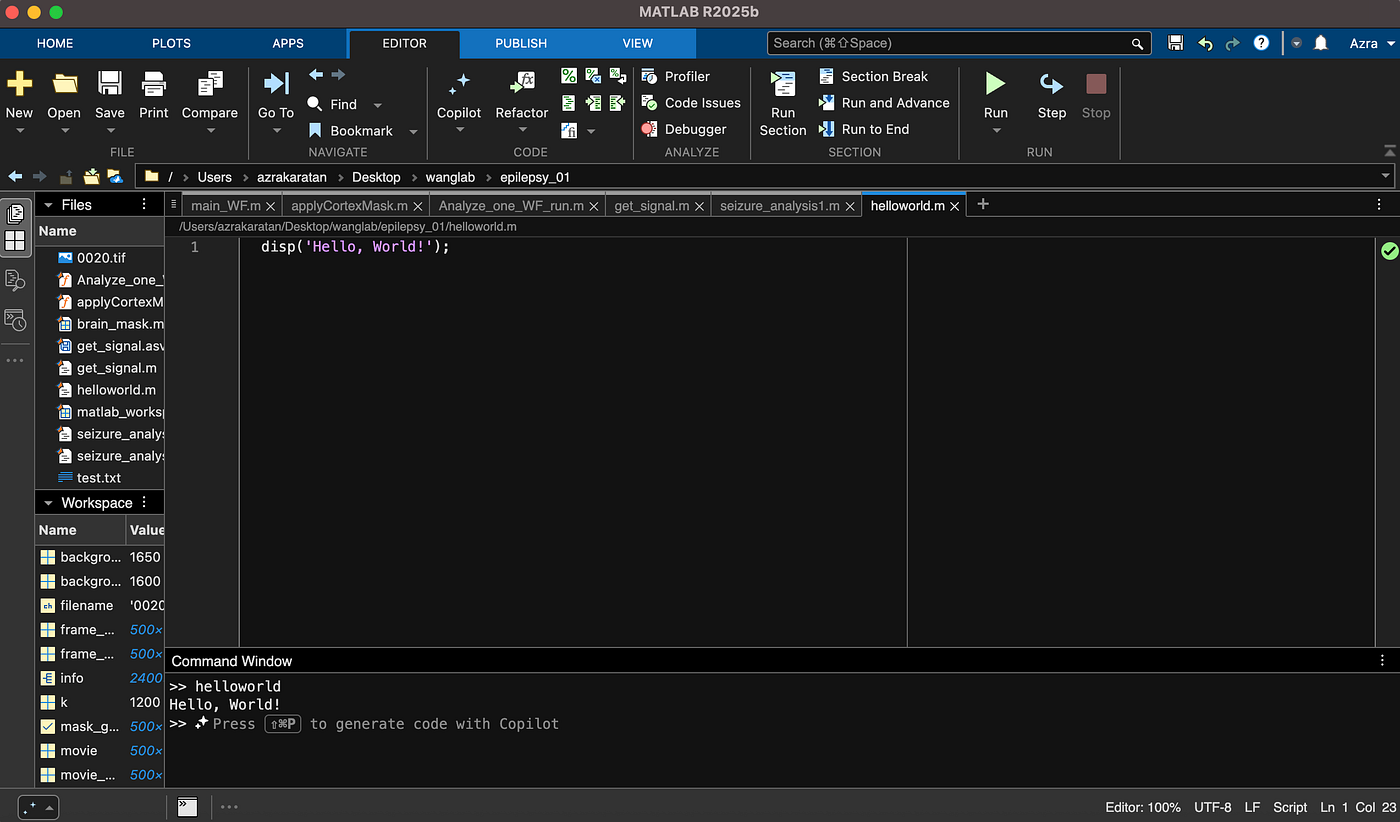
The screen is divided into a couple of sections:
1- The toolstrip: Contains buttons like New, Open, Save, Run, which you will use very often to open and work with files in MATLAB. Experiment with them to see what each does.
2- Command window: The terminal where you can directly type code to execute immediately.
3- Files: You can see all the files in the folder you opened. Matlab will not be able to run a file if it is not contained in the current folder.
4- Workspace: Displays all of the currently active variables you made, their values, and data types. Double-click on any variable to view it in a separate window and edit its contents.
MATLAB Basics You Should Know:
1- Print your first line of code:
Of course, it shall be Hello, World!. There are two main ways you can print a text output in MATLAB: by using disp() or fprintf(). Both single and double quotes can be used. Go ahead and print your first line of code!
disp('Hello, World!');

fprintf("hi\n")
Note: for fprintf, there is a \n. This syntax signals the end of the line and makes the code print each line individually. Looks prettier that way.
Note2: single and double quotes were used interchangeably here. This is fine for simply printing text in the terminal, but using single quotes will make the class (the type) of the text 'char' and double quotes will make the class of the text'string' . You can test this by typing class('hello') and class("hello") to the command window and seeing what class type you will get for each.
2- Matlab is a 1-based indexed language: meaning the first item in an array has the position 1, not 0. It is more natural, though different from other popular languages like Python, Java, or C. It is important to accurately count and keep track of variables.
3- For loop structure:
for t = 1:N
 %your operation here
end
This loops from index 1 to index N. An end statement is needed to complete the loop.
4- Different ways to put comments in your code:
% to comment out a single line

%{
  to comment out
  multiple lines
  at once
%}

%% to break the code into sections and put titles for better documentation
5- You do not need to specify an output variable: MATLAB uses the variableans, short for answer, to store the results of your calculation. Though generally, you should name every variable for clarity.
>> sin(90)

ans = 0.893
6- Matrices and arrays:
MATLAB is short for “matrix laboratory”, so matrices are a really important part of this language. Matrices allow the programmer to do so many things, and are the reason why MATLAB is usually used for scientific projects. Below are different syntax options to create these different structures:
% To create an array:

array = [ 1 2 3 4]
array = [1,2,3,4]

% To create a matrix that has multiple rows, separate the rows with semicolons

matrix_one = [1 2 3; 4 5 6; 7 8 9]

matrix_two = [1 3 5
         2 4 6
         7 8 10]

matrix_zeros = zeros(5,2) %this will create a 5x2 matrix with all 0s
7- Utilizing modular code development:
Modularization becomes really important as your program grows and becomes multifaceted. In MATLAB and in any other language you will learn, it is good practice to keep an organized structure and separate your code into subsections based on the different functions of each section. Doing this instead of keeping them all in one big file makes it easy to debug later, and prevents a small mistake from causing big-impact, impossible-to-find problems.
8- If statements:
if city == 'boston'
   disp('hi!')
   elseif city == 'istanbul
      disp('merhaba!!!')
   else
      city = input('where are you?')
      fprintf('welcome to %s \n', city)
   end
This if statement prints different messages for different scenarios. It also takes user input at the end and prints a customized message based on the input taken from the command line.
9- The “whos” keyword:
You can type whos in the command view to check what is present in the matlab workspace. whos outputs a list of the names, sizes, and types of all variables in the currently active workspace. Type these in the command window to get the following outputs:
>> whos
  % will give you a list of everything in the workspace.

>> whos('-file','filename')
  % replace filename with the name of the file you want to inspect, and
    whos will give the "Name, Size, Bytes, Class, and Attributes" of that file.
10- The use of semicolons:
You might have realized that while some lines end with semicolons, some don’t. What is the difference?
Thank you for reading, and I hope you have fun learning MATLAB! 🚀
After you master the basics, check out this article for more advanced tools in MATLAB: ___
Resources I used to learn MATLAB, and further reads you can refer to:
- MATLAB official get-started page: https://www.mathworks.com/help/matlab/getting-started-with-matlab.html
- A list of the different functions, data types, and built-in tools MATLAB has (there are so many things you can do!!): *https://www.mathworks.com/help/matlab/referencelist.html?type=function&s_tid=CRUX_topnav&category=index*
⬇️ Feel free to comment any questions, resources, or suggestions below: ⬇️
메타데이터
- post_id
- f4b13352ff17
- slug
- learning-matlab-on-my-own-f4b13352ff17
- url
- https://medium.com/@girlwhocodes_/learning-matlab-on-my-own-f4b13352ff17
- canonical_url
- https://medium.com/@girlwhocodes_/learning-matlab-on-my-own-f4b13352ff17
- author_url
- https://medium.com/@girlwhocodes_
- status
- ok
- fetched_at
- 2026-06-24 13:29:15