Deploying Pretrained Models from Vertex AI Model Garden: A Quick Guide
Google Cloud’s Vertex AI Model Garden provides a curated selection of pretrained and ready-to-use machine learning models, removing the…
Deploying Pretrained Models from Vertex AI Model Garden: A Quick Guide
Google Cloud’s Vertex AI Model Garden provides a curated selection of pretrained and ready-to-use machine learning models, removing the need for custom training or extensive ML knowledge. Whether you’re working on natural language processing, vision, or tabular data, these models can be deployed quickly and efficiently to meet your needs.
In this blog, we’ll walk through the process of selecting a model from Vertex AI’s Model Garden, deploying it to an endpoint, and using it to make predictions.
Log in to your Google Cloud account and navigate to the Model Garden. In this guide, we’ll deploy the medgemma-4b-it model directly from the Model Garden.
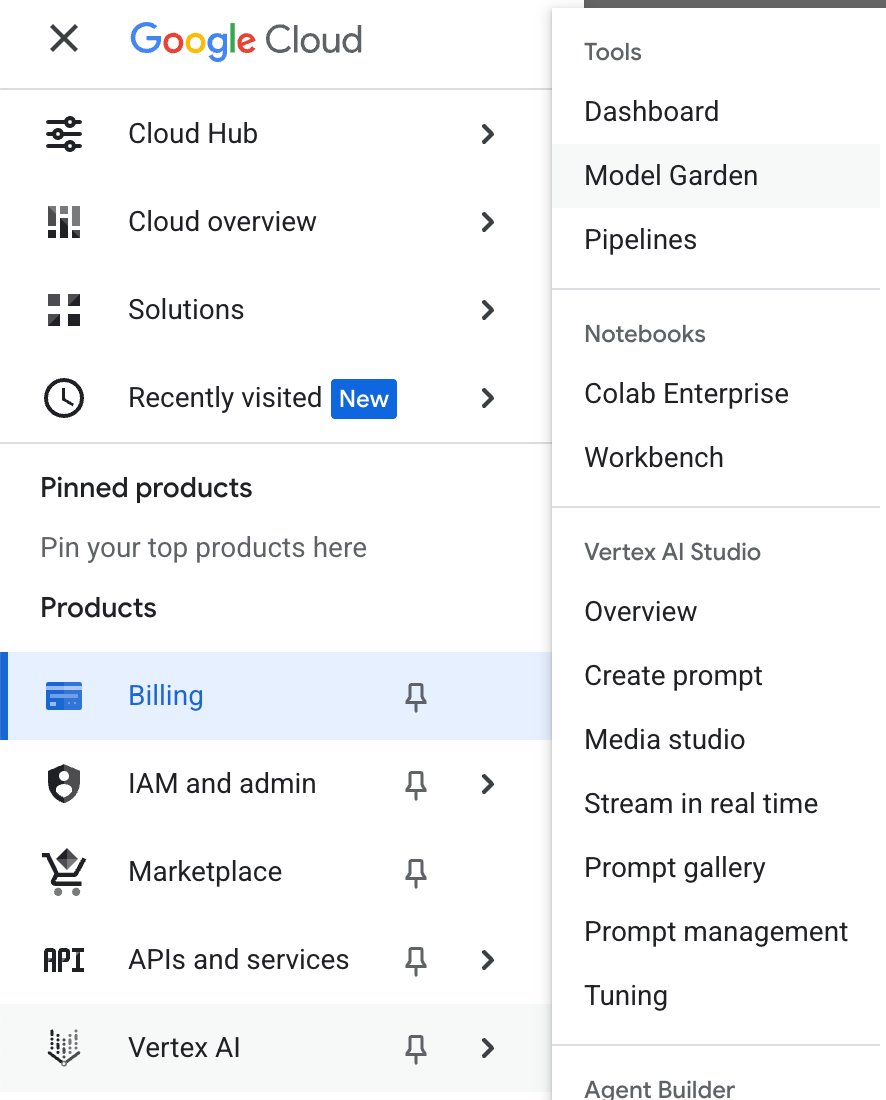
Figure 1: model garden
You can either search for the model by name or select it from the list available in the Model Garden.
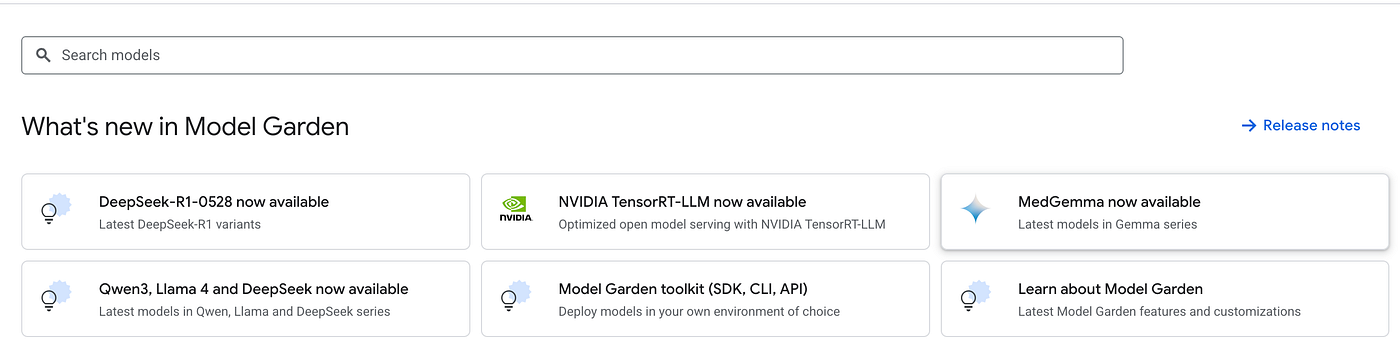
Figure 2: MedGemma model
Select the model to view more details and deployment options.
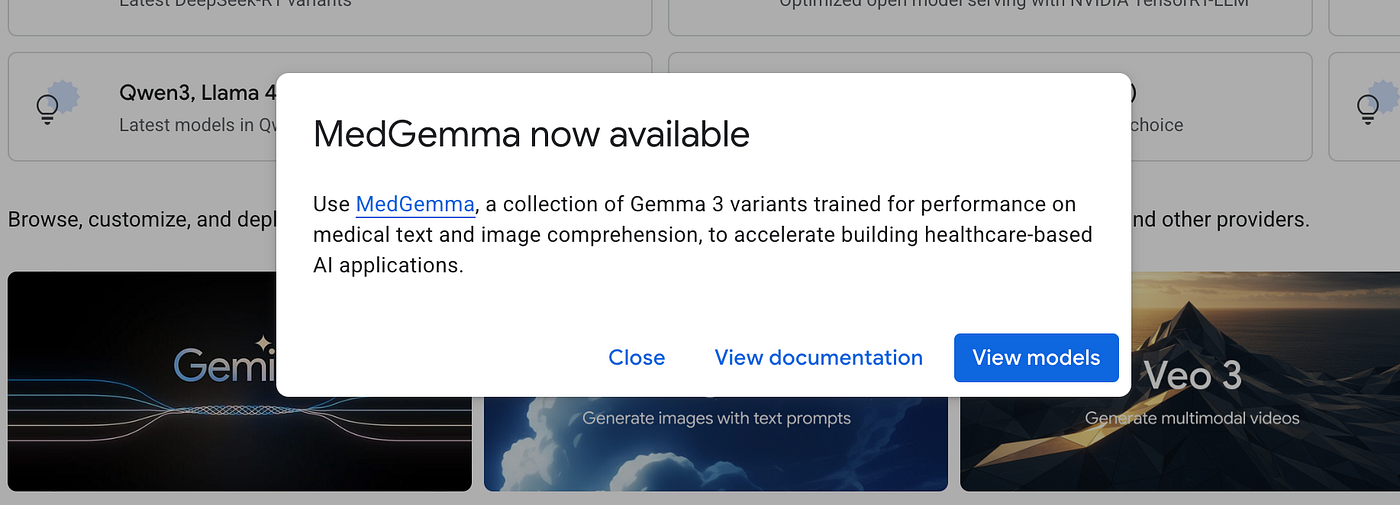
Figure 3: view the models
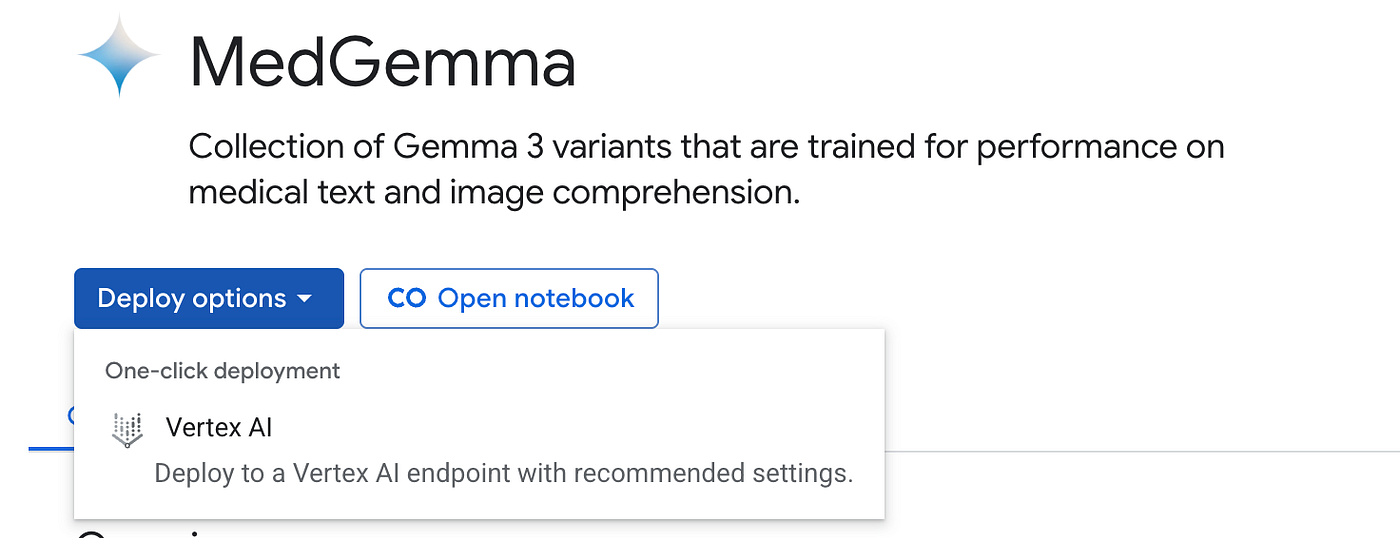
Figure 4: Deploy to a Vertex AI endpoint
If you haven’t already enabled Vertex AI, Google Cloud may prompt you to activate the Vertex AI API before proceeding.
You should now see the configuration panel. Make sure to review your quota limits before proceeding with the deployment. In this case, select the ‘Advanced’ option under deployment settings, as we’ll be using LangChain to connect to the Vertex AI Model Garden.
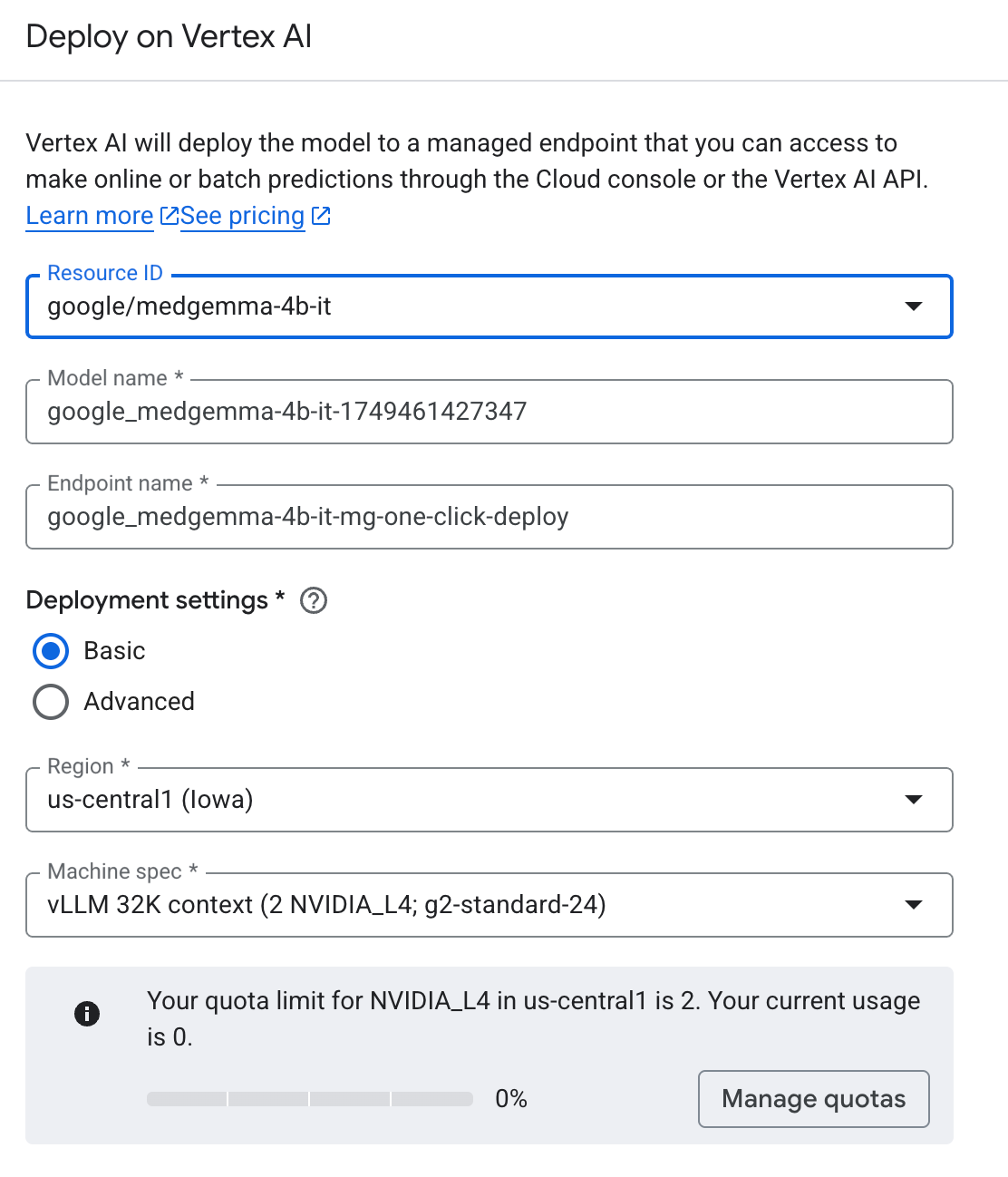
Figure 4: Configuration Panel
Please note that you need to select the ‘Public (Shared Endpoint)’ option instead of ‘Public (Dedicated Endpoint)’ to ensure compatibility with LangChain integration.
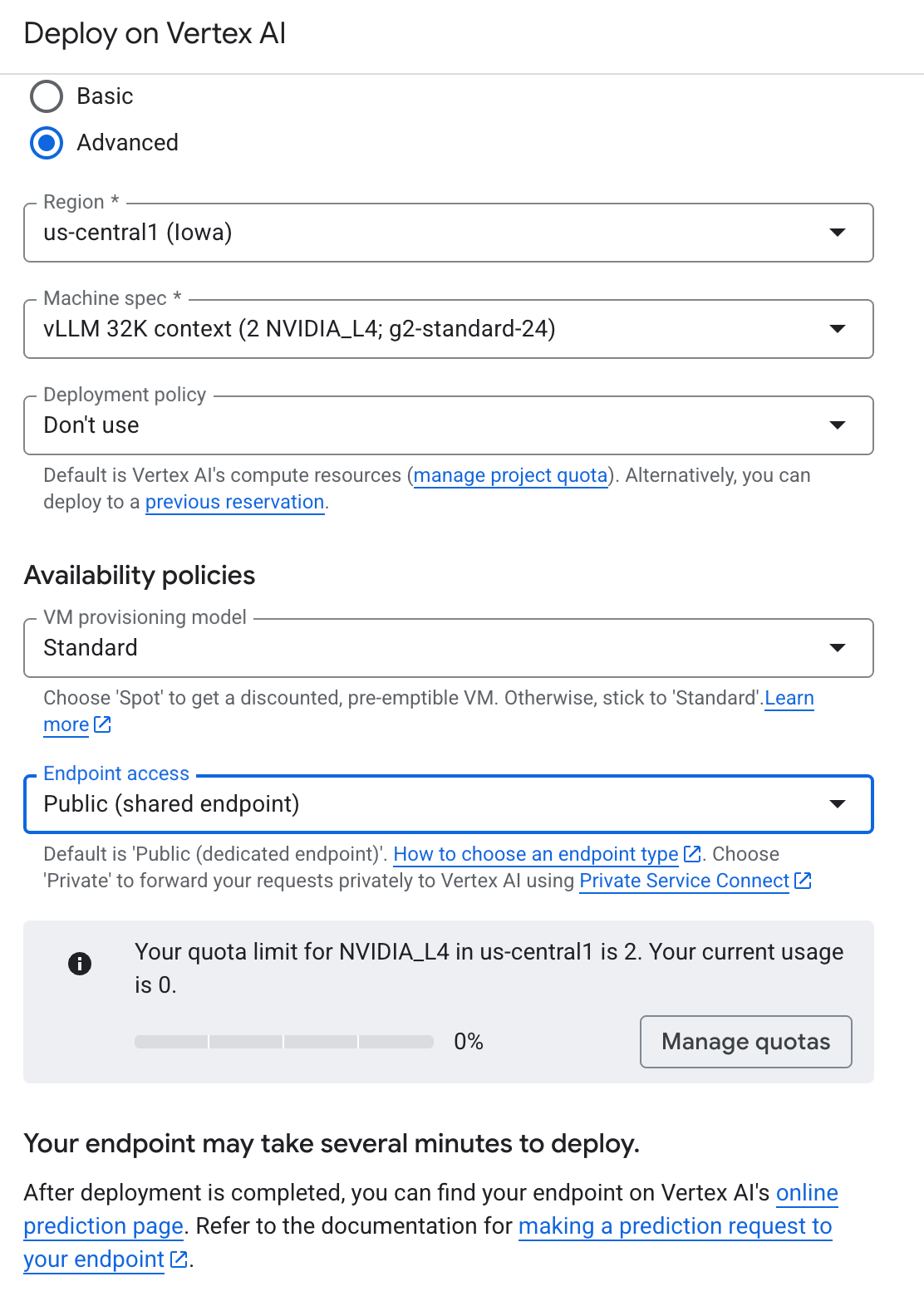
Figure 5: Public (shared endpoint)
To connect to the Vertex AI Model Garden using LangChain, this guide uses a service account for authentication. However, you may choose a different authentication method based on your needs.
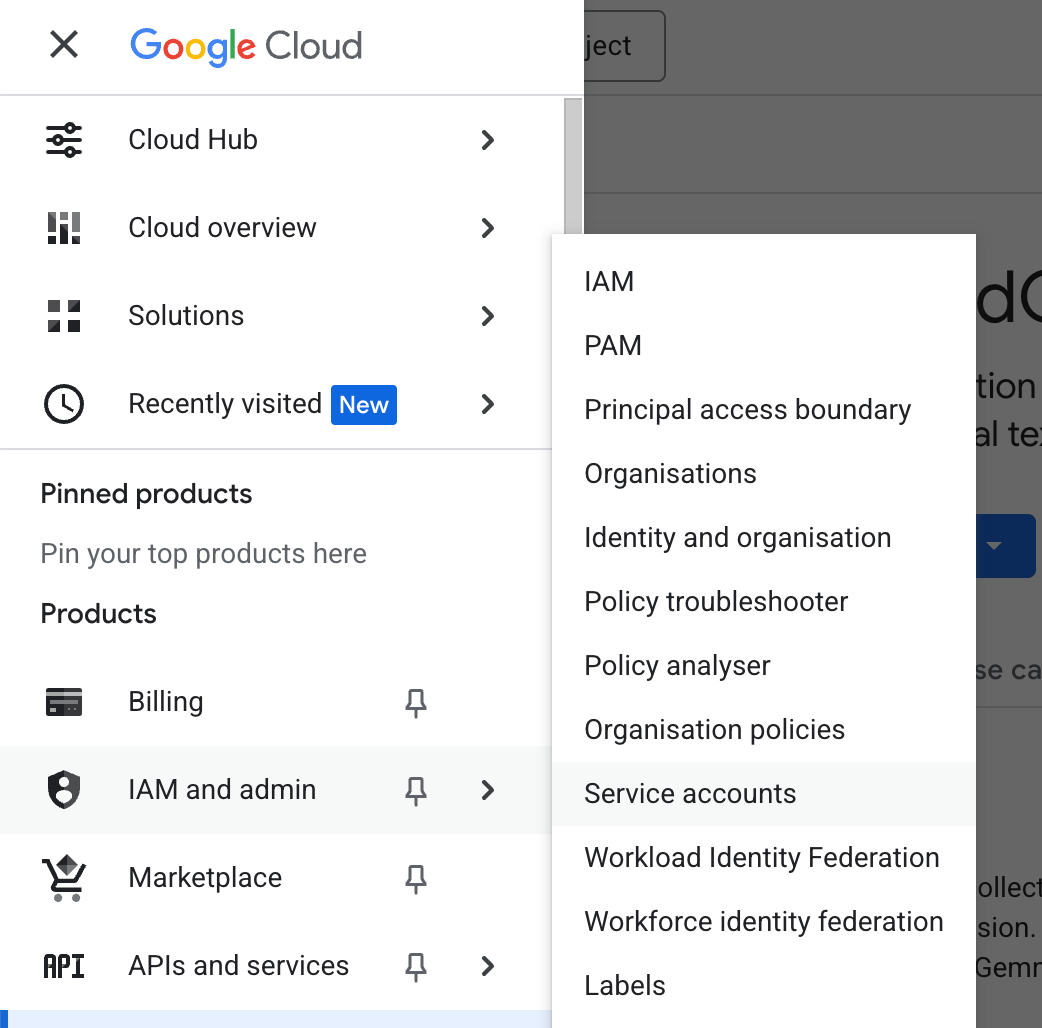
Figure 6: Service account
Create the service account by following the provided instructions carefully. Ensure you assign the necessary permissions to allow LangChain or your application to access the Vertex AI model deployment securely.
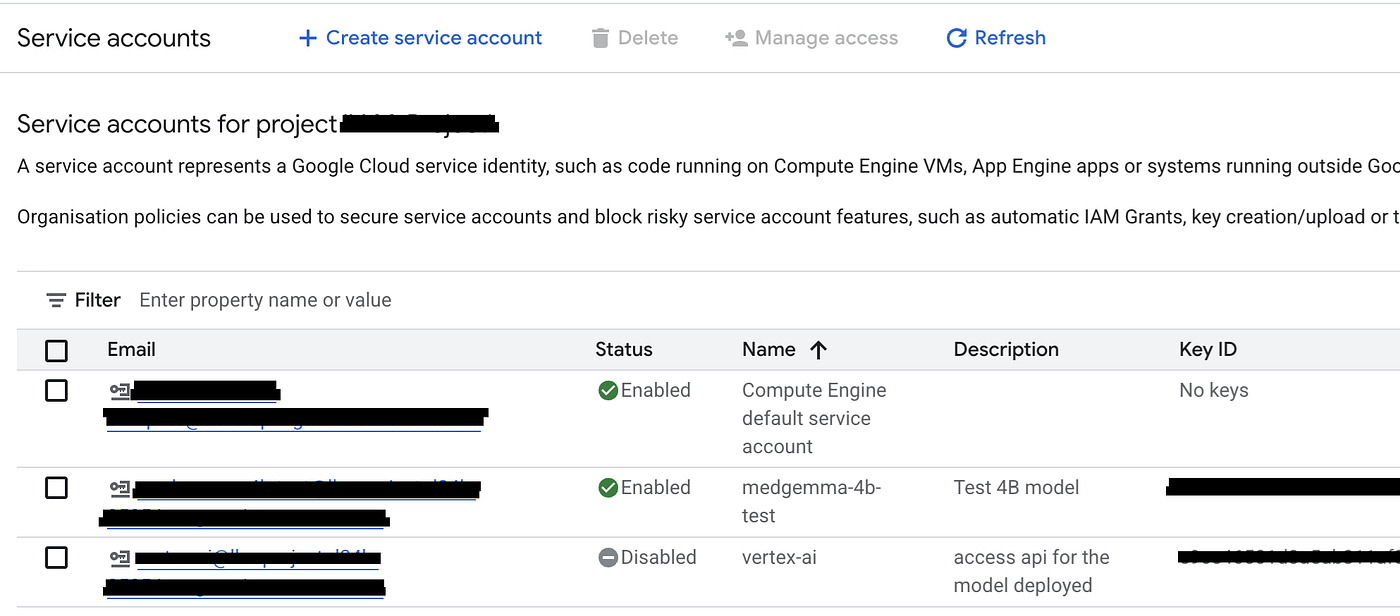
Figure 7: List of the service accounts
Please make sure that the Vertex AI User role has been granted to the service account to enable proper access and deployment capabilities.
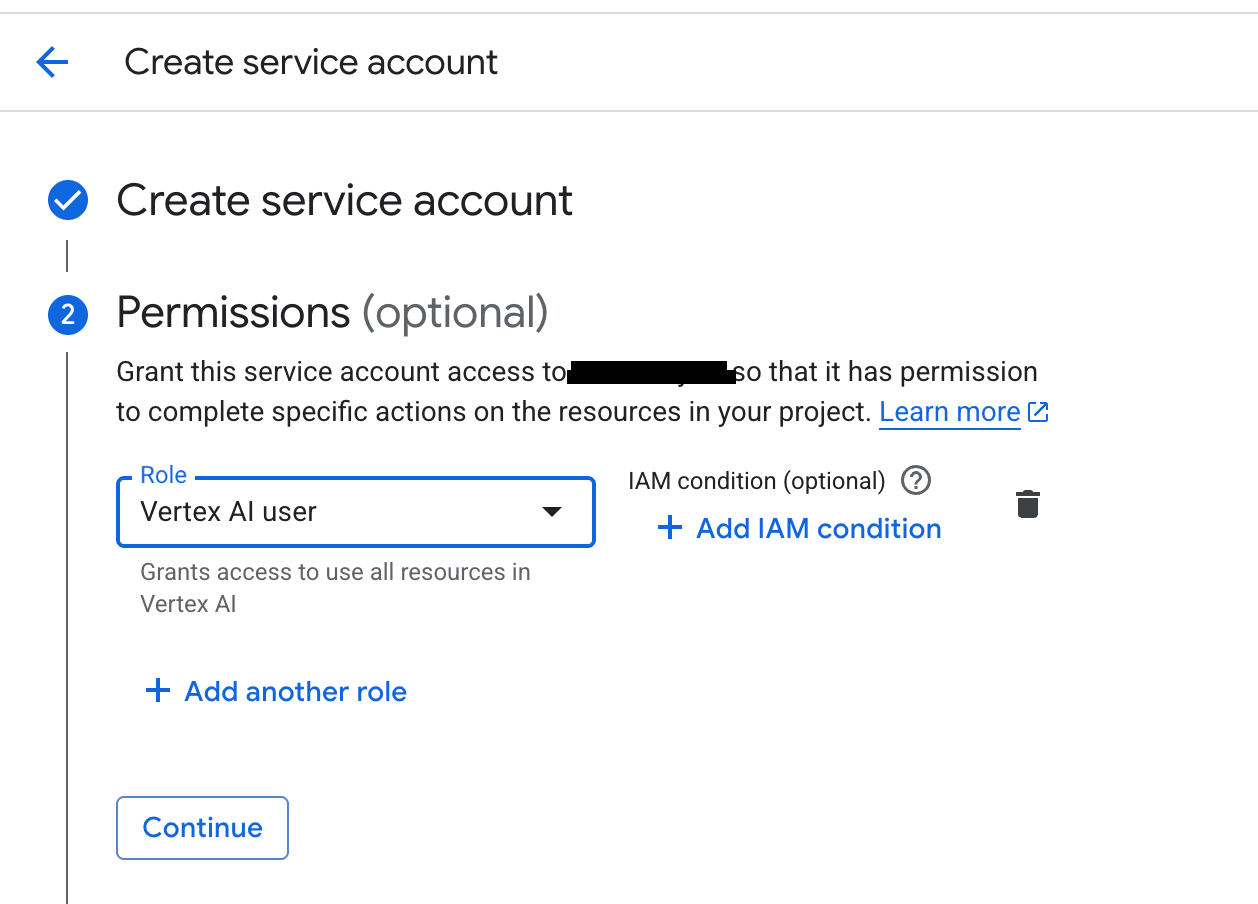
Figure 8: Grant the permission
Navigate to the created service account, as we will be downloading the JSON key file for authentication.
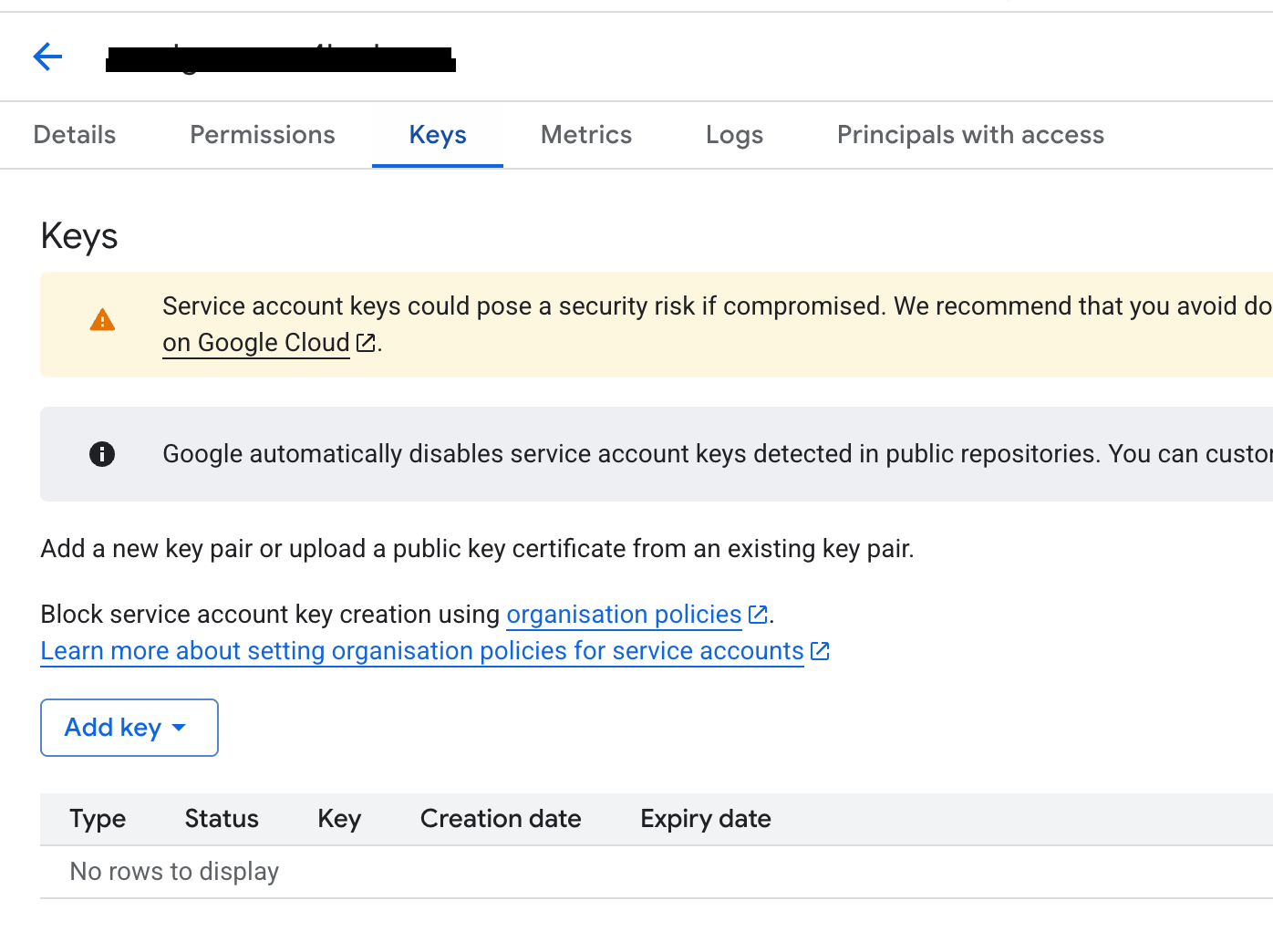
Figure 9: Add key
Download the JSON key file for the service account.
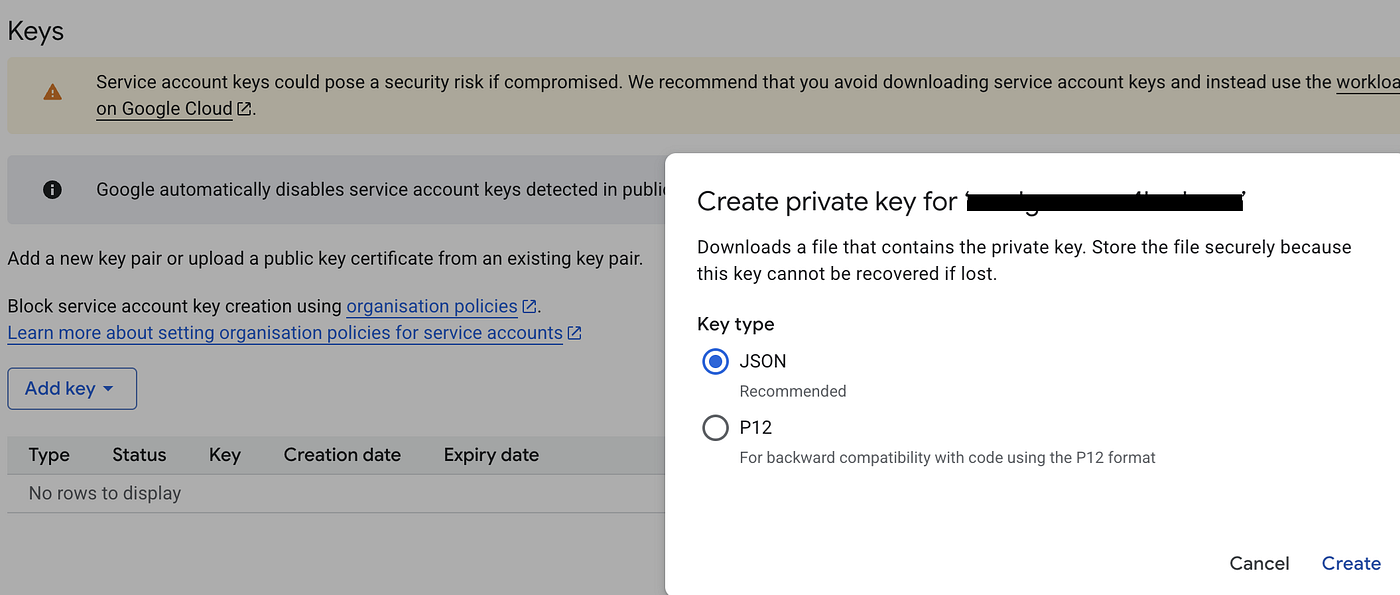
Figure 10: Download the json file
Check the details of the Vertex AI endpoint.
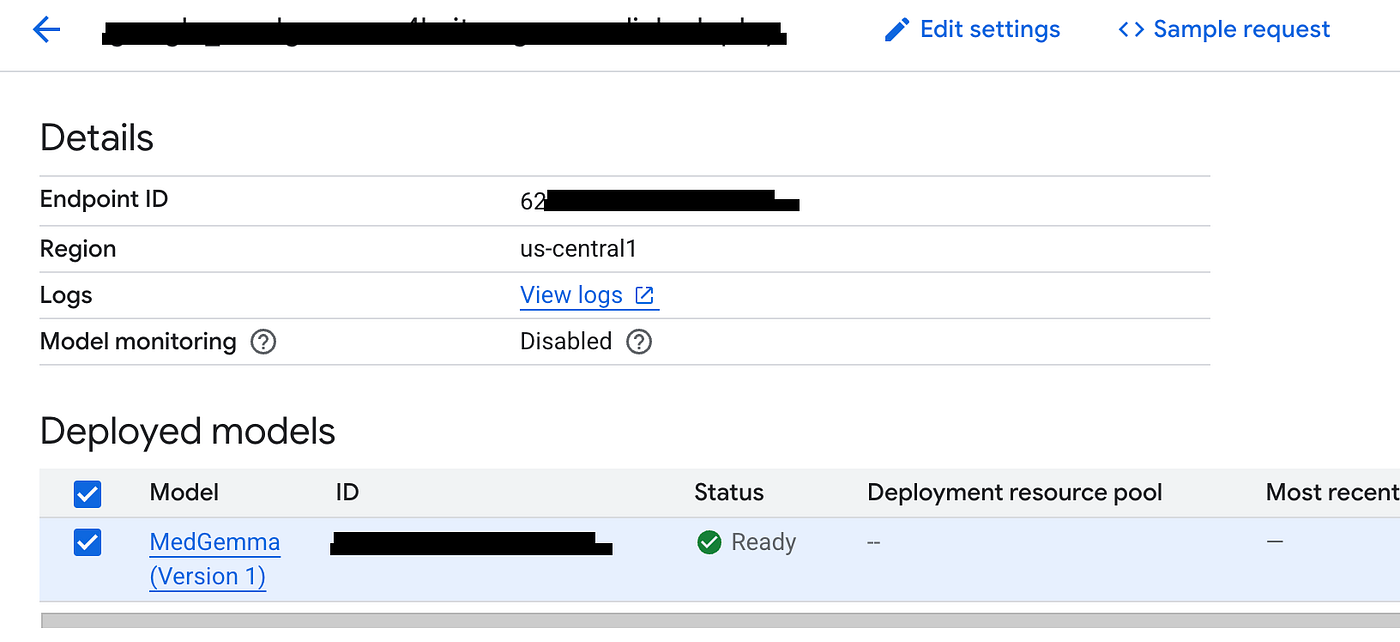
Figure 11: Check the endpoint id
The endpoint ID will be used when configuring LangChain to connect to your deployed Vertex AI model.
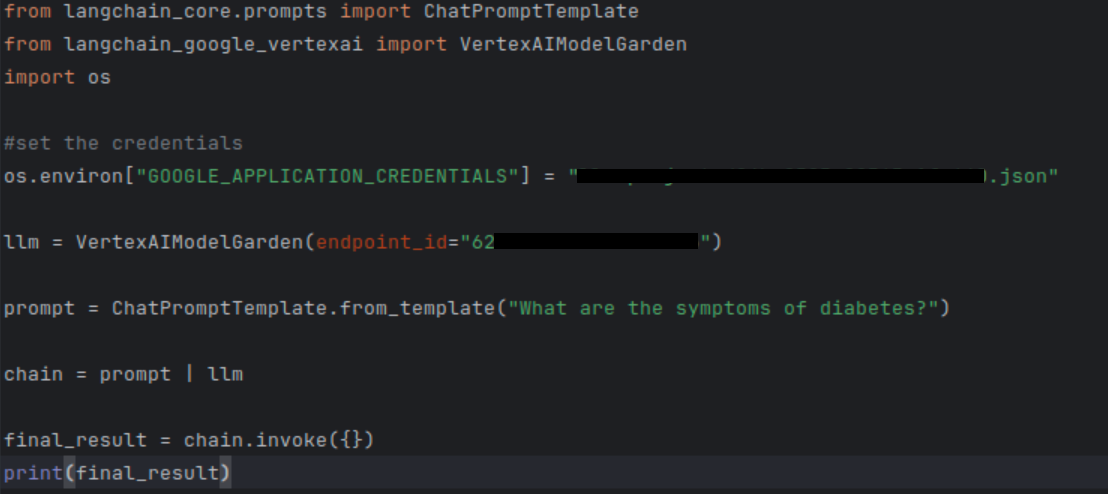
Figure 12: Access the endpoint via langchain
Please ensure that the endpoint is configured as a public shared endpoint, not a public dedicated endpoint, to allow LangChain to access it properly.
Please make sure to delete all the resources once you’re done, as they may continue to incur charges if left running.
Feel free to leave a comment if you have any questions — I’m happy to help!
메타데이터
- post_id
- f4c3386c886f
- slug
- deploying-pretrained-models-from-vertex-ai-model-garden-a-quick-guide-f4c3386c886f
- url
- https://medium.com/@Roy.Wong/deploying-pretrained-models-from-vertex-ai-model-garden-a-quick-guide-f4c3386c886f
- canonical_url
- https://medium.com/@Roy.Wong/deploying-pretrained-models-from-vertex-ai-model-garden-a-quick-guide-f4c3386c886f
- author_url
- https://medium.com/@Roy.Wong
- status
- ok
- fetched_at
- 2026-06-09 15:37:30