AI Upscaler Image Workflows for Clean Visual Output
So, you’ve got an image that’s just not quite big enough, or maybe it’s a bit fuzzy. Happens all the time, right? Well, there’s this neat…
AI Upscaler Image Workflows for Clean Visual Output
So, you’ve got an image that’s just not quite big enough, or maybe it’s a bit fuzzy. Happens all the time, right? Well, there’s this neat trick called AI upscaling that can help. We’re going to chat about how these ai upscaler image tools work and how you can use them in your own projects, from simple fixes to more complex setups. It’s not as complicated as it sounds, and the results can be pretty impressive for getting clean visual output.
Key Takeaways
- AI image upscaling uses smart algorithms to increase image resolution, intelligently reconstructing details rather than just stretching pixels, which is great for making low-res images usable.
- Different AI upscaler models have strengths; some are good for general use, others excel with text or sharp edges, and some preserve textures well.
- Workflows can be simple (just upscaling) or combined with text-to-image generation, and advanced techniques like chaining multiple upscalers can achieve very high magnifications.
Understanding AI Upscaler Image Fundamentals
What is AI Image Upscaling?
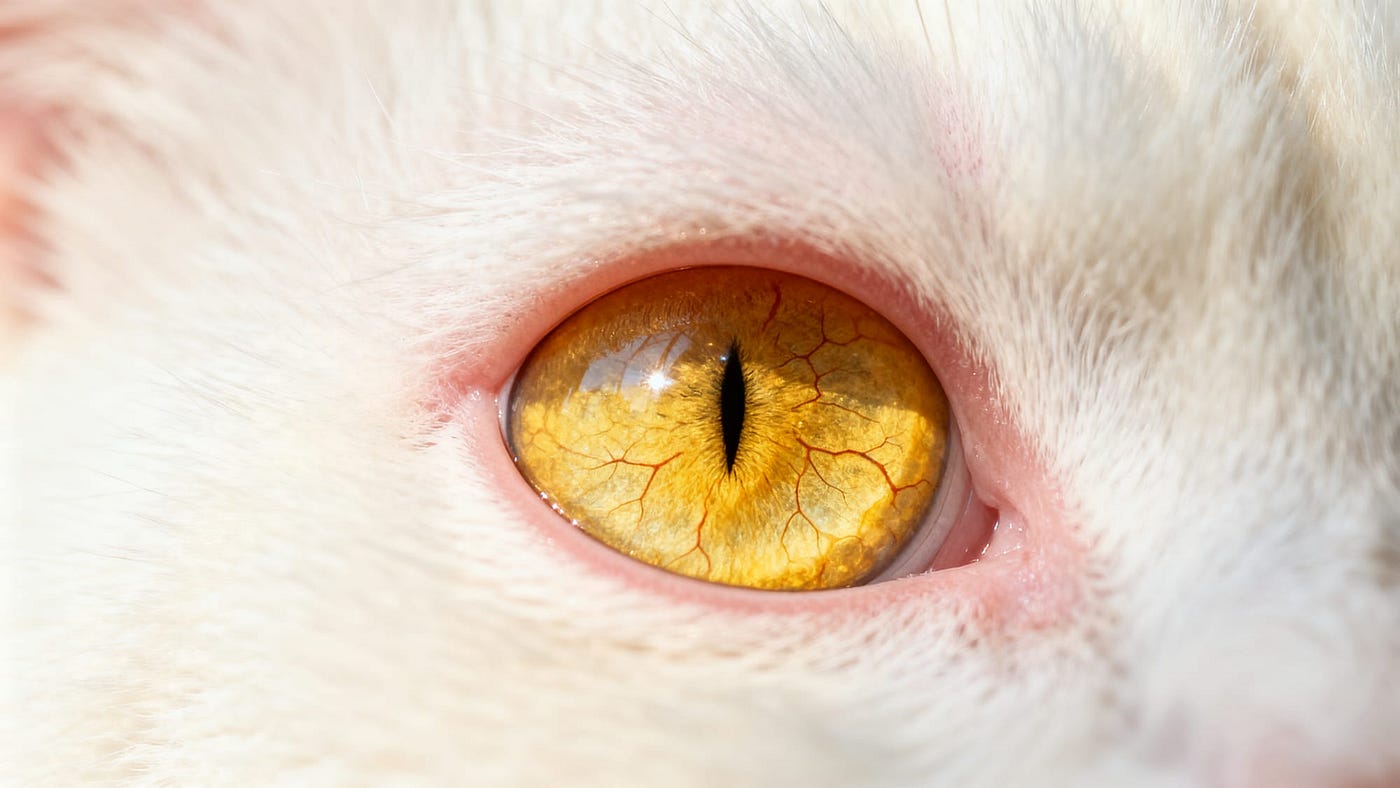
Basically, AI image upscaling is a process that uses smart algorithms to increase the resolution of a low-resolution image. Think of it like this: instead of just blowing up a small picture and making it blurry, an AI upscaler actually tries to figure out what the missing details should look like and adds them in. It’s trained on tons of high-quality images, so it has a good idea of what textures, edges, and fine lines should appear. This means you can take a small digital file and make it suitable for printing large posters or using in high-definition displays without that blocky look. It’s a big step up from older methods that just made things bigger but not necessarily clearer.
AI upscaling reconstructs details rather than just enlarging existing pixels. This intelligent approach helps maintain sharpness and texture, making enlarged images look more natural and high-resolution. This technology is super helpful for a bunch of things:
- Photographers: Taking older, lower-resolution shots and giving them new life for modern use.
- Designers: Creating crisp graphics for both web and print projects from smaller source files.
- Online Stores: Making product photos look sharp and professional, even if the original was small.
- Anyone: Restoring old family photos or turning small digital images into larger prints.
AI upscaling is about intelligently adding detail, not just stretching pixels. It learns from vast datasets to predict and generate missing information, resulting in clearer, more defined images at higher resolutions.
Key AI Upscaler Model Characteristics
AI upscaler models differ based on how they handle detail, texture, and image type. Some are optimized for photos, others for illustrations, digital art, or product visuals where accuracy matters. Common options like 2× or 4× upscaling control how much an image is enlarged while preserving clarity.
Here’s a look at some common model characteristics:
- Detail Reconstruction: How well the model adds fine lines, textures, and small features.
- Artifact Handling: The model’s ability to avoid or clean up unwanted visual noise or blockiness.
- Texture Preservation: How effectively the model maintains the original feel and look of surfaces like fabric, skin, or wood.
- Edge Sharpness: The model’s tendency to create clean, defined edges without over-sharpening or blurring.
Each upscaler model is optimized for different image types, such as photographs, illustrations, or images with fine details. Selecting the right model helps preserve texture, sharpness, and overall visual quality. The goal is to produce a higher-resolution image that looks clean and natural, without introducing unwanted artifacts or distortions.
Basic Upscaling Workflow Setup
Getting started with AI upscaling is pretty straightforward, especially with tools that run right in your browser. You don’t need to be a tech wizard to get good results. The general idea is to upload your image, pick an AI model that suits your needs, and then let the magic happen. After that, you just download your newly high-resolution image.
Here’s a typical sequence of events:
- Upload your image: Get your low-resolution picture onto the platform.
- Choose an AI upscaler model: Different models are good at different things. Some are great for photos, others for illustrations, and some for sharp graphics.
- Run the upscaling process: Hit the button and let the AI do its work.
- Download the result: Grab your improved image.
It’s really that simple to get a basic upscale. This is perfect for when you just need a quick resolution boost without a lot of fuss.
Advanced AI Upscaler Image Techniques
Sometimes, a single pass with one upscaler just won’t cut it, especially when you’re dealing with really complex images or need that absolute top-tier quality. This is where we get into the more advanced stuff, like chaining upscalers or combining them with other AI tools.
Chained and Hybrid Upscaling Strategies
Think of this like a production line for your images. Instead of just one machine doing all the work, you’re using multiple machines, each with a specific job. Chained upscaling means you take the output from one AI upscaler and feed it into another. Why would you do this? Well, different upscalers have different strengths. One might be amazing at adding fine details, while another is better at cleaning up artifacts or preserving color fidelity. By chaining them, you can combine those strengths.
For example, you might start with an upscaler that focuses on general detail reconstruction to establish a strong base resolution. From there, the output can be refined using techniques that emphasize texture clarity or visual consistency. This layered approach helps balance sharpness with natural-looking results.
In some cases, AI upscaling can also be combined with traditional image editing steps. An image may first be upscaled to reach the desired resolution, then adjusted with manual refinements such as selective sharpening or minor cleanup to address any small imperfections the AI may leave behind.
Here’s a quick breakdown of when to consider chaining:
- Complex AI Art: When the generated image has intricate patterns or textures that a single upscaler struggles to render perfectly.
- Extreme Resolution Needs: If you’re aiming for massive print sizes (like billboards) where multiple passes might be needed to maintain quality.
- Artifact Removal: Using one tool to upscale and another specifically designed to clean up any noise or compression issues introduced.
- Style Preservation: Combining a general upscaler with one that’s known for maintaining the original artistic feel.
The key here is experimentation. There’s no single magic formula. You’ll need to test different combinations of upscalers and settings to see what works best for your specific image and desired outcome. Keep notes on what works and what doesn’t.
Combining text-to-image generation directly with upscaling can streamline your workflow significantly. Imagine typing a prompt, having the AI create an image, and then immediately sending it to an upscaler — all in one go. This integrated approach saves time and makes the entire process feel more cohesive, moving you from a simple text idea to a high-resolution, usable image without manual intervention between steps.
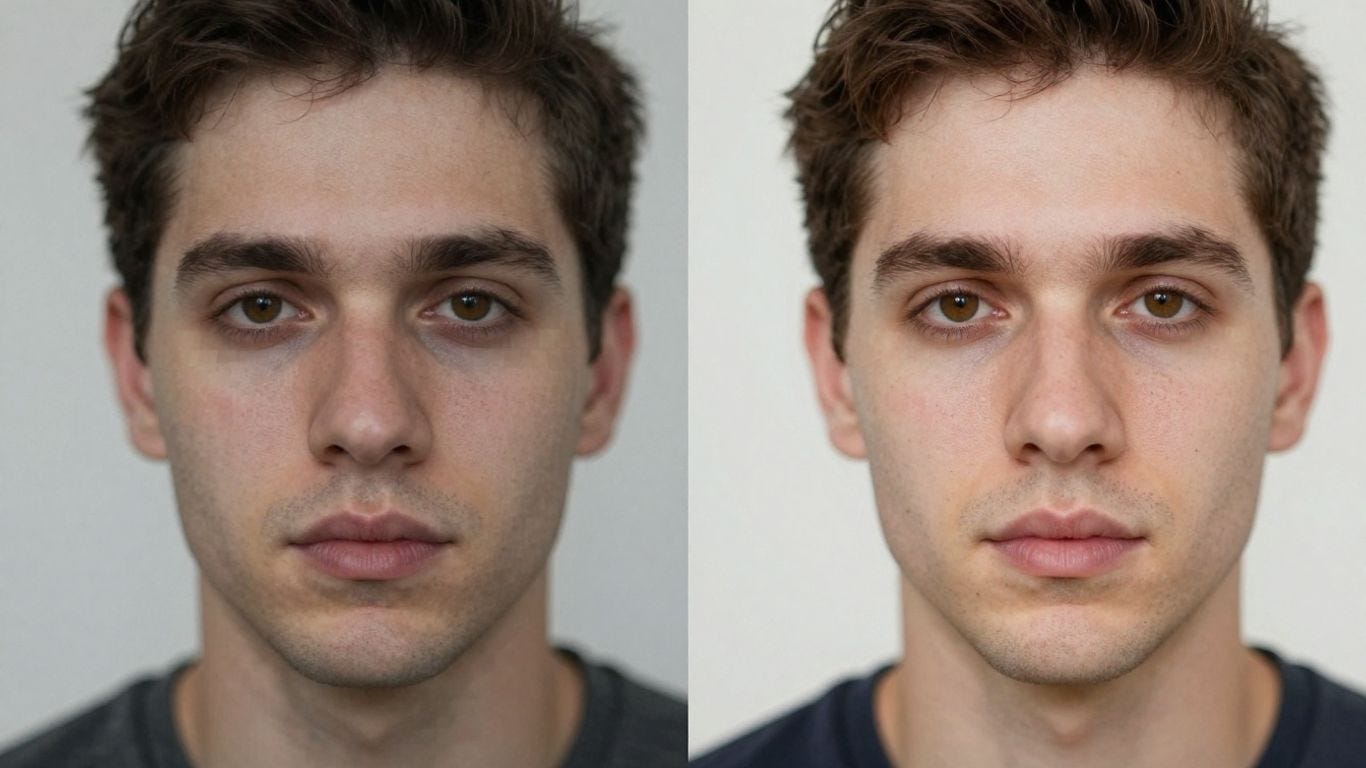
If you want something that makes your images look sharper and clearer without making them look fake. We’ve got tools that can help you find the perfect match for whatever you’re trying to create. Ready to see the difference? Visit our website, to explore the options and start improving your pictures today!
Wrapping Up Your Upscaling Journey
AI image upscaling has changed the way we work with visuals. Instead of being limited by the resolution of the original image, creators can now enhance clarity, restore details, and prepare visuals for modern use cases like high-resolution screens, marketing assets, and print materials.
Whether you need a quick resolution boost or a more advanced workflow that combines multiple enhancement steps, AI upscaling offers flexible options for different creative needs. The key is understanding how each approach affects texture, sharpness, and overall image quality.
As AI tools continue to evolve, upscaling is becoming less of a technical hurdle and more of a creative extension. With the right workflow, even low-resolution images can be transformed into clean, professional-grade visuals ready for real-world use.
Frequently Asked Questions
What exactly is AI image upscaling?
AI image upscaling is like giving your pictures a superpower! Instead of just making a small picture bigger, which usually makes it blurry, this smart technology uses computer programs to add in details that were missing. It’s trained on lots of good pictures, so it knows what things like textures and edges should look like, making your enlarged images sharp and clear.
Why is upscaling important for images?
It’s super useful for making low-quality pictures look great. For example, if you have an old photo that’s too small for a big print, or a product picture for a website that looks a bit fuzzy, upscaling can fix that. It helps make sure your images look professional and clear, whether they’re for online use, big displays, or even printing.
Can I combine AI upscaling with creating images from text?
Absolutely! It’s a really cool way to work. You can have the AI create an image from your text description, and then right away, send it to the upscaler to make it high-resolution. It’s like having an automatic production line that takes your idea from a simple text prompt all the way to a finished, high-quality image without needing to do extra steps in between.
메타데이터
- post_id
- f58a6df61a7d
- slug
- ai-upscaler-image-workflows-for-clean-visual-output-f58a6df61a7d
- url
- https://medium.com/@bartuvarol/ai-upscaler-image-workflows-for-clean-visual-output-f58a6df61a7d
- canonical_url
- https://medium.com/@bartuvarol/ai-upscaler-image-workflows-for-clean-visual-output-f58a6df61a7d
- author_url
- https://medium.com/@bartuvarol
- status
- ok
- fetched_at
- 2026-07-31 14:10:08