Install Fedora Core OS to a home Lab
Hardware Used
Install Fedora Core OS to a home Lab
Hardware Used
ThinkCentre M900
- Core i5–6500T
- 16GB of RAM
- 256GB of SSD Storage
Sandisk Ultra USB Drive with 32GB of Storage
Preparing USB Drive
To install I used Balena Etcher (https://etcher.balena.io/) which is an easy to use application, multi platform, that I’ve been using for a long time now to burn the USB drives with linux images and MicroSD Cards for Raspeberry Pi boards.
I also downloaded the ISO from the official Core OS portal (https://fedoraproject.org/coreos/download?stream=stable), downloading the latest version of it (40.20241019.3.0).
Balena Etcher
⚠️ This operation requires Administrator Permissions/Root permissions.
After opening Balena Etcher you will see the following screen:
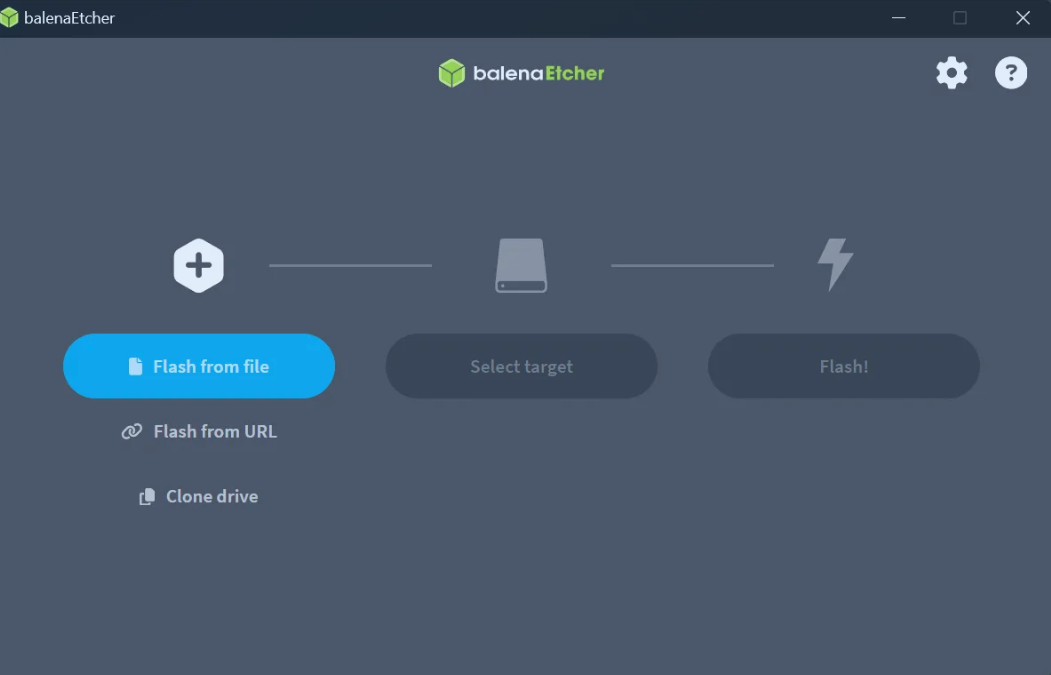
Select Flash from file and select the ISO, it will prompt to select the target, in this case I’m using a 32GB USB Drive:

Then press Flash!:

Installing Core OS
As a pre requisite, we need to create a Ignition file, that can be hosted with Python http.server library afterwards.
Installing Butane
Butane (formerly the Fedora CoreOS Config Transpiler) is a tool that consumes a Butane Config and produces an Ignition Config, which is a JSON document that can be given to a Fedora CoreOS machine when it first boots. Using this config, a machine can be told to create users, create filesystems, set up the network, install systemd units, and more.
We are going to use Butane to generate the Ignition file for the core installation.
To download it, go to the release page (https://github.com/coreos/butane/releases) and download the package for your operating system.
Writing the Ignition Yaml file
To configure the installation of the CoreOS system and generate the .ign file by Butane, we need to create the Ingition yaml file.
For reference, I’m using the version 1.5.0 of Core OS as the base to build this example yaml file:
https://coreos.github.io/butane/config-fcos-v1_5/
https://coreos.github.io/butane/examples/
But on this link the portal also offer other specifications for different operating system versions.
For my local laboratory, I’m going to use user and password authentication:
variant: fcos
version: 1.5.0
passwd:
  users:
    - name: cloud_user
      ssh_authorized_keys:
        - key_cloud_user
      password_hash: $y$j9T$uWXkl0NAPjfPwcw6BkifQ.$rE5QHYoPUJg6qd/Yqn/m.pJwdtZFmgB5dKFZLHORbY2
      home_dir: /home/cloud_user
      no_create_home: true
      groups:
        - wheel
        - plugdev
      shell: /bin/bash
To generate the hash, as I’m using Debian for my local environment, I’ve used the command mkpasswd, provided by the package whois. To install it use the command below:
sudo apt install whoisOnce the package is installed generate the password with the command mkpasswd, that will prompt for the password to be encrypted.
Generating Ign file
Once the yaml file is created, run the command below
butane --pretty --strict your_yaml_file.yaml > ignite.ignThe file generated has the following format:
{
  "ignition": {
    "version": "3.4.0"
  },
  "passwd": {
    "users": [
      {
        "groups": [
          "wheel",
          "plugdev"
        ],
        "homeDir": "/home/cloud_user",
        "name": "cloud_user",
        "noCreateHome": true,
        "passwordHash": "$y$j9T$uWXkl0NAPjfPwcw6BkifQ.$rE5QHYoPUJg6qd/Yqn/m.pJwdtZFmgB5dKFZLHORbY2",
        "sshAuthorizedKeys": [
          "key_cloud_user"
        ],
        "shell": "/bin/bash"
      }
    ]
  }
}
Installation Process — Server Part
On your server or hardware, connect the USB drive and start the host with boot from the USB Drive.
The following screen will be loaded:

As you can see on the example above, the ign file needs to be hosted on another host, this will help to install it to multiple hosts afterwards.
To host the file, run the following python command from the folder containing the ign file:
python3 -m http.server 3333This will start a http server on your localhost, on the port 3333.
With that test the connectivity between the host your installing and the host serving the file.
Start the installation with the command:
sudo coreos-installer install /dev/sda --ignition-url http://ip_of_your_host_serving_the_file:3333/ignite.ign --insecure-ignitionReplace the device /dev/sda with the disk where you want to install CoreOS and the file name with the file you produced. The parameter — insecure-ignition is required because we are using http instead of https.
Once the installation is complete it will show the following message:

Reboot the host using
sudo reboot메타데이터
- post_id
- f58a8a3d0cdf
- slug
- install-fedora-core-os-to-a-home-lab-f58a8a3d0cdf
- url
- https://medium.com/@eliel.teotonio/install-fedora-core-os-to-a-home-lab-f58a8a3d0cdf
- canonical_url
- https://medium.com/@eliel.teotonio/install-fedora-core-os-to-a-home-lab-f58a8a3d0cdf
- author_url
- https://medium.com/@eliel.teotonio
- status
- ok
- fetched_at
- 2026-07-22 08:09:49


