Locking Down MCP: Create a Private Registry on Azure API Center and Enforce It in GitHub Copilot…
Ever since MCP launched, every customer has asked the same thing: “How does a private MCP registry actually work, and how do we configure…
Locking Down MCP: Create a Private Registry on Azure API Center and Enforce It in GitHub Copilot And VS Code
Ever since MCP launched, every customer has asked the same thing: “How does a private MCP registry actually work, and how do we configure it for our enterprise?”
So today, on a snowy, freezing Friday in Zurich, I grabbed a coffee…opened the GitHub docs, dove into Azure API Center portal, and decided to write the blog I wish already existed.
A few hours (and quite a few sighs) later, here I am. The docs are great… but they definitely don’t cover all the tiny quirks, hidden settings, and hilarious errors you’ll hit along the way.
What did the journey look like?
- 📚 Reading way too many docs
- ✅ A data API that seemed to work
- 🔒 Mysterious 401 Unauthorized responses
- 🧊 A Save + publish button permanently frozen in “Nope” mode
- 🚫 404 Not Found and VS Code insisting the registry “does not support version v0.1”
- 🤯 And finally… the magical, undocumented discovery of
**/workspaces/default/v0.1/servers**
This post is the guide I desperately needed: a clean, step-by-step setup plus every weird error and how to fix it. Enjoy!
Two Options: Pick Your MCP Registry Adventure 🎒
To make an MCP registry that GitHub Copilot can actually talk to, you need two non-negotiables:
- A proper MCP Registry endpoint that follows the v0.1 specification
- CORS enabled so Copilot/VS Code can reach it from the browser environment
And you’ve got two ways to get there:
Option 1: Self-hosted MCP Registry
Spin up your own service that fully implements the v0.1 MCP Registry spec and handles all the CORS requirements. Great for full control… not so great if you’re not in the mood to maintain yet another service.
Option 2: Azure API Center (the easy path)
Azure API Center comes with:
- ✔️ Built-in support for the v0.1 MCP Registry spec
- ✔️ CORS configured out of the box
- ✔️ A nice UI for managing MCP servers
- ✔️ Zero infrastructure to run yourself
So for this blog (and for our sanity), we’re going with Azure API Center.
What We’re Building 🚀
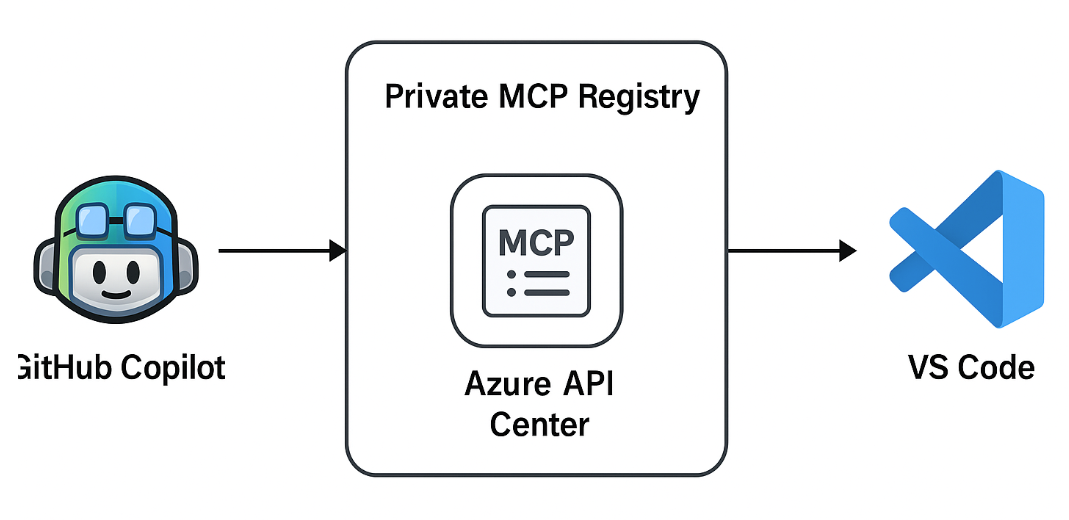
We’re setting up a private MCP registry using Azure API Center and wiring it so GitHub Copilot and VS Code only recognize and use the MCP servers we list there.
In other words:
- Azure API Center becomes our private MCP registry
- GitHub Copilot + VS Code automatically discover the approved MCP servers
- Only those servers are allowed to run on the client
Step 1: Create Your Azure API Center Instance
In the Azure portal:
- Search for “API Center” and Click + Create.
- Fill in:
- Subscription / Resource group: choose your usual.
- Name: e.g.
private-mcp-registry. - Region: e.g.
East US. - SKU: Free/Standard (Free is fine to experiment).
- Click Review + create → Create.
Once deployment is done, open the resource and note the data-plane endpoint, which looks like:
[https://private-mcp-registry.data.eastus.azure-apicenter.ms](https://private-mcp-registry.data.eastus.azure-apicenter.ms)

This host is where the MCP registry will live (we’ll refine the path later).
Step 2 : Register MCP Servers
API Center gives you two options: 1️⃣ Create and expose your own MCP server through API Center, or 2️⃣ Use one of the pre-listed MCP servers available in the Discovery section.
If you want to register your own MCP server, go to Assets → APIs → Register an API, fill in the details, and create a new MCP-type API.
Or, if you prefer the easier path, you can use the preview Discovery feature, which lets you add ready-made MCP servers to your registry with a single click. Just go to Discover → MCP (preview) on the left panel.
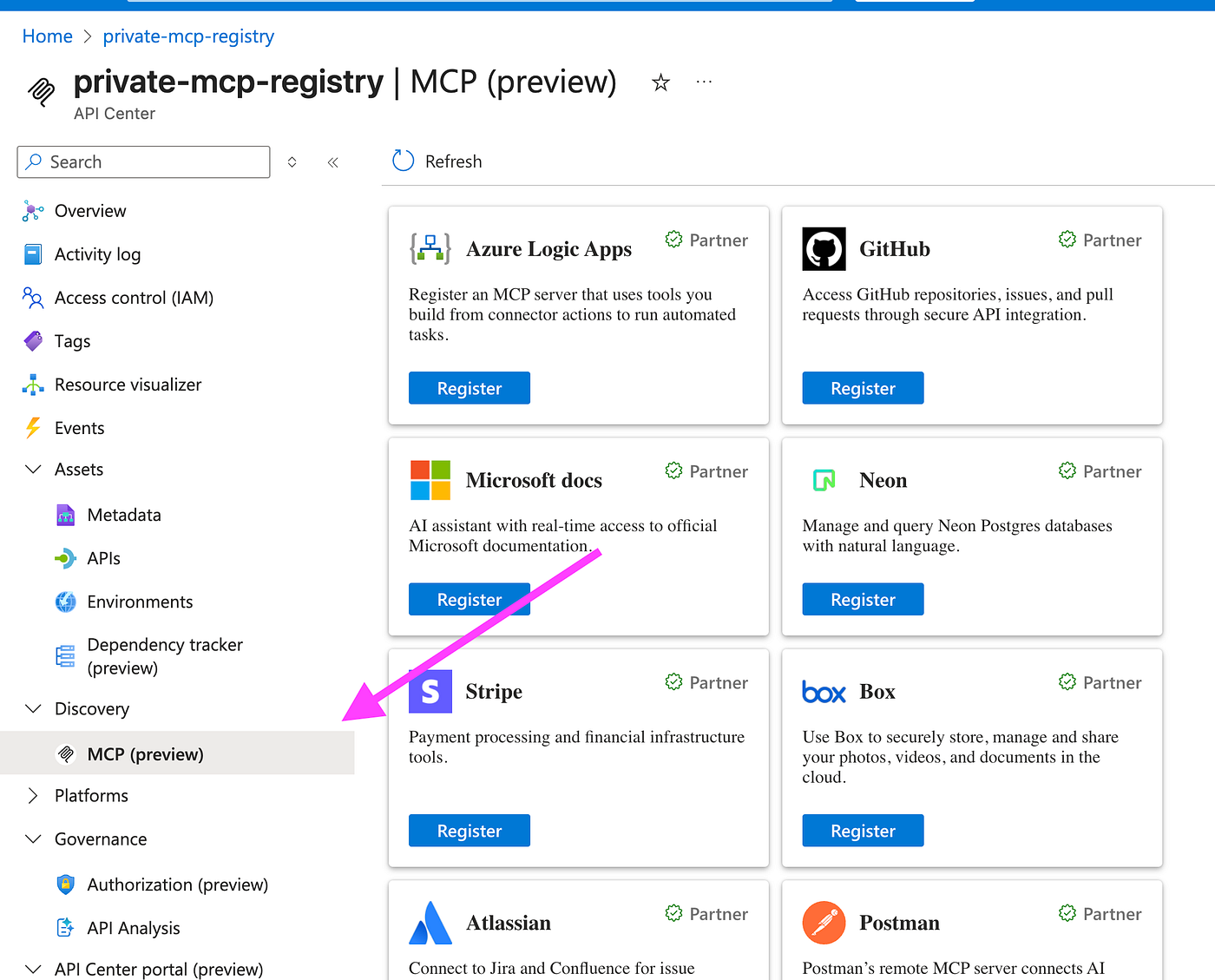
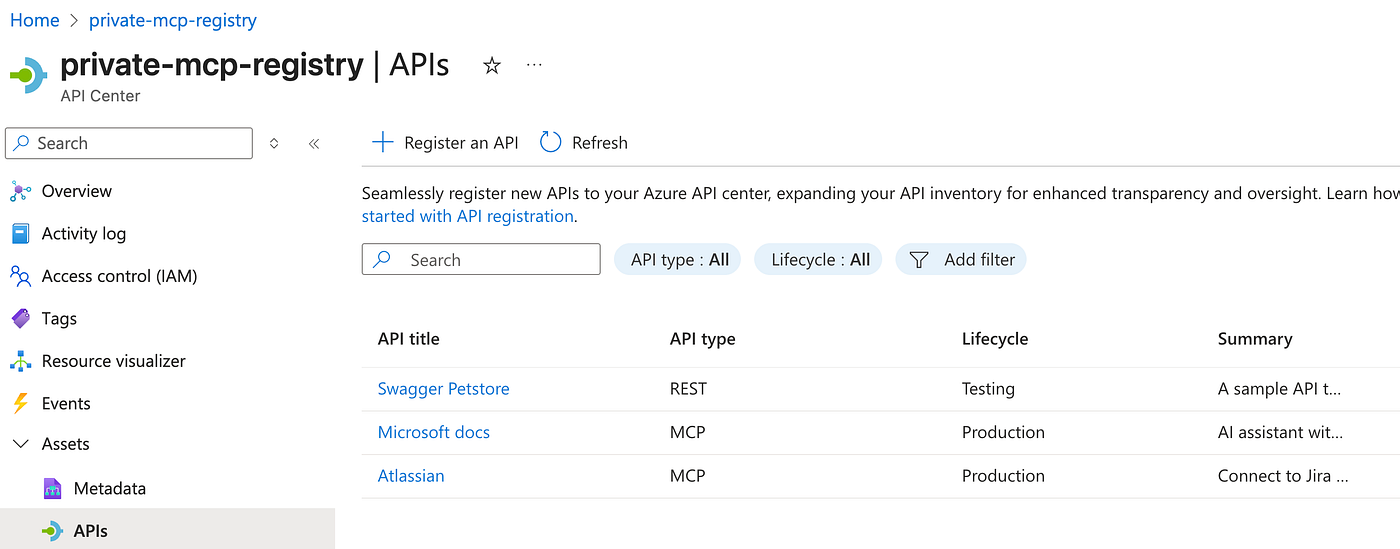
For this blog, I added “Microsoft Docs” and “Atlassian”. Once saved, these MCP servers become part of your registry inventory, and you can view them under Assets → APIs. For lifecycle management, you can also assign each server to an environment such as production, testing, or development.
Step 3: Enable the API Center Portal and Anonymous Access
This is where the fun began for me.
as per GitHub docs, “to ensure GitHub Copilot can fetch your registry, in the visibility settings of your API Center, allow anonymous access”.I expected a neat “Allow anonymous access” checkbox somewhere obvious. Instead, I got:
- A greyed-out “Save + publish” button and
- A
/v0.1/serversendpoint that always returned 401.
Here’s the actual order that works.
Turn on the API Center portal (so Save + publish works)
- In your API Center resource, in the left menu, find “API Center portal”→ Settings.
- Go to the Identity provider tab.
- Click Start set up (or Quick setup).
- Complete the wizard (Azure will create an Entra ID app for the portal).
- Click Save + publish.
Until you do this, the global Save + publish button on the portal settings tends to be disabled or useless.
To be completely honest, I don’t yet have a full understanding of why this step is required for enabling configuration changes. I’m reaching out to some Microsoft colleagues who specialize in API Center to get the full story. I’ll update this blogor add a comment, once I get a clear explanation.
Enable anonymous access to the data API
- Still under API Center portal → Settings, go to the API visibility tab.
- Look for “Anonymous access”.
- Turn it On.
- Click Save + publish again.
What this does: It allows unauthenticated read access to the data plane API, so your MCP clients (GitHub, VS Code) can read the registry without dealing with Azure AD tokens.
If anonymous access is off, you’ll see 401 Unauthorized when you hit the registry endpoints.
Step 4: Find the Real MCP Registry Endpoint
This was the “aha!” moment.At first, I assumed the registry was at:
https://private-mcp-registry.data.eastus.azure-apicenter.ms/v0.1/serversCalling that gave me:
HTTP/1.1 404 Not Found…and VS Code logs like:
The service at https://private-mcp-registry.data.eastus.azure-apicenter.ms does not support version v0.1. Service returned status 404.
The missing piece: the registry endpoints live under a workspace.
API Center includes a default workspace, and your MCP registry endpoint must include the workspaces/default segment in the URL. If you prefer, you can create additional workspaces: just make sure to adjust the URL accordingly.
If you’re following this blog with my setup, your MCP registry endpoint will look like this: “https://private-mcp-registry.data.eastus.azure-apicenter.ms/workspaces/default/v0.1/servers”
Run this:
curl "https://private-mcp-registry.data.eastus.azure-apicenter.ms/workspaces/default/v0.1/servers"If everything is configured correctly, you should see:
{
  "servers": [
    {
      "server": {
        "$schema": "https://static.modelcontextprotocol.io/schemas/2025-09-29/server.schema.json",
        "name": "msdocs-mcp-server",
        "description": "AI assistant with real-time access to official Microsoft documentation.",
        "version": "Original",
        "remotes": [
          {
            "type": "sse",
            "url": "https://learn.microsoft.com/api/mcp"
          }
        ]
      },
      "_meta": {
        "io.modelcontextprotocol.registry/official": {
          "status": "active",
          "createdAt": "2025-11-21T10:57:54.753206+00:00",
          "updatedAt": "2025-11-21T10:58:01.1231068+00:00",
          "isLatest": true
        },
        "x-ms-id": "b8c6e77d-f266-4a0a-a341-cc9e97c15280"
      }
    },
    {
      "server": {
        "$schema": "https://static.modelcontextprotocol.io/schemas/2025-09-29/server.schema.json",
        "name": "atlassian-mcp-server",
        "description": "Connect to Jira and Confluence for issue tracking and documentation.",
        "version": "Original",
        "remotes": [
          {
            "type": "sse",
            "url": "https://mcp.atlassian.com/v1/sse"
          }
        ]
      },
      "_meta": {
        "io.modelcontextprotocol.registry/official": {
          "status": "active",
          "createdAt": "2025-11-21T10:58:13.1934455+00:00",
          "updatedAt": "2025-11-21T10:58:18.6788839+00:00",
          "isLatest": true
        },
        "x-ms-id": "f9894e12-64f9-49ca-84a1-d01fcd4278c8"
      }
    }
  ],
  "metadata": {
    "count": 2
  }
}
The key is the shape:
<data endpoint> / workspaces / <workspaceName> / v0.1 / serversStep 5 : Configure GitHub’s MCP Registry URL
Now that the endpoint works, we need to wire it into GitHub so Copilot and VS Code use it.
⚠️ Important: in GitHub’s config, you do not include
/v0.1/servers. You point it at the workspace base URL, and the client will append/v0.1/servers.
In your GitHub Enterprise or org settings:
- Go to Enteprise → AI Coontrols →MCP
- Find the MCP Registry URL field.
- Set it to:
[https://private-mcp-registry.data.eastus.azure-apicenter.ms/workspaces/default](https://private-mcp-registry.data.eastus.azure-apicenter.ms/workspaces/default) - Choose your MCP policy:
- Allow all MCP servers, or
- Registry only (only servers from this registry).

Behind the scenes, VS Code will now call:
https://private-mcp-registry.data.eastus.azure-apicenter.ms/workspaces/default/v0.1/servers…which is the endpoint we just tested.
Step 6: Test in VS Code
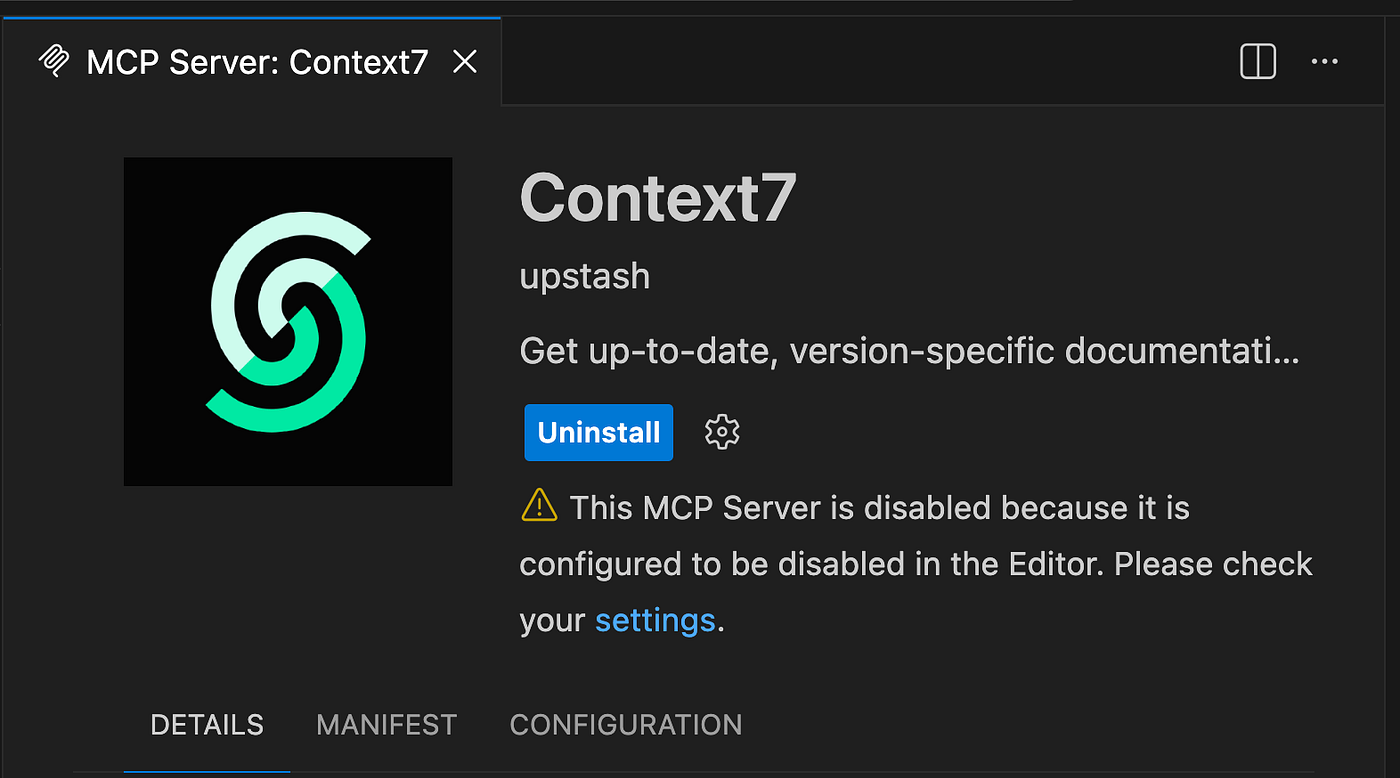
Once the enterprise settings have propagated, open VS Code and try accessing your previously installed MCP servers, you’ll notice a yellow exclamation mark on them.
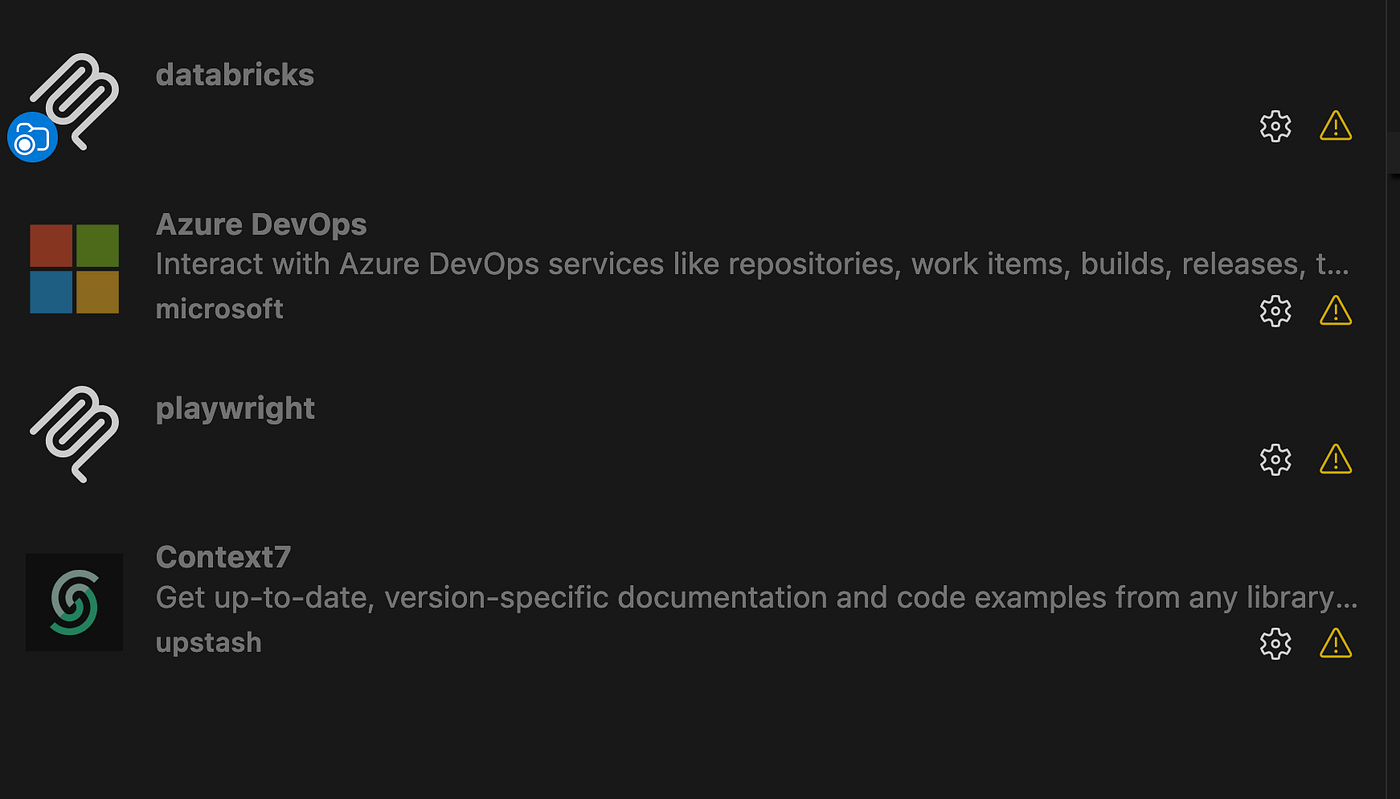
When you select an MCP server that isn’t part of the private registry enforced by your GitHub policies, VS Code will show a warning message:
“This MCP server is disabled because it is configured to be disabled in the editor.”
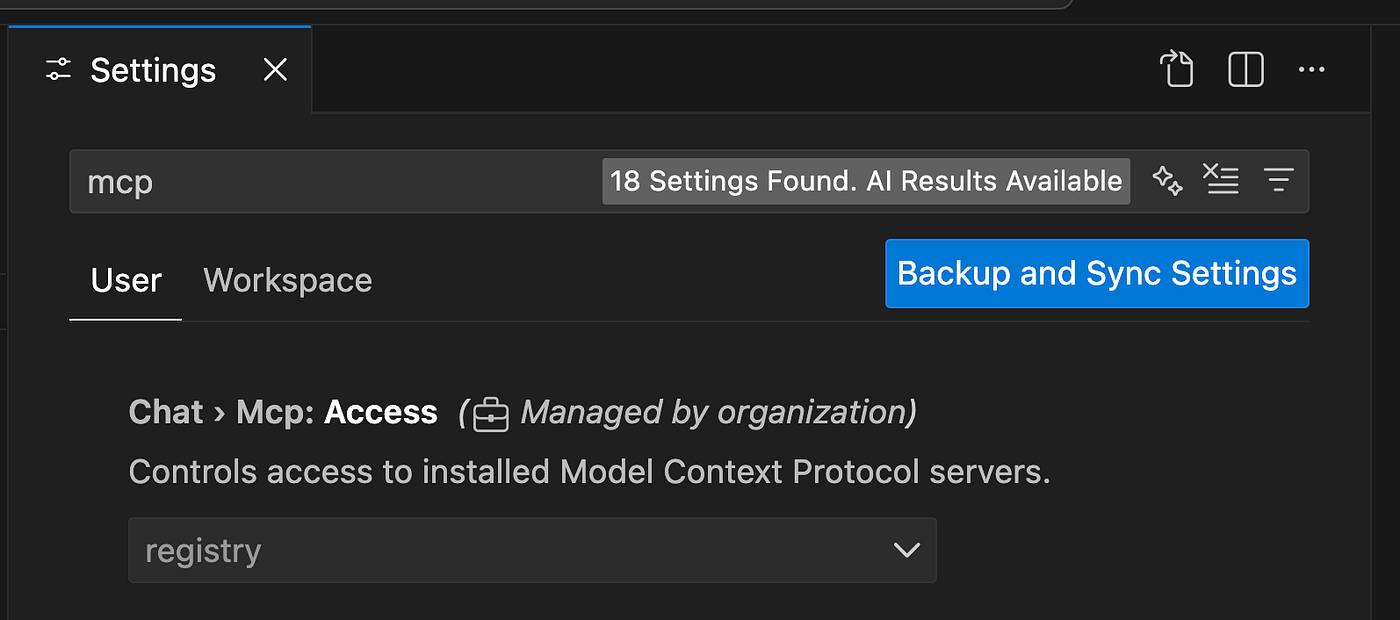
When you open the MCP access settings in VS Code, you’ll see that “registry” is selected as the control method for installing MCP servers. This setting is enforced by your GitHub policies, so the user cannot toggle it: the option is greyed out.
Now let’s check which MCP servers are available for installation in VS Code. When you type @MCP in the extensions section, instead of seeing the full list of servers, you’ll only see the two MCP servers we exposed through Azure API Center and included in our private MCP registry.

And to double-confirm that these MCP servers are coming from your registry, open the Output pane in VS Code and select the “Window” channel. You’ll see the registry URL configured from Azure API Center, that’s where the server list is being fetched from.

In the end, we reached our goal: a fully working private MCP registry in Azure API Center, with two MCP servers securely exposed to GitHub and successfully enforced in VS Code.
Summary:
Setting up a private MCP registry with Azure API Center is absolutely possible today and once you know the correct workspace-scoped endpoint, it works beautifully with GitHub Copilot and VS Code. Just remember that the Azure API Center registry endpoint is public when anonymous access is enabled. That’s fine for current Copilot integration (which requires unauthenticated access), but the ideal long-term solution is a private, authenticated MCP registry endpoint.
That isn’t supported yet, but I fully expect GitHub to introduce proper authentication and private-endpoint support in the future as MCP matures.
If you need full control right now, a self-hosted MCP registry gives you maximum freedom but you’ll need to implement the v0.1 MCP Registry spec yourself and ensure CORS and endpoint behavior are correct.
Hopefully this guide saves you the hours I spent chasing 401s, frozen buttons, and mysterious 404s and helps you get your MCP registry up and running without the drama. Happy building! 🚀
About Me
My name is Tajinder Singh, and most of my friends and colleagues call me TJ. Currently, I am working at GitHub as a Solutions Engineer based in the beautiful city of Zurich, Switzerland. If you have any feedback regarding this blog, you can reach out to me via LinkedIn or the comments section.
Linkedin Profile: https://www.linkedin.com/in/tajinder-singh-74740115b/

Note: Opinions are my own and not the views of my employer
메타데이터
- post_id
- f5d0eeaff746
- slug
- locking-down-mcp-create-a-private-registry-on-azure-api-center-and-enforce-it-in-github-copilot-f5d0eeaff746
- url
- https://medium.com/@tajinder.singh1985/locking-down-mcp-create-a-private-registry-on-azure-api-center-and-enforce-it-in-github-copilot-f5d0eeaff746
- canonical_url
- https://medium.com/@tajinder.singh1985/locking-down-mcp-create-a-private-registry-on-azure-api-center-and-enforce-it-in-github-copilot-f5d0eeaff746
- author_url
- https://medium.com/@tajinder.singh1985
- status
- ok
- fetched_at
- 2026-06-23 17:05:31




