Google Search Console for E-Commerce: Stop Looking at the Pretty Numbers and Start Making Money
Most store owners open GSC, see some green arrows, feel good, and close the tab. That’s not SEO. That’s checking your horoscope.
Google Search Console for E-Commerce: Stop Looking at the Pretty Numbers and Start Making Money
Most store owners open GSC, see some green arrows, feel good, and close the tab. That’s not SEO. That’s checking your horoscope.
Here’s the thing about Google Search Console: it’s not a reporting tool.
It’s a revenue tool. A diagnostic system. A direct line into how Google sees your store — and what it’s hiding from shoppers who are actively trying to buy what you sell.
But 90% of e-commerce owners are using it wrong.
They check total clicks. They look at average position. They see the graph going up and feel reassured. Then they wonder why revenue isn’t growing.
This guide is about using GSC the way it was meant to be used — as an action system, not a vanity dashboard. Every section ends with a specific thing you can do today to make your store more money.
Before We Start: What GSC Actually Is (And What It Isn’t)
GSC is Google telling you, directly, how it sees your store. It shows you:
- Which pages it has indexed (and which ones it’s ignoring)
- Which search queries are triggering your pages to appear in results
- How often people see your pages in Google results (impressions)
- How often they actually click (clicks and CTR)
- Where your pages rank on average (position)
- What technical errors are preventing crawling or indexing
What GSC is not: a keyword research tool. It doesn’t show you keywords you don’t rank for at all. It only shows data about queries where Google already showed your site to someone.
That’s an important distinction. GSC tells you about your existing presence. Finding new opportunities requires additional tools. But for most stores, there’s already enough untapped potential in their existing GSC data to double organic revenue — before touching anything new.
The Four GSC Reports That Actually Matter for E-Commerce
Report 1: Performance → Pages
This is the most underused report in GSC.
Most people look at the Queries tab (which keywords drive clicks). Smart store owners start with Pages (which pages drive revenue).
Here’s how to read it:
Go to Performance → click the Pages tab → sort by Impressions descending.
You’re looking for the gap between impressions and clicks. A page with 10,000 monthly impressions and 150 clicks has a 1.5% CTR. For an e-commerce category page, that’s a disaster. The benchmark for a page ranking in position 3–5 should be 4–8% CTR.
What this gap means for your store:
If you have high impressions and low CTR, Google is showing your page to thousands of people — and they’re choosing not to click. That means one of two things:
- Your title tag and meta description are weak (fixable in 20 minutes)
- Your page is ranking for the wrong queries — queries where shoppers aren’t looking for what you sell
Both are fixable. Neither requires new backlinks.
Action: Find your top 10 pages by impressions. For any page with CTR below 3%, click on it in GSC to see which queries it’s ranking for. If the queries match what you sell, rewrite the title tag to be more specific, benefit-driven, and include the exact product name or category people are searching for.
Report 2: Performance → Queries (The Right Way)
Everyone looks at their top 10 queries by clicks and calls it a day.
Here’s what they miss: the queries on page 2 and 3 of your GSC data are where the money is.
These are queries where your pages rank between position 8 and 20 — visible enough to get impressions, not visible enough to get meaningful clicks. A product category sitting at position 9 gets maybe 1–2% of the clicks. That same page at position 3 gets 8–10%.
The distance between position 9 and position 3 is not a huge SEO lift. It’s often a focused 30-day effort.
How to find these:
Go to Performance → Queries → filter by Position: greater than 7 and Impressions: greater than 500. What you see is your “striking distance” keyword list — queries where you’re close enough to page 1 that targeted work will pay off fast.
For an e-commerce store, these queries almost always fall into one of two categories:
Category A: Product/Category Queries — people searching for exactly what you sell. “women’s linen trousers size 14,” “outdoor sectional sofa under 1500,” “natural vitamin C serum.” These are your highest-priority pages. Ranking for these directly converts.
Category B: Informational Queries — people in research mode. “how to choose a sofa material,” “what’s the difference between retinol and vitamin C.” These drive traffic but convert slower. Still valuable — but not where you start.
Action: Export your striking distance queries (position 7–20, 500+ impressions). Sort by impressions. Your top 10–15 are your backlink and content optimization priority list for the next 60 days. These are the pages that will move fastest with focused effort.
Report 3: Indexing → Pages
This is the report most store owners never open. It is also the most important one for diagnosing why your products aren’t ranking.
Go to Indexing → Pages (previously called “Coverage”).
You’ll see four categories:
Error — pages Google found but can’t index. This is critical. Every page in this bucket is completely invisible to Google. Common causes: 404 errors, server errors, pages blocked by robots.txt, redirect chains.
Valid with Warning — indexed but with issues. Usually duplicate content, canonical tag problems, or soft 404s (pages that return a 200 status but show “product not found” or “out of stock”).
Valid — properly indexed. This is where your pages should be.
Excluded — deliberately not indexed. This should only include things you told Google not to index: admin pages, cart/checkout, filtered URLs, duplicate product variant pages.
The e-commerce specific issue: Product filters create massive indexing problems.
When a customer filters your /shoes/ category page by size, color, and price — most platforms generate unique URLs for every filter combination. /shoes/?size=42&color=black&price=50–100 is a different URL than /shoes/?size=42&color=black&price=100–200. For a category with 5 filter types and 10 options each, that’s potentially thousands of URLs — all thin, near-duplicate pages that Google has to crawl, assess, and decide what to do with.
If you see “Discovered — currently not indexed” with thousands of URLs in your Indexing report, filtered URLs are usually the culprit. The fix: add noindex to filtered pages and set canonical tags on variant URLs pointing back to the main category page.
Action: Open the Indexing → Pages report. Click on “Error.” Fix every URL in this list — these are completely invisible to Google. Then click on “Valid with Warning” and address the soft 404s, which are typically out-of-stock product pages still receiving organic traffic.
Report 4: Experience → Core Web Vitals
Google made page experience an official ranking factor in 2021. For e-commerce specifically, it matters for two reasons: rankings, and conversion rates.
A page that loads slowly doesn’t just rank lower — it loses customers before they see your products.
Core Web Vitals measures three things:
LCP (Largest Contentful Paint): How long before the main content of the page is visible. For a product page, this is usually the hero image. Target: under 2.5 seconds.
INP (Interaction to Next Paint): How quickly the page responds when a user clicks something — a filter, a size selector, the add-to-cart button. Target: under 200ms.
CLS (Cumulative Layout Shift): Do page elements jump around as the page loads? This happens when images don’t have dimensions set, or when fonts load and push content around. Target: under 0.1.
The e-commerce CLS issue: Promotional banners. Many stores load a “10% off” banner after the page renders, causing everything below it to shift down. Users click what they thought was a product image — and hit an ad instead. Google measures that. So do customers.
Action: Go to Experience → Core Web Vitals → click “Open Report” for Mobile (mobile is the priority signal for Google). Find URLs marked “Poor” or “Needs Improvement.” These are pages where you’re actively losing rankings and customers simultaneously. Start with your highest-traffic category and product pages.
The GSC Workflow for E-Commerce Owners (30 Minutes a Week)
Most of the value in GSC comes from consistency, not deep-dives. Here’s a repeatable weekly process:
Monday — 10 minutes: Indexing check Go to Indexing → Pages. Are there new errors this week? New pages stuck in “Discovered — currently not indexed”? If you published new products or categories, are they showing up in the Valid column?
Any new products should appear as indexed within 5–14 days of publishing if your internal linking is solid. If they’re not indexed after 3 weeks, the page has a problem — either it’s not being crawled (no internal links pointing to it) or it has a technical issue.
Wednesday — 10 minutes: Striking distance review Pull your position 7–20 queries filtered by last 7 days. Did anything move? Did a product page jump from position 12 to position 8? That’s a signal to push it — add an internal link from a high-traffic page, improve the title tag, or build one relevant backlink to it.
Friday — 10 minutes: CTR anomalies Sort Pages by impressions. Look for any page where impressions stayed high but clicks dropped week-over-week. That’s a page where your ranking is stable but something changed in the SERP — maybe a competitor rewrote their title, or Google added a featured snippet that’s absorbing clicks. The fix is usually a stronger title tag or adding structured data to capture a featured snippet yourself.
The Three Biggest GSC Mistakes E-Commerce Stores Make
Mistake 1: Ignoring product page impressions because “people find products through category pages”
Yes, category pages are more important SEO targets. But product pages that rank for long-tail, high-intent queries are often your highest-converting organic traffic — because the shopper knows exactly what they want.
If someone searches “Levi’s 501 original fit W32 L32 dark wash” and lands on your product page — that is a sale. The conversion rate on that traffic is 4–5× higher than someone who searched “men’s jeans” and landed on your category page.
Check which product pages are getting impressions but have low CTR. A weak title tag on a product page costs you very specific, very ready-to-buy traffic.
Mistake 2: Treating “Not indexed” as normal for product variants
Many platforms — Shopify included — create separate URLs for product variants. /products/blue-t-shirt and /products/blue-t-shirt?variant=38929172 are technically different URLs. If these variant URLs get indexed, Google sees thousands of near-identical pages, which dilutes your authority.
The fix is canonical tags pointing all variants back to the main product URL. Most themes handle this automatically, but it’s worth verifying in GSC. If you see thousands of URLs in “Excluded — Alternate page with proper canonical tag,” that’s correct behavior. If variant URLs are in “Valid,” you have a duplication issue.
Mistake 3: Not connecting GSC data to your backlink strategy
This is the biggest leverage point most store owners miss.
Your GSC striking distance pages — the ones ranking position 7–20 for high-impression queries — are your backlink priority list. These pages are already relevant enough to rank. They just need a small authority push to jump to page 1.
One relevant backlink to a category page at position 9 can push it to position 5 or 6. That’s a 3–4× increase in click volume from that query. For a category page with 5,000 monthly impressions at position 9, that jump could mean 100+ additional monthly visitors who are actively looking to buy.
I covered how to build that backlink strategy in the ecommerce link building guide — the GSC data you’re collecting now becomes the input for that system. And if you want the full off-page plan for scaling it, the ecommerce backlink strategy for 2026 maps out exactly how to execute it month by month.
Reading the Data: A Real Example
Let me walk through what a GSC audit looks like for a mid-size e-commerce store.
The store: Home décor, ~200 products, 40 category pages, 3 years old.
What the GSC Performance report showed:
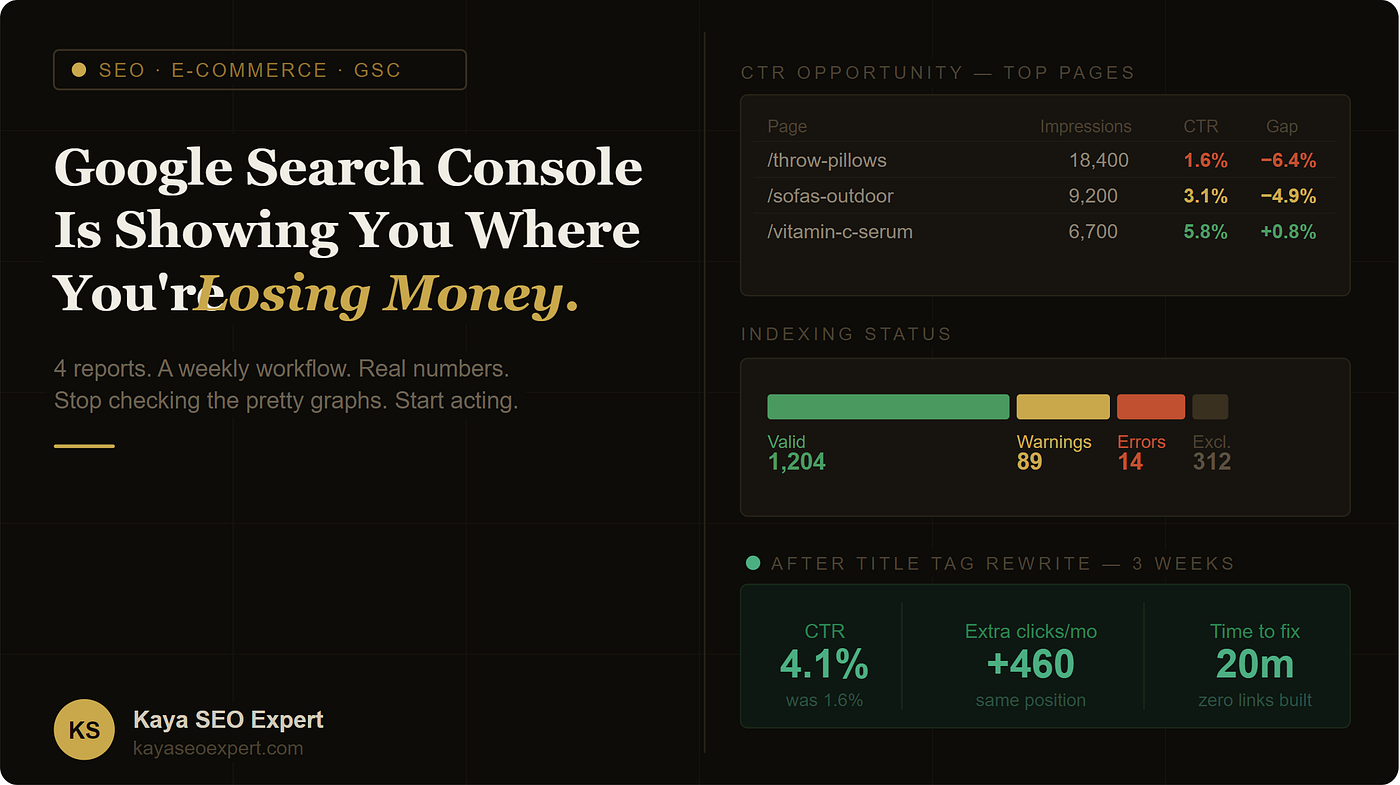
Top page by impressions: /collections/throw-pillows — 18,400 impressions/month, 290 clicks, 1.6% CTR, average position 4.2.
A category page at position 4.2 should be getting 6–8% CTR. At 1.6%, something is very wrong with either the title, the meta description, or the SERP snippet Google is generating.
We clicked through to the Queries tab for that page. The top queries were:
- “throw pillows” (14,000 impressions, 180 clicks)
- “decorative throw pillows” (2,100 impressions, 60 clicks)
- “throw pillow covers” (980 impressions, 30 clicks)
The page title was: “Throw Pillows | Home Store”
Bland. No benefit. No differentiation. No reason to click.
We rewrote it to: “Throw Pillows — 200+ Styles, Free Shipping | Home Store”
Within 3 weeks, CTR on that page went from 1.6% to 4.1%. Same position. Same impressions. Just a better title.
That single change added 460 additional monthly clicks to one page. On a category page with a reasonable conversion rate of 2%, that’s roughly 9 additional sales per month — from a 20-minute title tag rewrite.
The Indexing report showed:
312 URLs in “Discovered — currently not indexed.” Investigation revealed: filtered category pages (color, size, material combinations) were being crawled but not indexed. Not a crisis — Google was correctly deprioritizing them. But 14 of those 312 URLs were actual product pages that should have been indexed.
Why weren’t they indexed? They were orphan pages — published but never linked to from any category page or navigation. Google found them via sitemap but never crawled them properly because nothing internally pointed to them.
Fix: added each product to its correct category page. All 14 were indexed within 10 days.
The GSC → Revenue Connection Most Guides Miss
Everything in GSC ultimately connects back to one question: are the right people finding the right pages at the right time?
Wrong people (informational searchers landing on product pages) = traffic but no sales. Right pages not found (orphan products, de-indexed categories) = invisible inventory. Right time but wrong presentation (high impressions, low CTR) = Google showing your store to buyers who choose a competitor instead.
GSC is the diagnostic tool that tells you exactly which of these three problems you have — and where.
But fixing what GSC shows you only works if the rest of your on-page and off-page foundation is solid. If you’re fixing indexing issues and CTR problems but your category pages have no internal links pointing to them — the fixes won’t hold. That’s why the internal structure we covered in the previous article comes before anything else.
And once the structure is solid, and your GSC data shows you exactly which pages are in striking distance — that’s when backlinks become the accelerant rather than the guess.
Your GSC Action List (Do This Week)
Day 1: Open Indexing → Pages. Count your errors. Fix any 404s and redirect issues.
Day 2: Go to Performance → Pages. Sort by impressions. Find your top 5 pages with CTR below 3%. Rewrite their title tags.
Day 3: Filter Queries by position 7–20 and 500+ impressions. Export this list. This is your 60-day priority target list.
Day 4: Check Core Web Vitals. Note any category or product pages marked “Poor” on mobile.
Day 5: Cross-reference your striking distance pages with your internal linking structure. Do the pages on your priority list have 5+ internal links pointing to them? If not — fix the internal links before building any external ones.
Full SEO guides, audits, and resources at kayaseoexpert.com
If your store is getting traffic but not converting it, start with this breakdown of why high-traffic sites get no clients — it’s the conversion layer that sits on top of everything in this guide.
And if you’re building links to your store without a data-driven plan, the ecommerce backlink strategy for 2026 shows exactly how to use GSC data as your campaign input.
메타데이터
- post_id
- f5da2510df2a
- slug
- google-search-console-for-e-commerce-stop-looking-at-the-pretty-numbers-and-start-making-money-f5da2510df2a
- url
- https://medium.com/@kayaseoexpert/google-search-console-for-e-commerce-stop-looking-at-the-pretty-numbers-and-start-making-money-f5da2510df2a
- canonical_url
- https://medium.com/@kayaseoexpert/google-search-console-for-e-commerce-stop-looking-at-the-pretty-numbers-and-start-making-money-f5da2510df2a
- author_url
- https://medium.com/@kayaseoexpert
- status
- ok
- fetched_at
- 2026-06-09 15:37:30