The Freeform Formula: How I Use Apple’s Digital Whiteboard for Brainstorming and Organized…
How does Apple’s Digital Whiteboard App comapre to it’s Notes App and what
The Freeform Formula: How I Use Apple’s Digital Whiteboard for Brainstorming and Organized Creativity
How does Apple’s Digital Whiteboard App compare to it’s Notes App and what do users generally use it for? I don’t speak for anyone but myself, but you are about to discover some cool new ways of using Freeform in under 10 minutes…
Non-Members can read this story for free over here.

Source: Author | Story Cover Art
Apple’s Freeform, introduced with iOS and iPadOS 16, has emerged as a versatile digital whiteboard app, particularly favored by creative individuals and teams for brainstorming and organizing project-related storyboards. Apple’s reputation for seamless collaboration and sharing experiences undoubtedly solidifies Freeform’s status as an indispensable tool for global teams.
However, its potential extends beyond collaborative endeavors. For those seeking a more flexible canvas for drawing, writing, annotating, and experimenting, Freeform offers an unparalleled experience. It caters to students seeking mind maps and planners yearning for uninhibited creativity.
But does Freeform truly live up to its expectations?
👉 INDEX 👈

A Comparison with Apple Notes

The Way I Use It…
#1 Infotainment Art for Articles
#2 Making it my LifeOS: Planning Trips, Book Summaries, Movie & Show Reviews, Workout Planner, and More
#3 Making Templates & Memes
#4 Mind Maps & Flow Charts For Students

iPhone App vs iPad App vs Mac App - the best Freeform experience

The Cons

Conclusion
Just a quick detour… if you like such kind of tech stories, consider signing up for my email newsletter. The perks include a higher motivation on my end to deliver such interesting stories frequently 😇
A Comparison with Apple Notes
The most straightforward response to the question, “Where can I quickly jot down notes on my iPhone?” is undoubtedly Apple Notes. It undoubtedly serves as a reliable companion for quick note-taking and casual document recording. However, this begs the question: does Notes surpass Freeform in terms of its capabilities?
A few months ago, while writing about Apple Notes on iPhone and iPad, I shared some of my favorite ways of using the app. However, certain limitations of the Notes app became apparent. Annotating images and marking up content associated with media attachments proved challenging. It felt as though I was constrained by the app’s inherent limitations.
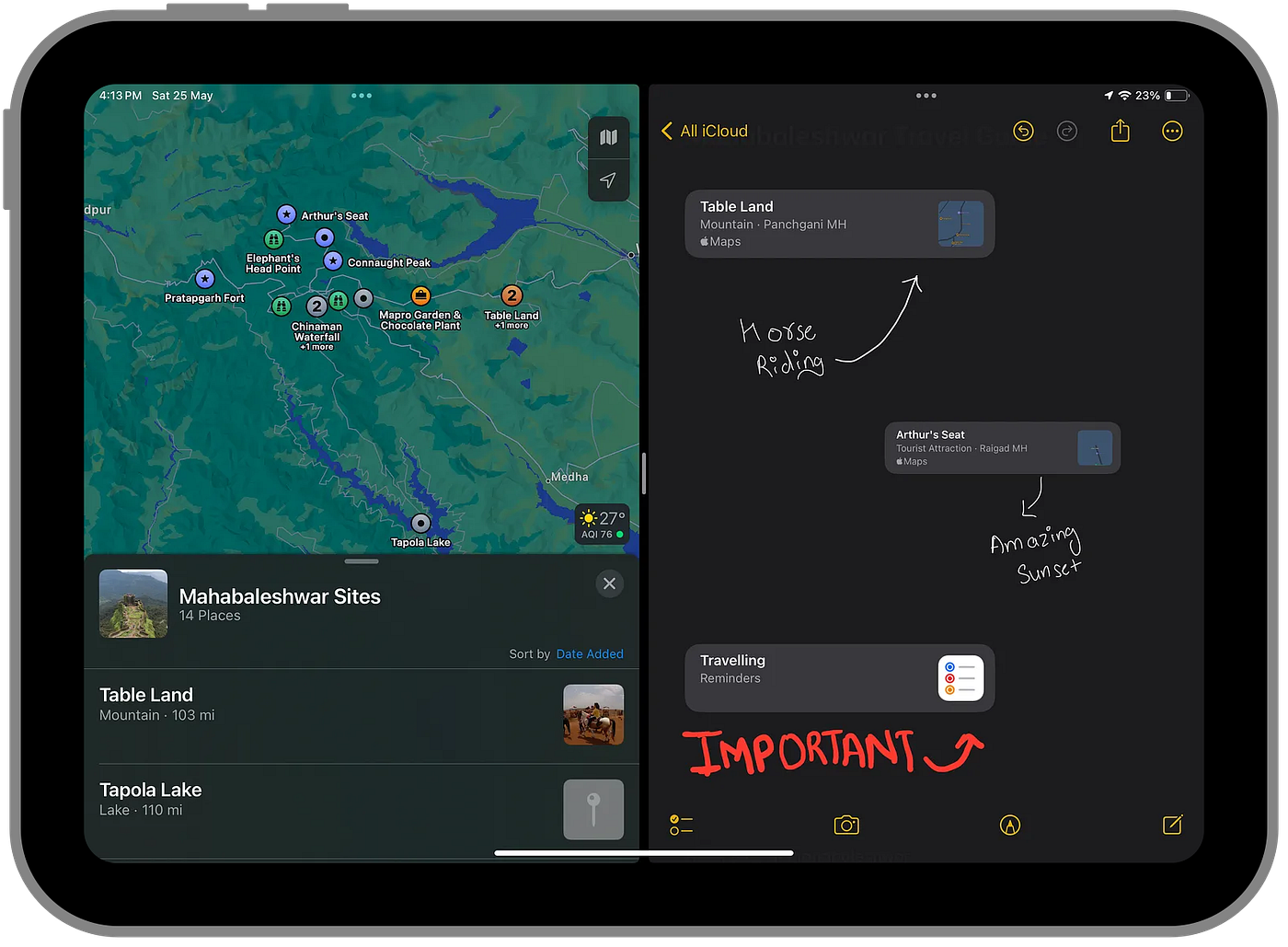
Source: Author | How bad does that Note look?
Freeform emerges as the solution to this very issue. The infinite canvas and vector-ink capabilities eliminate the need to conform to limitations and margins. It allows for seamless zooming and exploration of the board.
This issue may be challenging to grasp solely through reading, so I’m eager to demonstrate how I harness Freeform’s power for brainstorming and organization. Let’s go…
The Way I Use It…
#1 Infotainment Art for Articles
One of the top things I use Freeform for is creating infotainment art for articles. If you’ve read my previous articles from this year, you might have noticed the pictures in them have a more “annotated” look. For instance, the “iMessage with PQ3” story I wrote back in April this year featured screenshots from my Freeform board. I created the entire board on my iPad using Apple Pencil.
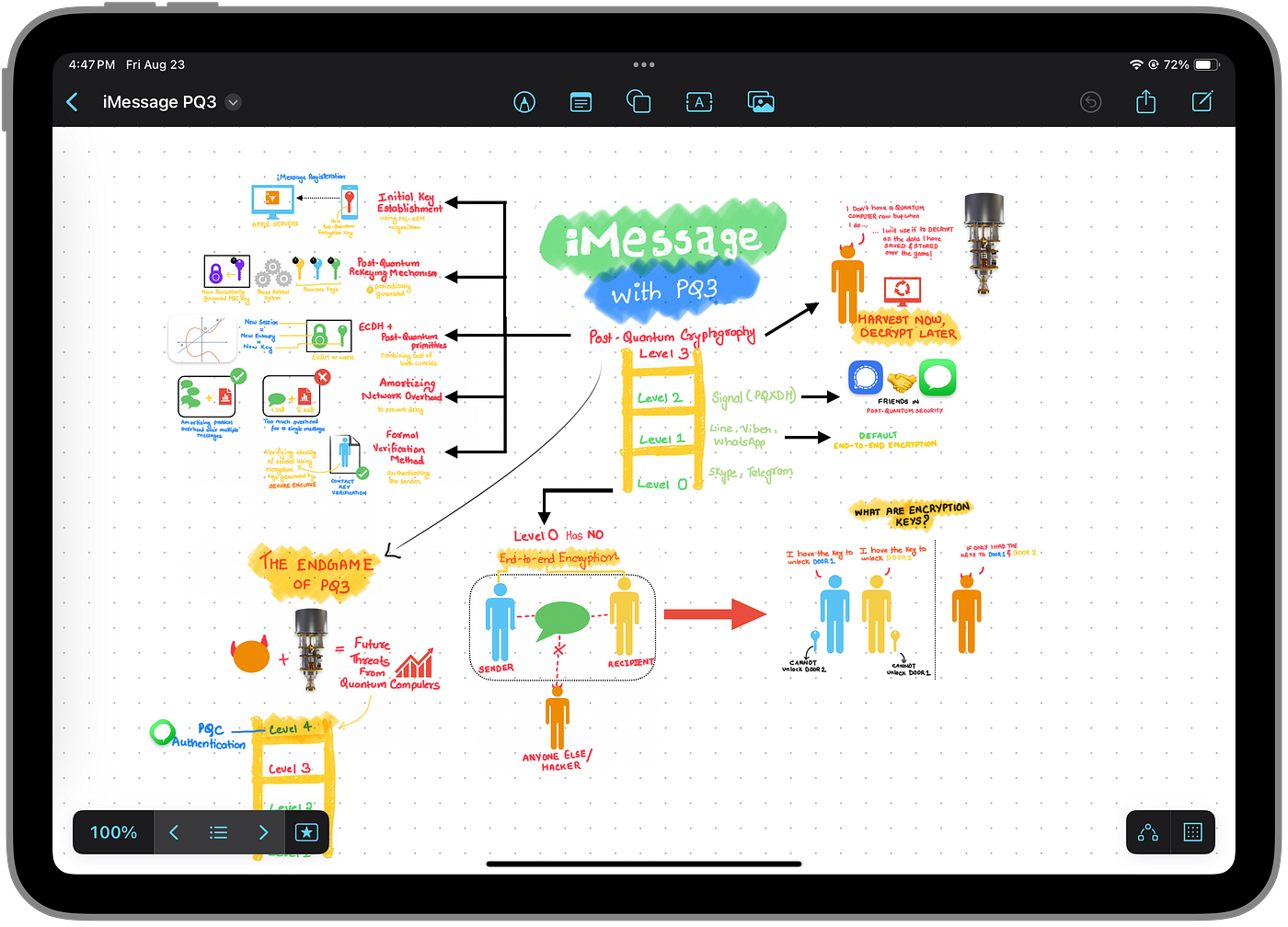
Source: Author | Creating Infotainment art in Freeform board
Freeform gave me the freedom to express my thoughts in a much more detailed manner. I could annotate images, and use stickers, and the full suite of shapes, ranging from basic geometrical shapes and lines to foods, animals, science, and work-related objects. The standard markup tools are also available, apart from text blocks. Selecting handwritten text and changing its style or simply moving it around is also very easy.
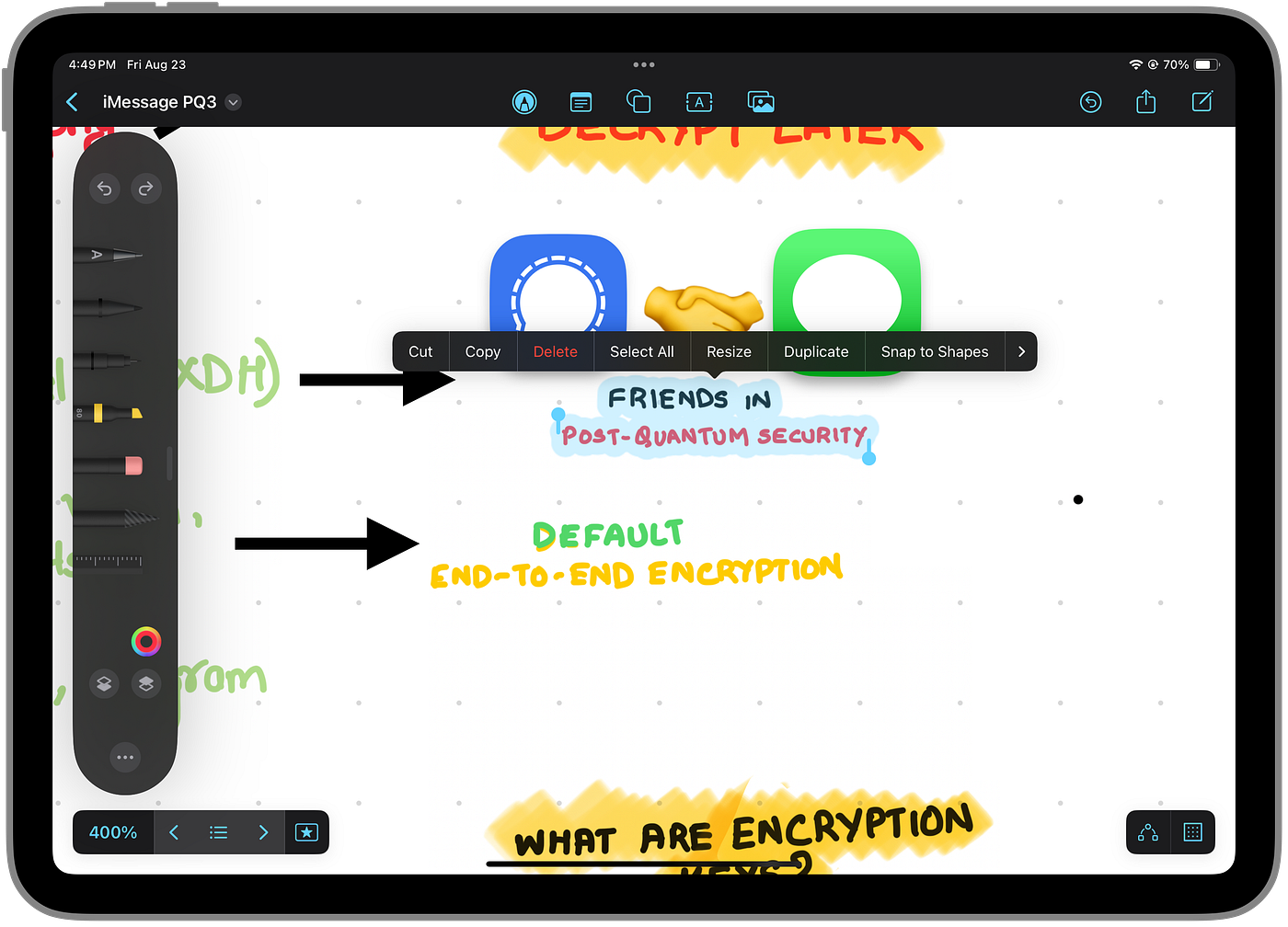
Source: Author | Selecting hand-written text in Freeform is easy
Once I’m done aligning all the objects and text blocks on my board, I switch from dot-grid to blank to take the perfect screenshot for the story I’m writing. In the past, I’ve only tried adding pictures, stickers, and links to the board, but you can also add files and videos from your device.
PS: Here’s the story with those infographics. It makes the reading experiences exctremely fun for a very technical topic like PQ3.
#2 Making it my LifeOS: Planning Trips, Book Summaries, Movie & Show Reviews, Workout Planner, and More
The possibilities with Freeform are endless, just like its infinite whiteboard. So, I decided to turn one such board into my LifeOS, where I can easily record and document interesting stuff.
No, I don’t believe this can replace Notion, Obsidian, or any major workspace app that I currently use. However, when a nerd like me is presented with an infinite digital whiteboard, I can’t resist filling it to the brim with my thoughts and ideas.
Recently, Freeform for iOS and iPadOS 18 introduced the ‘Scenes’ feature, which allows me to fragment my board and name it. This makes it easy to jump to specific sections with just a few clicks. It got me thinking — what if I use this feature to document my travel itineraries, book summaries, and weekly/monthly workout plans?
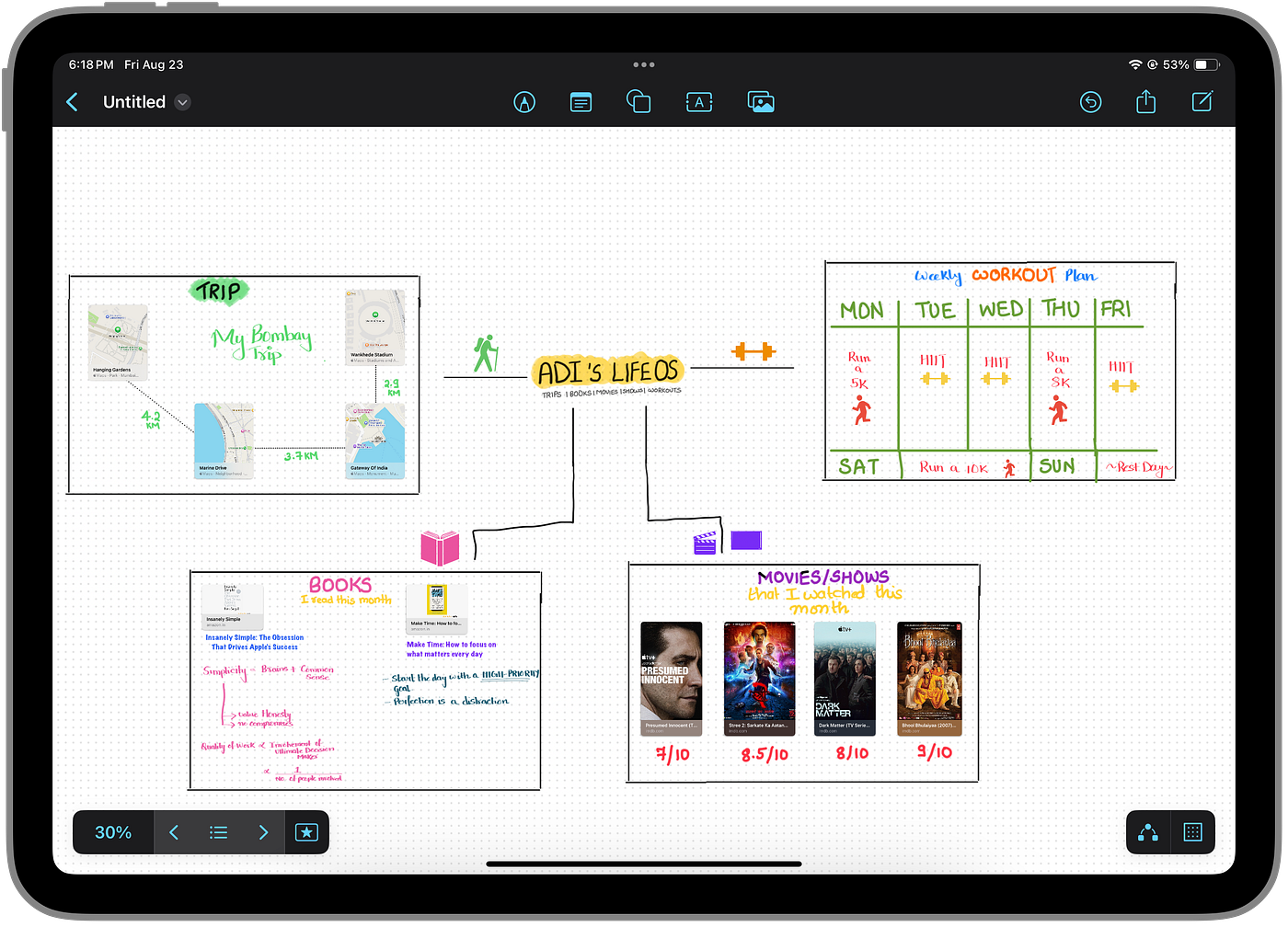
Source: Author | Utilizing the infinite canvas of Freeform
Well, I did it all.
The scenes feature enables me to navigate between different sections of my LifeOS board, making it more flexible and customizable. It’s a lot more enjoyable than using Apple Notes, as I’m not limited by margins or line breaks. Just my thoughts.
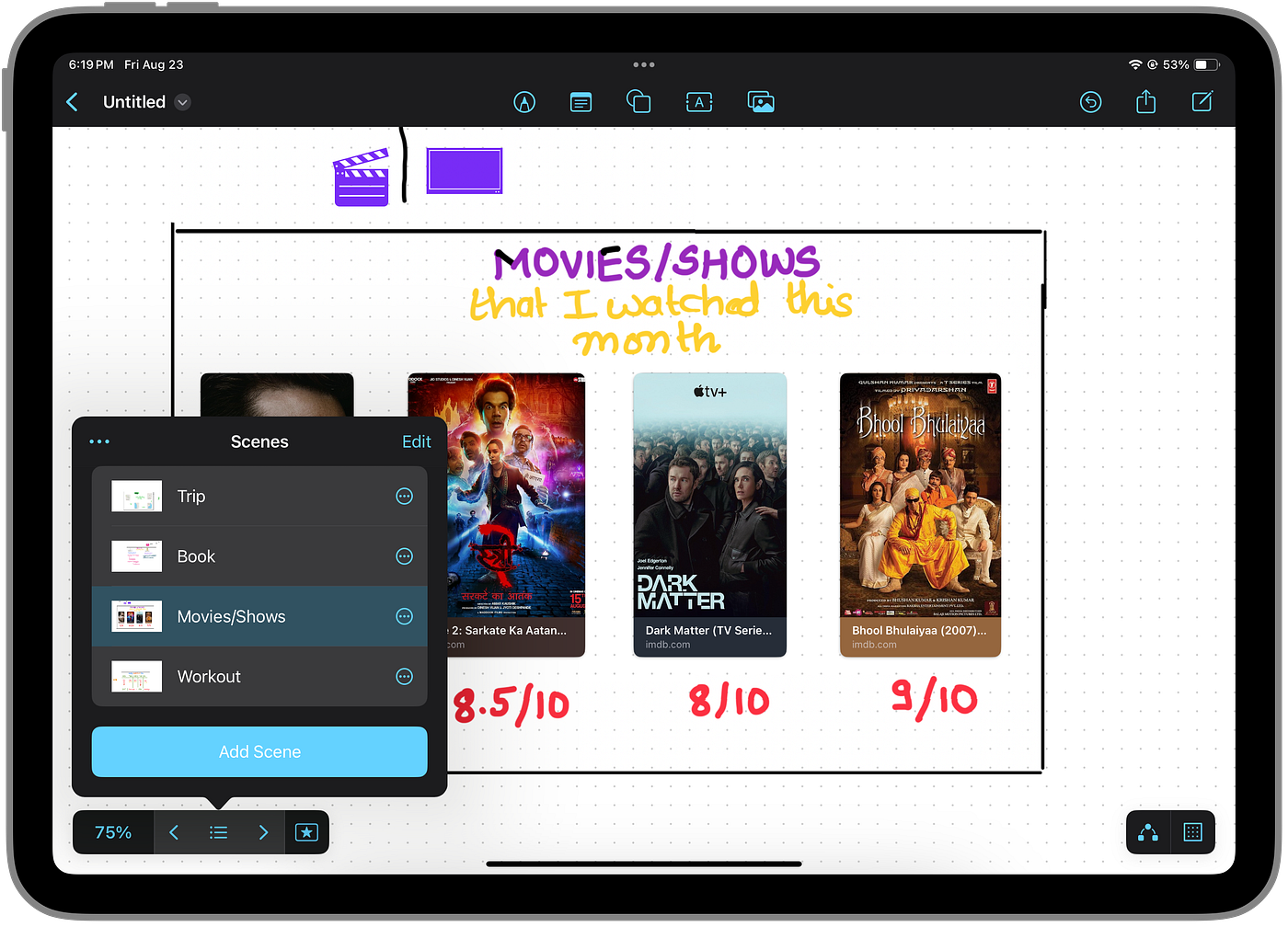
However, it’s not all sunshine and rainbows. The reason I believe this won’t replace Notion or other workspace apps for me is that Apple hasn’t fully explored Freeform’s potential. Consequently, the integration is lacking. For instance, I can’t search for board scenes within the app’s search field or Spotlight. None of the text (handwritten or typed) appears in Spotlight search like it does for Apple Notes, Pages, or Mail. As a responsible beta tester, I’ve submitted a suggestion for this while testing iPadOS 18, so I’m keeping my fingers crossed.
#3 Making Templates & Memes
A few days ago, I stumbled upon an intriguing Freeform story by a fellow Medium Author, Will J Murphy. He shared his creative approach to using the app. Will created a weekly planner template using just shapes and then marked it up. It looked brilliant, and it sparked my imagination.
Inspired by this, I decided to create a photo album template:
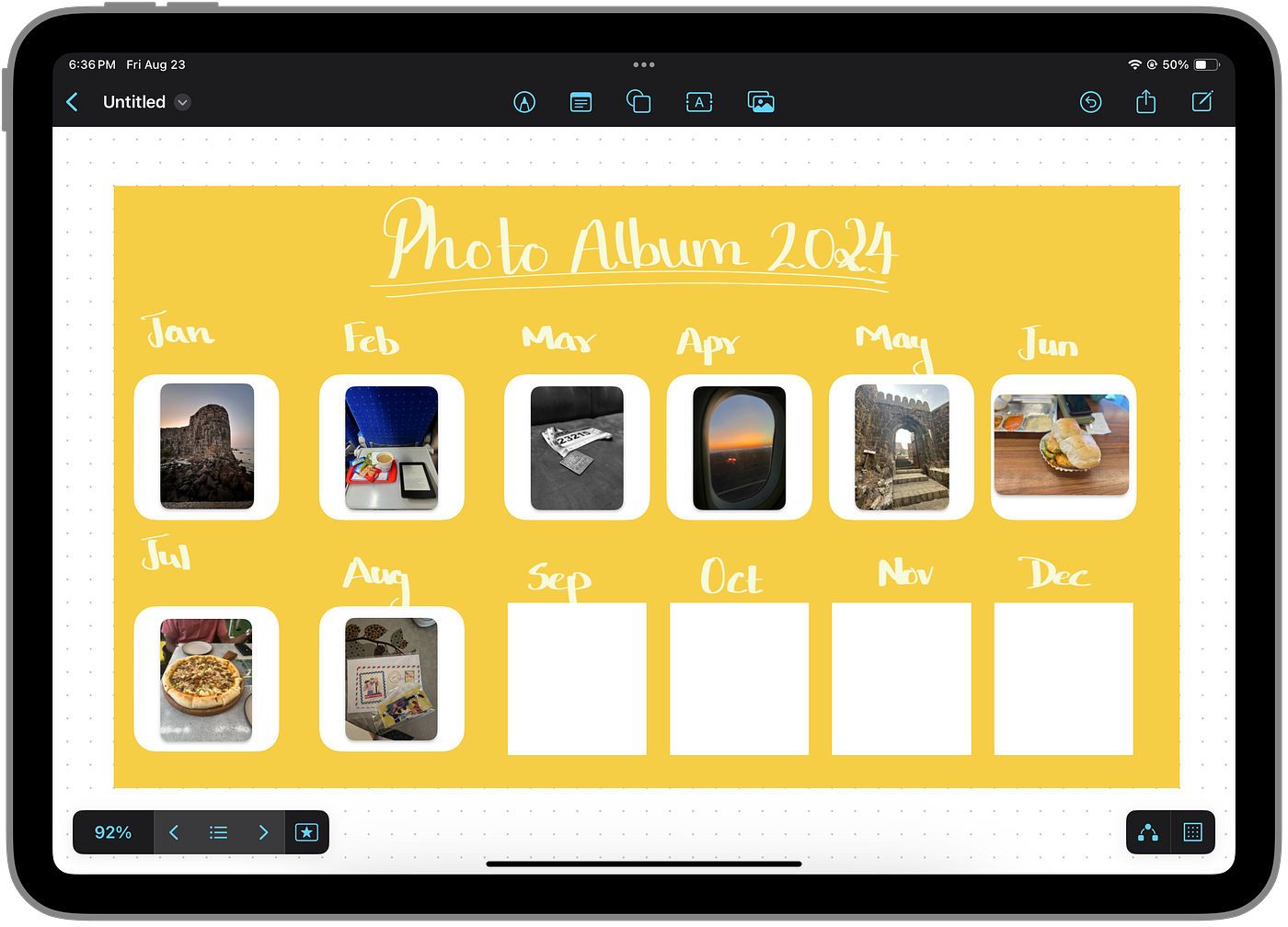
Source: Author | Creating a template
The best part is that these templates can be exported as PDFs or images, making them shareable with friends and family members, even if they don’t use Apple devices. If they do, they can simply collaborate with you on that Freeform board. These PDF templates can even be printed on paper.
Since annotation is much easier on Freeform, you can use it to create memes to share with your friends too. I’ve been waiting to share this for a while now…
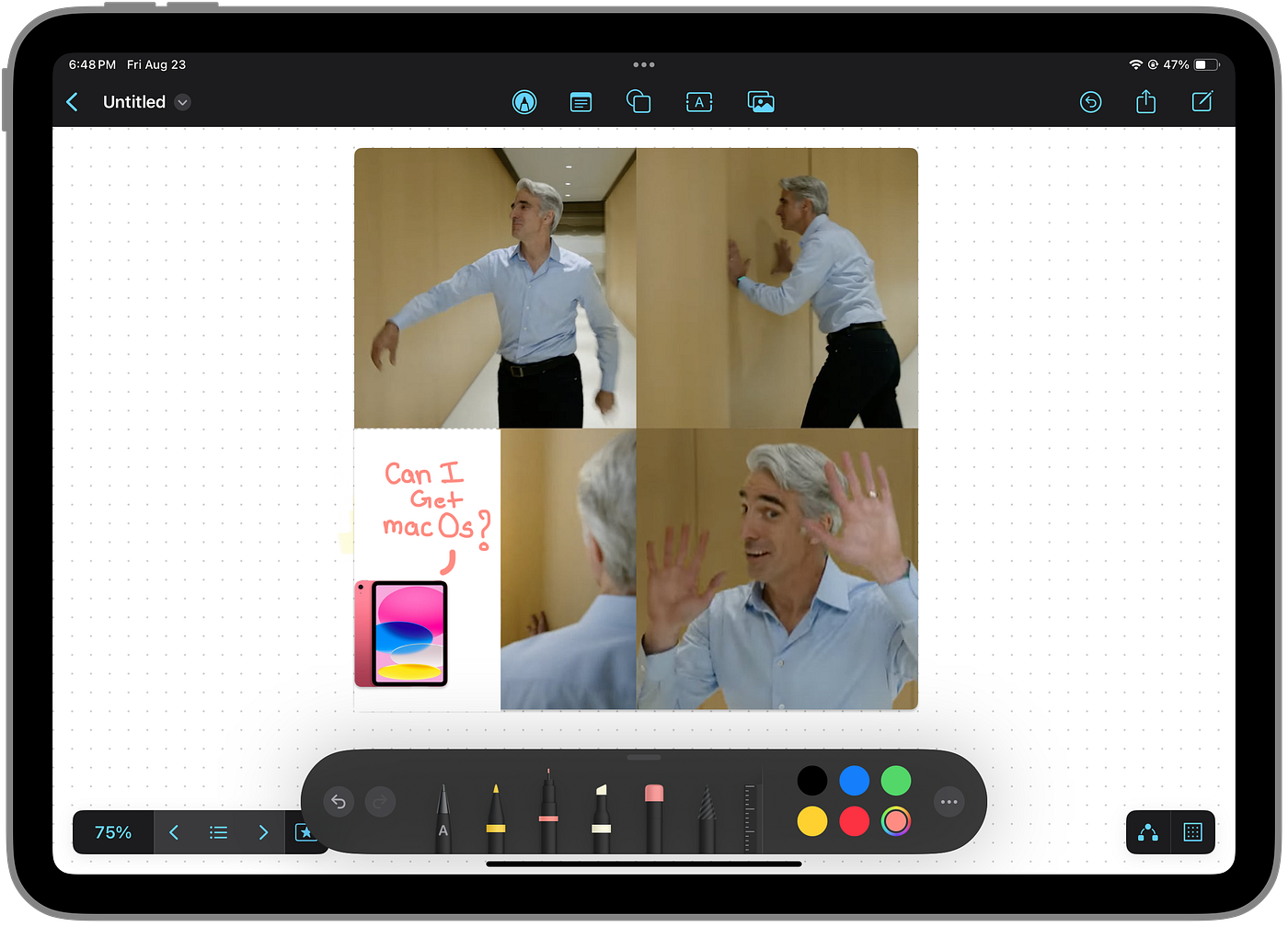
Source: Author | Creating a Meme
If you are enjoying this story till now, do leave some claps 👏👏👏 And if those 50 claps fall short of the appreciation, then here’s my newsletter 📧that you could sign up to:
#4 Mind Maps & Flow Charts For Students
The only major regret I have with Freeform is that it didn’t arrive sooner. Even 2022 was too late for Apple to create a Jamboard alternative.
I say this because students love iPads (and vice versa). Freeform is the perfect companion app for studying to create mind maps and flow charts. I know this because I’ve made some during my college years using third-party apps. For mind maps, I’d use Muse, and for flow charts, I’d use the web version of Lucid.
Better late than never, I still try to use Freeform for brainstorming story ideas and understanding concepts better. But I’d still be envious of the schools and college-going kids who get to use Freeform for creating flow charts and annotated diagrams for their assignments, projects, and revision studies.
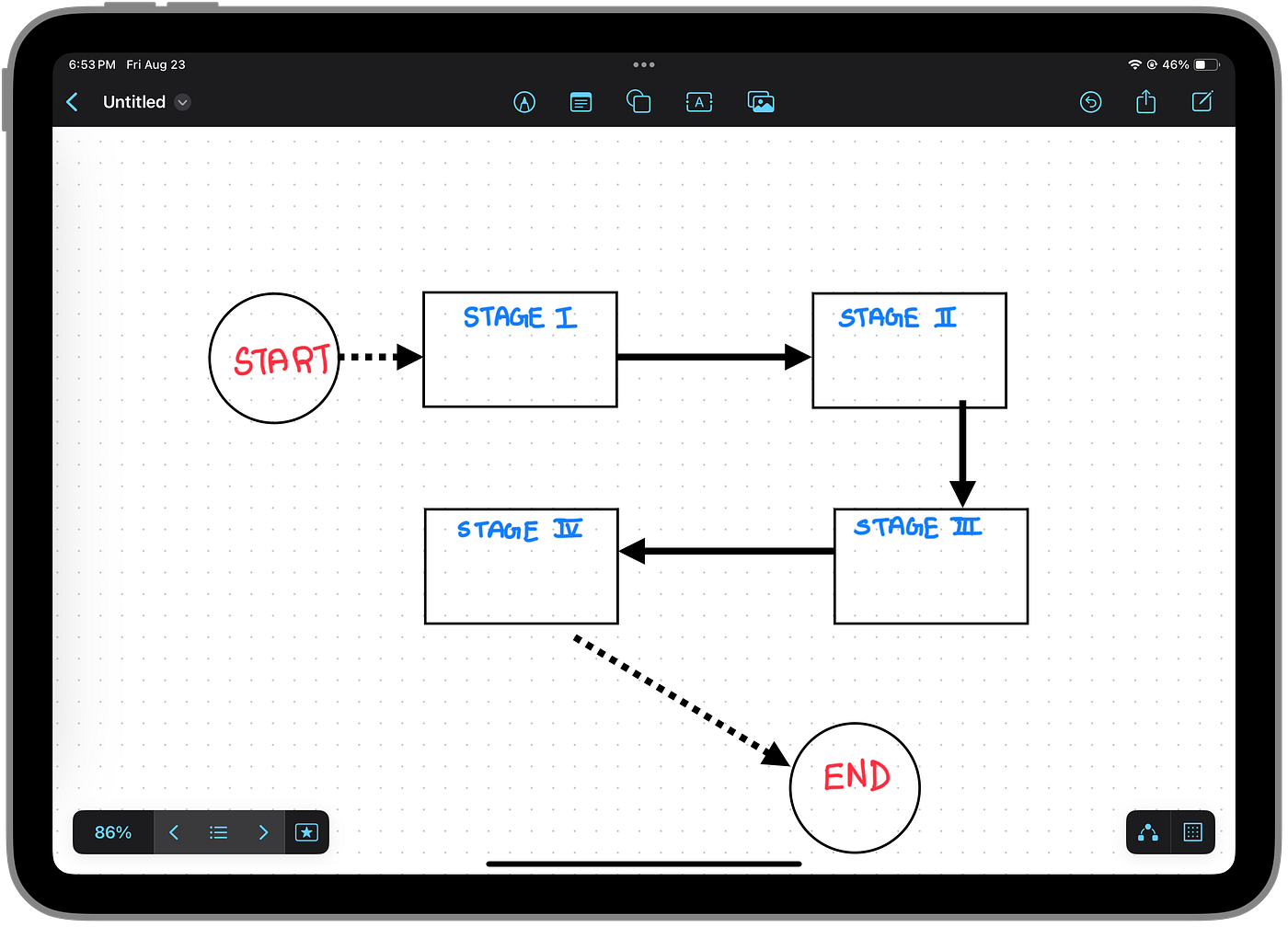
Source: Author | Creating a Flow Chart
The lack of OCR and system-wide integration of its features disappoints me at times, but if I need a large canvas, Freeform is always my choice over Apple Notes and even Notion.
But that begs the question: which device offers the best experience of Freeform?
iPhone App vs iPad App vs Mac App — the best Freeform experience
I believe we all know the answer to that question.
I feel Freeform on the iPhone is more of a companion app, given the small dimensions of a smartphone, that can be helpful only for lookups. Unless you’re okay with the screen size or decide to use it in landscape orientation.
On the other hand, the Mac doesn’t have a touchscreen, so you’re limited to just using text blocks, shapes, and adding media files.
And so, the answer has to be… the iPad. It’s mainly because of the Apple Pencil experience, which allows you to annotate and mark up as you wish.
So, in order of its utility, we would have to rank it this way:
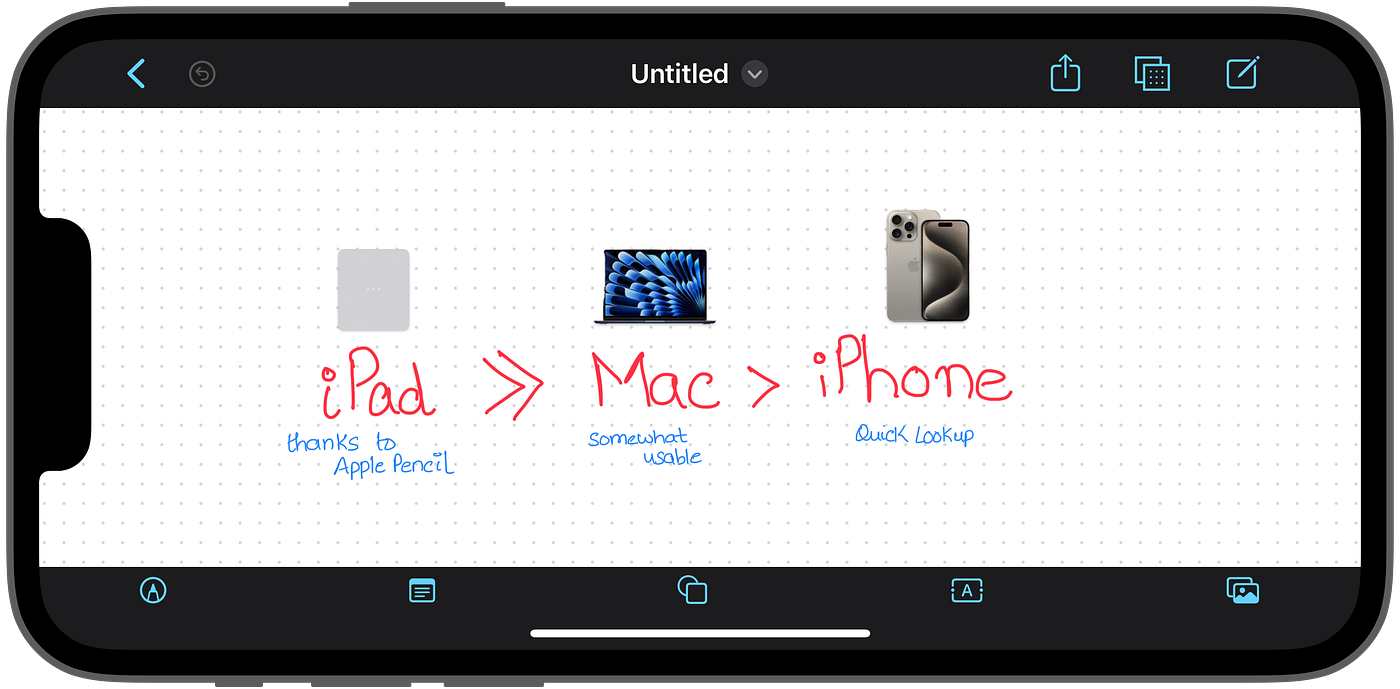
Source: Author | Freeform boards can be viewed and accessed in landscape orientation too
The Cons
It’s been two years since Apple launched Freeform, but it still lacks several essential features. Some of these have already been mentioned, but here’s a comprehensive list of cons:
- Lack of App Content Search: Handwritten text in Freeform should be searchable system-wide using Spotlight and within the app. Even board scenes should be accessible directly from Spotlight.
- Missing Integration with Apple Notes: Apple is renowned for its seamless software integration, and Freeform should not be an exception. Integration with Apple Notes and possibly Reminders and Calendar would be fantastic.
- Limited Importing & Exporting Options: Users transitioning from other infinite canvas platforms like Lucid should not be inconvenienced. Enabling an importing option would be a great step forward, and even better-exporting options to other platforms for convenience would be ideal.
Conclusion
It’s exciting to see Apple entering a market that Google seems poised to exit. Yes, you heard that right. Among the recently discontinued Google apps, Jamboard is going to be next on the chopping block. By the end of 2024, Google plans to discontinue Jamboard and has already asked users to export their existing Jams to other platforms like FigJam by Figma, Lucidspark by Lucid, and Miro. Google’s rationale for discontinuation is that other competing platforms (mentioned above) offer better and more advanced features than their app.
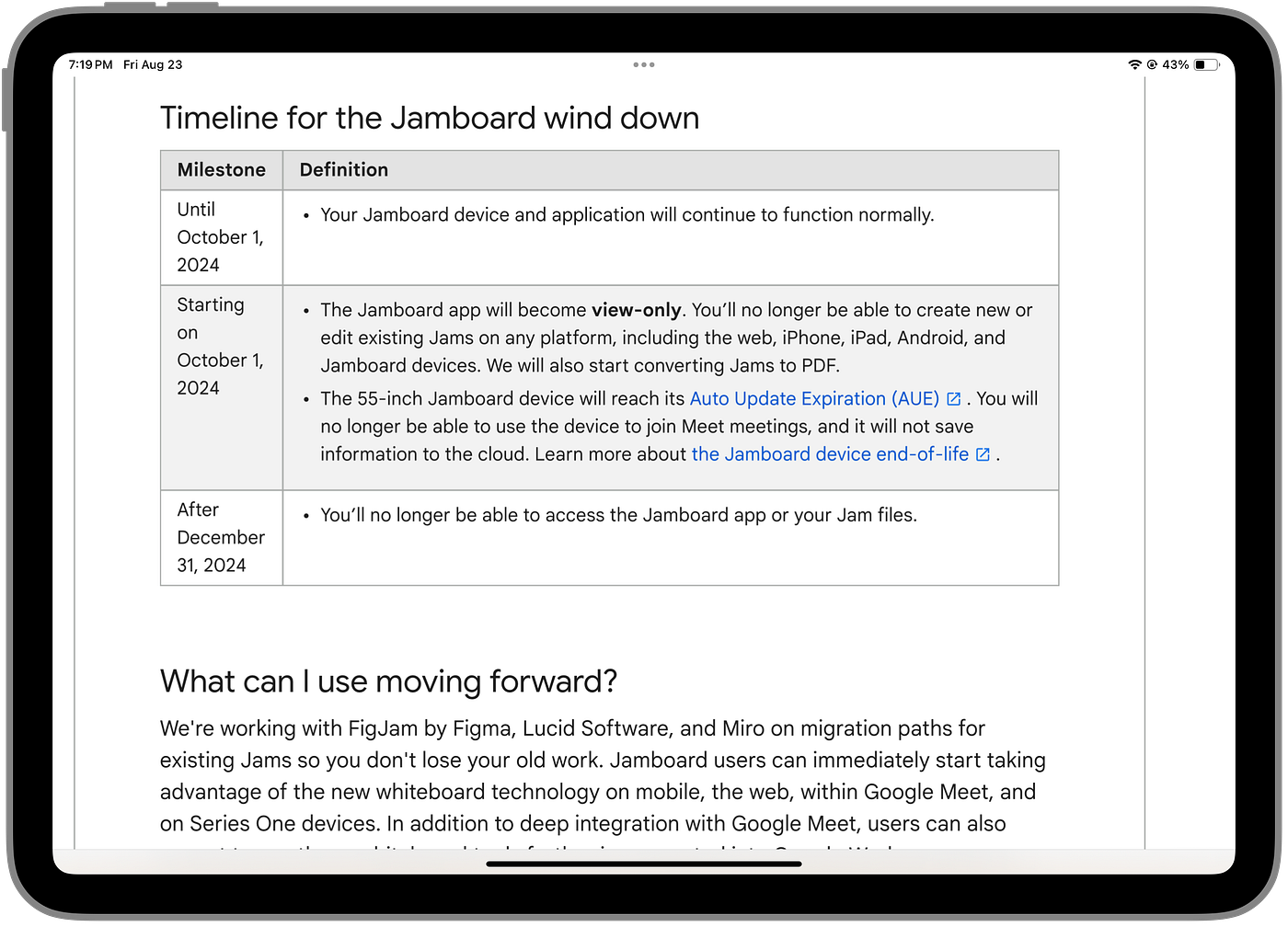
Source: Author | Google Jamboard will soon be dicontinued
While Jamboard lacked the infinite canvas of Freeform, Google’s point about competitors in the digital whiteboard space being ahead is valid. Apple, known for its software catch-up, must decide the direction of Freeform and the effectiveness of Apple Intelligence for this whiteboard app much sooner rather than later.
As a recent Freeform user who quickly embraced it for multiple tasks, I would love Apple to prioritize this app and avoid its potential demise, similar to Google’s fate with Jamboard.
Do you share the same views? If so, how do you use Freeform? I’d love to hear your thoughts in the comment section.
There is a way beyond claps and replies to reach out to the author of this story: By joining my email newsletter 📧 I am quicker to reply to any queries you send in as replies to those newsletters 😉

Originally published on adiexplains.wordpress.com on August 23, 2024.
메타데이터
- post_id
- f5f8875ebd15
- slug
- the-freeform-formula-how-i-use-apples-digital-whiteboard-for-brainstorming-and-organized-f5f8875ebd15
- url
- https://medium.com/macoclock/the-freeform-formula-how-i-use-apples-digital-whiteboard-for-brainstorming-and-organized-f5f8875ebd15
- canonical_url
- https://medium.com/macoclock/the-freeform-formula-how-i-use-apples-digital-whiteboard-for-brainstorming-and-organized-f5f8875ebd15
- author_url
- https://medium.com/@adityadarekar
- status
- ok
- fetched_at
- 2026-06-21 22:26:41