PASS + GnuPG + Git
Your top secret password manager
PASS + GnuPG + Git
Your top secret password manager
Photo by Towfiqu barbhuiya on Unsplash
As a developer, I have countless passwords to manage. Okay, not only password, but tons of secrets, tokens as such also.
I am going to share what I learnt from the video below and my practice.
[embed]
Preparation
First of the first, install pass, gnupg, and git.
Procedure
Generate gpg keys
❯ gpg --quick-generate-key crest.boy@gmail.com
About to create a key for:
    "crest.boy@gmail.com"

Continue? (Y/n) Y
If you are also one terminal guy, you will see below prompt to ask you to enter password for your new key. Otherwise, what you see will be a GUI dialog but similar.
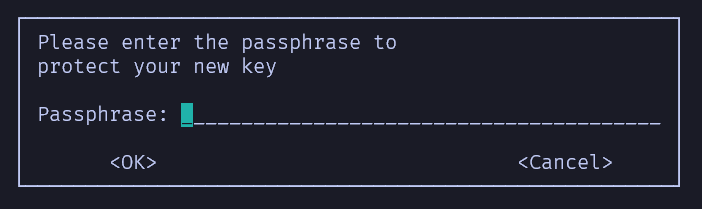
The subsequent output of the command looks like below
We need to generate a lot of random bytes. It is a good idea to perform
some other action (type on the keyboard, move the mouse, utilize the
disks) during the prime generation; this gives the random number
generator a better chance to gain enough entropy.
We need to generate a lot of random bytes. It is a good idea to perform
some other action (type on the keyboard, move the mouse, utilize the
disks) during the prime generation; this gives the random number
generator a better chance to gain enough entropy.
gpg: revocation certificate stored as '/home/wenijinew/.gnupg/openpgp-revocs.d/4AD2C959D5BB2C949F4091DCB7DD23752267C6FB.rev'
public and secret key created and signed.

pub   ed25519 2026-01-16 [SC] [expires: 2029-01-15]
      4AD2C959D5BB2C949F4091DCB7DD23752267C6FB
uid                      crest.boy@gmail.com
sub   cv25519 2026-01-16 [E]
Please refer to GnuPG Key Management document for details if you want dive into.
Init Password Store
❯ pass
Error: password store is empty. Try "pass init".
❯ pass init 4AD2C959D5BB2C949F4091DCB7DD23752267C6FB
mkdir: created directory '/home/wenijinew/.password-store/'
Password store initialized for 4AD2C959D5BB2C949F4091DCB7DD23752267C6FB
The argument to init is the public key ID (starts with 4AD and ends with 6FB).
Init Git Password Store
❯ pass git
Error: the password store is not a git repository. Try "pass git init".
❯ pass git init
hint: Using 'master' as the name for the initial branch. This default branch name
hint: is subject to change. To configure the initial branch name to use in all
hint: of your new repositories, which will suppress this warning, call:
hint:
hint:   git config --global init.defaultBranch <name>
hint:
hint: Names commonly chosen instead of 'master' are 'main', 'trunk' and
hint: 'development'. The just-created branch can be renamed via this command:
hint:
hint:   git branch -m <name>
Initialized empty Git repository in /home/wenijinew/.password-store/.git/
[master (root-commit) 38cd5d5] Add current contents of password store.
 1 file changed, 1 insertion(+)
 create mode 100644 .gpg-id
[master 6fb7f67] Configure git repository for gpg file diff.
 1 file changed, 1 insertion(+)
 create mode 100644 .gitattributes
❯ cd /home/wenijinew/.password-store
❯ git branch -m main
The confusion to me is that the popup for password is not the key I just generated but another key I generated before.
Insert Passwords or Secrets or Whatever You want to Keep as Secret
❯ pass insert bank-card-password
Enter password for bank-card-password:
Retype password for bank-card-password:
[main 9a311e0] Add given password for bank-card-password to store.
 1 file changed, 0 insertions(+), 0 deletions(-)
 create mode 100644 bank-card-password.gpg
Now, my bank card password is safely saved in an encrypted .gpg file in the password store. Nobody can read it without the password of the gpg key I created for the password store.
❯ pass show bank-card-password
123456
If you are as lazy as me and don’t want to think about what should be used as password, then run below command to generate random password.
❯ pass generate bank-card-password
An entry already exists for bank-card-password. Overwrite it? [y/N] y
[main d1d39ef] Add generated password for bank-card-password.
 1 file changed, 0 insertions(+), 0 deletions(-)
The generated password for bank-card-password is:
p.5]n$P,?dO<>>[[G|m2@&:}6
However, as you see, it’s too complex to remember. Every time, you need to run pass show to get the password.
So, depends on what benefit you want, and then decide how to set your password.
Organize Passwords
In may cases, I need to maintain quite several passwords, secrets for the single website such as GitHub.
It’s possible to have passwords in the same directory which represents the same domain.
❯ pass generate github/login
mkdir: created directory '/home/wenijinew/.password-store/github'
[main 7d1b00d] Add generated password for github/login.
 1 file changed, 0 insertions(+), 0 deletions(-)
 create mode 100644 github/login.gpg
The generated password for github/login is:
@@#Y$JvYZ&~_ub{)A+17<pJTP
❯ pass insert github/eu.tmux/secret/PYPI_API_TOKEN
Enter password for github/eu.tmux/secret/PYPI_API_TOKEN:
Retype password for github/eu.tmux/secret/PYPI_API_TOKEN:
[main 8ed8b54] Add given password for github/eu.tmux/secret/PYPI_API_TOKEN to store.
 1 file changed, 0 insertions(+), 0 deletions(-)
 create mode 100644 github/eu.tmux/secret/PYPI_API_TOKEN.gpg
❯ pass list
Password Store
├── bank-card-password
└── github
    ├── eu.tmux
    │   └── secret
    │       └── PYPI_API_TOKEN
    └── login
As you see, I can manage the password or secret in a well-organized directory tree.
The drawback for this is you have to use the full path to show the password.
❯ pass show PYPI_API_TOKEN
Error: PYPI_API_TOKEN is not in the password store.
❯ pass list github/eu.tmux/secret/PYPI_API_TOKEN
asdf
Search Passwords
Trust me, by time, you will have very long list of passwords to manage. It takes time to find the one you want to use by watching the output of the pass list or pass only.
Fortunately, you can use find subcommand to help you save time.
❯ pass find TOKEN
Search Terms: TOKEN
└── github
    └── eu.tmux
        └── secret
            └── PYPI_API_TOKEN
Change Passwords
It’s good habit to change password regularly. For secret, usually, we set the expiration time. When it’s elapsed, we have to change it.
❯ pass edit github/eu.tmux/secret/PYPI_API_TOKEN
[main 3aa1554] Edit password for github/eu.tmux/secret/PYPI_API_TOKEN using editor.
 1 file changed, 0 insertions(+), 0 deletions(-)
It uses the current EIDTOR configured in environment variable. By default, in Ubuntu, it’s nano. If you want to use other editor, you must change the environment variable EDITOR.
❯ export EDITOR=vim
❯ pass edit github/eu.tmux/secret/PYPI_API_TOKEN
[main e4cc4aa] Edit password for github/eu.tmux/secret/PYPI_API_TOKEN using vim.
 1 file changed, 0 insertions(+), 0 deletions(-)
You can add more information in the password file to make it grepable!
For example, I added one description below the password value.
abab
It's pypi api key and used for python package publishment.
Then, I can easily find the password file by pass grep
❯ pass grep pypi
github/eu.tmux/secret/PYPI_API_TOKEN:
It's pypi api key and used for python package publishment.
Trust, this is a great trick for your password management work.
Show Password
The command to show password has been mentioned previously. You can use several different commands to do so.
❯ pass show github/eu.tmux/secret/PYPI_API_TOKEN
abab
It's pypi api key and used for python package publishment.
❯ pass list github/eu.tmux/secret/PYPI_API_TOKEN
abab
It's pypi api key and used for python package publishment.
❯ pass grep ab
github/eu.tmux/secret/PYPI_API_TOKEN:
abab
What if you want to directly copy the password to clipboard rather than show in the output in terminal?
❯ pass show -c github/eu.tmux/secret/PYPI_API_TOKEN
Copied github/eu.tmux/secret/PYPI_API_TOKEN to clipboard. Will clear in 45 seconds.
❯ xclip -o -sel clip
abab%
Remove Password
Sometimes, you are sure you don’t need the password and want to remove it. Definitely, you can do it by pass rm command.
❯ pass rm github/eu.tmux/secret/PYPI_API_TOKEN
Are you sure you would like to delete github/eu.tmux/secret/PYPI_API_TOKEN? [y/N] y
removed '/home/wenijinew/.password-store/github/eu.tmux/secret/PYPI_API_TOKEN.gpg'
[main b2cb122] Remove github/eu.tmux/secret/PYPI_API_TOKEN from store.
 1 file changed, 0 insertions(+), 0 deletions(-)
 delete mode 100644 github/eu.tmux/secret/PYPI_API_TOKEN.gpg
Revert The Removing by Mistake
What if you found you just made a mistake and removed the password you think you still need it.
No worry, we have git.
❯ pass git log -1
commit b2cb1227a432bad30d135e50f18c7c8fd6ff6220 (HEAD -> main)
Author: Bruce Wen <wenijinew@gmail.com>
Date:   Fri Jan 16 10:29:01 2026 +0100

    Remove github/eu.tmux/secret/PYPI_API_TOKEN from store.
And we can easily revert the commit. Yes, every operation on password generates one git commit as we did pass git init for password store.
❯ pass git revert b2cb1227a432bad30d135e50f18c7c8fd6ff6220
[main 09b3855] Revert "Remove github/eu.tmux/secret/PYPI_API_TOKEN from store."
 1 file changed, 0 insertions(+), 0 deletions(-)
 create mode 100644 github/eu.tmux/secret/PYPI_API_TOKEN.gpg
❯ pass show github/eu.tmux/secret/PYPI_API_TOKEN
abab
It's pypi api key and used for python package publishment.
Wonderful!
Keep Password in Version Control
Nobody knows when the system will crash due to unknown reason. So, regular backup and keep the important things in version control system is always the best practice.
Let’s push the password store to remote git repository. I assume you have already created a remote git repository. If not, you can take one minute to create one on GitHub. Then, configure it for your local git repo.
❯ git remote add origin https://github.com/wenijinew/credential.gitThen, we can push the local commits.
❯ pass git push origin HEAD:main
Enumerating objects: 42, done.
Counting objects: 100% (42/42), done.
Delta compression using up to 2 threads
Compressing objects: 100% (30/30), done.
Writing objects: 100% (42/42), 11.79 KiB | 2.95 MiB/s, done.
Total 42 (delta 7), reused 0 (delta 0), pack-reused 0
remote: Resolving deltas: 100% (7/7), done.
To https://github.com/wenijinew/credential.git
 * [new branch]      HEAD -> main
Yes, it’s a real repo I have on GitHub for my credentials. Feel free to hack it.
And if you want to have your commit signed, then please refer to my article below.
Migration Password Store
It’s good to have your password store in version control system such as GitHub repository.
However, when you start to use a new machine, how to read those encrypted passwords after cloning the repo?
❯ git clone https://github.com/wenijinew/credential.git .password-store
Cloning into '.password-store'...
remote: Enumerating objects: 42, done.
remote: Counting objects: 100% (42/42), done.
remote: Compressing objects: 100% (23/23), done.
remote: Total 42 (delta 7), reused 42 (delta 7), pack-reused 0 (from 0)
Receiving objects: 100% (42/42), 11.79 KiB | 670.00 KiB/s, done.
Resolving deltas: 100% (7/7), done.
❯ env pass list
Password Store
├── bank-card-password
└── github
    ├── eu.tmux
    │   └── secret
    │       └── PYPI_API_TOKEN
    └── login
❯ env pass show bank-card-password
As you see, it cannot show the value of the password bank-card-password in my new server.
Obviously, we don’t have the private key which was generated on the old machine and can be used to decrypt the password.
In fact, we’d better to have both private key and public key in the new machine because we want to manage passwords there in the same way we used in the old machine.
So, the first step is to export the keys.
❯ gpg --output e2c-pub.gpg --armor --export crest.boy@gmail.com
❯ gpg --output e2c-pri.gpg --armor --export-secret-key crest.boy@gmail.com
When you run 2nd command to export private key, you must type your password for the key.
The next step is copy the exported keys from the old machine to the new machine.
❯ scp -i id_ed25519_aws_ec2 wenijinew@ec2-13-51-159-224.eu-north-1.compute.amazonaws.com:/home/wenijinew/.password-store/e2c-pub.gpg $env:HOME/.ssh/
e2c-pub.gpg
❯ scp -i id_ed25519_aws_ec2 wenijinew@ec2-13-51-159-224.eu-north-1.compute.amazonaws.com:/home/wenijinew/.password-store/e2c-pri.gpg $env:HOME/.ssh/
e2c-pri.gpg
The next step is to import the keys in the new machine by gpg command.
❯ gpg --import e2c-pri.gpg
gpg: key B7DD23752267C6FB: public key "crest.boy@gmail.com" imported
gpg: key B7DD23752267C6FB: secret key imported
gpg: Total number processed: 1
gpg:               imported: 1
gpg:       secret keys read: 1
gpg:   secret keys imported: 1
You need to type your key password in this step.
I don’t know why import private key can also import public key at the same time. Is the public key included in the private key when exported?
Because public key has been imported when we import private key, so when import public key, it show that public key not changed.
❯ gpg --import e2c-pub.gpg
gpg: key B7DD23752267C6FB: "crest.boy@gmail.com" not changed
gpg: Total number processed: 1
gpg:              unchanged: 1
Till now, if everything goes well, we can show the password in the new machine.
However, things rarely go as smoothly as planned.
If the gpg version in the new machine is older than the one on the old machine, then probably it cannot decrypt the encrypted password files.
❯ env pass show bank-card-password ; echo $?
0
❯ gpg --decrypt bank-card-password.gpg ; echo $?
0
It shows the command is executed successfully, but nothing is printed!
We can use gpg --list-packets to show the encrypted file information and get to know the reason.
❯ gpg --list-packets bank-card-password.gpg
# off=0 ctb=84 tag=1 hlen=2 plen=94
:pubkey enc packet: version 3, algo 18, keyid 38B36C85373A5CC9
        data: [263 bits]
        data: [392 bits]
# off=96 ctb=d4 tag=20 hlen=2 plen=85 new-ctb
:unknown packet: type 20, length 85
dump: 01 09 02 10 d7 7b 07 1b  50 56 b0 83 d6 fa 10 c2  54 38 5e 9a 7a 8b ac c2
  24: 41 66 43 1a 10 a2 30 70  75 04 94 ad 7f 78 a4 27  7c 8f b6 19 79 03 bd d9
  48: 2b cc 89 ea c9 80 35 93  d6 f7 a6 18 e0 01 41 9c  84 7b 09 2d e9 1a 3e 8b
  72: 18 bf d2 d5 d9 af 64 b2  69 65 7d 09 6b
Yes, it says it’s :unknown packet which means it cannot recoganized the packet and cannot decrypt it .
But why the command returns 0?
If we do the same in the old machine, it shows much different output.
❯ gpg --list-packets bank-card-password.gpg
gpg: encrypted with cv25519 key, ID 38B36C85373A5CC9, created 2026-01-16
      "crest.boy@gmail.com"
# off=0 ctb=84 tag=1 hlen=2 plen=94
:pubkey enc packet: version 3, algo 18, keyid 38B36C85373A5CC9
        data: [263 bits]
        data: [392 bits]
# off=96 ctb=d4 tag=20 hlen=2 plen=85 new-ctb
:aead encrypted packet: cipher=9 aead=2 cb=16
        length: 85
# off=117 ctb=cb tag=11 hlen=2 plen=32 new-ctb
:literal data packet:
        mode b (62), created 1768549449, name="",
        raw data: 26 bytes
Therefore, when this situation happened, we have to upgrade the gpg version to make sure it’s compatible with the one we used in the old machine.
Integrate with the Shell Script
We often need to embed the password or secret in shell command to finish some automation job.
However, it’s not good to hardcode password in the shell script directly.
So, what’s the good practice?
curl -X POST -H "Content-Type: application/json" \
  -H "Accept: application/json" \
  -H "Authorization: Bearer $(env passs show jf.${server_id})" \
  ${artifactory_url}access/api/v1/tokens
Yes, embed env pass show [password name] in the command.
Tricky
You might encounter the failure when you decrypt the encrypted file as below.
gpg: decryption failed: No such file or directoryThe solution is:
export GPG_TTY=$(tty)(Don’t ask me why)
Practices
Increase default-cache-ttl of gpg-agent
By default, the value is 10 minutes (600 seconds). In fact, nobody want to type password so frequently in every 10 minutes. At least, I don’t.
So, increase it to larger value to reduce the times to type password.
echo "default-cache-ttl 86400" >> ~/.gnupg/gpg-agent.confThen reload gpg-agent by the command.
gpgconfg --reload gpg-agentThen, the change of the option will take effect.
Do not print the password value in terminal
As aforementioned, show the password value in clipboard directly would be better than printed in terminal and then copy by hand.
❯ pass show -c github/eu.tmux/secret/PYPI_API_TOKEN
Copied github/eu.tmux/secret/PYPI_API_TOKEN to clipboard. Will clear in 45 seconds.
If you think 45 seconds too long, then set the environment variable to change it.
❯ export PASSWORD_STORE_CLIP_TIME=10
❯ pass show -c github/eu.tmux/secret/PYPI_API_TOKEN
Copied github/eu.tmux/secret/PYPI_API_TOKEN to clipboard. Will clear in 10 seconds.
By the end, I hope you find it a better way to manage your passwords, secrets and tokens after reading this article.
Happy coding!
메타데이터
- post_id
- f847fa080c13
- slug
- pass-gnupg-git-f847fa080c13
- url
- https://medium.com/@wenijinew/pass-gnupg-git-f847fa080c13
- canonical_url
- https://medium.com/@wenijinew/pass-gnupg-git-f847fa080c13
- author_url
- https://medium.com/@wenijinew
- status
- ok
- fetched_at
- 2026-07-13 08:59:31