WSO2 Choreo Tutorial
Deploying a Full-Stack NestJS + Next.js App in 2026
WSO2 Choreo Tutorial
Deploying a Full-Stack NestJS + Next.js App in 2026

I didn’t plan to spend a Saturday debugging cookie flags. But there I was-Flask in hand, staring at a “Login failed” error that made no sense locally-trying to get my project management app, FlowHub, live on WSO2 Choreo.
Spoiler: it worked. The app is deployed, users can log in, and the dashboard loads cleanly. But the path there had two traps I didn’t see coming, and I think it’ll save you real time if I walk through them honestly.
This post is the full story — what I built, how I set up Choreo, the Dockerfiles, the database, and the two configuration problems that silently swallow your requests before they even reach your code.
TL;DR: This tutorial covers deploying a NestJS API + Next.js frontend on WSO2 Choreo using Docker components and a managed Aiven PostgreSQL database. The two biggest gotchas are cross-domain cookie settings (sameSite : ‘none’) and disabling the Choreo OAuth2 gateway for public auth endpoints. You'll have a live full-stack app in about 2–3 hours.
What We’re Building
FlowHub is a project management platform: teams create projects, projects have tasks, tasks have statuses. Simple concept, real full-stack complexity underneath.
Stack:
- Backend: NestJS 11 (TypeScript), TypeORM, JWT auth via HTTP-only cookies
- Frontend: Next.js 16 App Router, React 19, Tailwind CSS
- Database: PostgreSQL (hosted on Aiven)
- Platform: WSO2 Choreo (cloud-native internal developer platform)
Here’s how all the pieces connect once deployed:

The frontend lives on *.choreoapps.dev. The backend API lives on *.choreoapis.dev. Those two different domains are the root cause of the biggest issue in this tutorial — but we'll get there.
Key Takeaways
- WSO2 Choreo supports Docker-based components, so any containerized app can be deployed with minimal configuration.
- Cross-domain cookie auth requires
sameSite: 'none'andsecure: true— the defaultsameSite: 'strict'silently breaks login on Choreo. - Choreo’s OAuth2 gateway intercepts unauthenticated requests — you must explicitly disable it for public endpoints like
/auth/loginand/auth/signup.
Prerequisites
You’ll need:
- A WSO2 Choreo account (free tier works)
- Docker Desktop installed locally
- An Aiven account for managed PostgreSQL (free trial available)
- Node.js 20+ for local testing
- Your app already working locally (this tutorial assumes a working NestJS + Next.js project)
- ~2–3 hours to complete
Step 1: Set Up Your Choreo Project and Components
Create a Choreo Project
Log into the Choreo console. On the home screen, click Create Project. Give it a name (I used “FlowHub”) and hit create.

A Choreo project is a logical grouping — it can hold multiple components. For FlowHub, you’ll create two components inside this project: one for the backend API and one for the frontend web app.
Add the Backend Component
Inside your project, click Create Component. Choose Service as the component type. Connect it to your GitHub repository and point it to the backend/ directory. Make sure the build pack is set to Dockerfile (not Buildpack) — we'll write the Dockerfile in the next step.

Add the Frontend Component
Create a second component. This time choose Web Application. Connect it to your GitHub repository and Point it to your frontend/ directory, again with Dockerfile as the build pack.

Step 2: Dockerize the Backend (NestJS)
The NestJS Dockerfile is straightforward, but two details matter: you need a multi-stage build so the final image doesn’t include TypeScript source and dev dependencies, and you need to make sure dist/main.js actually exists after npm run build.
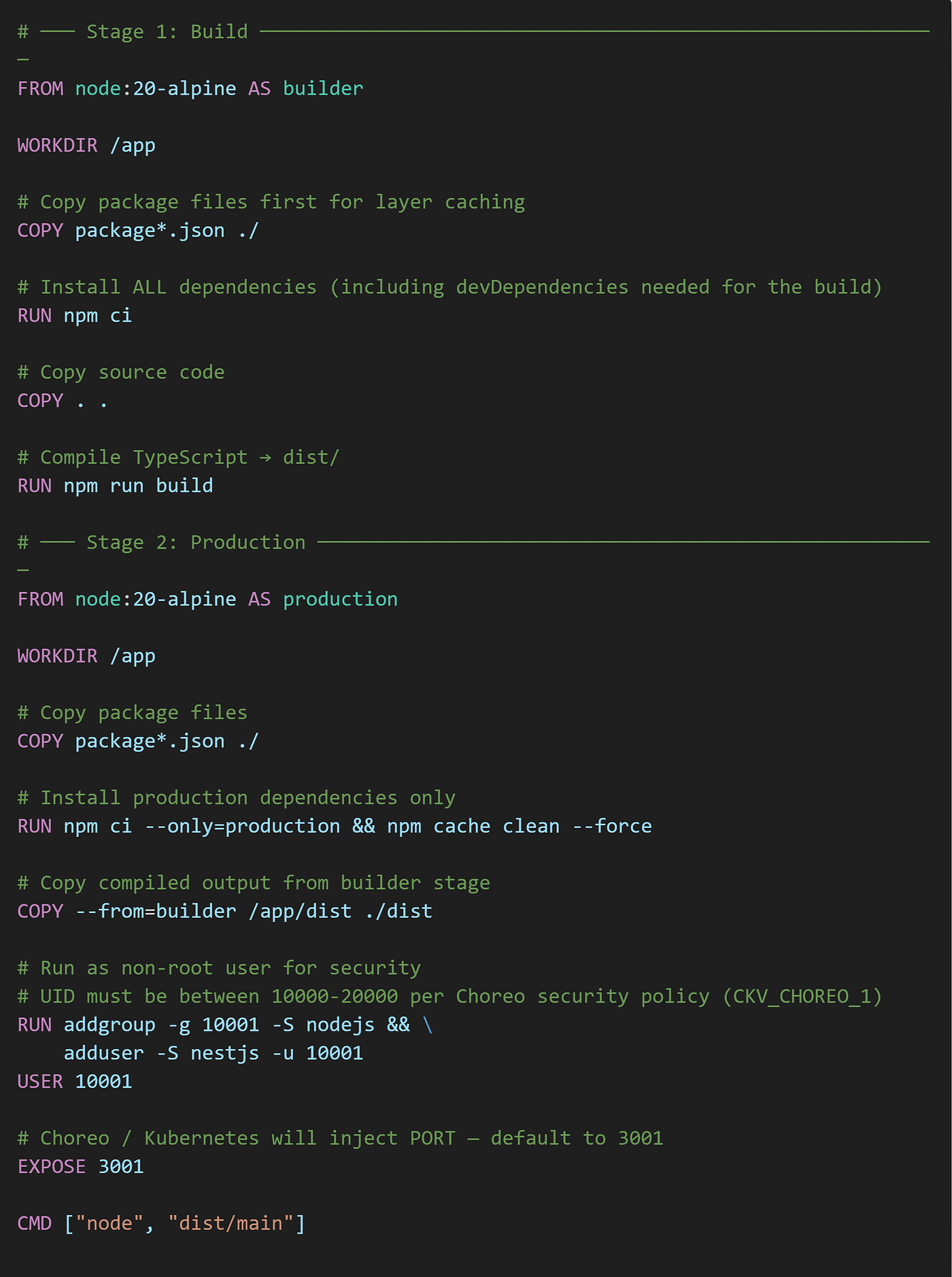
What just happened: The builder stage compiles TypeScript to dist/. The runner stage installs only production dependencies, then copies the compiled output. Your final image stays small.
One thing worth knowing: FlowHub uses TypeORM with synchronize: true in development. For production (Choreo), I gate that flag by environment:

That ssl flag is critical for Aiven PostgreSQL — it refuses plain connections.
Step 3: Dockerize the Frontend (Next.js)
The Next.js Dockerfile has one non-obvious requirement: NEXT_PUBLIC_API_URL must be baked in at build time, not injected at runtime, because Next.js inlines public environment variables during the build step.

And in your next.config.js, enable standalone output:

Our finding: If you set NEXT_PUBLIC_API_URL as a Choreo environment variable (not a build argument), it won't work — the value simply won't be present in the bundle at runtime. Always pass it as ARG in the Dockerfile and set it in Choreo's Build configuration, not in the Runtime environment variables panel.
In Choreo, after connecting the frontend component, go to Build → Build Configurations and add:
Argument: NEXT_PUBLIC_API_URL
Value: https://your-backend-url.choreoapis.dev
You’ll get the backend URL after the backend component is deployed — come back and set this.
Step 4: Create a PostgreSQL Database on Choreo
One thing I didn’t realize until I was setting things up: you don’t need an external database provider at all. Choreo has its own managed database service built right into the platform in organization level under Resources → Databases.
In the Choreo Developer Platform console, go to Resources → Databases in the left sidebar and click Create. Select PostgreSQL as the database type, give the service a name, and click Next to pick a service plan.

Our finding: I initially planned to use Aiven for the database, but Choreo’s built-in PostgreSQL service is the simpler choice — it’s managed at the organization level and connects to your components without any extra network configuration.
Once the database is created, Choreo gives you the connection details. Go to the database service page and collect:
- Host
- Port
- Database name
- Username
- Password

Now add these as environment variables in your Choreo backend component under Runtime → Environment Variables:
DB_HOST=your-choreo-db-host
DB_PORT=17830
DB_USER=your-db-username
DB_PASSWORD=your-db-password
DB_NAME=your-db-name
JWT_SECRET=a-long-random-string-change-this
FRONTEND_URL=https://your-frontend-url.choreoapps.dev
NODE_ENV=production
Choreo’s managed PostgreSQL uses SSL. The ssl: { rejectUnauthorized: false } in the TypeORM config from Step 2 handles this automatically.

Step 5: Add the Choreo Component Configuration (component.yaml)
Choreo reads a component.yaml file from your repo to understand the component's endpoints. Without this, it doesn't know how to route traffic.
Backend — create backend/.choreo/component.yaml

Frontend — create frontend/.choreo/component.yaml

Push both files to your GitHub repository. Choreo automatically detects them during the next build.
Step 6: Deploy Both Components
In the Choreo console, go to each component and click Build and Deploy. The first build takes 3–5 minutes (Docker layer caching helps on subsequent deploys).

Once both components are deployed, Choreo gives you public URLs:
- Backend:
https://[hash]-[project]-[org]-prod.choreoapis.dev - Frontend:
https://[hash]-[project]-[org]-prod.choreoapps.dev
Go back to the frontend build configuration and add the backend URL as NEXT_PUBLIC_API_URL, then redeploy the frontend.

Live application
Step 7: The Two Gotchas That Almost Broke Everything
This is the part I wish I’d had written down when I was going through it. Both problems caused the same symptom — “Login failed” — but had completely different causes.
Gotcha 1: Cross-Domain Cookies and sameSite
The login form submitted fine. The network tab showed a 200 OK from the backend. But the app kept redirecting back to /login. No error. No 401. Just... nothing.
The problem: my NestJS auth controller was setting cookies with sameSite: 'strict'

With sameSite: 'strict', browsers refuse to send cookies in cross-site requests. The frontend is on choreoapps.dev. The backend is on choreoapis.dev. Two different domains. The cookie gets set, but the browser won't send it back on subsequent API calls — so every request looks unauthenticated.
The fix is simple but not obvious if you’ve only ever deployed to a single domain:

Apply this change to every endpoint that sets a cookie — for FlowHub, that’s POST /auth/signup, POST /auth/login, and POST /auth/refresh-token.
Also add CORS configuration to the NestJS bootstrap:

Gotcha 2: The OAuth2 Gateway
After fixing the cookies, I could log in — but signup was returning 401 Unauthorized. My backend logs showed nothing. The request wasn't reaching the application at all.
Choreo has a built-in OAuth2 API gateway that sits in front of your components. By default, it requires a valid OAuth2 token on every request. For most endpoints that’s fine. For POST /auth/signup and POST /auth/login, it's catastrophic — those are the endpoints that create tokens in the first place. A new user literally cannot sign up because they don't have a token yet.
The fix is in the deploy flow, Go to your backend component → Deploy → click the Configure & Deploy dropdown → step through to Step 3/3: Endpoint Details. In the Security Scheme section, uncheck the OAuth2 checkbox. This removes the OAuth2 requirement from your API endpoints so unauthenticated requests (like signup and login) can reach your application.

If you want finer control — keeping OAuth2 on most routes but disabling it only for auth endpoints — use the Operation Level Security table on the same panel. Uncheck the security checkbox only for POST /auth/login, POST /auth/signup, and POST /auth/refresh-token.
Once I unchecked OAuth2, signup and login worked immediately.
Testing and Verification
Run through this checklist after both components are deployed:
- [ ] Sign up: Visit
https://your-app.choreoapps.dev/signup, create a new account. You should be redirected to/dashboard. - [ ] Log in: Sign out, then log back in. Dashboard should load with your data.
- [ ] Refresh: Hard refresh the dashboard (Ctrl + Shift + R). You should stay logged in — the refresh token cookie should renew the access token automatically.
- [ ] Data persists: Create a project, reload the page. Check that the project still appears (confirms database connectivity).
- [ ] Sign out: The sign-out button should redirect to
/loginand subsequent dashboard visits should redirect back to/login.

Live application
Troubleshooting
Here are the five most common issues and their exact fixes:

Frequently Asked Questions
Does WSO2 Choreo support NestJS natively?
Choreo supports any Dockerfile-based application, which includes NestJS. There’s no official NestJS preset, but the Docker component type gives you full control over the build process. The NestJS app runs as a standard Node.js process — Choreo manages the container lifecycle, scaling, and traffic routing.
Can I use an external database instead of Choreo’s built-in one?
Yes. Choreo doesn’t require you to use its managed database — any PostgreSQL host reachable from the internet works. That said, the built-in Choreo database under Resources → Databases is the most convenient option since it’s already inside the platform. If you need an external provider, Aiven, Neon, or Supabase are popular choices with free tiers.
Why do I need sameSite: 'none' specifically for Choreo?
Choreo deploys your frontend and backend on different subdomains (choreoapps.dev vs choreoapis.dev). These count as cross-site from a browser's perspective. The sameSite: 'strict' setting blocks cookie transmission in cross-site requests. sameSite: 'none' allows it, but requires secure: true (HTTPS) — which Choreo always provides on its managed domains.
What does the Choreo OAuth2 gateway actually do?
Choreo wraps your API endpoints in an OAuth2 security layer — incoming requests must carry a valid Bearer token issued by Choreo’s identity provider. This is great for enterprise service-to-service communication, but it conflicts with public auth endpoints that generate tokens for external users. Disabling it on /auth/login and /auth/signup routes those requests directly to your application without token verification.
How much does this deployment cost?
As of 2026, Choreo’s free tier allows up to 3 components and a limited build quota per month — more than enough for a personal project or demo. Aiven’s Hobbyist PostgreSQL plan is free for a single node. Your total monthly cost for a small project can be $0.
Next Steps
Now that FlowHub is live on Choreo, here’s where to take it next:
Extend the project:
- Custom domain: Choreo supports custom domain mapping under Settings → Custom Domain — point your own domain at the frontend component.
- CI/CD automation: Choreo has built-in GitHub Actions-style pipelines. Set up automatic deployment on merge to
main. - Observability: Choreo’s Observability tab gives you logs, request traces, and metrics out of the box — no extra setup needed.
Official resources:
- WSO2 Choreo Documentation
- Choreo Docker Component Guide
- FlowHub GitHub Repository — includes all Dockerfiles and component.yaml files from this post
Conclusion
Getting a full-stack app onto Choreo is genuinely straightforward once you know the two landmines: the cross-domain cookie flag and the OAuth2 gateway configuration. Neither of them shows up in the docs as a “gotcha” — you just see authentication failing and have to work backward.
The combination of Choreo’s managed infrastructure and Aiven’s managed PostgreSQL means you’re not babysitting servers or writing deployment scripts. Your CI pushes to GitHub, Choreo picks it up, and your app is live in minutes. For a portfolio project or internship demo, that’s a solid production story.
If you hit an issue not covered in the troubleshooting table, check the Choreo build logs first — they’re surprisingly detailed. And if the cookies are misbehaving, open DevTools → Application → Cookies and verify that accessToken is marked as Secure and SameSite: None. That one visual check would have saved me a few hours.
Built with NestJS 11, Next.js 16, TypeORM, and WSO2 Choreo. Source code available on GitHub.
Sources
- WSO2 Choreo Documentation, Develop Components: Deploy a Containerized Application, retrieved 2026–05–01, https://wso2.com/choreo/docs/develop-components/deploy-a-containerized-application/
- MDN Web Docs, SameSite cookies, retrieved 2026–05–01, https://developer.mozilla.org/en-US/docs/Web/HTTP/Headers/Set-Cookie/SameSite
- WSO2 Choreo Documentation, Create and Manage Databases, retrieved 2026–05–01, https://wso2.com/choreo/docs/develop-components/manage-databases-and-caching/
- Next.js Documentation, next.config.js: output, retrieved 2026–05–01, https://nextjs.org/docs/app/api-reference/next-config-js/output
- NestJS Documentation, CORS, retrieved 2026–05–01, https://docs.nestjs.com/security/cors
메타데이터
- post_id
- f84ebbe17dbd
- slug
- wso2-choreo-tutorial-f84ebbe17dbd
- url
- https://medium.com/@sanjulagihan94/wso2-choreo-tutorial-f84ebbe17dbd
- canonical_url
- https://medium.com/@sanjulagihan94/wso2-choreo-tutorial-f84ebbe17dbd
- author_url
- https://medium.com/@sanjulagihan94
- status
- ok
- fetched_at
- 2026-07-10 21:44:25




