Image Tracking Using ArCore in Android
Augmented Reality (AR) has revolutionized the way we interact with the digital world. Google’s ARCore enables Android developers to create…
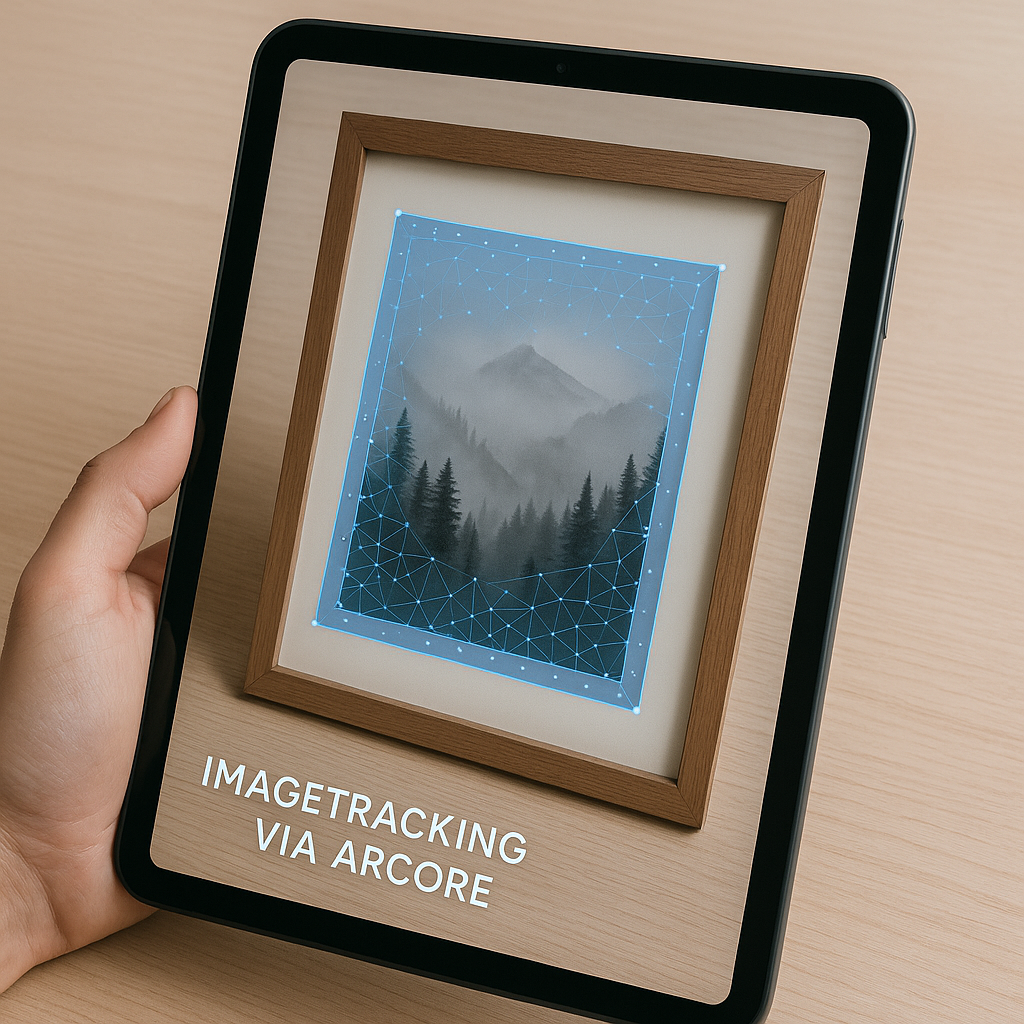
Image Tracking Using ArCore in Android
Augmented Reality (AR) has revolutionized the way we interact with the digital world. Google’s ARCore enables Android developers to create immersive experiences, including image tracking, where the camera detects and responds to predefined images in real-time.
In this blog, I’ll walk you through how to implement image tracking using ARCore step by step, including setting up AR, tracking images, and managing lifecycle events.
Prerequisites
Before getting started, make sure you have:
- Android Studio installed
- An Android device that supports ARCore
- Dependencies set up in build.gradle:
dependencies {
    implementation 'com.google.ar:core:X.XX.X'
    implementation 'com.google.ar.sceneform.ux:sceneform-ux:X.XX.X'
}
Setting Up AR in XML
Instead of manually handling the camera view, we can use ArFragment in XML. This provides a simple way to manage AR session, camera, and scene rendering.
XML Layout (activity_ar.xml):
<?xml version="1.0" encoding="utf-8"?>
<androidx.constraintlayout.widget.ConstraintLayout
    xmlns:android="http://schemas.android.com/apk/res/android"
    xmlns:app="http://schemas.android.com/apk/res-auto"
    xmlns:tools="http://schemas.android.com/tools"
    android:layout_width="match_parent"
    android:layout_height="match_parent"
    tools:context=".ArCameraActivity">

    <!-- AR Fragment to render AR content -->
    <fragment
        android:id="@+id/ar_scene_view"
        android:name="com.google.ar.sceneform.ux.ArFragment"
        android:layout_width="match_parent"
        android:layout_height="match_parent" />

</androidx.constraintlayout.widget.ConstraintLayout>
Initializing ArFragment in Activity (ArCameraActivity.kt):
private lateinit var arFragment: ArFragment

override fun onCreate(savedInstanceState: Bundle?) {
    super.onCreate(savedInstanceState)
    setContentView(R.layout.activity_ar)

    // Initialize AR Fragment
    arFragment = supportFragmentManager.findFragmentById(R.id.ar_scene_view) as ArFragment

    initializeAR()
}
🔹 Why use ArFragment?
- It automatically manages ARCore sessions.
- It simplifies rendering and camera handling.
Initialize ARCore
Before using ARCore, we need to check if the device supports AR and request installation if needed.
private fun initializeAR() {
    var exception: Exception? = null
    try {
        when (ArCoreApk.getInstance().requestInstall(this, true)) {
            ArCoreApk.InstallStatus.INSTALLED -> setupSession() // ARCore installed
            ArCoreApk.InstallStatus.INSTALL_REQUESTED -> return // Installation in progress
        }
    } catch (e: Exception) {
        exception = e
    }

    if (exception != null || arSession == null) {
        Toast.makeText(this, "ARCore failed to initialize", Toast.LENGTH_LONG).show()
        finish()
    }
}
🔹 What’s happening here?
- Checks if ARCore is installed. If not, it requests installation.
- If ARCore is available, it sets up the AR session for tracking.
Setting Up an ARCore Session
Once ARCore is initialized, we configure it to track images instead of planes.
Code to set up the session:
private fun setupSession() {
    arFragment.planeDiscoveryController.hide()
    arFragment.planeDiscoveryController.setInstructionView(null)

    // 1. Create ARCore session
    arSession = Session(this)

    // 2. Configure session for Image Tracking
    arConfig = Config(arSession)
    setupImageDatabase {
        arConfig?.augmentedImageDatabase = augmentedImageDatabase
        arSession?.configure(arConfig)
        handler.post { Toast.makeText(this, "Database Sync Completed", Toast.LENGTH_SHORT).show() }
    }

    // 3. Additional AR configurations
    arConfig?.setFocusMode(Config.FocusMode.AUTO)
    arConfig?.planeFindingMode = Config.PlaneFindingMode.DISABLED
    arConfig?.imageStabilizationMode = Config.ImageStabilizationMode.OFF
    arConfig?.setUpdateMode(Config.UpdateMode.LATEST_CAMERA_IMAGE)
    arSession?.configure(arConfig)

    // 4. Attach AR session to the scene view
    arFragment.arSceneView?.setupSession(arSession)
}
🔹 What’s happening here?
- Disables plane detection (since we’re using image tracking, not surface detection).
- Enables auto-focus and disables image stabilization for better tracking.
- Creates an AR session and links it with the scene view.
Setting Up an Augmented Image Database
ARCore needs a database of images that it can recognize. We create an AugmentedImageDatabase and add an image.
Code to set up the Image Database:
private fun setupImageDatabase() {
    try {
        if (augmentedImageDatabase == null) {
            augmentedImageDatabase = AugmentedImageDatabase(arSession)

            // Load image from drawable and convert it to a bitmap
            val bitmap = getBitmapFromDrawable(R.drawable.tracked_image)
            if (bitmap != null) {
                augmentedImageDatabase?.addImage("tracked_image", bitmap, 0.1f)
            } else {
                Log.e("ARCore", "Failed to load image for tracking")
            }
        }
    } catch (ex: Exception) {
        Log.e("ARCore", "Unexpected error in setupImageDatabase", ex)
    }
}
🔹 How does this work?
- Loads an image from res/drawable.
- Converts it to a bitmap and adds it to augmentedImageDatabase.
Tracking Images in Real-Time
Now that our session is set up and images are stored, ARCore will detect them when they appear in the camera view.
arFragment.arSceneView.scene.addOnUpdateListener {
    val frame = arFragment.arSceneView.arFrame ?: return@addOnUpdateListener
    val augmentedImages = frame.getUpdatedTrackables(AugmentedImage::class.java)

    for (augmentedImage in augmentedImages) {
        when (augmentedImage.trackingState) {
            TrackingState.TRACKING -> {
                if (augmentedImage.name == "tracked_image") {
                    // Show something that says Image has been tracked
                }
            }
            TrackingState.STOPPED -> {
                Log.d("ARCore", "Image lost")
            }
            else -> {}
        }
    }
}
🔹 What’s happening here?
- Listens for updates on detected images.
- If the image is found, anchors an object at its location.
- Logs when the image is no longer detected.
Handling AR Session Lifecycle
Since ARCore requires a camera, we pause and resume the session when the app is minimized.
override fun onPause() {
    super.onPause()
    arFragment.arSceneView.pause()
}

override fun onResume() {
    super.onResume()
    arFragment.arSceneView.resume()
}
Hope this helps! 🚀 Let me know if you have any questions.
메타데이터
- post_id
- f95daf3eee10
- slug
- image-tracking-using-arcore-in-android-f95daf3eee10
- url
- https://medium.com/@sidcasm/image-tracking-using-arcore-in-android-f95daf3eee10
- canonical_url
- https://medium.com/@sidcasm/image-tracking-using-arcore-in-android-f95daf3eee10
- author_url
- https://medium.com/@sidcasm
- status
- ok
- fetched_at
- 2026-07-20 17:35:53