Dorico — creating paired instruments
If you write or transcribe music for orchestras or small ensembles, you often come up with the problem of how to handle two musicians…
Dorico — creating paired instruments
If you write or transcribe music for orchestras or small ensembles, you often come up with the problem of how to handle two musicians playing the same or different music but on the same instrument. This commonly occurs for flutes, clarinets, bassoons and most brass instruments.
In Finale, you only have the choice of creating a single staff line for each instrument, or putting both instruments on the same staff, but in different voices. But there is no what show the instruments on the same staff in the full score but in two staves in the individual parts. The only Finale work-around, is to create both and hide the separate staves in the full score. But this means that you have to make changes or corrections in two places, which can quickly get out of hand.
In Dorico, this is much simpler. You create a staff for each instrument, and Dorico merges them in pairs for you in the full score.
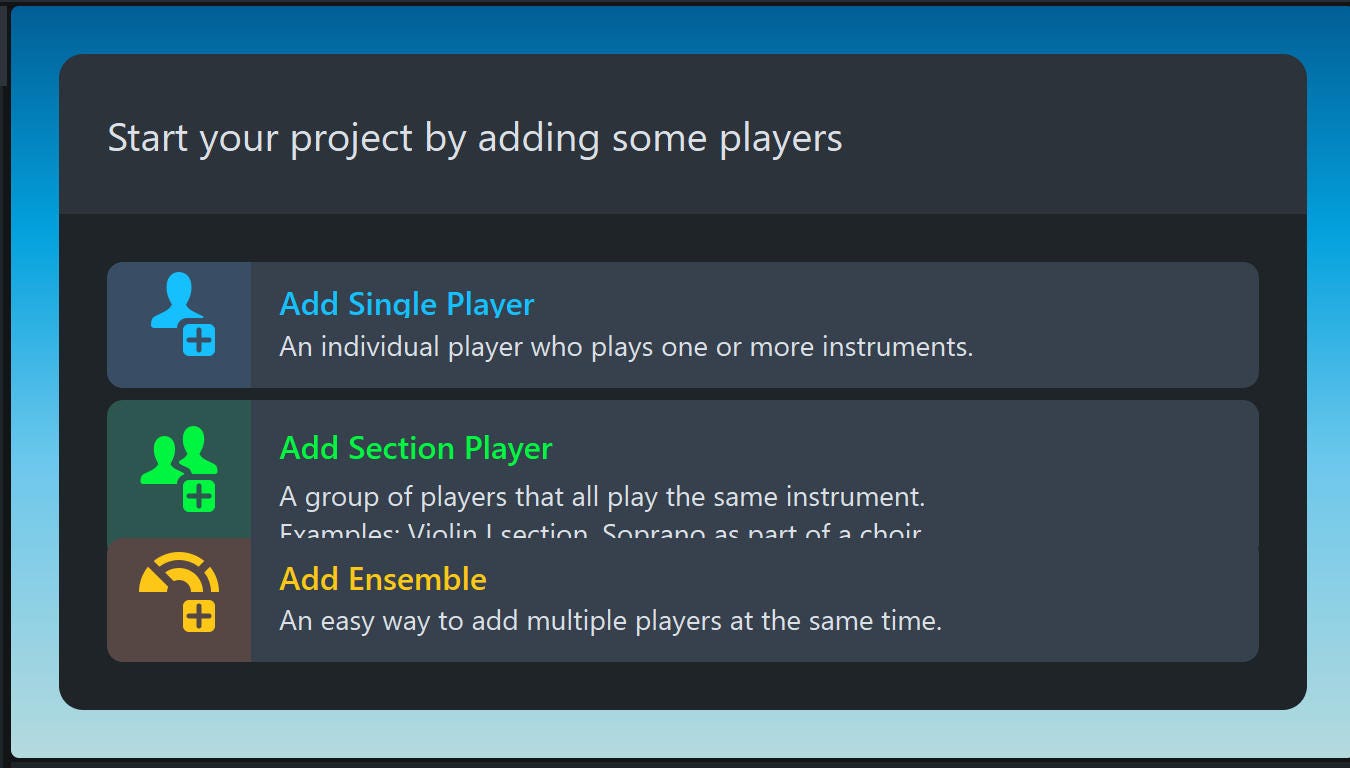
Let’s start with a simple example for two flutes. We start in Dorico with File/New and select Add Single Player:
Then we select Flute from the Woodwinds:
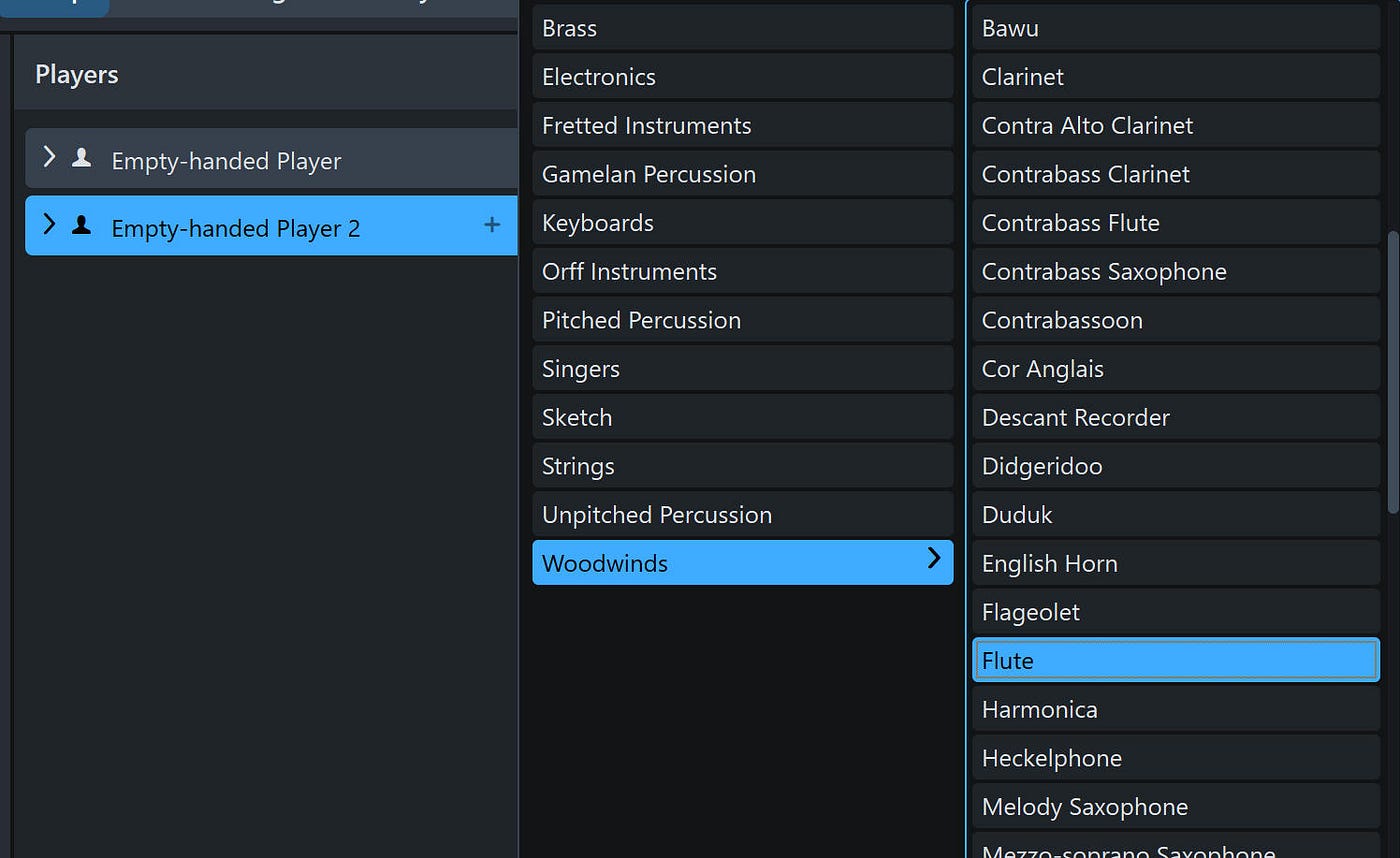
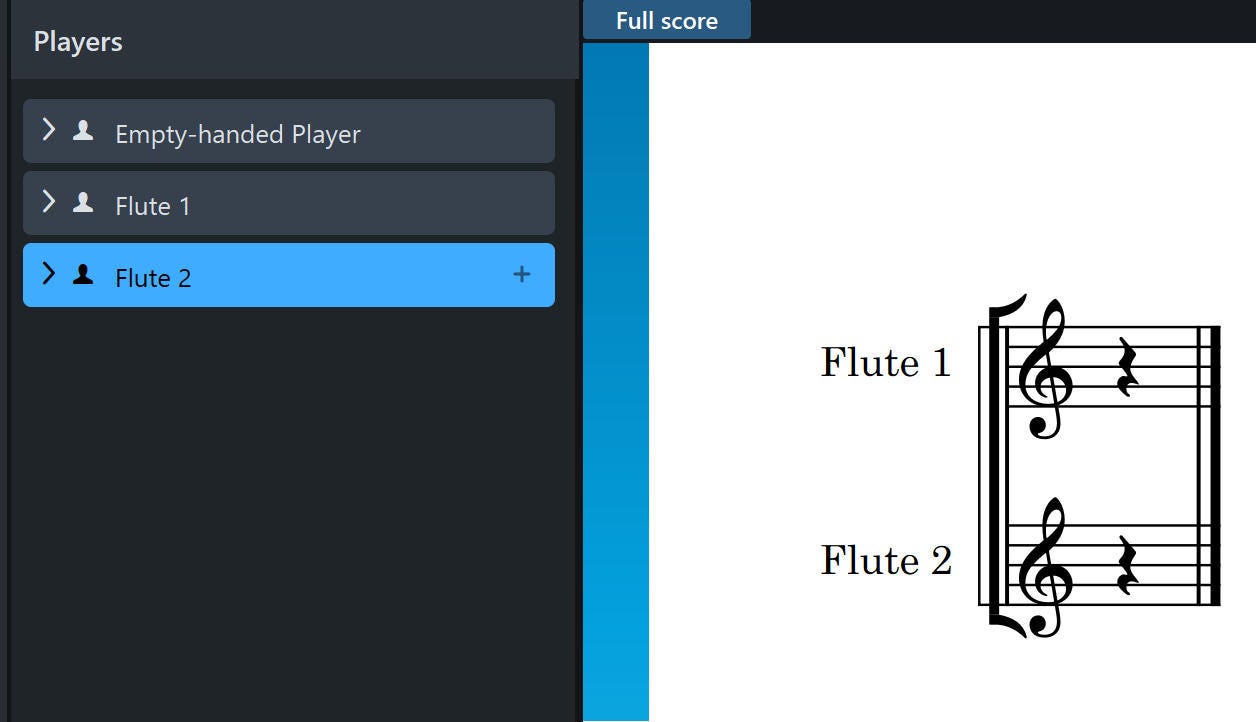
and add one Flute. Then we right-click on that flute and select Duplicate Instrument to make a second player. This gives us our two players:
Pickups
Our song is going to start with a pickup measure, so we create our meter using the expression 4/4, followed by a “1” meaning a pickup of one beat. So we press Shift/M for Meter to bring up the meter popover, and enter that expression.
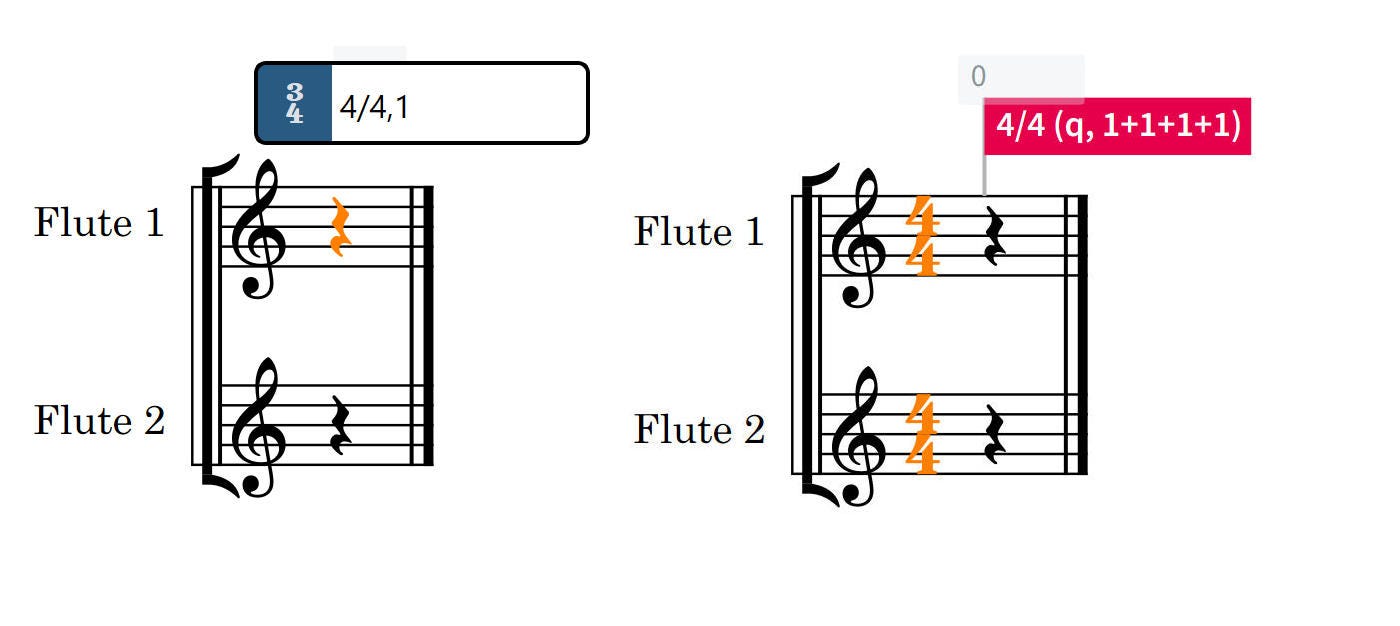
Creating 4/4 with 1 beat pickup
Now, we’ll insert the tune and harmony for the two flutes:
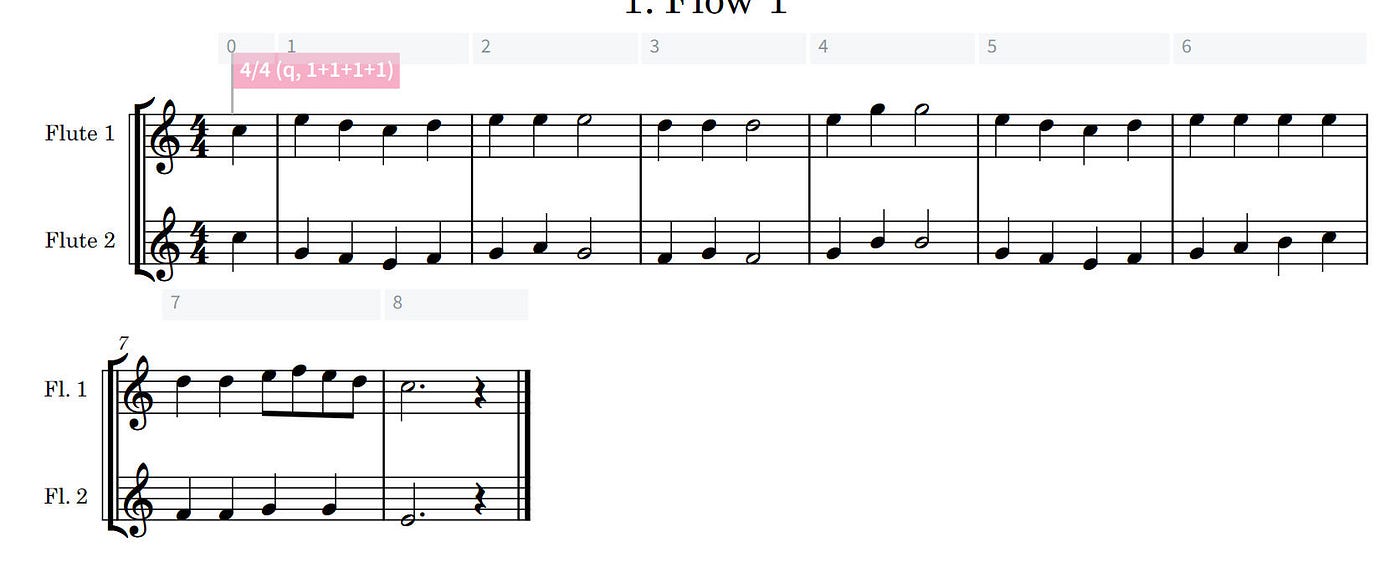
If you want to see the pair of flute parts condensed onto a single staff, you can select Edit/Condensing. Normally, there is no shortcut key for this but we’ll show you how to create one agt the end of this article.
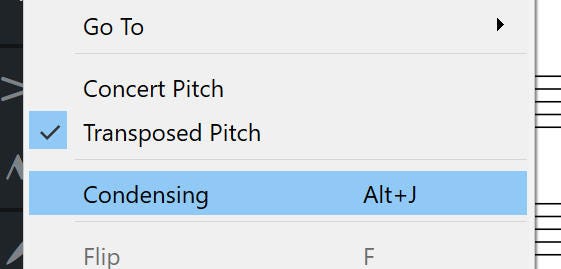
This menu item turns the condensing on and off. Condensed, it looks like this.
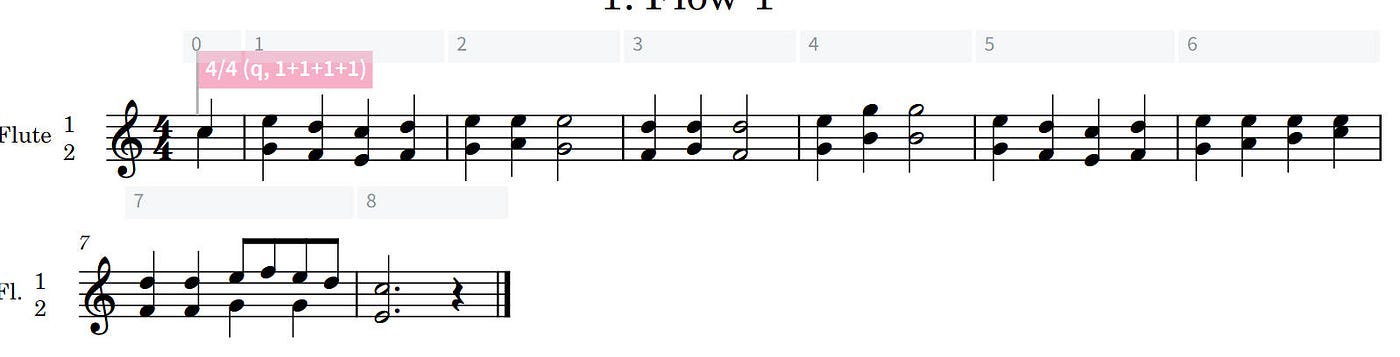
You can’t edit or select notes in any condensed line: you have to expand it first.
Creating parts
Next, you might ask, how do we create parts? Well for individual players, it’s already done. You just select the instrument want to view from the dropdown men under the Full Score menu. But for paired parts (or any other grouping) you need to create a new Layout for those parts.
Go to Setup, and in the lower right corner, click on this button:

The tooltip should read “Add instrumental part layout.”
This will create an entry in the layout list just above labeled “Empty part.” Select this part and then select the checkboxes of the two flute players in the left side Players column:
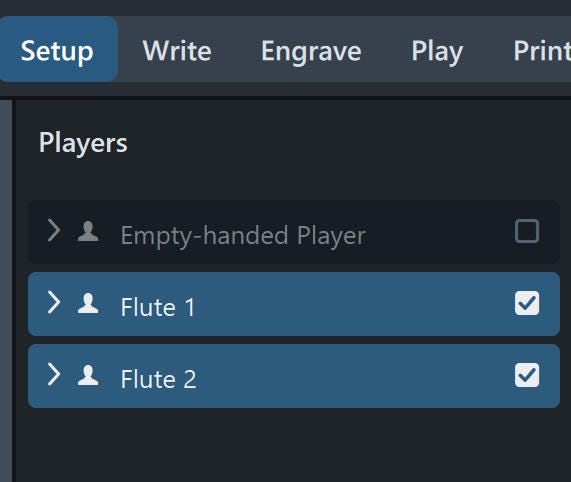
This creates a layout named Flute 1 & Flute 2.
To view the layout, select it from the dropdown menu under the Full Score heading at the top of the screen.
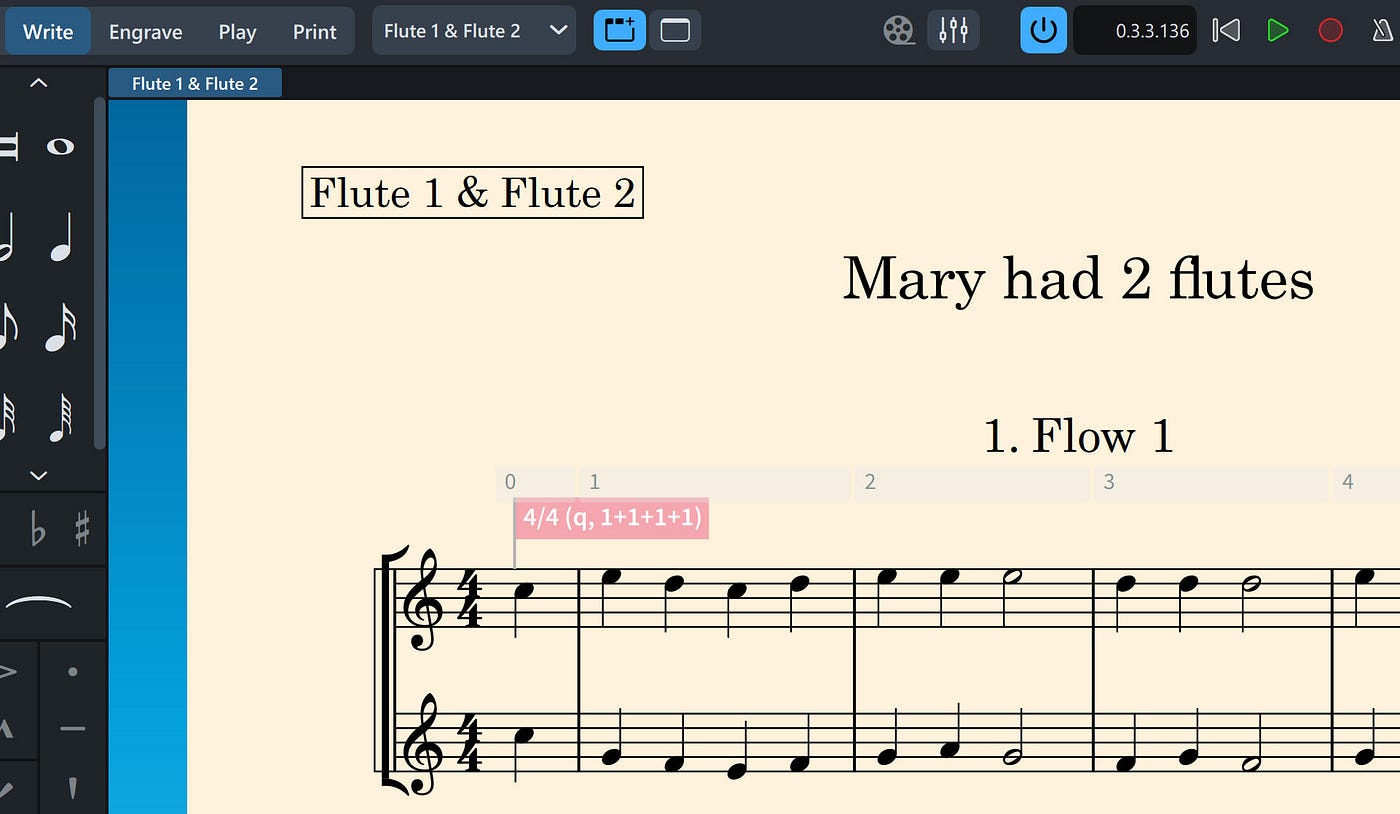
Adding a Piccolo
It is not uncommon to have cases where a single player plays two or more instruments. This is the reason why the left hand column is Setup is labeled Players rather than Instruments. In orchestral writing, the second flute frequently doubles piccolo, and percussion player often switched between instruments. In Broadway orchestrations the wind players are often just names Reed 1, 2 and 3, where the player are asked to play most of the woodwind instruments.
So, we will change our Flute 2 player to also be a piccolo player, by adding Piccolo to his responsibilities. In Setup mode, click on the +-sign on the Flute 2 player. This brings up an instrument choice window:
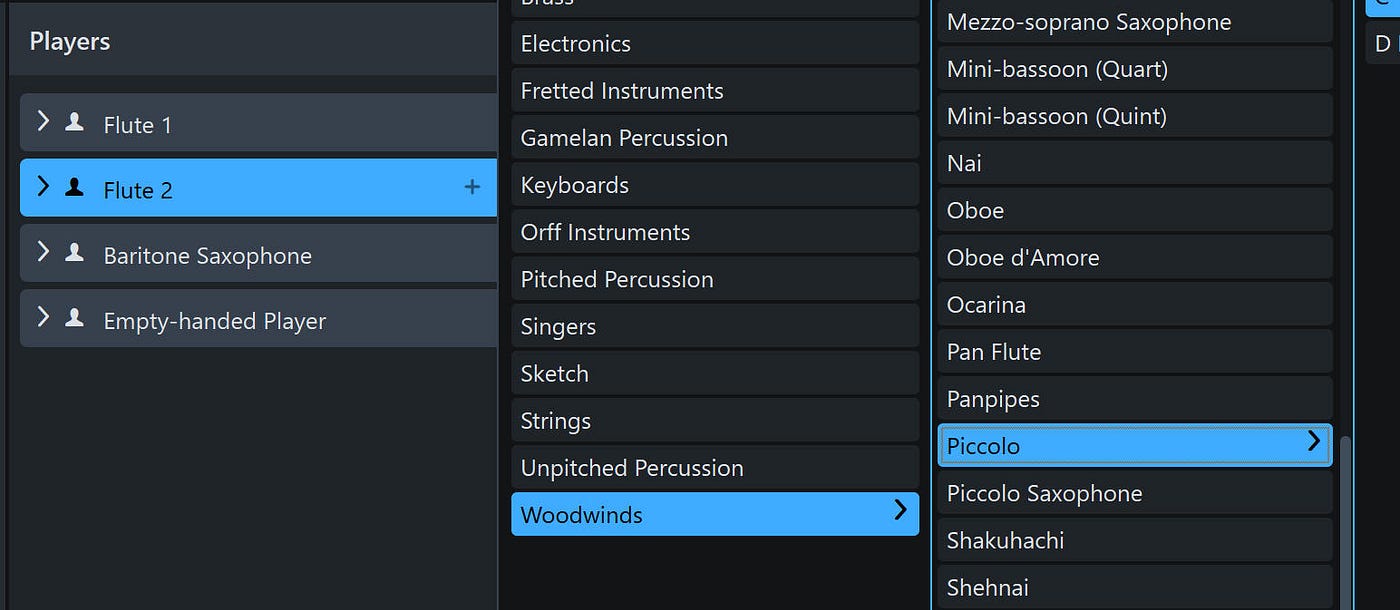
and click on “Add.”
The 2nd layer is now named “Flute 2 & Piccolo.” We added a baritone saxophone for fun, too.
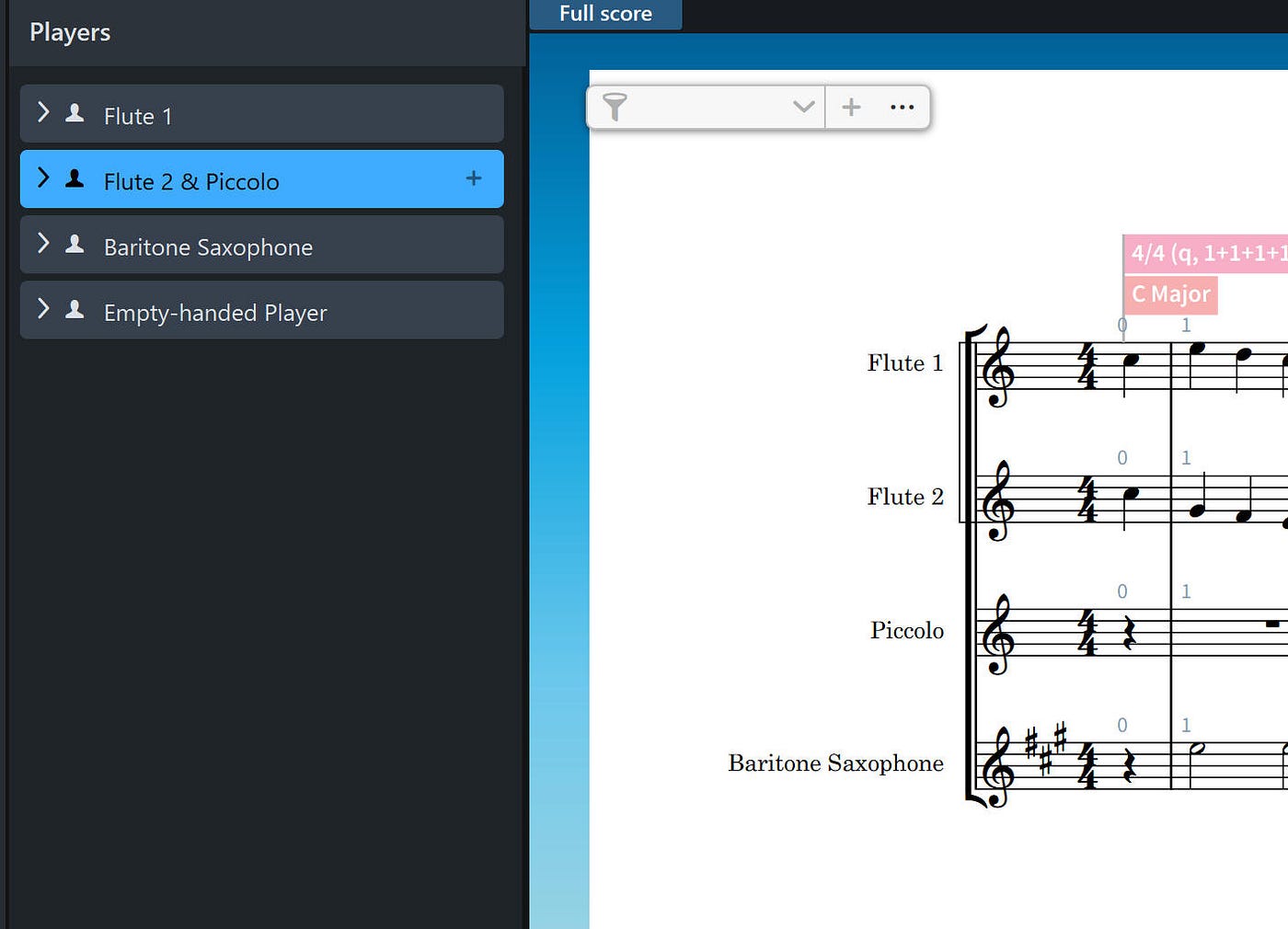
So how do we enter the piccolo part?
If you switch to the Galley View, you will find that Flute 2 has a second staff line called “Flute 2 & Piccolo: Piccolo.” You enter the notes on this line and make sure that the Flute 2 is not also playing:
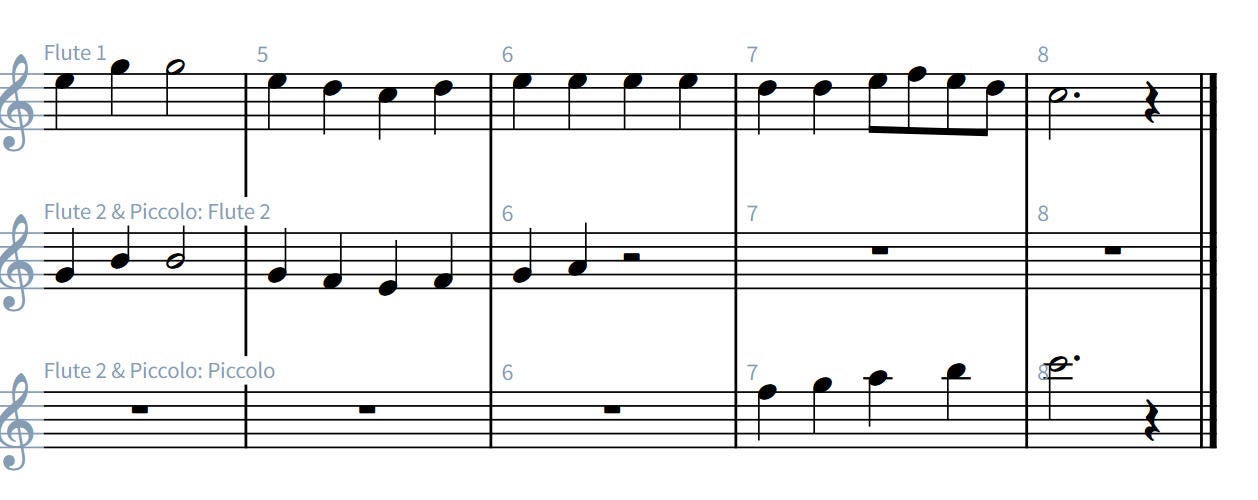
Adding piccolo part
If you switch out of Galley view, you will see that the score looks like this, showing the switch to piccolo:
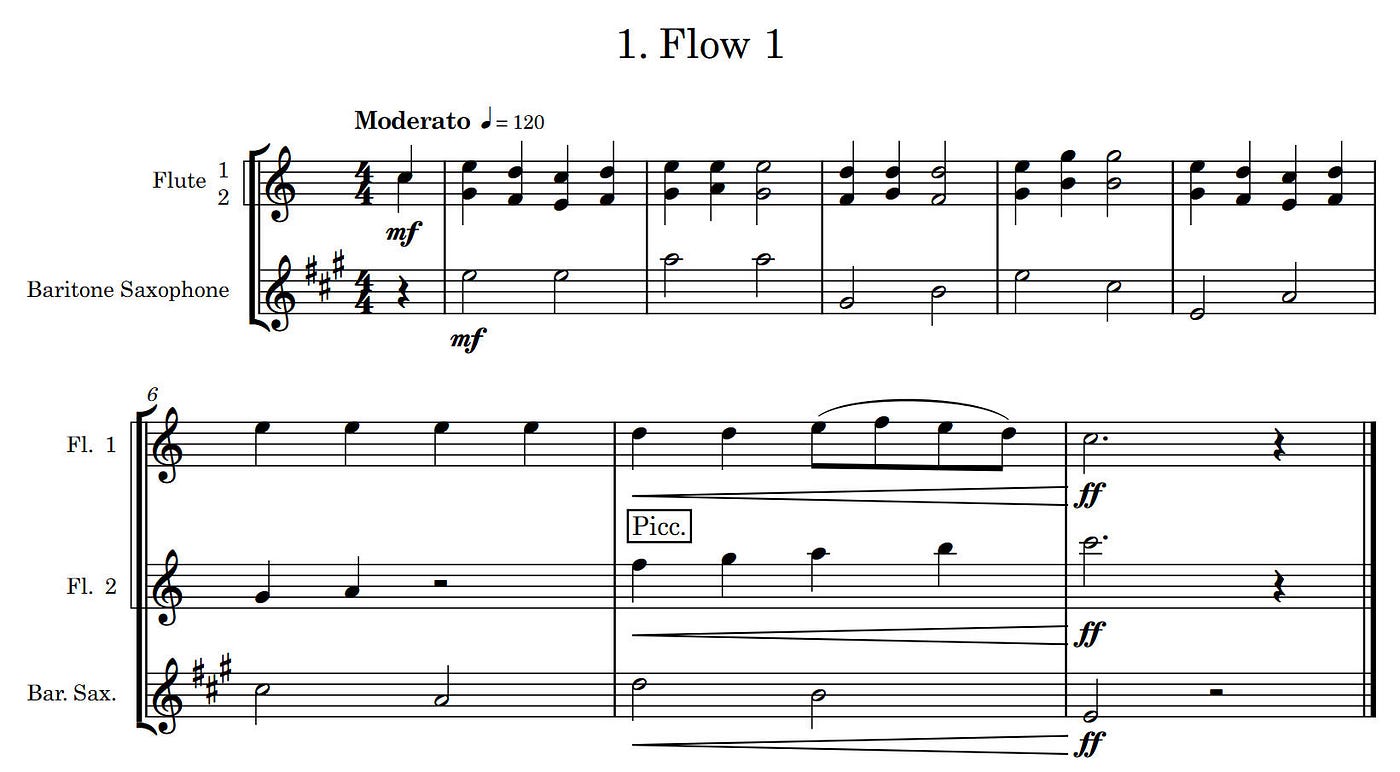
This is even easier when you look at the parts:
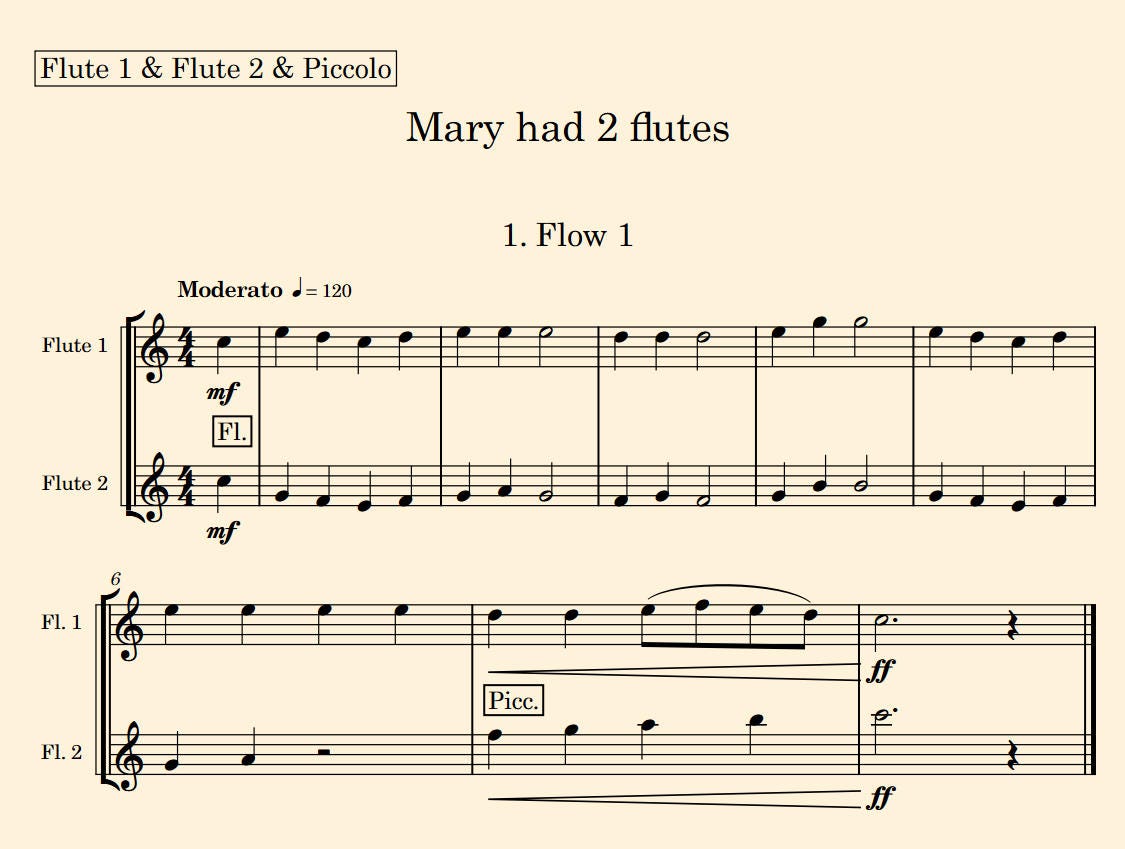
All of the labels are generated automatically.
Setting a shortcut key
We set Alt/J to switch from condensed mode to expanded mode. How did we do this?
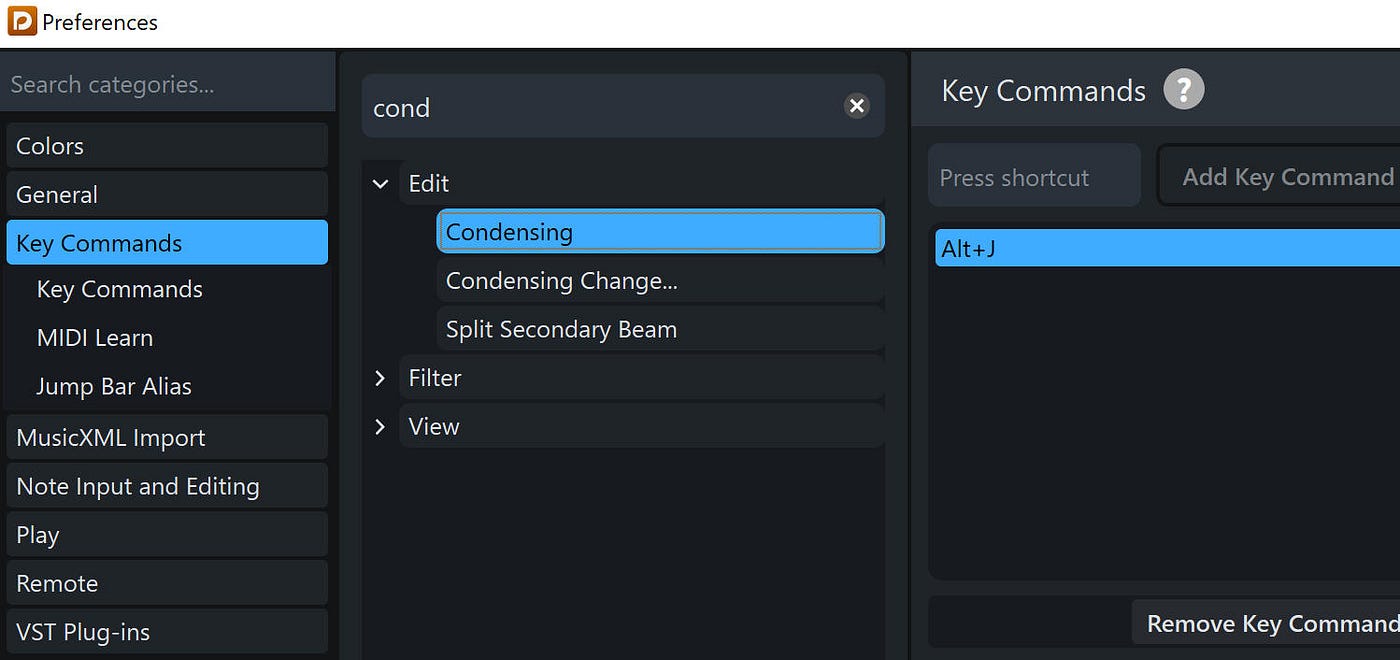
Setting Alt/J as Condense shortcut
Select Edit/ Preferences/Key Commands and search for “condense.” Under Edit, select Condensing and select “Press Shortcut and the press the shortcut you select. All shortcuts must start with Ctrl, Alt or Shift. Then click on Add Key Command. Here, we added Alt/J.
메타데이터
- post_id
- fa3e86cd3933
- slug
- dorico-creating-paired-instruments-fa3e86cd3933
- url
- https://medium.com/@jimcooper-95211/dorico-creating-paired-instruments-fa3e86cd3933
- canonical_url
- https://medium.com/@jimcooper-95211/dorico-creating-paired-instruments-fa3e86cd3933
- author_url
- https://medium.com/@jimcooper-95211
- status
- ok
- fetched_at
- 2026-06-27 07:40:21