Extracting Content from Documents — PDFs, Word Documents, Excel Spreadsheets, and Images
A Practical Guide Using Docling, PyTesseract, PDFPlumber, PyMuPDF, and Hugging Face Models
Extracting Content from Documents — PDFs, Word Documents, Excel Spreadsheets, and Images
A Practical Guide Using Docling, PyTesseract, PDFPlumber, PyMuPDF, and Hugging Face Models
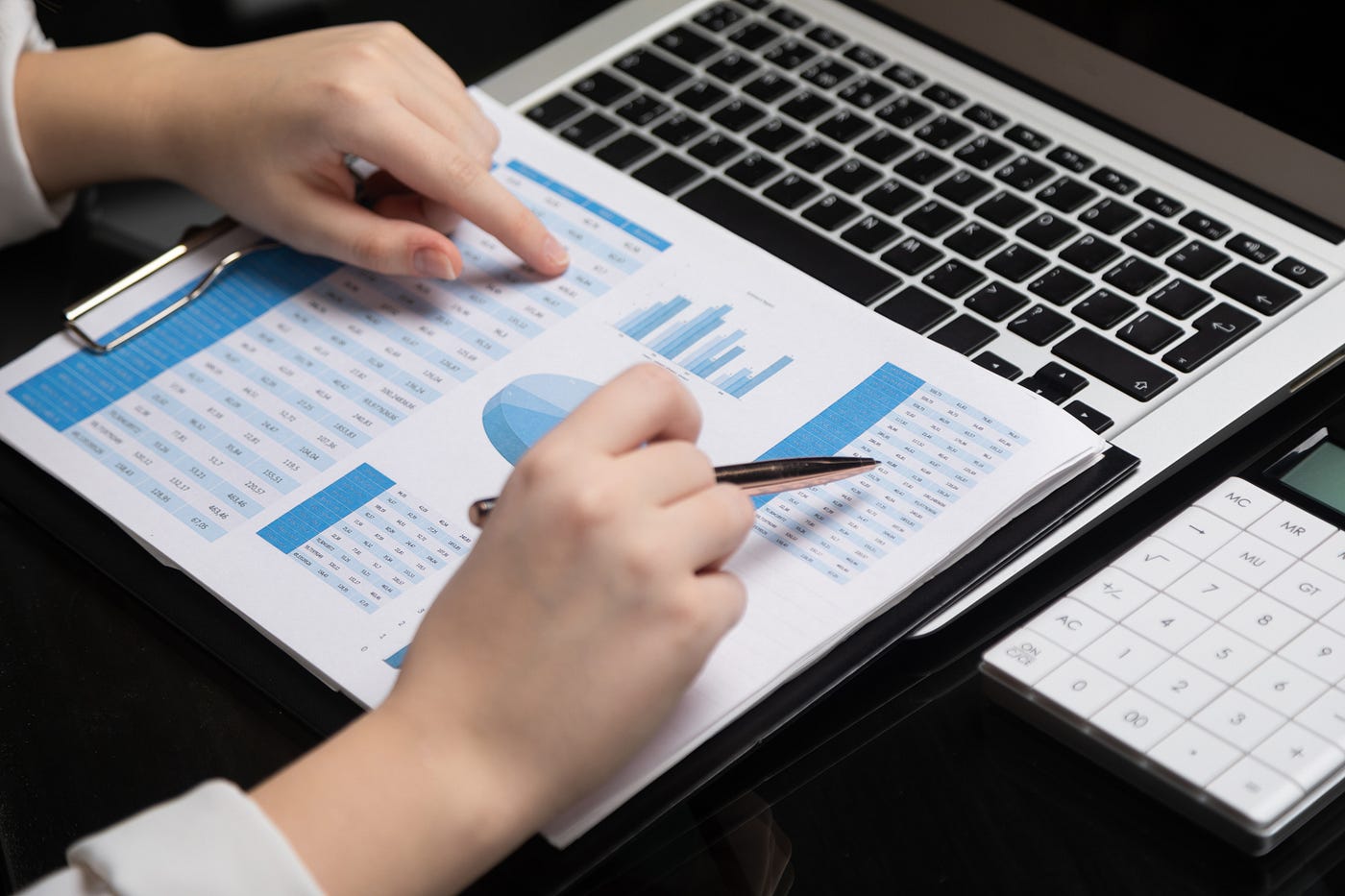
Photo by NordWood Themes on Unsplash
In my previous article, I covered how to extract text and table content from PDF documents:
However, PDFs often contain images, which require additional effort to extract, depending on the libraries used. Building on that discussion, this article explores tools for extracting content from various file types, including Excel spreadsheets, Word documents, and images. For images, beyond extracting text, I also aim to identify their types, enabling more advanced querying in a typical RAG application.
For this article, I will evaluate the following libraries:
- Docling
- PyMuPDF
- PyTesseract
- PDFPlumber
This comparison will help determine the most effective approach for extracting and processing document content across different formats.
Sample Documents
To test the various libraries for extracting content from files, I have created a number of files of varying types and saved them in a folder named sample documents. They are named as follows:
samples documents
   |__Image1.jpeg
   |__Invoice1_with_image.docx
   |__Invoice1_with_image.pdf
   |__Invoice1.xlsx
The file Image1.jpeg contains both text and multiple images:

Image1.jpeg
The Invoice1_with_image.docx is a Microsoft Word document that contains the following components:

The Invoice1_with_image.pdf is a PDF document saved from Invoice1_with_image.docx:

Finally, the Invoice1.xlsx file is an Excel spreadsheet that contains text and an image:

Using Docling
The first tool that I want to evaluate is Docling. Docling is a powerful document processing library designed to extract and analyze content from various file types, including PDFs, Word documents, and images. It provides features for text extraction, table recognition, and even entity detection, making it useful for structuring unstructured data.
First, install Docling:
$ pip install doclingThe following code snippet scans the sample documents folder, uses Docling to load each document, and attempts to extract its content:
import os
from docling.document_converter import DocumentConverter
from IPython.display import Markdown, display

# Directory containing sample documents
directory_path = "./sample documents/"

# Get a list of all files in the directory
files = os.listdir(directory_path)

# Initialize the document converter
converter = DocumentConverter()

# Loop through each file in the directory
for file_name in files:
    file_path = os.path.join(directory_path, file_name)

    # Skip directories and non-document files (if needed)
    if os.path.isdir(file_path):
        continue

    # Convert document to markdown
    try:
        result = converter.convert(file_path)
        extracted_text = result.document.export_to_markdown()

        # Display the markdown content
        display(Markdown(f"# {file_name}"))
        display(Markdown(extracted_text))

    except Exception as e:
        print(f"Failed to convert {file_name}: {e}")
In the above code snippet, we created an instance of the DocumentConverter class and then use it to extract the text content from each of the files in the sample documents folder and export them to MarkDown format. We then use the Markdown class to print it out in Jupyter notebook.
Let’s see what the above code generates.
Extracting from Images
For the image file, Dockling was able to extract the text information. It is pretty impressive:

Extracting from PDF documents
For the PDF document, Docling was able to extract the first table but messed up the second table (stored as an image). However, the third table that was stored as an image was extracted accurately. It totally missed the last image:

Extracting from Excel spreadsheets
For the Excel spreadsheet, Docling managed to retrieve the text content without any problem. But it missed the image totally:

Extracting from Word documents
Finally, for the Word document, interestingly it only managed to extract the first table and omitted the rest:

Quick Summary
Here is the quick summary of what we have seen so far in using Docling to load the various document types:
- PDF Documents: Docling was able to extract the first table but missed the second table, which was saved as an image. However, it successfully extracted the third table from an image within the PDF. It completely missed the last image.
- Images: Docling uses OCR to extract text and did a good job extracting text from images in our example.
- Excel Documents: Docling had no issues extracting the text from the document but missed the image.
- Word Documents: Docling successfully extracted the table but missed the images that followed.
In the next section, I will dive more specifically into how to extract textual content from PDF documents. Specifically, I will discuss how to extract:
- text content
- text content from tables
- text content from images
- image content types from images
Working with PDF Documents
For this section, I am going to specifically work with PDF files. We will try out a few libraries:
- PDFPlumber
- PyMuPDF
- PyTesseract
- Hugging Face Object Detection Pre-trained Model
Using PDFPlumber to extract text and table content
First, let’s install PDFPlumber:
$ pip install pdfplumberPDFPlumber is a Python library designed for extracting data from PDF files. It excels in handling documents that have complex layouts or are structured with tables.
The following code snippet scans the sample documents folder, uses PDFPlumber to extract both text and table content, and then stores the extracted data in a dictionary:
import os
import pdfplumber

# Directory containing sample documents
directory_path = "./sample documents/"

# Get a list of all files in the directory
files = os.listdir(directory_path)

# Store extracted content
extracted_data = {"text": [], "tables": [], "images": []}

# Loop through each file in the directory
for file_name in files:
    file_path = os.path.join(directory_path, file_name)

    # Skip directories and non-document files (if needed)
    if os.path.isdir(file_path):
        continue
    try:
        with pdfplumber.open(file_path) as pdf:
            for page_num, page in enumerate(pdf.pages):
                text = page.extract_text()
                if text:
                    extracted_data["text"].append({"page": page_num + 1, "content": text})

                tables = page.extract_tables()
                for table in tables:
                    extracted_data["tables"].append({"page": page_num + 1, "content": table})
    except Exception as e:
        print(e)
import json
print(json.dumps(extracted_data))
Here’s the data extracted from the Invoice1_with_image.pdf file:
{
    "text": [
        {
            "page": 1,
            "content": "Company Name: Tech Solutions Inc.\nAddress: 1234 Innovation Drive, Suite 567, Silicon Valley, CA 94043, USA\nEmail: contact@techsolutions.com\nTelephone: +1 (800) 555-1234\nInvoice # 12345-01\nDate: 1 Jan 2024\nItem Name Description Quantity Unit Price Total\nLaptop 15-inch MacBook Pro, 16GB RAM, 1 $1,299.99 $1,299.99\n512GB SSD\nOVice Chair Ergonomic chair with adjustable height 2 $199.99 $399.98\nand lumbar support\nWireless Mouse Logitech MX Master 3, wireless and 3 $69.99 $209.97\nBluetooth\nExternal Hard 2TB USB 3.0 portable drive 1 $129.99 $129.99\nDrive\nSoftware Microsoft 365 Family (1-year 1 $99.99 $99.99\nSubscription subscription)\nHDMI Cable 6-foot HDMI cable, 4K UHD support 5 $15.99 $79.95\nUSB-C Charger 65W USB-C charging adapter for 2 $29.99 $59.98\nlaptop\nPrinter Ink HP 67 Ink Cartridge (Black and Tri- 1 $49.99 $49.99\ncolor)\nDesk Lamp LED desk lamp with adjustable 1 $29.99 $29.99\nbrightness\nWeb Hosting 1-year web hosting package 1 $149.99 $149.99"
        }
    ],
    "tables": [
        {
            "page": 1,
            "content": [
                [
                    "Item Name",
                    "Description",
                    "Quantity",
                    "Unit Price",
                    "Total"
                ],
                [
                    "Laptop",
                    "15-inch MacBook Pro, 16GB RAM,\n512GB SSD",
                    "1",
                    "$1,299.99",
                    "$1,299.99"
                ],
                [
                    "OVice Chair",
                    "Ergonomic chair with adjustable height\nand lumbar support",
                    "2",
                    "$199.99",
                    "$399.98"
                ],
                [
                    "Wireless Mouse",
                    "Logitech MX Master 3, wireless and\nBluetooth",
                    "3",
                    "$69.99",
                    "$209.97"
                ],
                [
                    "External Hard\nDrive",
                    "2TB USB 3.0 portable drive",
                    "1",
                    "$129.99",
                    "$129.99"
                ],
                [
                    "Software\nSubscription",
                    "Microsoft 365 Family (1-year\nsubscription)",
                    "1",
                    "$99.99",
                    "$99.99"
                ],
                [
                    "HDMI Cable",
                    "6-foot HDMI cable, 4K UHD support",
                    "5",
                    "$15.99",
                    "$79.95"
                ],
                [
                    "USB-C Charger",
                    "65W USB-C charging adapter for\nlaptop",
                    "2",
                    "$29.99",
                    "$59.98"
                ],
                [
                    "Printer Ink",
                    "HP 67 Ink Cartridge (Black and Tri-\ncolor)",
                    "1",
                    "$49.99",
                    "$49.99"
                ],
                [
                    "Desk Lamp",
                    "LED desk lamp with adjustable\nbrightness",
                    "1",
                    "$29.99",
                    "$29.99"
                ],
                [
                    "Web Hosting",
                    "1-year web hosting package",
                    "1",
                    "$149.99",
                    "$149.99"
                ]
            ]
        }
    ],
    "images": []
}
Note that PDFPlumber cannot directly extract text from images that are embedded in a PDF file. To do that, you need to do some work. And this is what we will do in the next section.
Using PyMuPDF and PyTesseract
Let’s update our previous code snippet to incorporate PyMuPDF for opening each document and extracting images from the PDFs. The extracted images will be saved in a folder named extracted_images. Once saved, we will use PyTesseract to extract text from these images.
Add the following highlighted code:
import os
import pdfplumber

#=======Add this========
import fitz
import cv2
from PIL import Image
import pytesseract
#========================

# Output directory for extracted images
output_dir = "extracted_images"
os.makedirs(output_dir, exist_ok=True)

# Store extracted content
extracted_data = {"text": [], "tables": [], "images": []}

# Loop through each file in the directory
for file_name in files:
    file_path = os.path.join(directory_path, file_name)

    # Skip directories and non-document files (if needed)
    if os.path.isdir(file_path):
        continue
    try:
        with pdfplumber.open(file_path) as pdf:
            for page_num, page in enumerate(pdf.pages):
                text = page.extract_text()
                if text:
                    extracted_data["text"].append({"page": page_num + 1, "content": text})

                tables = page.extract_tables()
                for table in tables:
                    extracted_data["tables"].append({"page": page_num + 1, "content": table})

        #=====================Add this=======================
        pdf_doc = fitz.open(file_path)
        for page_num in range(len(pdf_doc)):
            page = pdf_doc[page_num]

            # Get images from page
            image_list = page.get_images(full=True)
            for img_index, img in enumerate(image_list):
                xref = img[0]
                base_image = pdf_doc.extract_image(xref)
                image_bytes = base_image["image"]
                image_ext = base_image["ext"]
                image_name = f"{output_dir}/page_{page_num + 1}_img_{img_index}.{image_ext}"

                # Save the image
                with open(image_name, "wb") as image_file:
                    image_file.write(image_bytes)

                # Process the image
                image = Image.open(image_name).convert("RGB")

                # Extract text from image using OCR
                img_cv = cv2.imread(image_name)
                gray = cv2.cvtColor(img_cv, cv2.COLOR_BGR2GRAY)
                thresh = cv2.threshold(gray, 150, 255, cv2.THRESH_BINARY)[1]
                ocr_text = pytesseract.image_to_string(thresh)
                if ocr_text.strip():
                    extracted_data["images"].append({"page": page_num + 1, "image": image_name, "content": ocr_text})
        #================================================
    except Exception as e:
        print(e)

import json
print(json.dumps(extracted_data))
The dictionary should now look like this (the extracted images details are shown in bold):
{
    "text": [
        {
            "page": 1,
            "content": "Company Name: Tech Solutions Inc.\nAddress: 1234 Innovation Drive, Suite 567, Silicon Valley, CA 94043, USA\nEmail: contact@techsolutions.com\nTelephone: +1 (800) 555-1234\nInvoice # 12345-01\nDate: 1 Jan 2024\nItem Name Description Quantity Unit Price Total\nLaptop 15-inch MacBook Pro, 16GB RAM, 1 $1,299.99 $1,299.99\n512GB SSD\nOVice Chair Ergonomic chair with adjustable height 2 $199.99 $399.98\nand lumbar support\nWireless Mouse Logitech MX Master 3, wireless and 3 $69.99 $209.97\nBluetooth\nExternal Hard 2TB USB 3.0 portable drive 1 $129.99 $129.99\nDrive\nSoftware Microsoft 365 Family (1-year 1 $99.99 $99.99\nSubscription subscription)\nHDMI Cable 6-foot HDMI cable, 4K UHD support 5 $15.99 $79.95\nUSB-C Charger 65W USB-C charging adapter for 2 $29.99 $59.98\nlaptop\nPrinter Ink HP 67 Ink Cartridge (Black and Tri- 1 $49.99 $49.99\ncolor)\nDesk Lamp LED desk lamp with adjustable 1 $29.99 $29.99\nbrightness\nWeb Hosting 1-year web hosting package 1 $149.99 $149.99"
        }
    ],
    "tables": [
        {
            "page": 1,
            "content": [
                [
                    "Item Name",
                    "Description",
                    "Quantity",
                    "Unit Price",
                    "Total"
                ],
                ...,
                ...,
                [
                    "Web Hosting",
                    "1-year web hosting package",
                    "1",
                    "$149.99",
                    "$149.99"
                ]
            ]
        }
    ],
    "images": [
        {
            "page": 1,
            "image": "extracted_images/page_1_img_0.png",
            "content": "Item Name Description Quantity | Unit Price Total\n\nSmartphone Apple iPhone 13 Pro, 128GB, Silver 1 $999.99 $999.99\n\nBluetooth JBL Flip 5, portable waterproof 2 $119.99 $239.98\n\nSpeaker Bluetooth speaker\n\nSmartwatch Samsung Galaxy Watch 4, 40mm, 1 $249.99 $249.99\nBlack\n\nGaming Headset | SteelSeries Arctis 7, wireless gaming | 1 $149.99 $149.99\nheadset\n\nLaptopSleeve | Targus 15.6-inch laptop sleeve, 3 $24.99 $74.97\n\nneoprene\n\n"
        },
        {
            "page": 2,
            "image": "extracted_images/page_2_img_0.png",
            "content": "Variable 1\n\nCategorical\n(Nominal)\n\nCategorical\n(Ordinal/Nominal}\n(83 groups and above)\n\nNumerical\n\nCategorical\n(Ordinal)\n\nCategorical\n(Ordinal)\n\nVariable 2\n\nCategorical\n(Nominal)\n\nNumerical\n\nNumerical\n\nNumerical\n\nCategorical\n(Ordinal)\n\nMethod to Test for\nCorrelation (Dependence)\n\nChi-Square\nANOVA\n\nPearson correlation\n\nSpearman's rank correlation\n\nSpearman's rank correlation\n\n"
        },
        {
            "page": 2,
            "image": "extracted_images/page_2_img_1.png",
            "content": "SMU\nAcademy\n\n~\nyt SMU\nx\nSINGAPORE MANAGEMENT\nUNIVERSITY\n\nUnlock Hugging Face:\nSimplify Al with Transformers,\nLLMs, RAG, Fine-Tuning, and more\n\nDate: 11 March 2025, Tues\nTime: 12pm - 1.30pm\nVenue: SMU Yong Pung How School of Law\n\nBasement 2, Classroom B2-03\n55 Armenian St, Singapore 179943\n\nRegister now!\n\nWei-Meng Lee\n\nAuthor of Hugging Face in\nAction (Manning)\n\n"
        }
    ]
}
Using Hugging Face Model to Detect Image Types
So far, we can extract text, tables, and image-based text from PDF documents. But what about the images themselves? What if you want to build a RAG application that enables users to search for images within your documents? This is where computer vision models become useful. To keep things simple, we will make use of the facebook/detr-resnet-50 pretrained model hosted on Hugging Face for this purpose.
Here’s our approach: Once an image is detected in a PDF document, we will use the facebook/detr-resnet-50 model to identify the objects present in the image.
You can replace the facebook/detr-resnet-50 model with any model of your choice to detect a specific set of objects based on your requirements.
Add the following statements in bold:
import os
import pdfplumber
import fitz
import cv2
from PIL import Image
import pytesseract

# Output directory for extracted images
output_dir = "extracted_images"
os.makedirs(output_dir, exist_ok=True)

#=====================Add this=======================
from transformers import DetrImageProcessor, DetrForObjectDetection
import torch
# Load Hugging Face DETR model and processor
processor = DetrImageProcessor.from_pretrained("facebook/detr-resnet-50")
model = DetrForObjectDetection.from_pretrained("facebook/detr-resnet-50")
model.eval()
# ===================================================

# Store extracted content
extracted_data = {"text": [], "tables": [], "images": []}

# Loop through each file in the directory
for file_name in files:
    file_path = os.path.join(directory_path, file_name)

    # Skip directories and non-document files (if needed)
    if os.path.isdir(file_path):
        continue
    try:
        with pdfplumber.open(file_path) as pdf:
            for page_num, page in enumerate(pdf.pages):
                text = page.extract_text()
                if text:
                    extracted_data["text"].append({"page": page_num + 1, "content": text})

                tables = page.extract_tables()
                for table in tables:
                    extracted_data["tables"].append({"page": page_num + 1, "content": table})

        pdf_doc = fitz.open(file_path)
        for page_num in range(len(pdf_doc)):
            page = pdf_doc[page_num]

            # Get images from page
            image_list = page.get_images(full=True)
            for img_index, img in enumerate(image_list):
                xref = img[0]
                base_image = pdf_doc.extract_image(xref)
                image_bytes = base_image["image"]
                image_ext = base_image["ext"]
                image_name = f"{output_dir}/page_{page_num + 1}_img_{img_index}.{image_ext}"

                # Save the image
                with open(image_name, "wb") as image_file:
                    image_file.write(image_bytes)

                # Process the image
                image = Image.open(image_name).convert("RGB")

                # Extract text from image using OCR
                img_cv = cv2.imread(image_name)
                gray = cv2.cvtColor(img_cv, cv2.COLOR_BGR2GRAY)
                thresh = cv2.threshold(gray, 150, 255, cv2.THRESH_BINARY)[1]
                ocr_text = pytesseract.image_to_string(thresh)
                if ocr_text.strip():
                    extracted_data["images"].append({"page": page_num + 1, "image": image_name, "content": ocr_text})

                #=====================Add this=======================
                # Identify items using Hugging Face DETR
                inputs = processor(images=image, return_tensors="pt")
                outputs = model(**inputs)

                # Post-process to get detected objects
                target_sizes = torch.tensor([image.size[::-1]])
                results = processor.post_process_object_detection(outputs, target_sizes=target_sizes, threshold=0.9)[0]

                detected_objects = []
                for score, label, box in zip(results["scores"], results["labels"], results["boxes"]):
                    label_name = model.config.id2label[label.item()]
                    confidence = score.item()
                    detected_objects.append({"object": label_name, "confidence": confidence})

                if detected_objects:
                    extracted_data["images"].append({
                        "page": page_num + 1,
                        "image": image_name,
                        "objects": detected_objects
                    })
                # ===================================================
    except Exception as e:
        print(e)

import json
print(json.dumps(extracted_data))
When you run the above code snippet, you will now see that a “person” is detected on page 2 of the PDF document:
{
    "text": [
        {
            "page": 1,
            "content": "Company Name: Tech Solutions Inc.\nAddress: 1234 Innovation Drive, Suite 567, Silicon Valley, CA 94043, USA\nEmail: contact@techsolutions.com\nTelephone: +1 (800) 555-1234\nInvoice # 12345-01\nDate: 1 Jan 2024\nItem Name Description Quantity Unit Price Total\nLaptop 15-inch MacBook Pro, 16GB RAM, 1 $1,299.99 $1,299.99\n512GB SSD\nOVice Chair Ergonomic chair with adjustable height 2 $199.99 $399.98\nand lumbar support\nWireless Mouse Logitech MX Master 3, wireless and 3 $69.99 $209.97\nBluetooth\nExternal Hard 2TB USB 3.0 portable drive 1 $129.99 $129.99\nDrive\nSoftware Microsoft 365 Family (1-year 1 $99.99 $99.99\nSubscription subscription)\nHDMI Cable 6-foot HDMI cable, 4K UHD support 5 $15.99 $79.95\nUSB-C Charger 65W USB-C charging adapter for 2 $29.99 $59.98\nlaptop\nPrinter Ink HP 67 Ink Cartridge (Black and Tri- 1 $49.99 $49.99\ncolor)\nDesk Lamp LED desk lamp with adjustable 1 $29.99 $29.99\nbrightness\nWeb Hosting 1-year web hosting package 1 $149.99 $149.99"
        }
    ],
    "tables": [
        {
            "page": 1,
            "content": [
                [
                    "Item Name",
                    "Description",
                    "Quantity",
                    "Unit Price",
                    "Total"
                ],
                ...,
                ...,
                [
                    "Web Hosting",
                    "1-year web hosting package",
                    "1",
                    "$149.99",
                    "$149.99"
                ]
            ]
        }
    ],
    "images": [
        {
            "page": 1,
            "image": "extracted_images/page_1_img_0.png",
            "content": "Item Name Description Quantity | Unit Price Total\n\nSmartphone Apple iPhone 13 Pro, 128GB, Silver 1 $999.99 $999.99\n\nBluetooth JBL Flip 5, portable waterproof 2 $119.99 $239.98\n\nSpeaker Bluetooth speaker\n\nSmartwatch Samsung Galaxy Watch 4, 40mm, 1 $249.99 $249.99\nBlack\n\nGaming Headset | SteelSeries Arctis 7, wireless gaming | 1 $149.99 $149.99\nheadset\n\nLaptopSleeve | Targus 15.6-inch laptop sleeve, 3 $24.99 $74.97\n\nneoprene\n\n"
        },
        {
            "page": 2,
            "image": "extracted_images/page_2_img_0.png",
            "content": "Variable 1\n\nCategorical\n(Nominal)\n\nCategorical\n(Ordinal/Nominal}\n(83 groups and above)\n\nNumerical\n\nCategorical\n(Ordinal)\n\nCategorical\n(Ordinal)\n\nVariable 2\n\nCategorical\n(Nominal)\n\nNumerical\n\nNumerical\n\nNumerical\n\nCategorical\n(Ordinal)\n\nMethod to Test for\nCorrelation (Dependence)\n\nChi-Square\nANOVA\n\nPearson correlation\n\nSpearman's rank correlation\n\nSpearman's rank correlation\n\n"
        },
        {
            "page": 2,
            "image": "extracted_images/page_2_img_1.png",
            "content": "SMU\nAcademy\n\n~\nyt SMU\nx\nSINGAPORE MANAGEMENT\nUNIVERSITY\n\nUnlock Hugging Face:\nSimplify Al with Transformers,\nLLMs, RAG, Fine-Tuning, and more\n\nDate: 11 March 2025, Tues\nTime: 12pm - 1.30pm\nVenue: SMU Yong Pung How School of Law\n\nBasement 2, Classroom B2-03\n55 Armenian St, Singapore 179943\n\nRegister now!\n\nWei-Meng Lee\n\nAuthor of Hugging Face in\nAction (Manning)\n\n"
        },
        {
            "page": 2,
            "image": "extracted_images/page_2_img_1.png",
            "objects": [
                {
                    "object": "person",
                    "confidence": 0.9735289812088013
                }
            ]
        }
    ]
}
Turns out that the “person” is this:

Summary
Overall, I find Docling to be user-friendly and efficient in extracting text from various document types, particularly those rich in text or tables. It also performs well with standalone images. However, it may struggle with documents that contain a mix of embedded content, such as both text and images.
For processing PDFs that include text, tables, and images, you can follow a similar approach — combining different libraries to extract each content type effectively. Ultimately, the best library to use depends on the specific documents you’re working with. Have fun experimenting with different options!
메타데이터
- post_id
- fa62b0d51f1d
- slug
- extracting-content-from-documents-pdfs-word-documents-excel-spreadsheets-and-images-fa62b0d51f1d
- url
- https://ai.gopubby.com/extracting-content-from-documents-pdfs-word-documents-excel-spreadsheets-and-images-fa62b0d51f1d
- canonical_url
- https://ai.gopubby.com/extracting-content-from-documents-pdfs-word-documents-excel-spreadsheets-and-images-fa62b0d51f1d
- author_url
- https://medium.com/@weimenglee
- status
- ok
- fetched_at
- 2026-07-20 01:21:36