How can we create Jira’s JQL like query language and feature for our app
If you don’t have a Medium subscription, you can use this friend’s link to read this for free.
How can we create Jira’s JQL like query language and feature for our app
If you don’t have a Medium subscription, you can use this friend’s link to read this for free.
Here we’re going to create Jira’s JQL like search feature, where we write a query in some special language for advance search. See the completed feature in the video below.
[embed]
To implement this, we’re going to use ANTLR4 (for grammar, and parser generation), SvelteKit (for backend and front-end for our app), Prisma (for DB ORM).
ANTLR is my one of the favorite library. The reason is, how robust it is and how easy it makes to generate parsers for various languages, so that I can use the written grammar for different languages I use.
Step 1. Setup and start app
We shall be using SvelteKit app with tailwind and shadcn. You don’t have to use this stack, and use anything other, but make changes accordingly.
Initialize SvelteKit project.
% npx sv create qlanguage                                                                                                                        √
┌  Welcome to the Svelte CLI! (v0.9.2)
│
◇  Which template would you like?
│  SvelteKit minimal
│
◇  Add type checking with TypeScript?
│  Yes, using TypeScript syntax
│
◆  Project created
│
◇  What would you like to add to your project? (use arrow keys / space bar)
│  tailwindcss
│
◇  Which plugins would you like to add?
│  none
│
◆  Successfully setup add-ons
│
◇  Which package manager do you want to install dependencies with?
│  npm
│
◆  Successfully installed dependencies
│
◇  What's next? ───────────────────────────────╮
│                                              │
│  📁 Project steps                            │
│                                              │
│    1: cd qlanguage                           │
│    2: npm run dev -- --open                  │
│                                              │
│  To close the dev server, hit Ctrl-C         │
│                                              │
│  Stuck? Visit us at https://svelte.dev/chat  │
│                                              │
├──────────────────────────────────────────────╯
│
└  You're all set!
Install shadcn-sveltekit.
% npx shadcn-svelte@latest init                                                                                                                  √
┌   shadcn-svelte  v1.0.7
│
◇  Which base color would you like to use?
│  Neutral
│
◇  Where is your global CSS file? (this file will be overwritten)
│  src/app.css
│
◇  Configure the import alias for lib:
│  $lib
│
◇  Configure the import alias for components:
│  $lib/components
│
◇  Configure the import alias for ui:
│  $lib/components/ui
│
◇  Configure the import alias for utils:
│  $lib/utils
│
◇  Configure the import alias for hooks:
│  $lib/hooks
│
◇  Config file components.json created
│
◇  Alias paths validated
│
◇  Setting up shadcn-svelte base configuration
│
◇  utils installed at src/lib/utils
│
◇  Stylesheet updated at src/app.css
│
◆  Successfully installed dependencies
│
└  Success! Project initialization completed.
Add shadcn components, we will use those later.
npx shadcn-svelte add button card inputIn the src/routes/+page.svelte, add the following content.
<script lang="ts">
    import * as Card from "$lib/components/ui/card/index.js";
    import { Input } from "$lib/components/ui/input/index.js";
    import { Button } from "$lib/components/ui/button/index.js";
</script>

<div class="flex flex-col w-full items-center p-4">
    <Card.Root class="w-full">
        <Card.Content class="flex gap-2">
            <Input placeholder="Search query" />
            <Button>Search</Button>
        </Card.Content>
    </Card.Root>
</div>
The / page should look like
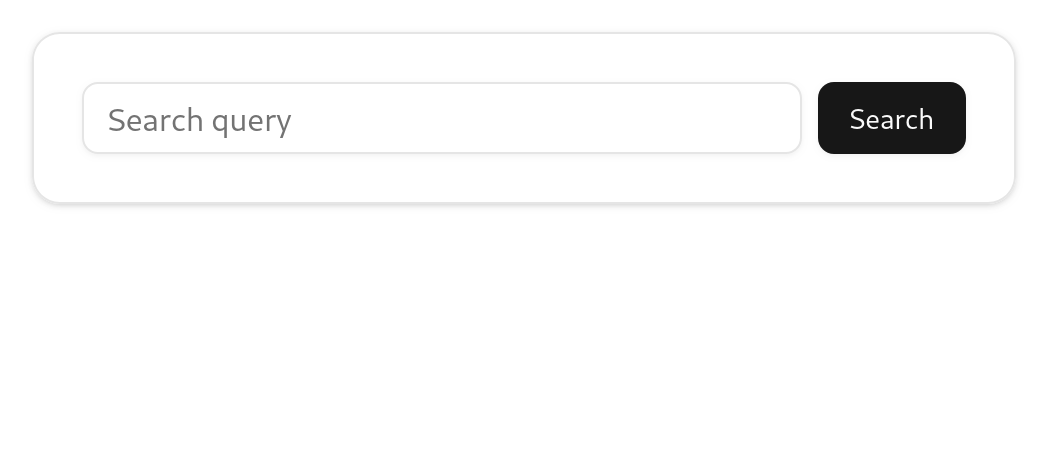
Home page preview
Step2. Initialize Prisma
You can follow this article to initialize the Prisma.
# Install
npm install prisma --save-dev

# Initialize with sqlite
npx prisma init --datasource-provider sqlite
File prisma/schema.prisma is generated.
In the .env file in your root of project, add env var,
DATABASE_URL="file:./dev.db"In your prisma/schema.prisma append following content
model User {
  id        String   @id @default(cuid())
  email     String   @unique
  username  String   @unique
  name      String?
  createdAt DateTime @default(now())
  updatedAt DateTime @updatedAt

  assignedIssues Issue[] @relation("AssignedTo")
  reportedIssues Issue[] @relation("ReportedBy")

  @@map("users")
}

model Issue {
  id          String      @id @default(cuid())
  key         String      @unique
  title       String
  description String?
  status      IssueStatus @default(TODO)
  priority    Priority    @default(MEDIUM)
  type        IssueType   @default(TASK)
  createdAt   DateTime    @default(now())
  updatedAt   DateTime    @updatedAt

  assigneeId String?
  assignee   User?   @relation("AssignedTo", fields: [assigneeId], references: [id])

  reporterId String
  reporter   User   @relation("ReportedBy", fields: [reporterId], references: [id])

  @@map("issues")
}

enum IssueStatus {
  TODO
  IN_PROGRESS
  IN_REVIEW
  DONE
  CANCELLED
}

enum Priority {
  LOWEST
  LOW
  MEDIUM
  HIGH
  HIGHEST
}

enum IssueType {
  BUG
  TASK
  STORY
  EPIC
  SUBTASK
}
Migrate the schema with,
npx prisma migrate dev --name initAfter the above command, your SQLite DB should have the tables, and enums.
This is the snapshot of the code till now: https://github.com/the-sumeet/ql-medium/commit/c78d097c6b3f7bf54207063652ce777e5dbf9cd4
Step 3. Antlr4
Now we shall initialize and use ANTLR4.
Visit this page, and download ANTLR4 tool which is in jar file.
Direct link: https://www.antlr.org/download/antlr-4.13.2-complete.jar
Currently, 4.13.2 version was latest, so, I’m using that.
Install the antlr4 JavaScript package from NPM.
npm i antlr4Write a grammar for query language in Ql.g4 file in root of your project.
grammar Ql;

// Parser rules
query
    : expression EOF
    ;

expression
    : expression AND expression     # andExpression
    | expression OR expression      # orExpression
    | NOT expression               # notExpression
    | LPAREN expression RPAREN     # parenthesizedExpression
    | condition                    # atomicExpression
    ;

condition
    : field operator value         # comparisonCondition
    | field IN LPAREN valueList RPAREN  # inCondition
    | field NOT_IN LPAREN valueList RPAREN  # notInCondition
    | field CONTAINS value         # containsCondition
    | field NOT_CONTAINS value     # notContainsCondition
    | field IS EMPTY               # isEmptyCondition
    | field IS NOT EMPTY           # isNotEmptyCondition
    ;

operator
    : EQ | NE | LT | LE | GT | GE
    ;

valueList
    : value (COMMA value)* ?
    ;

value
    : STRING                       # stringValue
    | NUMBER                       # numberValue
    | BOOLEAN                      # booleanValue
    | DATE                         # dateValue
    | NULL                         # nullValue
    | function                     # functionValue
    ;

function
    : IDENTIFIER LPAREN (value (COMMA value)*)? RPAREN
    ;

field
    : IDENTIFIER (DOT IDENTIFIER)*
    ;

// Lexer rules
// Operators
EQ          : '=' ;
NE          : '!=' | '<>' ;
LT          : '<' ;
LE          : '<=' ;
GT          : '>' ;
GE          : '>=' ;

// Keywords
AND         : [Aa][Nn][Dd] ;
OR          : [Oo][Rr] ;
NOT         : [Nn][Oo][Tt] ;
IN          : [Ii][Nn] ;
NOT_IN      : [Nn][Oo][Tt] WS+ [Ii][Nn] ;
CONTAINS    : [Cc][Oo][Nn][Tt][Aa][Ii][Nn][Ss] ;
NOT_CONTAINS: [Nn][Oo][Tt] WS+ [Cc][Oo][Nn][Tt][Aa][Ii][Nn][Ss] ;
IS          : [Ii][Ss] ;
EMPTY       : [Ee][Mm][Pp][Tt][Yy] ;

// Literals
STRING      : '"' (~["\r\n] | '""')* '"'
            | '\'' (~['\r\n] | '\'\'')* '\''
            ;
NUMBER      : '-'? [0-9]+ ('.' [0-9]+)? ;
BOOLEAN     : [Tt][Rr][Uu][Ee] | [Ff][Aa][Ll][Ss][Ee] ;
DATE        : [0-9]{4} '-' [0-9]{2} '-' [0-9]{2}
            | [0-9]{4} '/' [0-9]{2} '/' [0-9]{2}
            | [0-9]{2} '/' [0-9]{2} '/' [0-9]{4}
            ;
NULL        : [Nn][Uu][Ll][Ll] ;

// Identifiers
IDENTIFIER  : [a-zA-Z_] [a-zA-Z0-9_]* ;

// Punctuation
LPAREN      : '(' ;
RPAREN      : ')' ;
COMMA       : ',' ;
DOT         : '.' ;

// Whitespace
WS          : [ \t\r\n]+ -> skip ;

// Comments
LINE_COMMENT : '//' ~[\r\n]* -> skip ;
BLOCK_COMMENT: '/*' .*? '*/' -> skip ;
You can go through the grammar, to understand it, and make changes if you want any.
Run the following command in the root of your project. This will generate the parser for language defined by the above grammar.
- This will generate visitor pattern.
- Will generate parser in
src/libdirectory. - Grammar name
Qlshould be the same for filename and on the first line of the file, i.e.grammar Ql;.
java -jar antlr-4.13.2-complete.jar -Dlanguage=JavaScript -visitor -o src/lib Ql.g4After the above command, the following files should be created.
src/lib/QLLexer.interp
src/lib/QLLexer.js
src/lib/QLLexer.tokens
src/lib/Ql.interp
src/lib/Ql.tokens
src/lib/QlLexer.interp
src/lib/QlLexer.js
src/lib/QlLexer.tokens
src/lib/QlListener.js
src/lib/QlParser.js
src/lib/QlVisitor.js
Code snapshot: https://github.com/the-sumeet/ql-medium/commit/6cfaddbea177d22c54d3fa2d4825515150d29480
Step 4. Implement Visitor Class
Now, we have to create a visitor class, the object of which will visit the tokens of our query, and will form a prisma query.
ANTLR4 has already generated abstract visitor class in src/lib/QlVisitor.js, we just have to implement concrete class with concrete methods.
We shall have a visit method for all the rules in our grammar, which will be executed when that rule is parsed. For example, the method visitOrExpression will be executed when or part of the query is visited by a visitor, and, visitContainsCondition will be executed when contains condition expression is executed.
The idea is, we shall return the prisma query from those visitor methods. For example, this is the implementation of visitComparisoCondition.
  visitComparisonCondition = (ctx: any) => {
      const field = this.visit(ctx.field());
      const operator = ctx.operator().getText();
      const value = this.visit(ctx.value());

      const condition: any = {};
      switch (operator) {
          case '=':
              condition[field] = value;
              break;
          case '!=':
          case '<>':
              condition[field] = { not: value };
              break;
          case '<':
              condition[field] = { lt: value };
              break;
          case '<=':
              condition[field] = { lte: value };
              break;
          case '>':
              condition[field] = { gt: value };
              break;
          case '>=':
              condition[field] = { gte: value };
              break;
      }
      return condition;
};- When comparison rule is visited, syntax of which is
field operator value. - We check based on the operator used, we form a prisma query, like
{ lt: value }for<operator. - So, all the methods return some kind of prisma query.
So, in file src/lib/generator/prisma.ts, paste the following content.
import QlVisitor from "$lib/QlVisitor";
interface PrismaWhere {
    AND?: PrismaWhere[];
    OR?: PrismaWhere[];
    NOT?: PrismaWhere;
    [key: string]: any;
}

interface PrismaQuery {
    where: PrismaWhere;
}

class QueryToPrismaGenerator extends QlVisitor<any> {
    private prismaQuery: PrismaQuery = { where: {} };

    constructor() {
        super();
    }

    public generate(): PrismaQuery {
        return this.prismaQuery;
    }

    visitQuery = (ctx: any) => {
        const whereClause = this.visit(ctx.expression());
        this.prismaQuery.where = whereClause || {};
        return this.prismaQuery;
    };

    visitOrExpression = (ctx: any) => {
        const left = this.visit(ctx.expression(0));
        const right = this.visit(ctx.expression(1));
        return { OR: [left, right].filter(Boolean) };
    };

    visitAndExpression = (ctx: any) => {
        const left = this.visit(ctx.expression(0));
        const right = this.visit(ctx.expression(1));
        return { AND: [left, right].filter(Boolean) };
    };

    visitNotExpression = (ctx: any) => {
        const expr = this.visit(ctx.expression());
        return { NOT: expr };
    };

    visitParenthesizedExpression = (ctx: any) => {
        return this.visit(ctx.expression());
    };

    visitAtomicExpression = (ctx: any) => {
        return this.visit(ctx.condition());
    };

    visitComparisonCondition = (ctx: any) => {
        const field = this.visit(ctx.field());
        const operator = ctx.operator().getText();
        const value = this.visit(ctx.value());

        const condition: any = {};
        switch (operator) {
            case '=':
                condition[field] = value;
                break;
            case '!=':
            case '<>':
                condition[field] = { not: value };
                break;
            case '<':
                condition[field] = { lt: value };
                break;
            case '<=':
                condition[field] = { lte: value };
                break;
            case '>':
                condition[field] = { gt: value };
                break;
            case '>=':
                condition[field] = { gte: value };
                break;
        }
        return condition;
    };

    visitInCondition = (ctx: any) => {
        const field = this.visit(ctx.field());
        const values = this.visit(ctx.valueList());
        const condition: any = {};
        condition[field] = { in: values };
        return condition;
    };

    visitNotInCondition = (ctx: any) => {
        const field = this.visit(ctx.field());
        const values = this.visit(ctx.valueList());
        const condition: any = {};
        condition[field] = { notIn: values };
        return condition;
    };

    visitContainsCondition = (ctx: any) => {
        const field = this.visit(ctx.field());
        const value = this.visit(ctx.value());
        const condition: any = {};
        condition[field] = { contains: value };
        return condition;
    };

    visitNotContainsCondition = (ctx: any) => {
        const field = this.visit(ctx.field());
        const value = this.visit(ctx.value());
        const condition: any = {};
        condition[field] = { not: { contains: value } };
        return condition;
    };

    visitIsEmptyCondition = (ctx: any) => {
        const field = this.visit(ctx.field());
        const condition: any = {};
        condition[field] = null;
        return condition;
    };

    visitIsNotEmptyCondition = (ctx: any) => {
        const field = this.visit(ctx.field());
        const condition: any = {};
        condition[field] = { not: null };
        return condition;
    };

    visitField = (ctx: any) => {
        return ctx.getText();
    };

    visitValueList = (ctx: any) => {
        const values = [];
        for (let i = 0; i < ctx.children.length; i++) {
            const child = ctx.children[i];
            // Skip LPAREN, RPAREN, and COMMA tokens, only process value nodes
            if (child.constructor.name.includes('ValueContext')) {
                values.push(this.visit(child));
            }
        }
        return values;
    };

    visitStringValue = (ctx: any) => {
        const text = ctx.getText();
        return text.slice(1, -1); // Remove quotes
    };

    visitNumberValue = (ctx: any) => {
        return parseFloat(ctx.getText());
    };

    visitBooleanValue = (ctx: any) => {
        return ctx.getText().toLowerCase() === 'true';
    };

    visitDateValue = (ctx: any) => {
        return new Date(ctx.getText());
    };

    visitNullValue = (ctx: any) => {
        return null;
    };

    visitFunctionValue = (ctx: any) => {
        const functionCtx = ctx.function_();
        const functionName = functionCtx.IDENTIFIER().getText();
        const args = functionCtx.value() ? functionCtx.value().map(v => this.visit(v)) : [];

        switch (functionName.toLowerCase()) {
            case 'now':
                return new Date();
            case 'today':
                const today = new Date();
                today.setHours(0, 0, 0, 0);
                return today;
            default:
                return { [functionName]: args };
        }
    };

}

export default QueryToPrismaGenerator;
Also, we shall create one error listener class as well, to catch the error in query syntax.
In src/lib/generator/errorListener.ts, paste the following content.
import * as antlr4 from 'antlr4';

export class QueryErrorListener extends antlr4.ErrorListener<any> {
    private errors: string[] = [];

    syntaxError(recognizer: any, offendingSymbol: any, line: number, column: number, msg: string, e: any) {
        const errorMsg = `Line ${line}:${column} - ${msg}`;
        this.errors.push(errorMsg);
    }

    reportAmbiguity(recognizer: any, dfa: any, startIndex: number, stopIndex: number, exact: boolean, ambigAlts: any, configs: any) {
        // Handle ambiguity errors if needed
    }

    reportAttemptingFullContext(recognizer: any, dfa: any, startIndex: number, stopIndex: number, conflictingAlts: any, configs: any) {
        // Handle full context attempts if needed
    }

    reportContextSensitivity(recognizer: any, dfa: any, startIndex: number, stopIndex: number, prediction: number, configs: any) {
        // Handle context sensitivity if needed
    }

    getErrors(): string[] {
        return this.errors;
    }

    hasErrors(): boolean {
        return this.errors.length > 0;
    }

    clear(): void {
        this.errors = [];
    }
}
Code snapshot: https://github.com/the-sumeet/ql-medium/commit/d00f30381a7072de658fc5b553cdbeb66e83e9a1
Step 5. Create API endpoint, to search data
Now, we shall create an API endpoint, where the user’s query will be parsed, and converted to prisma query, and that prisma query will be used to fetch the data from the database.
First, create a util function in src/lib/utils.ts to parse the input string with parser, and execute the visitor on the parse tree.
export function parseQuery(queryString: string) {
    const inputStream = new InputStream(queryString);
    const lexer = new QlLexer(inputStream);
    const tokenStream = new CommonTokenStream(lexer);
    const parser = new QlParser(tokenStream);

    const errorListener = new QueryErrorListener();
    parser.removeErrorListeners(); // Remove default console error listener
    parser.addErrorListener(errorListener);
    lexer.removeErrorListeners(); // Remove default console error listener
    lexer.addErrorListener(errorListener);

    const parseTree = parser.query();

    // Check for parsing errors
    if (errorListener.hasErrors()) {
        throw new Error(errorListener.getErrors().join('\n'));
    }

    const generator = new QueryToPrismaGenerator();
    const prismaQuery = generator.visitQuery(parseTree);

    return prismaQuery;
}
- First, we’re creating a parse tree from input string with parser.
- We have added our custom error listeners to collect the errors.
- If our error listeners have errors, we’re throwing those without moving forward with the function.
- If no error in the input string, we’re executing the visitor on the parse tree to create prisma query.
Now we will create an API endpoint which will take the string query entered by the user in the query parameter query of the API endpoint.
import { json } from '@sveltejs/kit';
import { PrismaClient } from '@prisma/client';
import { type RequestHandler } from '@sveltejs/kit';
import { parseQuery } from '$lib/utils';

const prisma = new PrismaClient();

export const GET: RequestHandler = async ({ url }) => {

    const query = url.searchParams.get('query');
    let prismaWhere = {};

    if (query) {
        try {
            const prismaQuery = parseQuery(query);
            console.log("Prisma Query:", JSON.stringify(prismaQuery));
            prismaWhere = prismaQuery.where || {};

        } catch (e) {
            console.error("Error parsing query:", e);

            return json({ error: (e as Error).message }, { status: 400 });
        }
    }

    try {
        const issues = await prisma.issue.findMany({
            where: prismaWhere
        });

        return json(issues);
    } catch (error) {
        console.error('Error fetching issues:', error);
        return json({ error: 'Failed to fetch issues' }, { status: 500 });
    }
};- This API endpoint creates the prisma query from the string given by the user with
parseQuerythe function we’ve created. - If
parseQuerythrows error, we’re sending500to user. It should be 400, But I’m not worried about the status code now. - Next, we’re using prisma query outputted by the
parseQueryfunction in the actual prismafindManycall, and returning the result to the user.
Change the src/routes/+page.svelte to send API query when we press the submit button.
<script lang="ts">
    import * as Card from "$lib/components/ui/card/index.js";
    import { Input } from "$lib/components/ui/input/index.js";
    import { Button } from "$lib/components/ui/button/index.js";

    let query: string = $state("");
    let issues: any[] = $state([]);

    function onsearch() {
        fetch(`/api/issues?query=${query}`).then(async (response) => {
            if (response.ok) {
                issues = await response.json();
                console.log(issues);
            }
        });
    }
</script>

<div class="flex flex-col w-full items-center p-4">
    <Card.Root class="w-full">
        <Card.Content class="flex gap-2">
                <Input
                        bind:value={query}
                        type="text"
                        placeholder="Type your query "
                        class="flex-1"
                    />
            <Button onclick={onsearch}>Search</Button>
        </Card.Content>
    </Card.Root>
</div>
Add data in the database
Open the SQLite database in your favorite client, and add the data.
For users table, I’ve added this data.
"id","email","username","name","createdAt","updatedAt"
c8da6dd4-78a6-4bfb-a2e3-4282d94ebf66,sumeet.mathpati@gmail.com,sumeet,Sumeet,"2025-09-09 18:57:51","11-11-1100"
For issues table, I’ve added this data
"id","key","title","description","status","priority","type","createdAt","updatedAt","assigneeId","reporterId"
"0356cc55-bebb-499c-b373-d5ea54e66225",ABC-1,Test ticket,Lorem ipsum,DONE,HIGH,TASK,"2025-09-09 18:51:02","2025-09-09 18:51:02",c8da6dd4-78a6-4bfb-a2e3-4282d94ebf66,c8da6dd4-78a6-4bfb-a2e3-4282d94ebf66
c8da6dd4-78a6-4bfb-a2e3-4282d94ebf66,ABC-2,Test ticket 2,Lorem ipsum,TODO,MEDIUM,TASK,"2025-09-09 18:51:02","2025-09-09 18:51:02",c8da6dd4-78a6-4bfb-a2e3-4282d94ebf66,c8da6dd4-78a6-4bfb-a2e3-4282d94ebf66
Some fixes
In prisma/schema.prisma, we don’t need any output path, so the generator client should look like this
generator client {
  provider = "prisma-client-js"
}
After that, run command
npx prisma generateand restart the app.
Try writing query.
Now, if you type title contains “ticket” in the input box, and press Search button. The GET request will be sent to the API service, and you should see the repose with two issues.
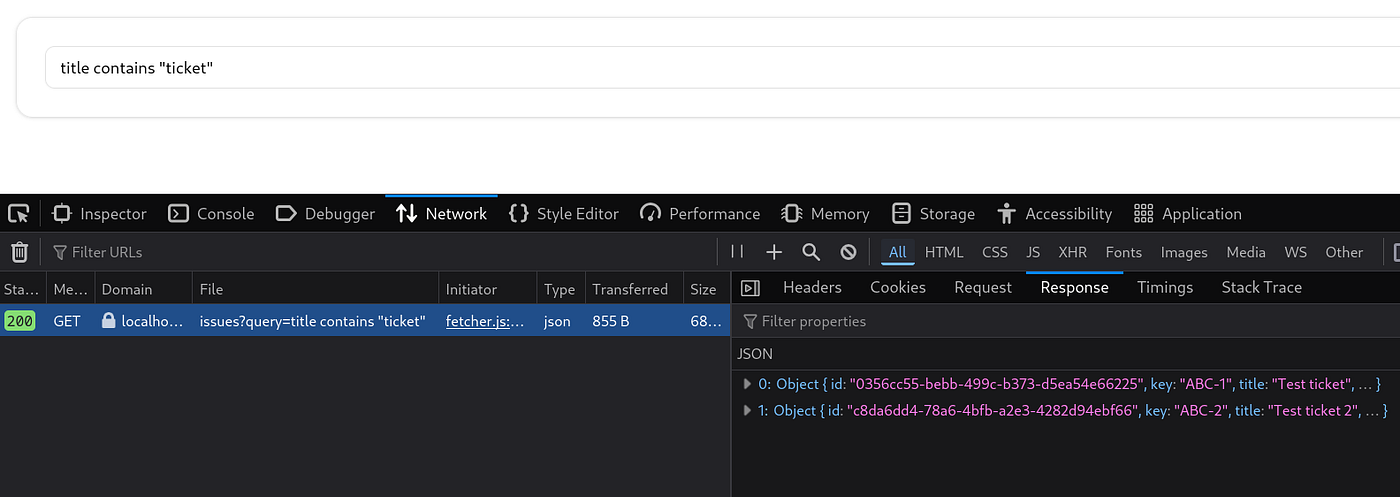
Code snapshot: https://github.com/the-sumeet/ql-medium/commit/43bc21533ff7c65c18289df051245d99a6ec0523
Step 6. Show issues on UI
We will need some components from shadcn, so, let’s download those first.
npx shadcn-svelte add badge tableMake following changes in the +page.svelte file.
<script lang="ts">
    import * as Card from "$lib/components/ui/card/index.js";
    import { Input } from "$lib/components/ui/input/index.js";
    import { Button } from "$lib/components/ui/button/index.js";
    import * as Table from "$lib/components/ui/table/index.js";
        import { Badge } from "$lib/components/ui/badge/index.js";

    let query: string = $state("");
    let issues: any[] = $state([]);

    function onsearch() {
        fetch(`/api/issues?query=${query}`).then(async (response) => {
            if (response.ok) {
                issues = await response.json();
                console.log(issues);
            }
        });
    }
</script>

<div class="flex flex-col w-full items-center p-4">
    <Card.Root class="w-full">
        <Card.Content class="flex gap-2 flex-col">
            <div class="w-full flex gap-2">
                <Input
                    bind:value={query}
                    type="text"
                    placeholder="Type your query "
                    class="flex-1"
                />
                <Button onclick={onsearch}>Search</Button>
            </div>

            {#if issues && issues.length > 0}
                <Table.Root>
                    <!-- <Table.Caption
                        >A list of your recent invoices.</Table.Caption
                    > -->
                    <Table.Header>
                        <Table.Row>
                            <Table.Head class="">Title</Table.Head>
                            <Table.Head>Status</Table.Head>
                            <Table.Head>Description</Table.Head>
                            <Table.Head class="text-right">Prioritys</Table.Head
                            >
                        </Table.Row>
                    </Table.Header>
                    <Table.Body>
                        {#each issues as issue}
                            <Table.Row>
                                <Table.Cell class="font-medium"
                                    >{issue.title}</Table.Cell
                                >
                                <Table.Cell
                                    ><Badge variant="secondary"
                                        >{issue.status}</Badge
                                    ></Table.Cell
                                >
                                <Table.Cell>{issue.description}</Table.Cell>
                                <Table.Cell class="text-right"
                                    >{issue.priority}</Table.Cell
                                >
                            </Table.Row>
                        {/each}
                    </Table.Body>
                </Table.Root>
            {/if}
        </Card.Content>
    </Card.Root>
</div>
After this, our app is complete.
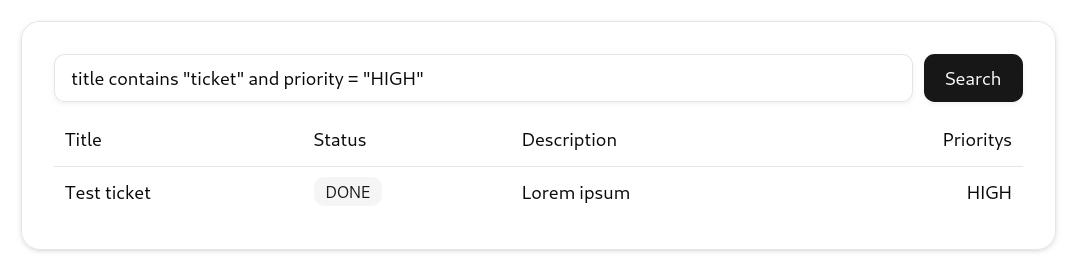
Final code: https://github.com/the-sumeet/ql-medium
메타데이터
- post_id
- fa9dc7e72d64
- slug
- how-can-we-create-jiras-jql-like-query-language-and-feature-for-our-app-fa9dc7e72d64
- url
- https://medium.com/@yetanotherprogrammingblog/how-can-we-create-jiras-jql-like-query-language-and-feature-for-our-app-fa9dc7e72d64
- canonical_url
- https://medium.com/@yetanotherprogrammingblog/how-can-we-create-jiras-jql-like-query-language-and-feature-for-our-app-fa9dc7e72d64
- author_url
- https://medium.com/@yetanotherprogrammingblog
- status
- ok
- fetched_at
- 2026-06-24 13:29:15