A Beginner’s Guide to Setting Up Terraform for AWS in VS Code (Step-by-Step)
If you’re starting your Infrastructure as Code (IaC) journey, this guide will help you set up Terraform with AWS in Visual Studio Code from…
A Beginner’s Guide to Setting Up Terraform for AWS in VS Code (Step-by-Step)
If you’re starting your Infrastructure as Code (IaC) journey, this guide will help you set up Terraform with AWS in Visual Studio Code from scratch. By the end of this tutorial, you’ll create your first AWS resource and understand how everything works behind the scenes.
Why I Wrote This Guide
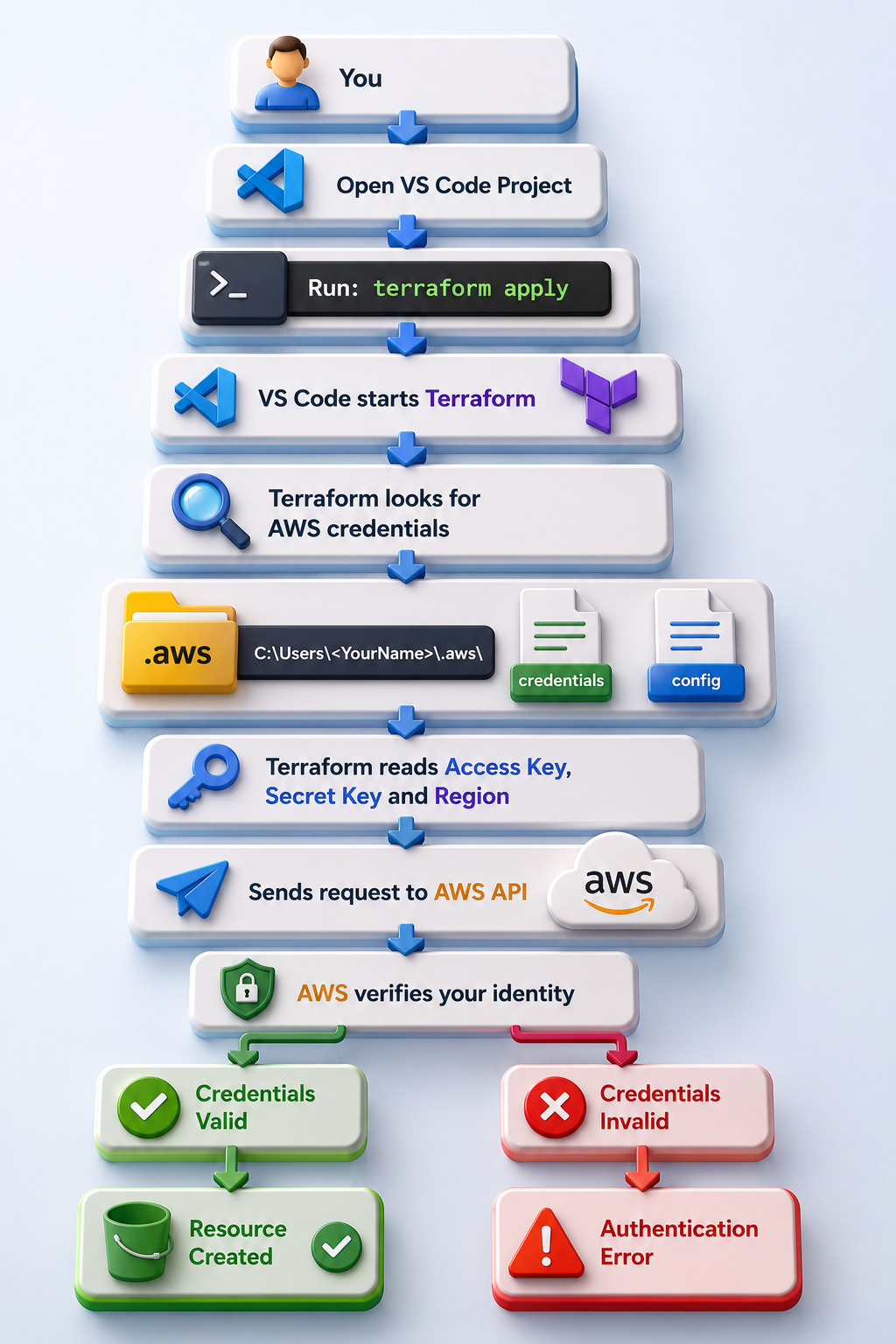
When I first started learning Terraform, I had one question that kept bothering me:
“I configured AWS in Command Prompt, so how does Terraform inside VS Code connect to my AWS account?”
It felt like magic.
After spending some time understanding how Terraform, AWS CLI, and VS Code work together, everything finally clicked.
If you have the same confusion, this guide is for you.
Let’s get started.
Step 1: Create an AWS Account
If you don’t already have one, create a free AWS account. After signing in, open the AWS Management Console.
Step 2: Create an IAM User
Instead of using your root account, create an IAM user.
**AWS Console
↓ IAM ↓ Users ↓ Create User**
Give the user a name.
For learning purposes, you can attach: AdministratorAccess
Note: In production, always use the principle of least privilege.
Create an Access Key for the user. AWS will provide:
AWS Access Key ID
AWS Secret Access Key
Keep them safe because you’ll need them in the next step.
Step 3: Install AWS CLI
Download and install AWS CLI.
Verify the installation:
aws — version
Example output: aws-cli/2.x.x
Step 4: Configure AWS CLI
Run: aws configure
You’ll be asked for:
AWS Access Key ID AWS Secret Access Key Default Region Output Format
->Example:
AWS Access Key ID: AKIA… AWS Secret Access Key: ** Default Region: ap-south-1 Output Format: json**
Congratulations!
Your AWS credentials are now stored on your computer.
Step 5: Where Are the Credentials Stored?
This is one of the most important things every beginner should know.
Running: aws configure does not save credentials inside Command Prompt. Instead, Windows creates these files: C:\Users\<YourName>.aws\
Inside you’ll find: credentials & config These files are used by many AWS tools, including Terraform.
Step 6: Install Terraform
Download Terraform from the HashiCorp website or install it using Winget.
Verify the installation:
terraform -versionExample:
Terraform v1.15.xStep 7: Install Visual Studio Code
Install VS Code.
Recommended extensions:
- HashiCorp Terraform
- AWS Toolkit
- Error Lens
These extensions make writing Terraform much easier.
Step 8: Create a Terraform Project
Create a folder:
Terraform/Inside it, create:
provider.tf
main.tf
variables.tf
outputs.tf
Step 9: Configure the AWS Provider
Open provider.tf
terraform {
  required_providers {
    aws = {
      source  = "hashicorp/aws"
      version = "~> 6.0"
    }
  }
}
provider "aws" {
  region = "ap-south-1"
}
This tells Terraform:
Use AWS
Use version 6.x
Deploy resources in Mumbai (
ap-south-1)
Step 10: Create Your First AWS Resource
Open main.tf
resource "aws_s3_bucket" "demo_bucket" {
  bucket = "your-unique-bucket-name"

  tags = {
    Name = "Terraform Demo"
   }
}
Tip: S3 bucket names must be globally unique.
Step 11: Initialize Terraform
Inside VS Code Terminal:
terraform initTerraform downloads the AWS Provider.
If successful, you’ll see:
Terraform has been successfully initialized!Step 12: Validate the Configuration
terraform validateExpected:
Success! The configuration is valid.Step 13: Preview the Changes
terraform planTerraform will show:
1 resource to addNothing is created yet.
You’re only previewing the changes.
tep 14: Create the Bucket
Run:
terraform applyType:
yesTerraform sends the request to AWS.
Within a few seconds, your S3 bucket is created.
tep 15: Verify It
Open:
AWS Console
↓
Amazon S3
You should see your bucket.
Or run:
aws s3 lstep 16: Delete the Bucket
When you’re finished learning:
terraform destroyType:
yesTerraform deletes the bucket.
메타데이터
- post_id
- fbeca9393d49
- slug
- a-beginners-guide-to-setting-up-terraform-for-aws-in-vs-code-step-by-step-fbeca9393d49
- url
- https://medium.com/@rashed.official23/a-beginners-guide-to-setting-up-terraform-for-aws-in-vs-code-step-by-step-fbeca9393d49
- canonical_url
- https://medium.com/@rashed.official23/a-beginners-guide-to-setting-up-terraform-for-aws-in-vs-code-step-by-step-fbeca9393d49
- author_url
- https://medium.com/@rashed.official23
- status
- ok
- fetched_at
- 2026-07-15 14:03:45