Creating a Oracle Database Link to connect MS SQL Server using ODBC Driver.
Connecting MS SQL Server from Oracle Database using Database Link
Creating a Database Link in Oracle 19c Database to connect MS SQL Server using ODBC Driver.

AI generated Image
Prerequisite:
- MS SQL Server with a SQL Authenticated User.
CREATE LOGIN Sivakumar WITH PASSWORD = 'Doyen@123',
CHECK_POLICY = OFF;
SELECT name, type_desc, is_disabled
FROM sys.server_principals
WHERE name = 'Sivakumar'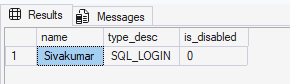
0 means enabled, 1 means disabled
- MS SQL Server should allow remote connections.
EXEC sys.sp_configure 'remote access';To check the remote access,
For Default Instance:

DOYENLTP1518 → Hostname
1433 → Port
Sivakumar → SQL Authenticated User
Doyen@123 → Password for the User.
For Named Instance:

Named Instance → MSSQLSERVER
Connection can be established.
-
Install Microsoft ODBC Driver in Oracle Server.
-
Edit odbc.ini file and Test the connectivity in Oracle Server
-
Create initMSSQL.ora file in Oracle Server.
-
Configure tnsnames and listener.ora files.
7.Create Database Link and check the connectivity.
Configuring ODBC Driver:
- Install Driver Manager for ODBC Driver — unixODBC
sudo yum install unixODBC unixODBC-devel -y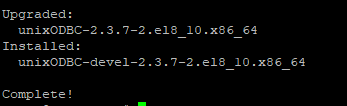
unixODBC Installed
- Install Microsoft ODBC Driver. ( Use this Link → https://learn.microsoft.com/en-us/sql/connect/odbc/linux-mac/installing-the-microsoft-odbc-driver-for-sql-server?view=sql-server-ver17&tabs=alpine18-install%2Credhat17-install%2Cdebian8-install%2Credhat7-13-install%2Crhel7-offline#17)
For Linux 8 :
curl -sSL -O https://packages.microsoft.com/config/rhel/8/packages-microsoft-prod.rpm
Package Downloaded
Install the Package:
sudo yum install packages-microsoft-prod.rpm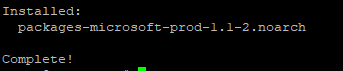
Package Installed
Delete the RPM file:
rm packages-microsoft-prod.rpmInstall the ODBC Driver ,Tools and unixODBC-devel Dependency:
sudo ACCEPT_EULA=Y yum install -y msodbcsql17
sudo ACCEPT_EULA=Y yum install -y mssql-tools
sudo yum install -y unixODBC-devel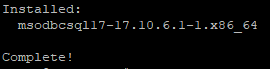
ODBC Driver Installed

MS SQL DB Tools Installed
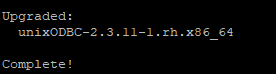
unixODBC-devel Installed
- Make sure file libmsodbcsql-17.so exist in the location /usr/lib64 after packages are installed.

Packages are Installed as needed.
Edit odbc.ini file and Test the connectivity in Oracle Server:
- Edit the odbc.ini file located under /etc, Fill the MS SQL Server details under the [MSSQL] header.
[MSSQLSERVER] ----------------------> This will be the SID of our SQL Server.
Description = MSSQLSERVER
Driver = /usr/lib64/libmsodbcsql-17.so
Server = DOYENLTP1518   --> Hostname or Server Name
User = Sivakumar  --> SQL Authenticated User
Password = Doyen@123 --> User Password
Port = 1433 --> Server Port
Database = DB100 --> Database Name where the user has permission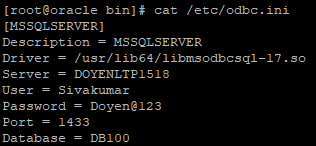
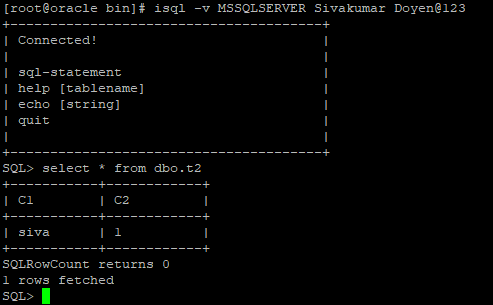
- Check the Connectivity from Oracle to SQL Server.
NOTE: Ensure the Windows Server Firewall allows the inbound connection of TCP 1433.
Check the Server Connectivity,
nc -zv DOYENLTP1518 1433
/opt/mssql-tools/bin/sqlcmd -D -S MSSQLSERVER -U Sivakumar -P Doyen@123
Create initMSSQLSERVER.ora file in Oracle Server:
- Create file initMSSQLSERVER.ora under directory $ORACLE_HOME/hs/admin.
- Add the below Parameters,
vi initMSSQLSERVER.ora

# HS init parameters

HS_FDS_CONNECT_INFO = MSSQLSERVER
HS_FDS_TRACE_LEVEL = user
HS_FDS_SHAREABLE_NAME = /usr/lib64/libmsodbcsql-17.so
HS_FDS_TRACE_FILE_NAME=/tmp/ora_hs_trace.log
HS_NLS_NCHAR = UCS2

# ODBC specific environment variables

set ODBCINI=/etc/odbc.ini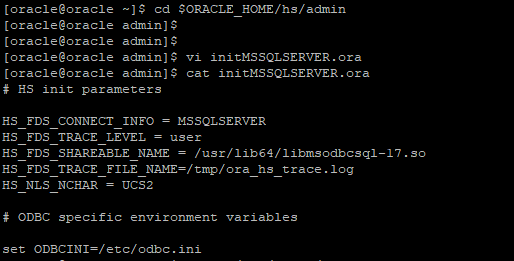
File has been created
Configure tnsname.ora & listener.ora files:
- Navigate to $ORACLE_HOME/network/admin, and add the below entry in listener.ora
SID_LIST_LISTENER =
  (SID_LIST =
      (SID_DESC =
      (PROGRAM = dg4odbc)
      (SID_NAME = MSSQLSERVER)
      (ORACLE_HOME = /u01/apps/oracle/product/home)
      (ENVS=LD_LIBRARY_PATH=/opt/microsoft/msodbcsql17/lib64)
     )
  )

USE_SID_AS_SERVICE_listener=on
lsnrctl reload
lsnrctl status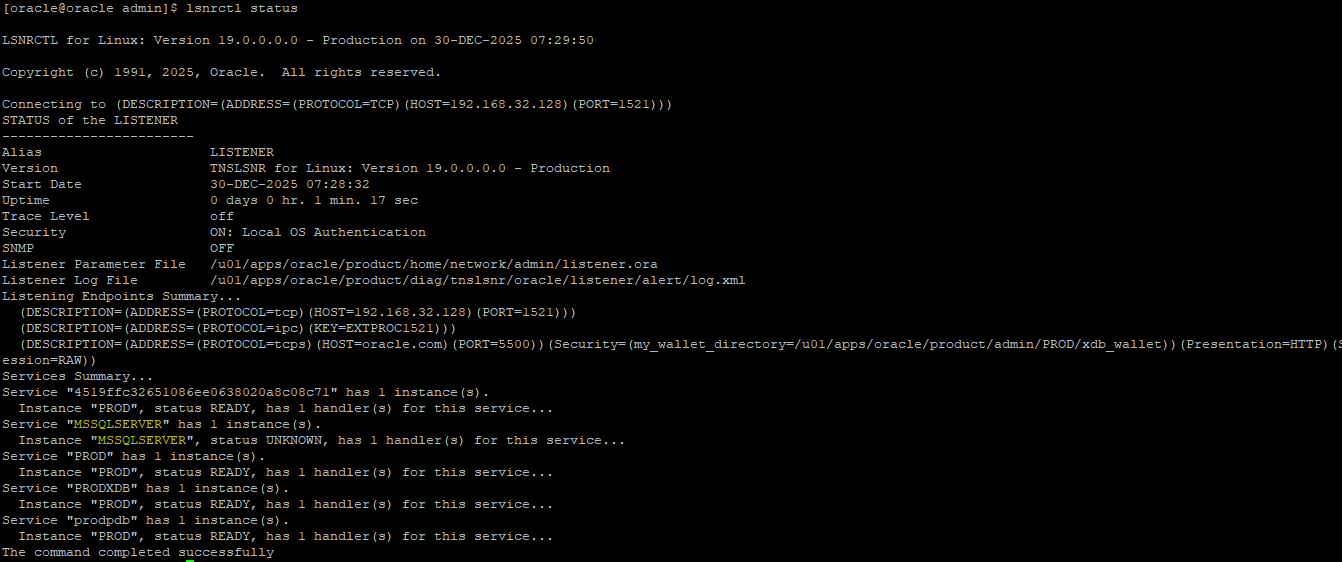
- Now, Add the below entries in tnsnames.ora.
MSSQLSERVER =
  (DESCRIPTION =
    (ADDRESS = (PROTOCOL = TCP)(HOST = 192.168.32.128)(PORT = 1521))
    (CONNECT_DATA =
      (SID = MSSQLSERVER)
    )
    (HS = OK)
  )
SQL Server can be pinged from Oracle Server
Create Database Link and check the connectivity:
- Connect to the Oracle Database and create Database Link.
create public database link MSSQL_DBLINK connect to mssql_user identified by "mssql_password" using 'MSSQLSERVER';
Testing the Database Link:
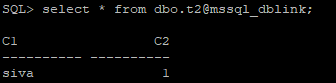
Oracle
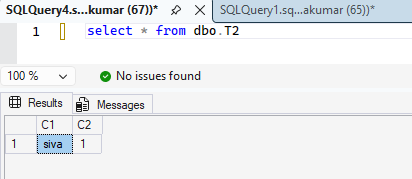
MS SQL Server
Inserting a row:
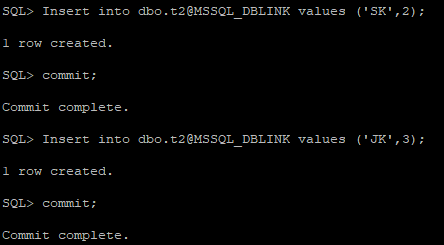
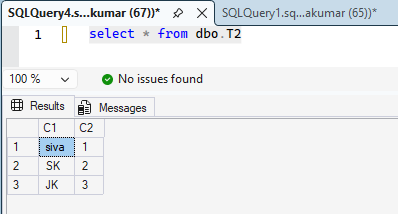
NOTE: Commit should be given for every DML statements or else the command executing based on the table will be in executing state on SQL Server.


메타데이터
- post_id
- fc2622d3ffb6
- slug
- creating-a-oracle-database-link-to-connect-ms-sql-server-using-odbc-driver-fc2622d3ffb6
- url
- https://medium.com/@vsivakumar275/creating-a-oracle-database-link-to-connect-ms-sql-server-using-odbc-driver-fc2622d3ffb6
- canonical_url
- https://medium.com/@vsivakumar275/creating-a-oracle-database-link-to-connect-ms-sql-server-using-odbc-driver-fc2622d3ffb6
- author_url
- https://medium.com/@vsivakumar275
- status
- ok
- fetched_at
- 2026-06-09 15:37:30