How to Export HTML to Word in React: A JavaScript Guide
Generating Word documents from HTML content is a common requirement in modern web applications. However, traditional server‑side…
How to Export HTML to Word in React: A JavaScript Guide
Generating Word documents from HTML content is a common requirement in modern web applications. However, traditional server‑side conversions increase infrastructure costs, introduce latency, and raise data privacy concerns.
In this tutorial, you will learn a pure frontend approach to export HTML to Word in React using Spire.Doc for JavaScript. Powered by WebAssembly, this solution enables client‑side DOCX generation without any backend dependency — ensuring high performance, reduced server load, and enhanced security for sensitive data.
1. Technical Overview
**Spire.Doc for JavaScript** is a professional frontend document processing engine that runs natively in the browser via WebAssembly (WASM). It supports creating, editing, and converting Word documents entirely on the client side.
✅ Core Features
- 100% Frontend Operation — No server‑side dependencies or external API calls.
- Multi‑Format Conversion — Convert HTML to DOCX, DOC, PDF, and more.
- Virtual File System (VFS) — Manage fonts and assets securely within the WASM sandbox.
- Framework Agnostic — Seamlessly integrates with React, Vue, Angular, and vanilla JavaScript.
2. Environment Setup and File Deployment
Before writing the conversion logic, you must configure your React project with the necessary WASM binaries and static assets.
Step 2.1: Install the NPM Package
Run the following command in your React project root:
npm i spire.officeStep 2.2: Deploy Static Resources
Copy the extracted core files into your React application’s public directory so they can be fetched by the WebAssembly runtime:
spire.doc.jsSpire.Doc.Wasm.zipspire.common.jsSpire.Common.Wasm.zip_framework/(entire folder)
Next, create these additional folders to organize your input data and fonts:
public/static/font/– Place font files here (e.g.,CALIBRI.ttf).public/static/data/– Place your sample HTML file here (e.g.,sample.html).
⚠️ Important for Internationalization: If your HTML contains Chinese, Korean, or Japanese characters, you must load a matching font (e.g.,
SimSun.ttforMicrosoft YaHei.ttf) into thepublic/static/font/directory. Failure to do so will result in missing glyphs in the exported document.
3. Step‑by‑Step: Converting HTML to DOCX in React
This section breaks down the JavaScript Word document generation process into four atomic steps.
Step 1: Asynchronous WASM Module Initialization
The WASM bundle is large, so we initialize it lazily when the React component mounts. We use useEffect to load the module and store the instance in state.
🔑 Key implementation details:
- Use
webpackIgnore: truein the dynamicimport()to prevent Webpack from bundling the script. - Override
locateFileto correctly resolve WASM binary paths, especially if your app is served from a sub‑directory. - Disable the conversion button until loading is complete.
Step 2: Injecting Files into the Virtual File System (VFS)
The WASM runtime cannot access your local hard drive; it uses an internal Virtual File System. You must explicitly write the HTML source and font files into this VFS using window.spire.FetchFileToVFS.
💡 Best Practice: Place font files in the
/Library/Fonts/directory within the VFS so the document engine automatically detects them during rendering.
Step 3: Executing the Format Conversion
Once the files are in place, you need just a few lines of JavaScript to convert HTML to DOCX:
- Instantiate a
Documentobject. - Call
LoadFromFilewithFileFormat.Htmland setvalidationTypetoNonefor better tolerance of non‑standard markup. - Call
SaveToFileto render the final DOCX output back into the VFS.
Step 4: Downloading the Result to the Client
The generated DOCX resides in the VFS. To deliver it to the user:
- Read the binary buffer using
FS.readFile. - Wrap it in a Blob with the correct MIME type for Word documents.
- Create an object URL and programmatically trigger a browser download via an anchor tag.
- Clean up the URL object and dispose of the
Documentinstance to prevent WASM memory leaks. 🧹
4. Complete React Component Code
Copy the following optimized React functional component into your project. It includes comprehensive error handling and loading states for a seamless user experience.
import React, { useState, useEffect } from 'react';

function HtmlToWordConverter() {
  const [wasmModule, setWasmModule] = useState(null);
  // Load the WASM module when the component mounts
  useEffect(() => {
    (async () => {
      try {
        const publicUrl = process.env.PUBLIC_URL || '';
        const spireModule = await import(/* webpackIgnore: true */ `${publicUrl}/spire.doc.js`);
        const rawModule = spireModule.default || spireModule;

        window.wasmModule = typeof rawModule === 'function'
          ? await rawModule({
              locateFile: p => p.endsWith('.wasm') ? `${publicUrl}/${p}` : p
            })
          : rawModule;

        setWasmModule(window.wasmModule);
      } catch (error) {
        console.error('Spire.Doc module load failed:', error);
      }
    })();
  }, []);
  // Perform the HTML to Word conversion
  const handleConvert = async () => {
    const wasmAPI = window.wasmModule.spiredoc;
    if (!wasmAPI) return;
    try {
      // 1. Load font into the VFS
      await window.spire.FetchFileToVFS(
        'CALIBRI.ttf',
        '/Library/Fonts/',
        `${process.env.PUBLIC_URL}/static/font/`
      );
      // 2. Load the source HTML file into the VFS root
      const inputFileName = 'sample.html';
      await window.spire.FetchFileToVFS(
        inputFileName,
        '',
        `${process.env.PUBLIC_URL}/static/data/`
      );
      // 3. Initialize document and convert
      const doc = new wasmAPI.Document();
      doc.LoadFromFile({
        fileName: inputFileName,
        fileFormat: wasmAPI.FileFormat.Html,
        validationType: wasmAPI.XHTMLValidationType.None
      });
      const outputFileName = 'HtmlToWord.docx';
      doc.SaveToFile({
        fileName: outputFileName,
        fileFormat: wasmAPI.FileFormat.Docx
      });
      // 4. Export and download
      const fileBuffer = window.dotnetRuntime.Module.FS.readFile(outputFileName);
      const fileBlob = new Blob([fileBuffer], {
        type: "application/vnd.openxmlformats-officedocument.wordprocessingml.document"
      });
      const url = URL.createObjectURL(fileBlob);
      const a = document.createElement('a');
      a.href = url;
      a.download = outputFileName;
      document.body.appendChild(a);
      a.click();
      // Cleanup
      document.body.removeChild(a);
      URL.revokeObjectURL(url);
      doc.Dispose();
    } catch (err) {
      console.error('Conversion failed:', err);
    }
  };
  return (
    <div style={{ textAlign: 'center', padding: '60px 20px' }}>
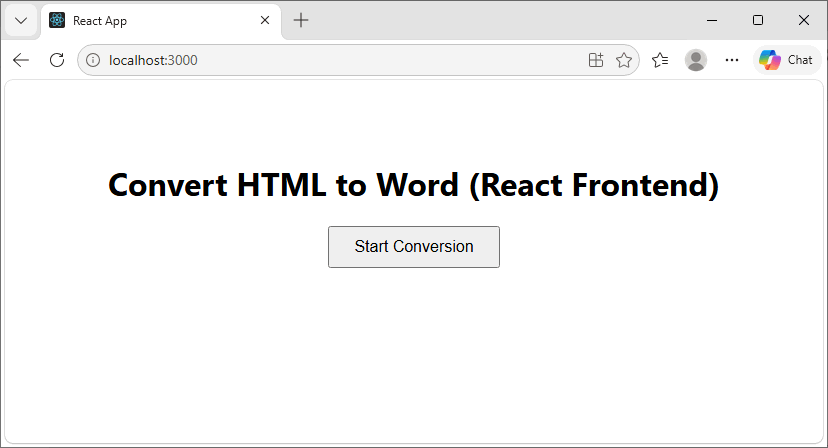
      <h1>Convert HTML to Word (React Frontend)</h1>
      <button
        onClick={handleConvert}
        disabled={!wasmModule}
        style={{ padding: '10px 24px', fontSize: '16px', cursor: 'pointer' }}
      >
        {wasmModule ? '🚀 Start Conversion' : '⏳ Loading Module...'}
      </button>
    </div>
  );
}
export default HtmlToWordConverter;
▶️ Running the Example
- Start your React dev server:
npm start. - The button will be disabled until the WASM engine is ready.
- Click “Start Conversion” — within seconds, the browser will automatically download the generated
HtmlToWord.docxfile.
5. Conclusion and Next Steps
By implementing this browser‑side React HTML‑to‑Word converter, you effectively eliminate backend processing bottlenecks while boosting application speed and data confidentiality.
The four‑step pattern provides a robust foundation for any document‑generation feature:
Module Initialization → Resource Injection → Format Conversion → File Export🚀 What You Can Build Next:
- Rich‑Text Editor Exports — Let users design newsletters and export them directly.
- Dynamic Report Generation — Convert dashboards and analytics into downloadable DOCX reports.
- E‑Signature and Contract Workflows — Generate legally compliant documents without leaving the browser.
The Spire.Doc for JavaScript library is highly extensible. Beyond simple HTML imports, you can programmatically add headers, footers, watermarks, merge multiple documents, and apply advanced table formatting.
메타데이터
- post_id
- fc591269047e
- slug
- how-to-export-html-to-word-in-react-a-javascript-guide-fc591269047e
- url
- https://medium.com/@andrewwil/how-to-export-html-to-word-in-react-a-javascript-guide-fc591269047e
- canonical_url
- https://medium.com/@andrewwil/how-to-export-html-to-word-in-react-a-javascript-guide-fc591269047e
- author_url
- https://medium.com/@andrewwil
- status
- ok
- fetched_at
- 2026-08-18 06:27:20