How I deleted old iCloud backups that were eating my storage
You know the thing when you realize you’ve got backups of backups and those backups were backed up just in case somewhere along the line…
How I deleted old iCloud backups that were eating my storage
Photo by BoliviaInteligente on Unsplash
You know the thing when you realize you’ve got backups of backups and those backups were backed up just in case somewhere along the line you lost that backup…?
That’s pretty much me, or it was.
I noticed last week that I was finally running out of iCloud space, and I needed to take action. The first thing was to check what I actually had, and to my utmost surprise (note the sarcasm), it was all outdated backups.
So, what’s a girl to do when there’s too much data and not enough storage?
Well…
Before I do anything, I…erm…backup…
OK, stay with me here, peeps. There’s method in my madness. I always think that if you’re going to get rid of stuff, it’s important to have it backed up to an external hard drive before deleting the iCloud backup.
If, like me, you’re a Mac user, then CloudMounter is an easy-to-use tool that lets you easily expand storage space on your Mac. It puts all your cloud folders and files into the file manager.
I’m then able to connect all my other cloud storage accounts, in addition to iCloud, Google Drive, Amazon S3, Dropbox, and others, so they all appear in my Mac’s Finder. It makes it easy to access my cloud storage on my laptop as a local drive…
Once that’s done and I know there’s an easily accessible backup of my…backup…I can start deciding what can go and what needs to stay.
I can now start to delete backups from iCloud
Unsure if an iCloud backup is safe to delete? It’s fine to remove iCloud backups for devices you no longer own, old devices no longer in use, or outdated backups of your current phone.
Managing storage on my Apple devices is essential because it keeps all my data safe and secure and ensures there’ll always be enough space for new docs and photos.
It also forces me to occasionally be brutal and get rid of stuff I’ve been hoarding just in case, but never used (and never will).
Now, deleting backups can be done using the built-in tools available to me. There are two ways to do it, from my Mac and from my iPhone or iPad.
To do it from my iPhone (or iPad)
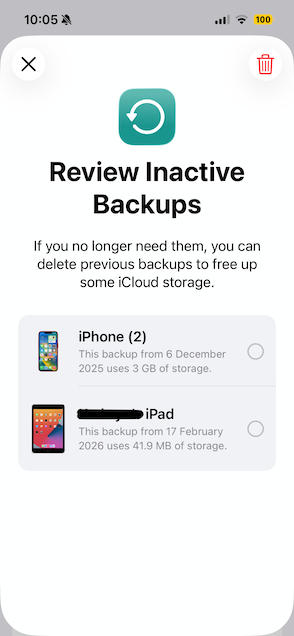
It’s really easy. I go into Settings on my iPhone, select my name, then choose iCloud. From there, I simply select the Storage option, then scroll down to Backups.
Once that’s chosen, I’ve got the option to Review and Delete backups from any of my connected devices.
To do it from my Mac
I’m also able to do it directly from my Mac, and this is how.
I go into Settings from my dock and click my name/photo in the top-left corner. From there, I’ll select iCloud, then click Storage. Once that’s open, I can click on Manage and then backups, et voila:
Go into the backups section, and from there it’ll show all the devices I have:
Note there’s a little minus sign on the left-hand corner of the box. To delete a particular backup, I click it, then press the minus key. All gone!
Back up your data, but do it cautiously!
It’s a simple thing to do, and it can save a lot of space and time. It’s a good idea to keep on top of a process like this, so the job doesn’t end up feeling too unwieldy. I’d recommend setting a regular time frame to do it. Say, every three to six months (or sooner if you notice your storage clogging up before then. It’s easier said than done, I know. One day, your storage can be fine, the next…it’s all eaten up like a tube of Pringles.
So, any other tips I’ve missed? Do let me know how you go about your iCloud backups in the comments!
메타데이터
- post_id
- fcbc920cc567
- slug
- how-i-deleted-old-icloud-backups-fcbc920cc567
- url
- https://medium.com/@polina.fomenkova1/how-i-deleted-old-icloud-backups-fcbc920cc567
- canonical_url
- https://medium.com/@polina.fomenkova1/how-i-deleted-old-icloud-backups-fcbc920cc567
- author_url
- https://medium.com/@polina.fomenkova1
- status
- ok
- fetched_at
- 2026-06-09 15:37:30