Mixed PDFs in One Folder? Auto-Classify Them in Zapier Using PDF4me
If you’re drowning in a mix of invoices, contracts, and receipts — all landing in the same folder — sorting them manually simply doesn’t…
Mixed PDFs in One Folder? Auto-Classify Them in Zapier Using PDF4me
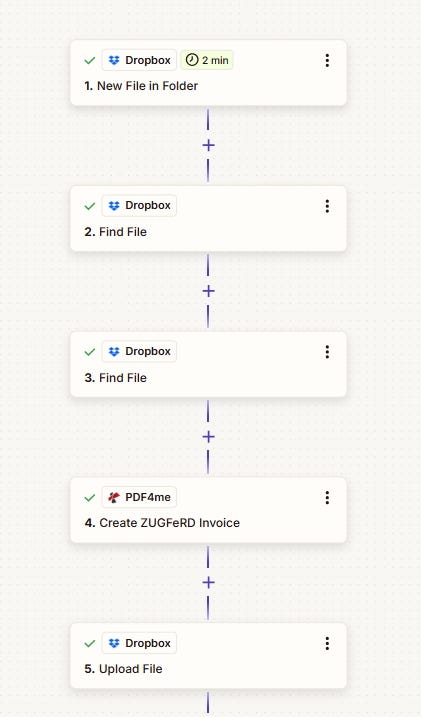
If you’re drowning in a mix of invoices, contracts, and receipts — all landing in the same folder — sorting them manually simply doesn’t scale. Here’s a smarter fix: use PDF4me’s Classify Document action inside Zapier to automatically identify each PDF type and route it accordingly.
The logic is clean: define your classification rules once on dev.pdf4me.com, then let Zapier handle the rest every time a new file arrives.
What You’ll Need
- A PDF4me account — Classification templates live at dev.pdf4me.com. You define matching rules using regex or JavaScript expressions.
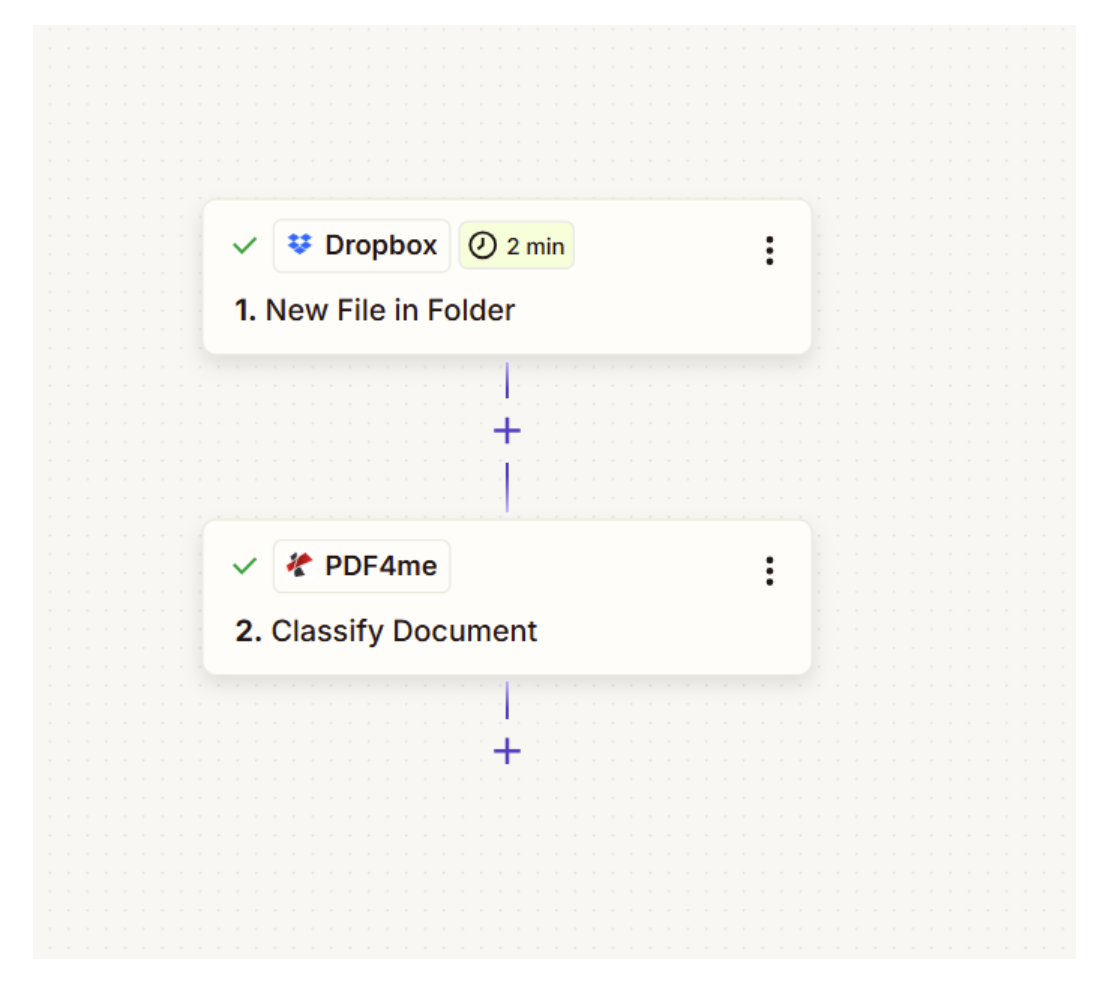
- A Zapier account — You’ll build a two-step Zap.
- A PDF4me API key — Used to connect PDF4me inside Zapier.
- A file source — This guide uses Dropbox (“New File in Folder”), but Google Drive or SharePoint work just as well.
Step 0: Set Up Your Classes on PDF4me First
Before touching Zapier, log in at dev.pdf4me.com and click Classify Document in the sidebar. This is where classification lives — Zapier just sends the file and gets back a result.
Click Edit, then add a class:
- Class Name — This is what Zapier receives (e.g.,
pdf4me_invoice) - Expression type — Choose Regular Expression or JavaScript
- Expression — e.g.,
invoice(.*)to catch any document mentioning "invoice"
Test with a sample file, then hit Save Changes. Your Zap won’t work without this step done first.


The Zap: 2 Steps, Done
Step 1 — Trigger: New File in Folder (Dropbox)
Create a new Zap and set your trigger to Dropbox → New File in Folder. Configure it like this:
- Folder — Path to your watched folder (e.g.,
/Blog Data/Classify Document) - Include files in subfolders? — False (unless you need subfolders)
- Include file contents? — Yes (critical — PDF4me needs the actual bytes)
Test the trigger and confirm you see 1. File, 1. File Name, and 1. File Ext in the output.
Step 2 — Action: Classify Document (PDF4me)
Add PDF4me as your action app and select **Classify Document**. Connect using your API key, then map the fields:
- File →
1. Filefrom the trigger - File Name →
1. File Name+1. File Ext(e.g., Pdf4me + .pdf)
Run a test. The output will include Class Names (e.g., pdf4me_invoice) and a Trace Id. Each classification costs 1 credit.
메타데이터
- post_id
- fd393926c0fd
- slug
- mixed-pdfs-in-one-folder-auto-classify-them-in-zapier-using-pdf4me-fd393926c0fd
- url
- https://medium.com/@pdf4me.ani/mixed-pdfs-in-one-folder-auto-classify-them-in-zapier-using-pdf4me-fd393926c0fd
- canonical_url
- https://medium.com/@pdf4me.ani/mixed-pdfs-in-one-folder-auto-classify-them-in-zapier-using-pdf4me-fd393926c0fd
- author_url
- https://medium.com/@pdf4me.ani
- status
- ok
- fetched_at
- 2026-06-28 04:42:08