SSO- ArgoCD OIDC with Google Workspace
OpenID Connect using Dex This is the recommended login method if you don’t need information about the groups the user’s belongs to. Google…
Secure Argo CD Access with Google Workspace SSO: Step-by-Step Setup
There are different ways to integrate Argo CD login with your Google Workspace users. Generally the OpenID Connect (oidc) method would be the recommended way of doing this integration (and easier, as well…), but depending on your needs, you may choose a different option.
- OpenID Connect using Dex
This is the recommended login method if you don’t need information about the groups the user’s belongs to. Google doesn’t expose the
groupsclaim via oidc, so you won't be able to use Google Groups membership information for RBAC. - OpenID Connect plus Google Groups using Dex This is the recommended method if you need to use Google Groups membership in your RBAC configuration.
we’ll use OpenID Connect plus Google Groups using Dex approach for authentication, using groups from Google Workspace.
We’re going to use Dex’s google connector to get additional Google Groups information from your users, allowing you to use group membership on your RBAC, i.e., giving admin role to the whole sysadmins@yourcompany.com group.
This connector uses two different credentials:
- An oidc client ID and secret Same as when you’re configuring an OpenID connection, this authenticates your users
- A Google service account This is used to connect to the Google Directory API and pull information about your user’s group membership
Also, you’ll need the email address for an admin user on this domain. Dex will impersonate that user identity to fetch user information from the API.
Before you get started…
In order to get the SSO working you need to have the SSL and URL for your server already configured, otherwise, you’ll get errors during the authentication.
Configure your OAuth consent screen
If you’ve never configured this, you’ll be redirected straight to this if you try to create an OAuth Client ID
- Go to your OAuth Consent configuration. If you still haven’t created one, select
InternalorExternaland clickCreate - Go and edit your OAuth consent screen Verify you’re in the correct project!
- Configure a name for your login app and a user support email address
- The app logo and filling the information links is not mandatory, but it’s a nice touch for the login page
- In “Authorized domains”of branding section add the domains who are allowed to log in to ArgoCD (e.g. if you add
example.com, all Google Workspace users with an@example.comaddress will be able to log in) - Save to continue to the “Data access” section
- Click on “Add or remove scopes” and add the
.../auth/userinfo.profileand theopenidscopes - Save, review the summary of your changes and finish
Configure a new OAuth Client ID
- Go to your Google API Credentials console, and make sure you’re in the correct project.
- Click on “+Create Credentials”/”OAuth Client ID”
- Select “Web Application” in the Application Type drop down menu, and enter an identifying name for your app (e.g.
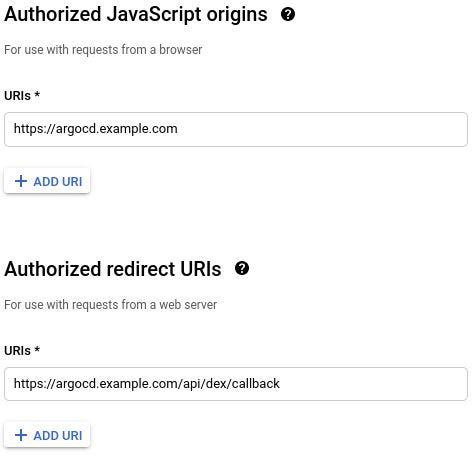
Argo CD) - Fill “Authorized JavaScript origins” with your Argo CD URL, e.g.
[https://argocd.example.com](https://argocd.example.com) - Fill “Authorized redirect URIs” with your Argo CD URL plus
/api/dex/callback, e.g.[https://argocd.example.com/api/dex/callback](https://argocd.example.com/api/dex/callback)
- Click “Create” and save your “Client ID” and your “Client Secret” for later
Create a service account:
- In the Google Cloud console, go to Menu menu > IAM & Admin > Service Accounts.
- Go to Service Accounts
- Click Create service account.
- Fill in the service account details, then click Create and continue
- Select the created service account.
- Click Keys > Add key > Create new key.
- Select JSON, then click Create.
- Your new public/private key pair is generated and downloaded to your machine as a new file.
- Click Close.
Set up domain-wide delegation for a service account
To call APIs on behalf of users in a Google Workspace organization, your service account needs to be granted domain-wide delegation of authority in the Google Workspace Admin console by a super administrator account.
To set up domain-wide delegation of authority for a service account:
- In the Google Cloud console, go to Menu menu > IAM & Admin > Service Accounts.
- Go to Service Accounts
- Select the created service account.
- Click Show advanced settings.
- Under “Domain-wide delegation,” find your service account’s “Client ID.” Click Copy content_copy to copy the client ID value to your clipboard.
- If you have super administrator access to the relevant Google Workspace account, click View Google Workspace Admin Console, then sign in using a super administrator user account and continue following these steps.
- If you don’t have super administrator access to the relevant Google Workspace account, contact a super administrator for that account and send them your service account’s Client ID and list of OAuth Scopes so they can complete the following steps in the Admin console.
- In the Google Admin console, go to Menu menu > Security > Access and data control > API controls Go to API controls
- Click Manage Domain Wide Delegation.
- Click Add new.
- In the “Client ID” field, paste the client ID that you previously copied.
- In the “OAuth Scopes” field,
https://www.googleapis.com/auth/admin.directory.group.readonlypaste this scope and nothing else. If you assign any other scopes, you won't be able to fetch information from the API - Click Authorize.
- Enable the Admin SDK API in the same project
Configure Dex
- Create a secret with the contents of the previous json file encoded in base64, like this:
apiVersion: v1
kind: Secret
metadata:
  name: argocd-google-groups-json
  namespace: argocd
data:
googleAuth.json: JSON_FILE_BASE64_ENCODED- create a secret for Client Secret we got from
Configure a new OAuth Client IDstep
apiVersion: v1
kind: Secret
metadata:
  name: argocd-cm-dex-secret
  namespace: argocd
  labels:
    app.kubernetes.io/part-of: argocd
type: Opaque
data:
  ...
  # Store client secret like below.
  # Ensure the secret is base64 encoded
oidc.auth0.clientSecret: <client-secret-base64-encoded- Edit your
argocd-dex-serverdeployment to mount that secret as a file
- Add a volume mount in
/spec/template/spec/containers/0/volumeMounts/like this. Be aware of editing the running container and not the init container!
volumeMounts:
- mountPath: /shared
  name: static-files
- mountPath: /tmp
  name: dexconfig
- mountPath: /tmp/oidc
  name: google-json
readOnly: true- Add a volume in
/spec/template/spec/volumes/like this:
volumes:
- emptyDir: {}
  name: static-files
- emptyDir: {}
  name: dexconfig
- name: google-json
  secret:
    defaultMode: 420
secretName: argocd-google-groups-json- Edit
argocd-cmand add the followingurlanddex.configto the data section, replacingclientIDandclientSecretwith the values you saved before,adminEmailwith the address for the admin user you're going to impersonate, and editingredirectURIwith your Argo CD domain
data:
  url: https://argocd.example.com
  dex.config: |
    connectors:
    - config:
        redirectURI: https://argocd.example.com/api/dex/callback
        clientID: XXXXXXXXXXXXX.apps.googleusercontent.com
        clientSecret: $argocd-cm-dex-secret:oidc.auth0.clientSecret
        serviceAccountFilePath: /tmp/oidc/googleAuth.json
        adminEmail: admin-email@example.com
      type: google
      id: google
name: Google- Restart your
argocd-dex-serverdeployment to be sure it's using the latest configuration
Now you have your ArgoCD configured with Google SSO!

Now you can use groups email addresses to give RBAC permissions
For configuring RBAC refer this: https://medium.com/@vamsinakka949/the-rbac-feature-enables-restrictions-of-access-to-argo-cd-resources-14c1ad653dda
메타데이터
- post_id
- fd82fb3f6ab8
- slug
- there-are-different-ways-to-integrate-argo-cd-login-with-your-google-workspace-users-fd82fb3f6ab8
- url
- https://medium.com/@vamsinakka949/there-are-different-ways-to-integrate-argo-cd-login-with-your-google-workspace-users-fd82fb3f6ab8
- canonical_url
- https://medium.com/@vamsinakka949/there-are-different-ways-to-integrate-argo-cd-login-with-your-google-workspace-users-fd82fb3f6ab8
- author_url
- https://medium.com/@vamsinakka949
- status
- ok
- fetched_at
- 2026-08-08 10:40:55